Learn how to use the Find People app on Apple Watch to see your friends and family members’ locations and share your location with them.
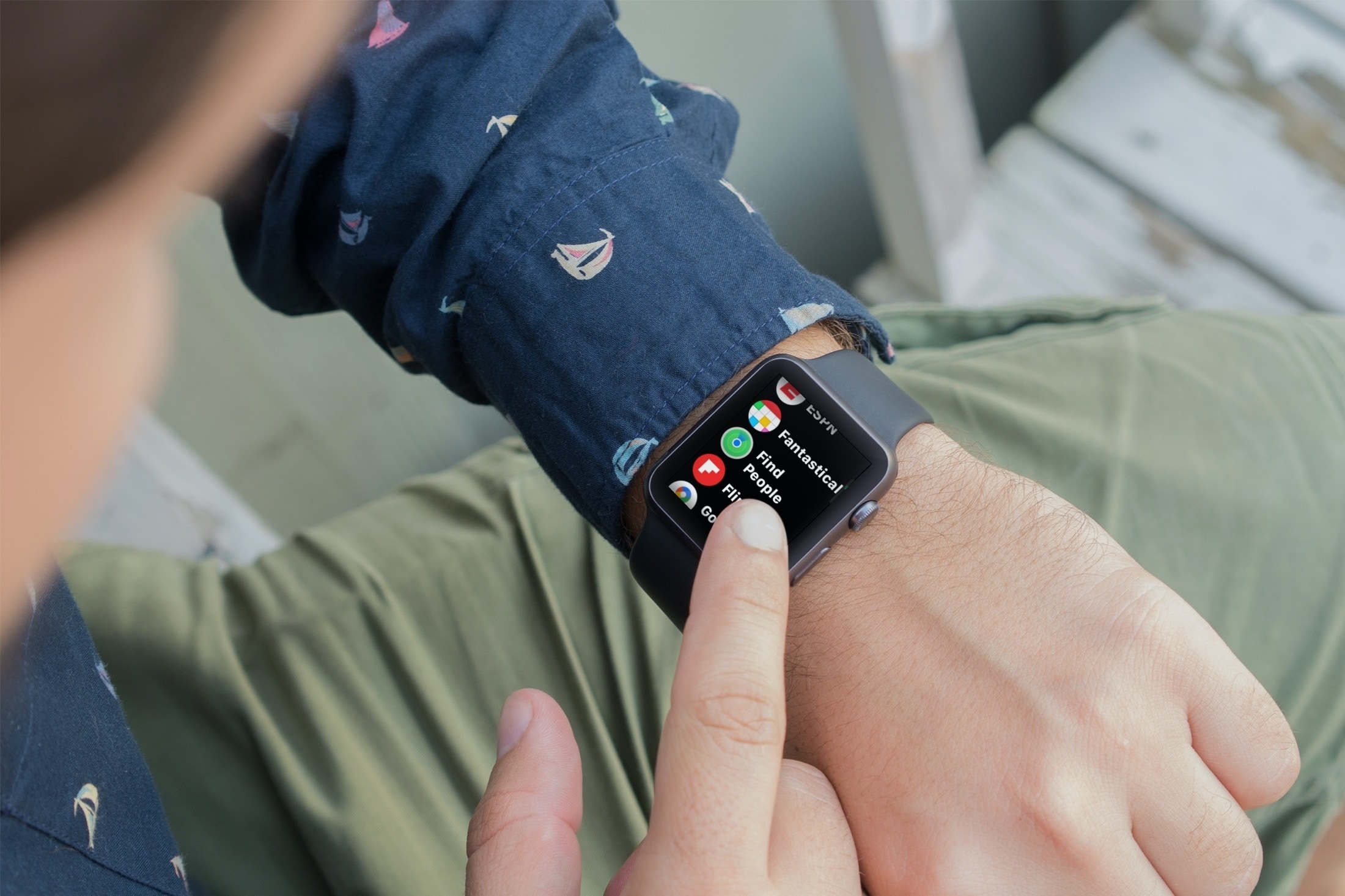
If you use the Find My app on iPhone, iPad, or Mac, you should know you have a similar tool for locating people on your Apple Watch.
You can accomplish a few things using Find People on Apple Watch. If you already have friends added to the Find My app on your other device, then you’re one step ahead.
Also see: How to always know the location of family members and friends using your iPhone
See the location of a friend or family member
1) Open the Find People app on your Apple Watch.
2) You’ll see a list of those sharing their location with you. You should also see their current location and how long ago they were spotted there.
3) Select a friend, and you’ll see their location on a map and have options to contact them or get directions to their spot. Tapping Contact will give you options to call, message, or email them. Directions will open Apple Maps on your watch, ready for you to navigate to their location.

You can also enable notifications, which we’ll go through later in this tutorial. One more option you have is to Stop Sharing your own location with them.
If the friend you want to check on isn’t on your list in the app, you can add them. This starts with sharing your location. So, head on down to the next section.
Getting a friend’s location means sharing your spot with them. Remember, sharing is caring! So follow these steps to share your location and have your friend share theirs with you.
1) Go to the Find People app on your Apple Watch, swipe to the bottom, and tap Share My Location.
2) To add your friend, use the microphone to dictate their name, choose them from your contact list, or use the keyboard or keypad to enter their phone number.
3) Select your friend and then choose how long you want to share your location for: one hour, until the end of the day, or indefinitely.

When your contact receives the notification that you’re sharing your location with them, they can then opt to share theirs with you. Assuming they agree, they will then show up on your list, and you can use the actions described above to see their location.
Set up location notifications
You can notify a friend when you leave your location or arrive at theirs, and you can receive notifications when your friend does the same.
1) Open the Find People app, choose a friend, and scroll down to the Notifications section.
2) Now, pick either Notify Me or Notify [their name] (if shown).
3) Enable the toggle for the notification you select. Then, choose when you want to be notified:
- Notify Me: Pick from when your friend leaves their current location or arrives at yours.
- Notify [their name]: Pick from when you leave your current location or arrive at theirs.

Change your settings
One other person you can tap in your list in Find People is yourself. Tap the Me tile at the bottom to view your current location on a map with a location name and the connected device.
You can then adjust the following settings.
- Share My Location: Turn off the toggle to stop sharing your location.
- Allow Friend Requests: Turn off the toggle if you don’t want to receive location-sharing requests.
- See any Notification details.

If you’re sitting in a meeting or on the bus, you can quickly find your friends and family members with your Apple Watch. What do you think of Find People on Apple Watch? Do you plan to use it to locate a loved one?
On a related note: 15 child-focused features on iPhone and iPad