How to lock cells in Microsoft Excel on Mac to protect your data

How to Lock Cells in Excel on Mac

If you have an Excel spreadsheet or workbook that you want to either share with others, you likely have data that you don’t want them to be able to change. Maybe you want to allow them access to only edit certain cells. On the other hand, you may have data that you want to make sure doesn’t get accidentally changed as you work on the sheet yourself.

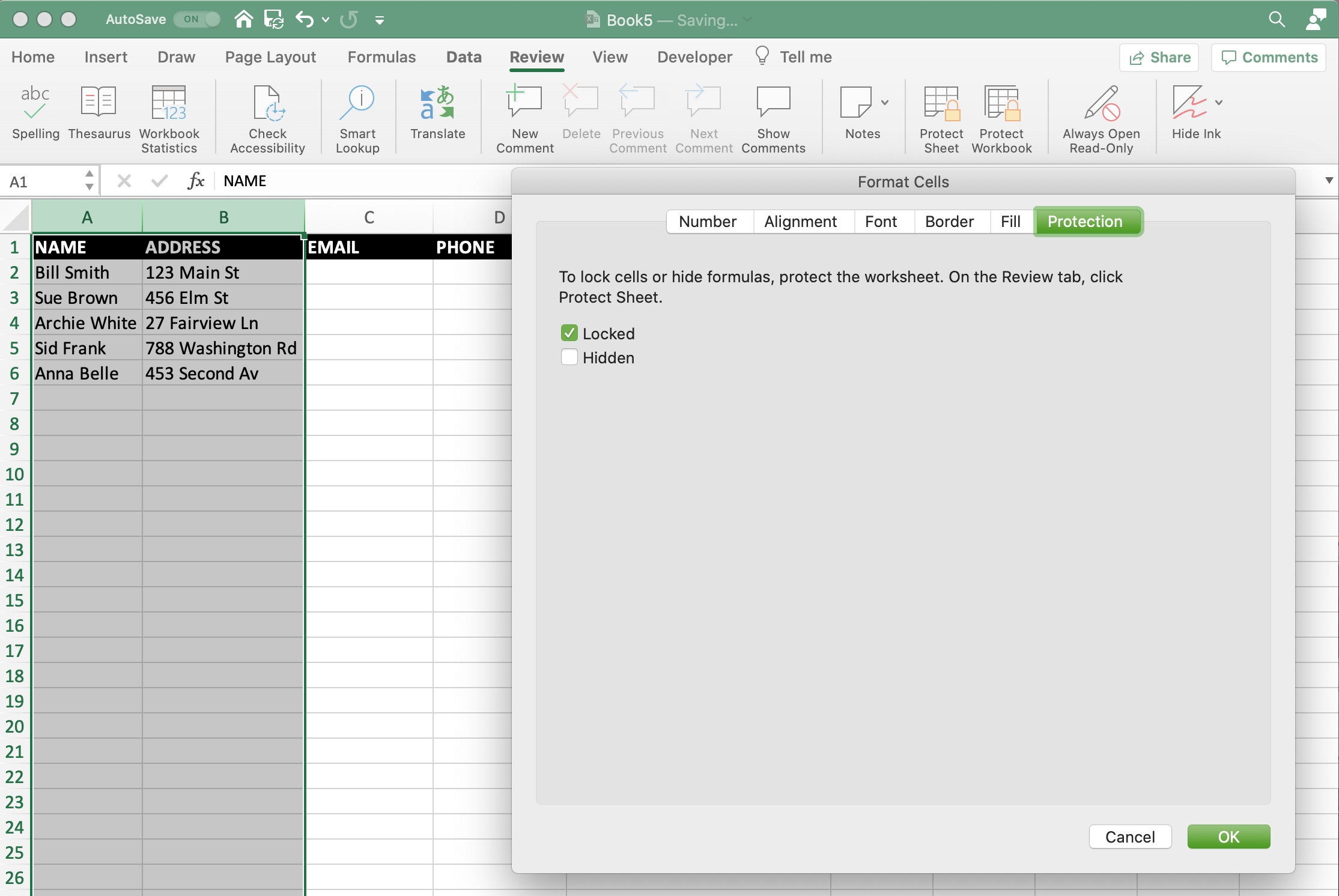
Unlike Numbers, you can lock cells in Microsoft Excel in a variety of ways. You can lock specific cells, cell ranges, rows, and columns. There are a few sets of steps in the process, but after you do it once, it will come easily for future workbooks. Here, we’ll walk you through how to lock cells in Microsoft Excel on Mac.

Grabbi makes it easier to discern the time or battery level in full-screen apps

The Status Bar is a persistent element that presents itself in the vast majority of iOS apps and user interfaces. The lone exception to this rule of thumb would of course be full-screen apps such as mobile games, video playback, and a small number of other exceptions.

Despite being hidden from the aforementioned interfaces, iPhone users can open Notification Center to view the Status Bar by swiping down from the top of the display to reveal a grabber and then tugging down on the grabber. Unfortunately, this is a multi-step process and rather cumbersome, and that’s the chief reason why a new jailbreak tweak called Grabbi by iOS developer Arielgavrielov exists.