Learn how to cycle through open tabs in Apple’s Safari browser on the iPhone, iPad, and Mac using a familiar gesture, an on-screen button, or a keyboard shortcut.
How to quickly cycle through your open tabs in Safari on iOS and Mac
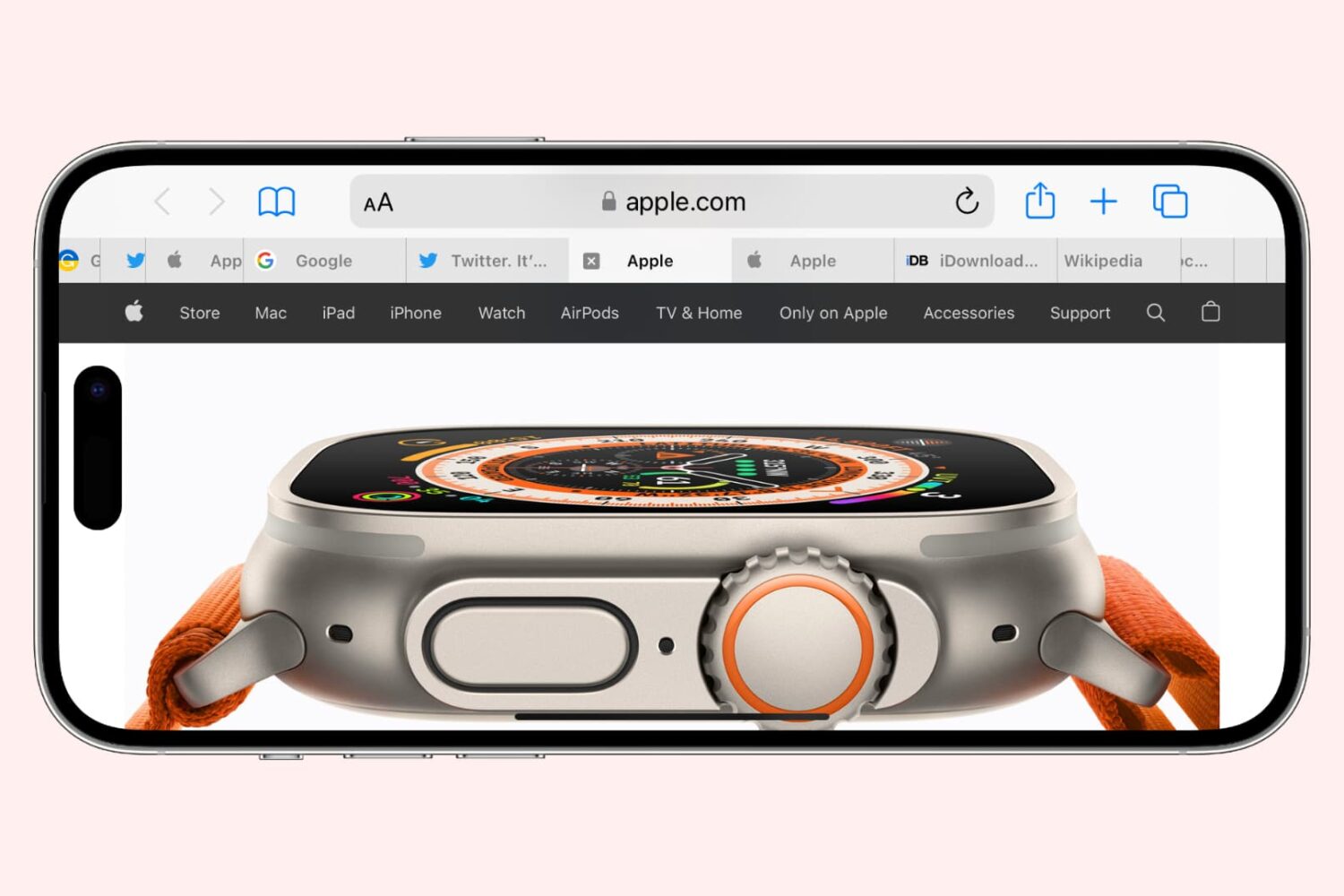
Learn how to cycle through open tabs in Apple’s Safari browser on the iPhone, iPad, and Mac using a familiar gesture, an on-screen button, or a keyboard shortcut.
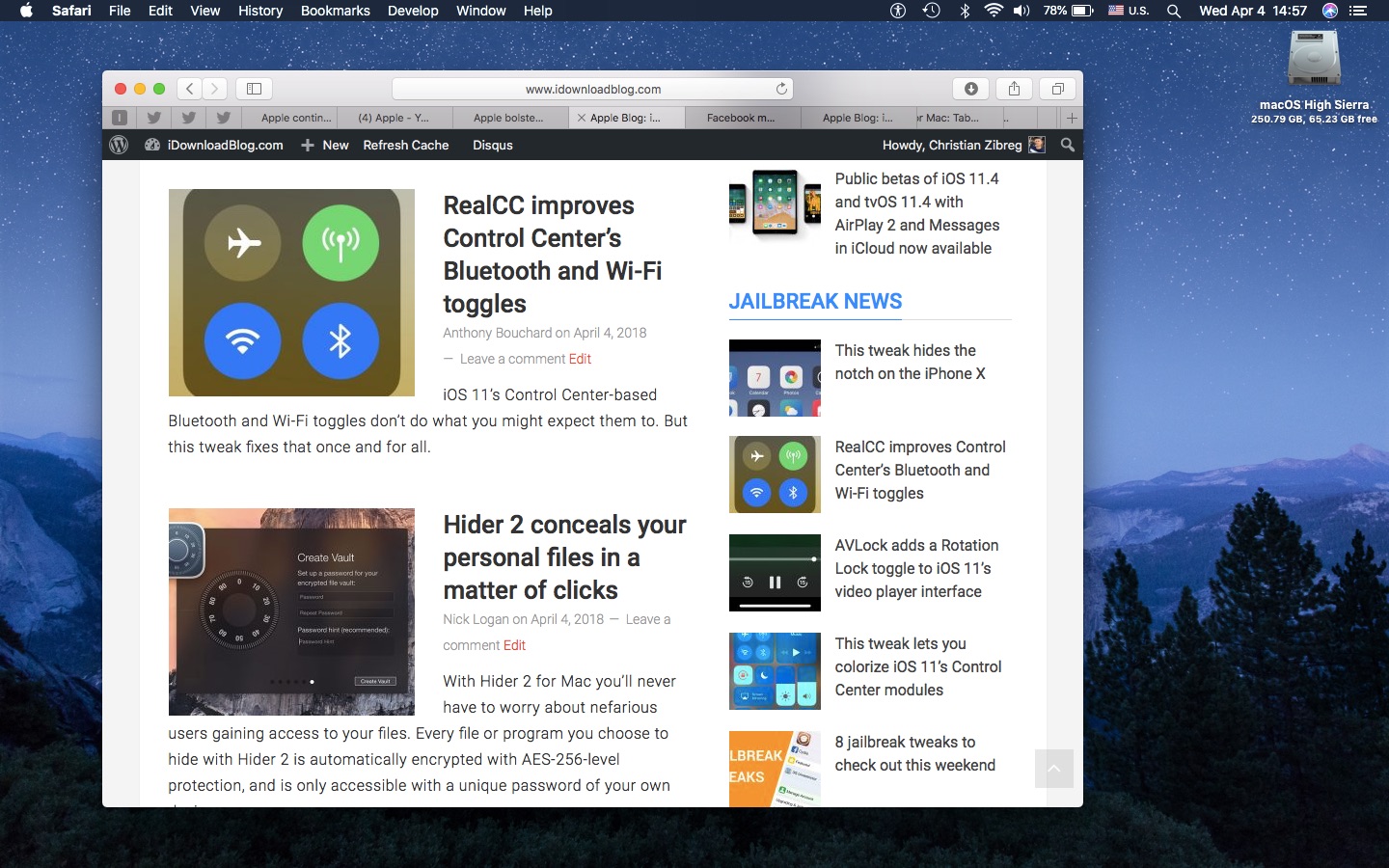
If you’re going to make the most of Safari as your desktop browser, it might make sense to memorize some of the best keyboard shortcuts to supercharge your browsing workflow.
This is especially true for folks who have dozens of open tabs at any given time. Safari for Mac provides you with many productivity-infused keyboard shortcuts that save time, including a trio of essential keyboard combinations for quickly switching between your open tabs.
TUTORIAL: 11 must-know Safari keyboard shortcuts for Mac
The macOS High Sierra 10.13.4 software update brought out yet another powerful shortcut for quickly getting to the rightmost tab. This is a handy productivity feature for those times when you have more tabs than fit Safari's tab bar.
It's only available on Macs that run macOS High Sierra 10.13.4 or higher so be sure to update your copy of macOS to the latest version available by choosing App Store from the Apple menu, then click the Updates tab.
How to jump to rightmost Safari tabTo get to the rightmost open tab in Safari for Mac, press Command (⌘)-9 on the keyboard.
Again, this particular shortcut requires that macOS High Sierra 10.13.4 or later be installed on your Mac. If you have an older macOS edition, pressing the same shortcut will select your ninth tab from the left. In case you didn't know, you can jump quickly to any of your first eight tabs by pressing Command (⌘)-1 to Command (⌘)-8.
macOS High Sierra 10.13.4 and up allows jumping to the rightmost open tab using Command-9
You can cycle through your open tabs even faster with a trackpad gesture: when there are more tabs than fit in Safari's tab area, use your trackpad to swipe left or right over the tab bar to scroll through your open tabs like a pro.
TUTORIAL: 3 ways to reopen recently closed tabs in Safari for Mac
And if your Mac has the Touch Bar feature, you can touch an icon displayed on the Touch Bar to jump directly to the corresponding tab or scroll through all of your open tabs by swiping left or right over the Touch Bar area.
Need help? Ask iDB!If you like this how-to, pass it along to your support folks and leave a comment below.
Got stuck? Not sure how to do certain things on your Apple device? Let us know via help@iDownloadBlog.com and a future tutorial might provide a solution.
Submit your how-to suggestions via tips@iDownloadBlog.com.

Learn how to efficiently manage your Safari tabs with these four different techniques to close all tabs except the one you’re currently browsing.
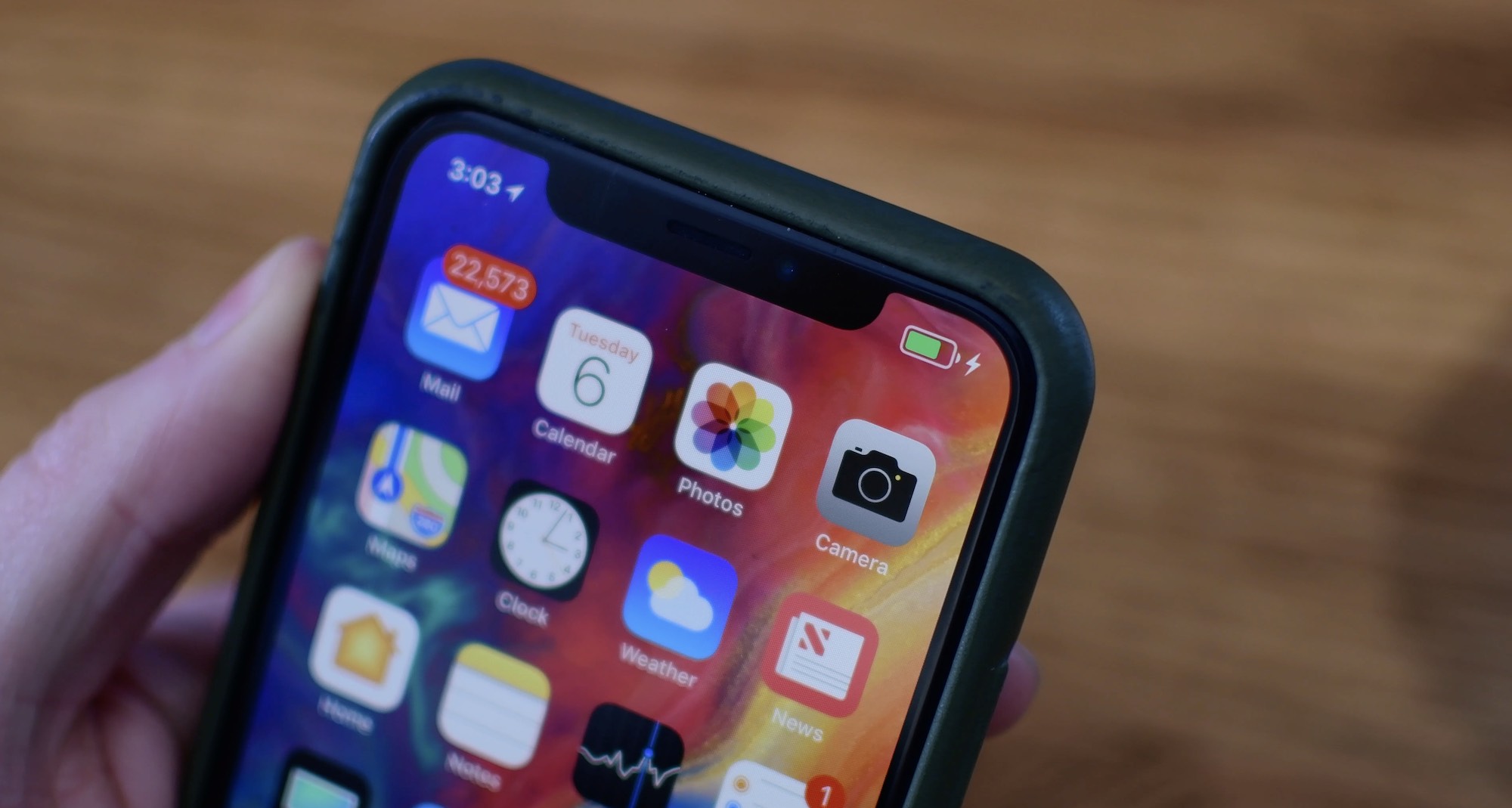
Learn more about your iPhone’s battery health, how it works, and what messages you may see in your battery settings if your performance is affected and you face unexpected shutdowns.
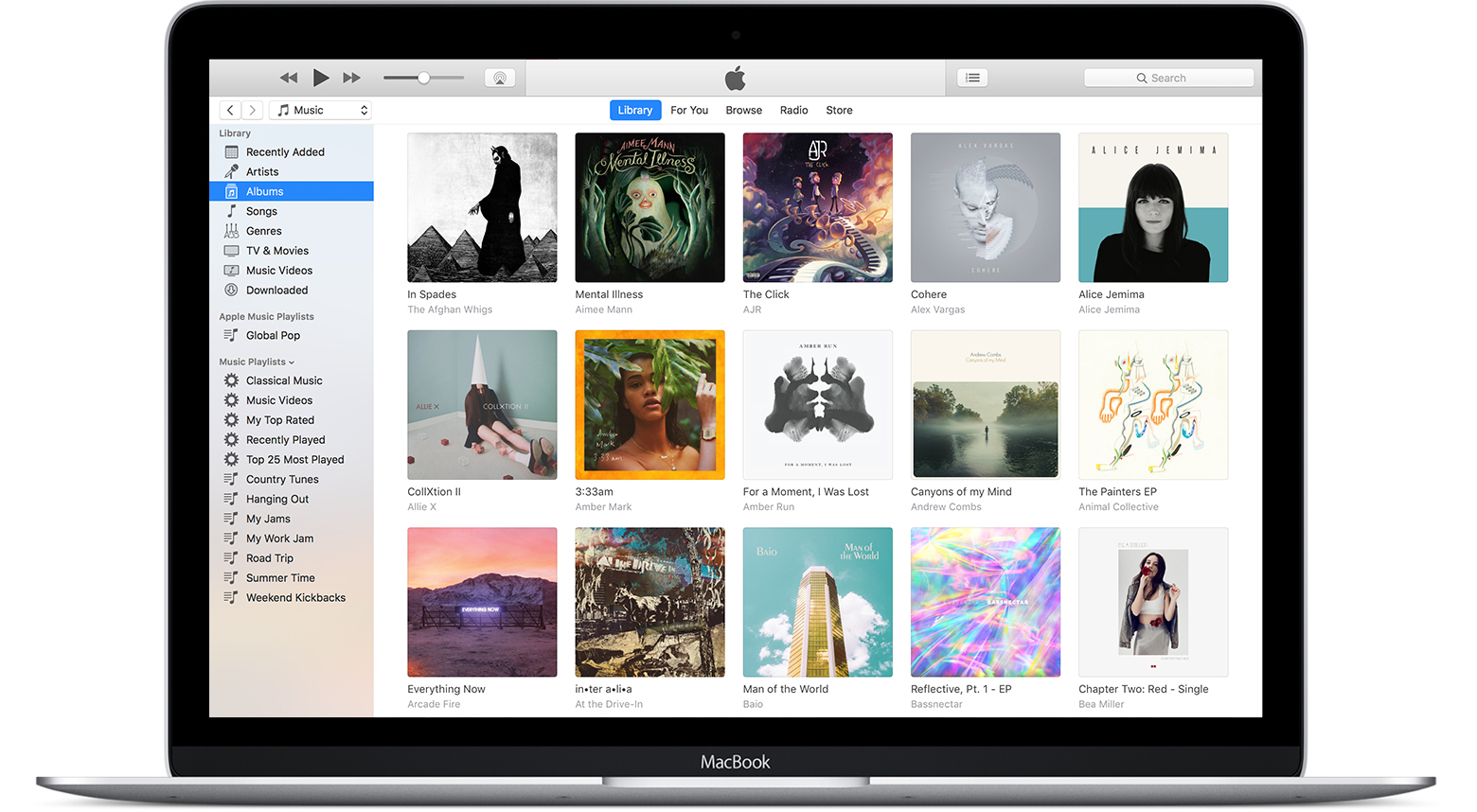
In this tutorial, we will show you how to find and delete all duplicate songs in your Apple Music or iTunes library on your Mac or Windows PC. Doing so will clean your media library and help reclaim local disk space.
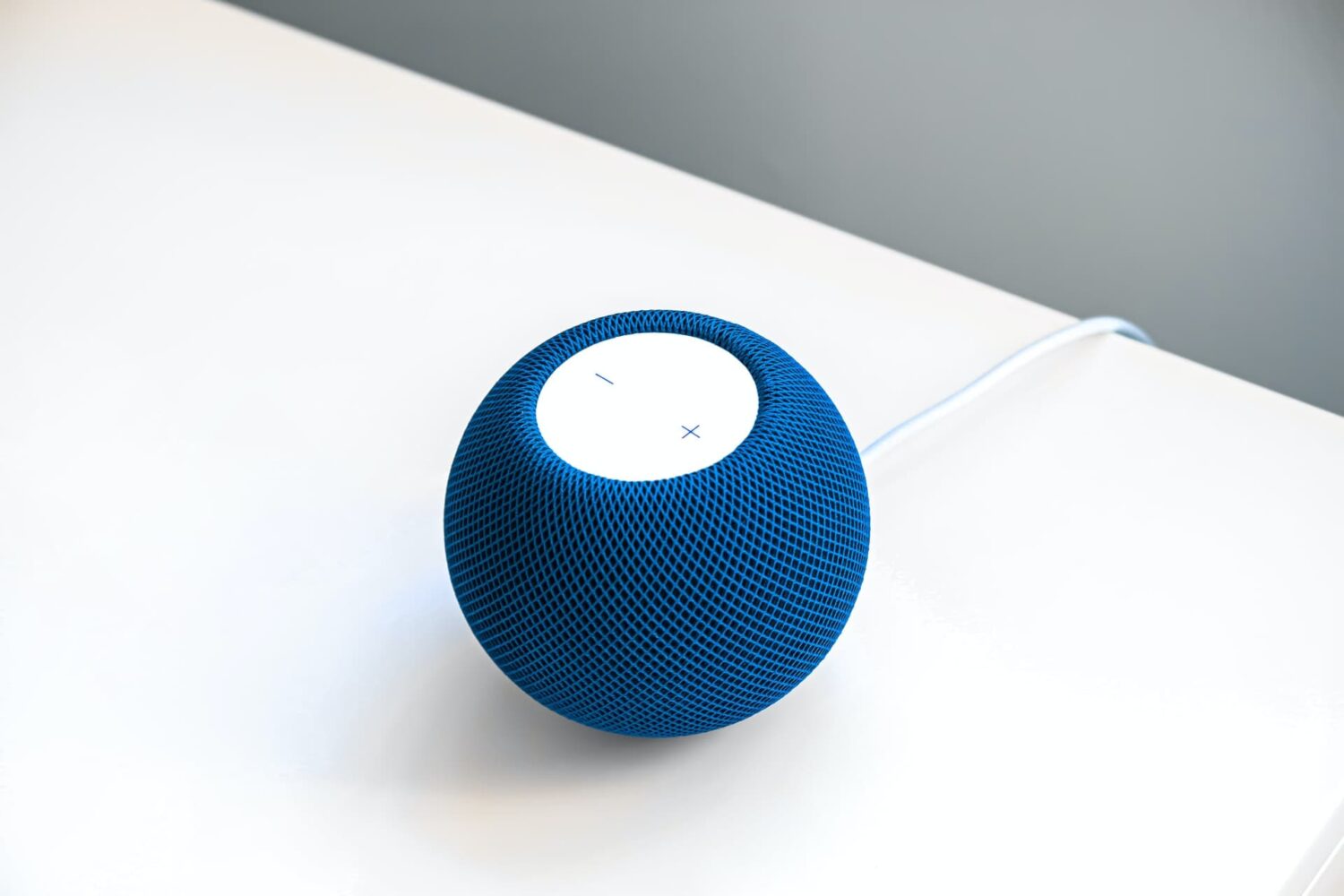
Like other Apple devices, your HomePod permits you to set custom alarms.
You can create multiple alarms using just your voice, optionally add some context to them, if you like, and more. Your Siri speaker will signal you when one of your created alarms goes off.
Siri on HomePod allows you to create as many alarms as you want, manage them, remove ones you no longer need, turn specific alarms on or off, create recurring alarms, and more.
Alarms do not synchronize across multiple devices via iCloud. Any alarms created using your HomePod will not appear on your Mac, iPhone, or other devices, and vice versa.

Learn about 3 easy methods to reopen recently closed tabs in the current browsing session on Safari for Mac without losing your current tab.
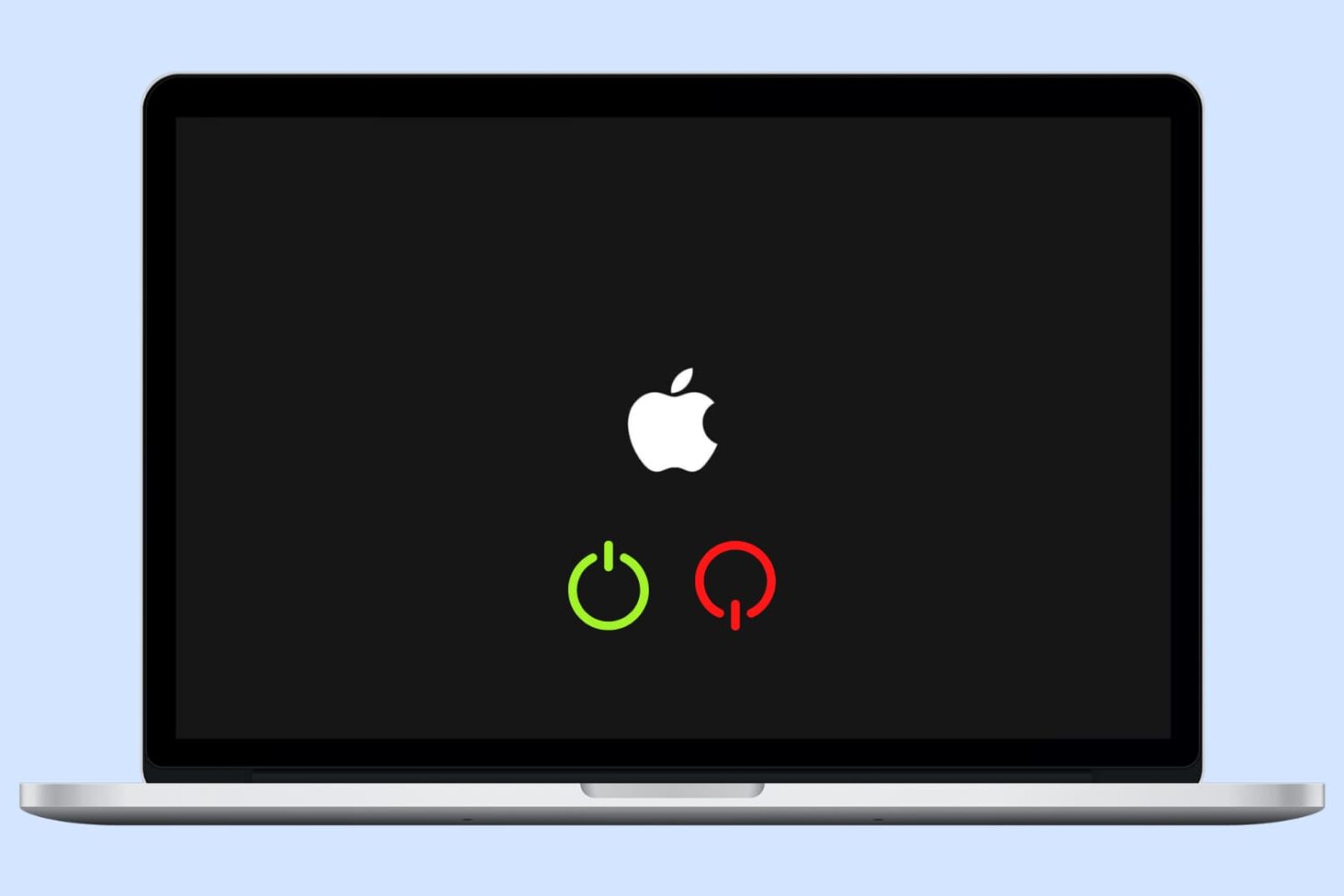
Learn how to turn your Mac on and off automatically on a schedule for enhanced productivity and energy efficiency.
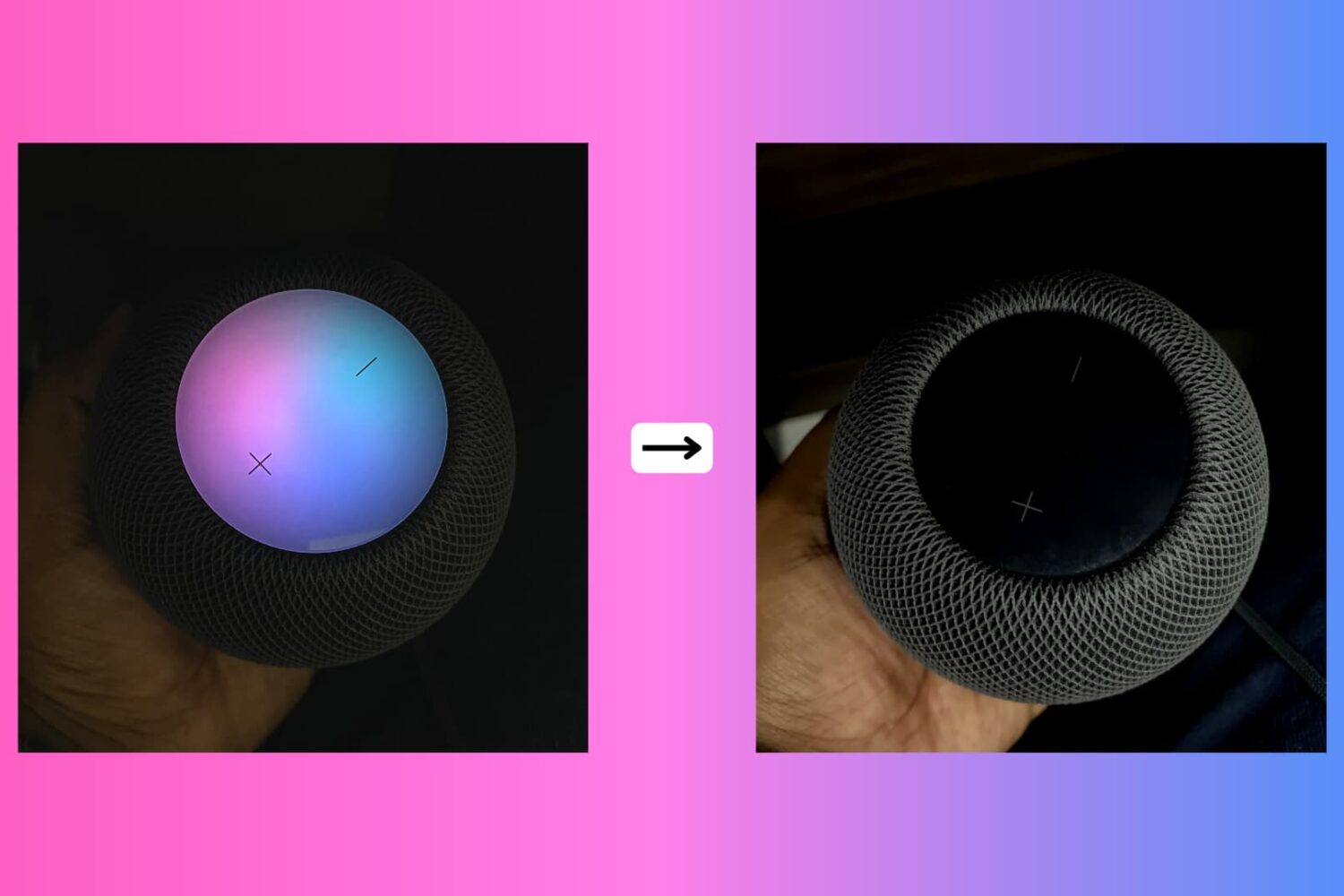
Due to its lack of a screen, HomePod's means of expressing itself are limited to the pulsating, colorful dot on its slick top surface. The design and implementation of the expressive light undoubtedly make for a masterclass in giving an inanimate speaker an air of personality.
While we do have a detailed breakdown of which of HomePod's lights exactly mean what, what we have not done yet is call attention to the fact that the lights can also be shut down - and no, I'm not talking about pulling the plug from the power outlet.
Why would you want your HomePod to become a stale, expressionless object? Well, perhaps you don't want your HomePod to emit as much light in the dark or prefer the look of a sleek black or white speaker sans the play of colors on top! Whatever floats your boat, each to their own, you get the gist. Maybe you just appreciate knowing that there is the option without ever seriously contemplating depriving HomePod of its quirky LED.
Whatever the reason you might decide to neuter your HomePod, there is a simple switch to do (and undo) just that.

Learn how to quickly connect to a Wi-Fi network by scanning a QR code using the Camera app on your iPhone, iPad, or Android phone, with no manual password entry required.

In this step-by-step tutorial, we’ll show you how to split a panoramic picture into squares and post the entire image to an Instagram carousel from your iPhone or iPad.

Scrolling through long lists quickly becomes tiresome. With this secret iPhone gesture, however, you can jump to the most recent item in any list with a single tap.