Tutorials

This $0.05 hack makes Apple’s MagSafe charger incredibly better

magsafe attached to back of iPhone

One of the surprise announcements at the iPhone 12 event was the return of MagSafe, albeit under a different form and purpose. Now available as an entirely new line of products, MagSafe accessories take advantage of embedded magnets to make connecting your device to a case, charger, stand, etc, a breeze.

The first MagSafe accessory to be available was the MagSafe charger, a $39 charging solution consisting of a cable and a charging puck, similar in essence to the Apple Watch charger.

HomePod mini vs Amazon Echo: Which should you buy?

HomePod mini vs Amazon Echo

Apple introduced a tinier version of its popular HomePod called HomePod mini. This smart speaker is not only smaller in size, but also in price as compared to its parent. Both of these features put the HomePod mini more in the running as a direct competitor to the Amazon Echo.

Whether for yourself or a gift for a loved one, you might be trying to decide between the two (or three including the Amazon Echo Dot). To help, we have a comparison of HomePod mini versus Amazon Echo. Hopefully this will help you pick the best smart speaker for your home or someone else’s.

For new users — Where is that on Mac?

Question Mark on MacBook

Maybe you just purchased your first Mac, or maybe you only perform certain tasks on it each day. In these situations, it can be difficult to find items you’re unfamiliar with when you need them. From big things like applications to small ones like the trash, we’ll help you find the most commonly looked-for items on your Mac.

macOS Big Sur FAQ: All your questions answered

Apple's promotional image for the macOS Big Sur software update for Mac computers

Some people have already downloaded, installed, and gotten used to macOS Big Sur. The newness has probably already worn off for them! But if you’re still contemplating whether or not you should, aren’t sure if you’re Mac model can handle it, or just want some basic questions answered, here’s your macOS Big Sur FAQ.

How to change your iPhone or iPad wallpaper with a single tap

Changing the Lock and Home screen wallpapers on your iPhone or iPad requires using the Settings app. Wouldn't it be great if you could change your wallpaper automatically, with a single tap? With wallpaper automation that's now available in iOS 14.3 and iPadOS 14.3, you can do just that. In this tutorial, we'll show you how to use a custom workflow in Apple's Shortcuts app to automate changing wallpaper with a single tap of a Home screen icon.

Apple M1 chip FAQ: All your questions answered

Apple M1 small chip giant leap website screenshot 001

The M1 chip. A brand-new piece of technology announced by Apple. This tiny but powerful chip is a significant part of a new lineup of Mac computers. But what exactly is the M1 chip? What does it do, what are the benefits of it, and should you look into buying a Mac that has one? This M1 chip FAQ has answers to these questions and more.

How to use the VoiceOver Utility to customize VoiceOver on Mac

VoiceOver Utility General

With VoiceOver on your Mac, you can perform tasks, take actions, and do everything you need to do while experiencing a visual impairment. We’ve walked you through the basics like turning VoiceOver on and off, setting up your modifier keys, and working with app windows.

Here, we’re going to explore customizing VoiceOver on your Mac with a tool called VoiceOver Utility. In this one handy spot, you can change the voice, magnify your cursor, and adjust the announcements you hear. And since many of our upcoming VoiceOver how-tos will direct you to this location, it’s good to become familiar with it. Ready? Here’s how to use VoiceOver Utility to customize VoiceOver on Mac.

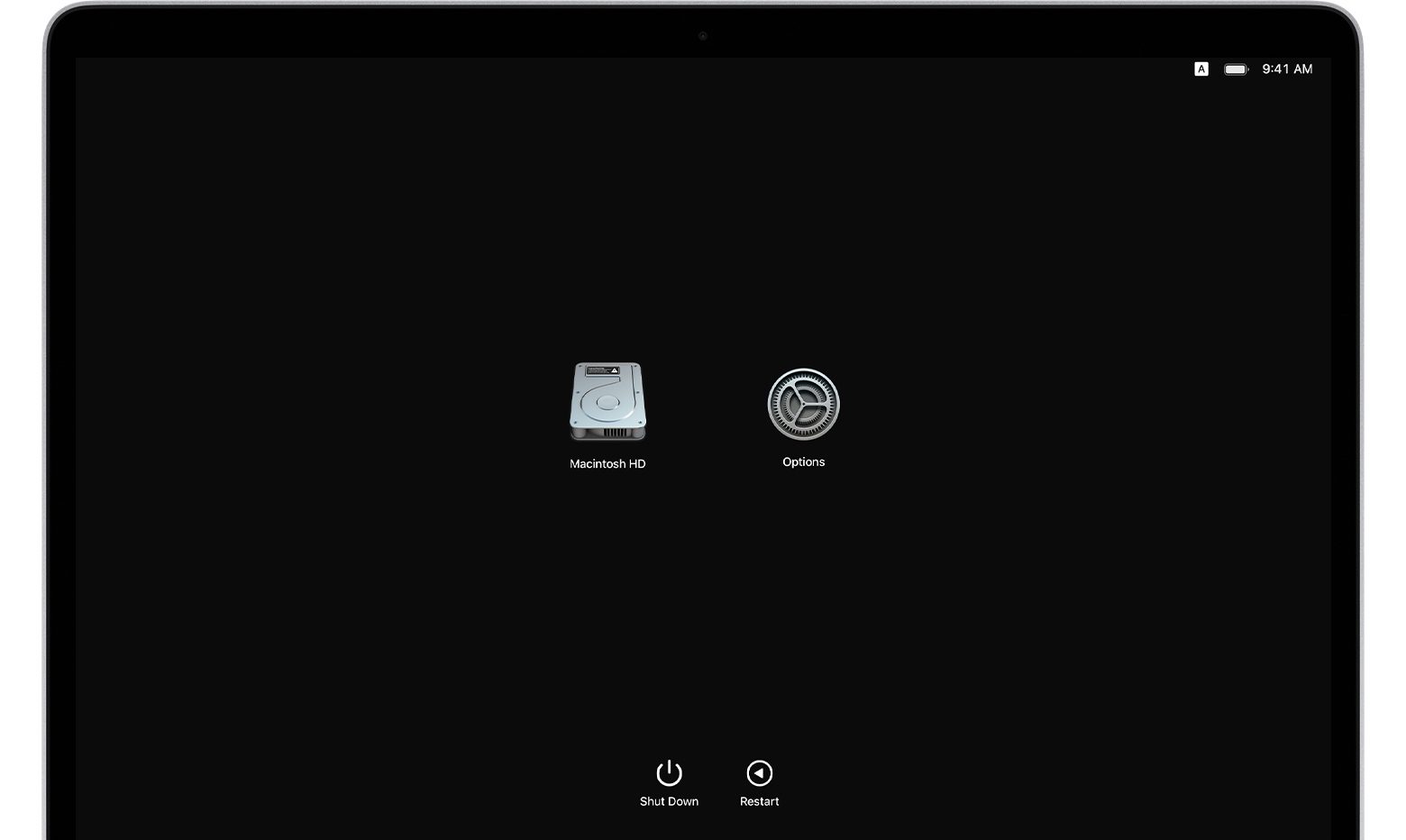
How to do a clean install of macOS 11 Big Sur

Apple's macOS installer icon for the macOS Big Sur update

Power users usually prefer to start a fresh new installation of Big Sur rather than upgrade the existing copy of the macOS operating system on their Mac. If you're among them, you'll need to perform a clean install of Big Sur. The process entails doings things such as backing up your Mac, wiping off the current operating system and creating a bootable installer. Follow this tutorial for detailed instructions on how to perform a clean install of macOS Big Sur.