Learn how to review the Privacy Report in Safari on iPhone, iPad, and Mac to see which websites track your activity while you browse.
How to view website Privacy Report in Safari on iOS and Mac
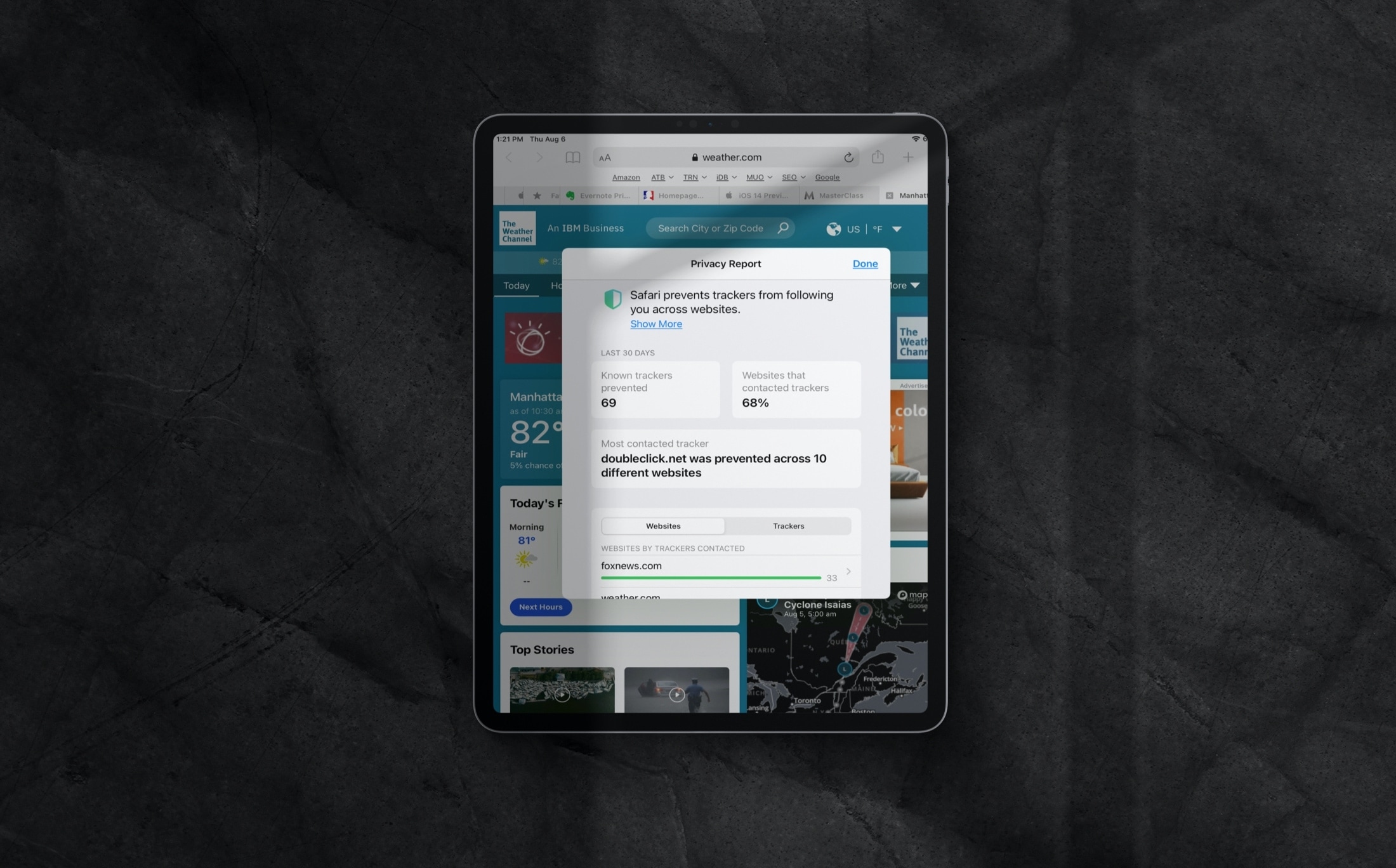
Learn how to review the Privacy Report in Safari on iPhone, iPad, and Mac to see which websites track your activity while you browse.
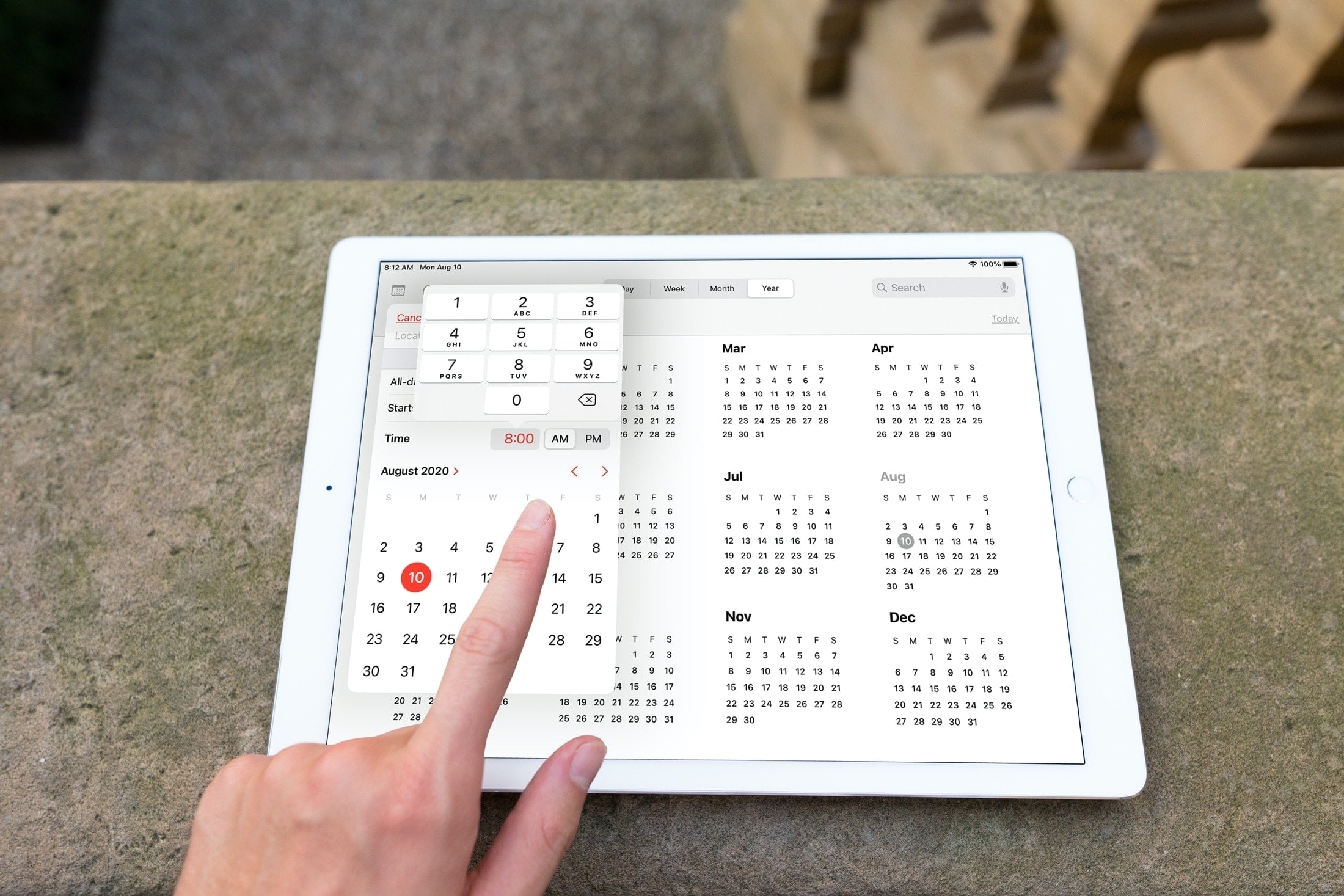
Sometimes it’s those small improvements that make a big difference. With iOS 14 and iPadOS 14, Apple updated the date (calendar) picker that you use in apps like Reminders and Calendar. No longer do you have to spin the wheel to choose your date and time.
This enhancement lets you select the exact date and time much quicker with a clearer view and simpler method of selection. Here, we’ll show you what’s new with and how to use the redesigned date picker on iPhone and iPad.
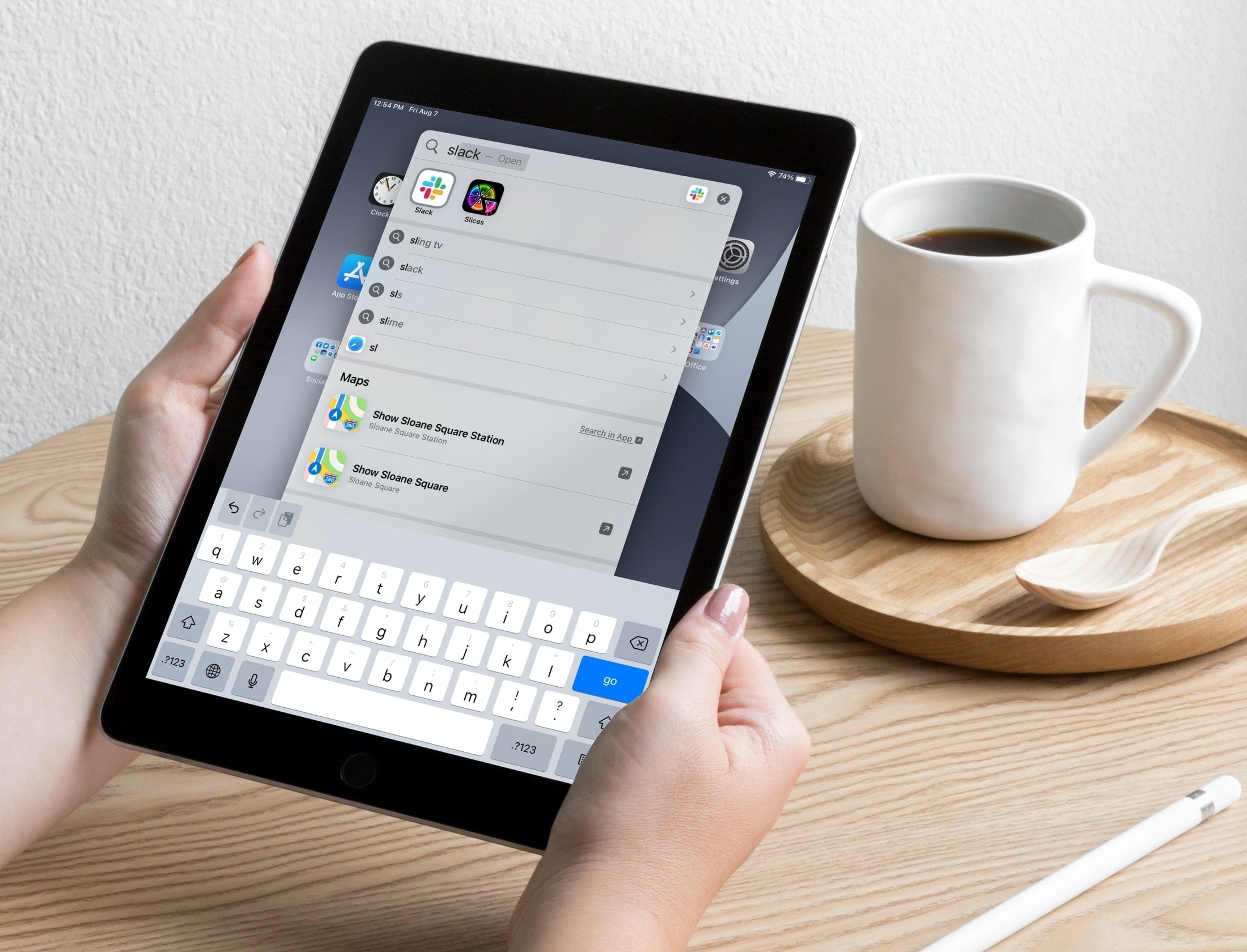
Learn about a couple of simple Spotlight Search tips to open apps and websites in an instant on your iPhone or iPad.
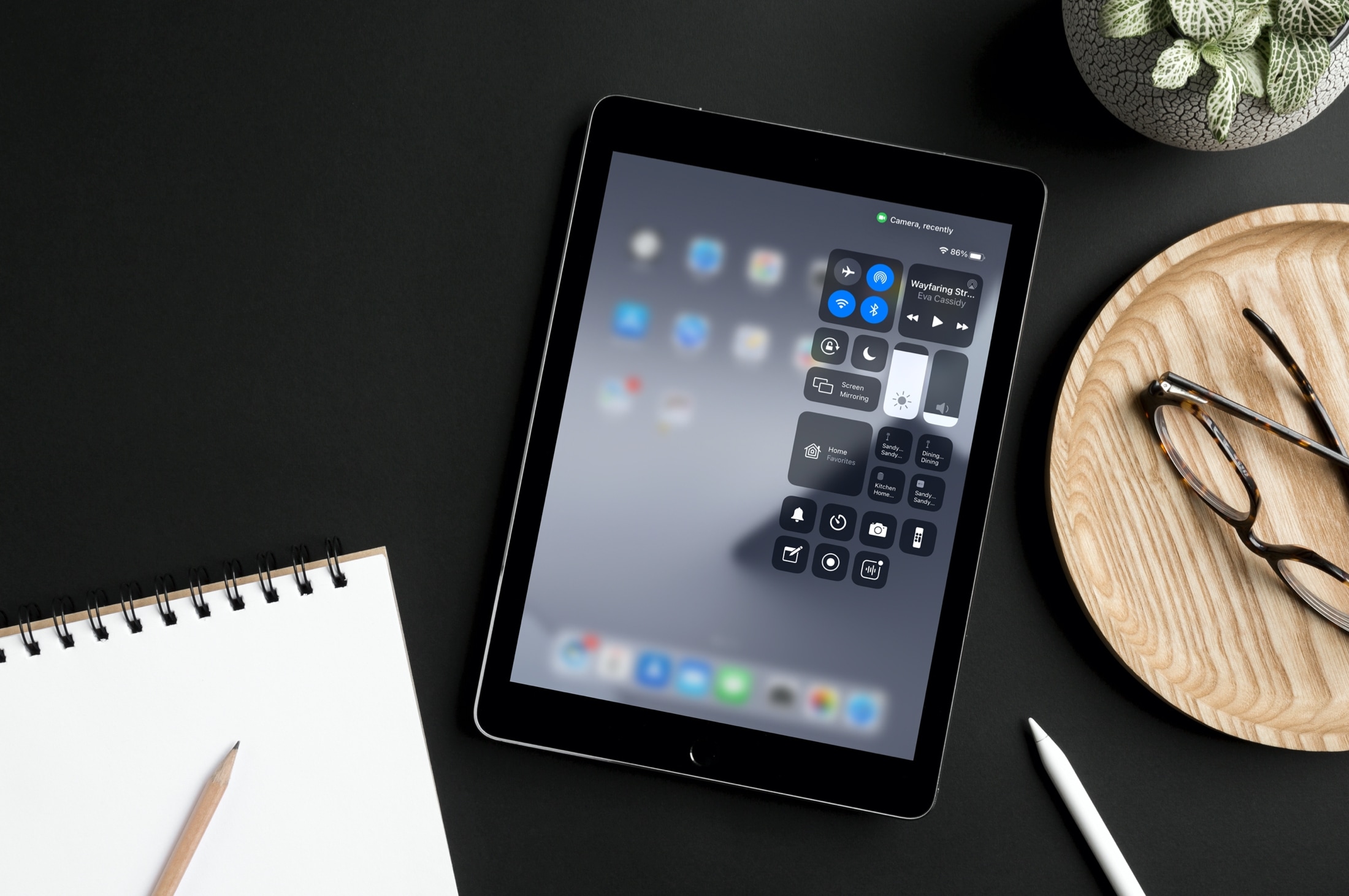
Protect your privacy and find out when your iPhone, iPad, or Mac camera or microphone is recording, which app is using it, which app recently did, and revoke that app’s access if needed.
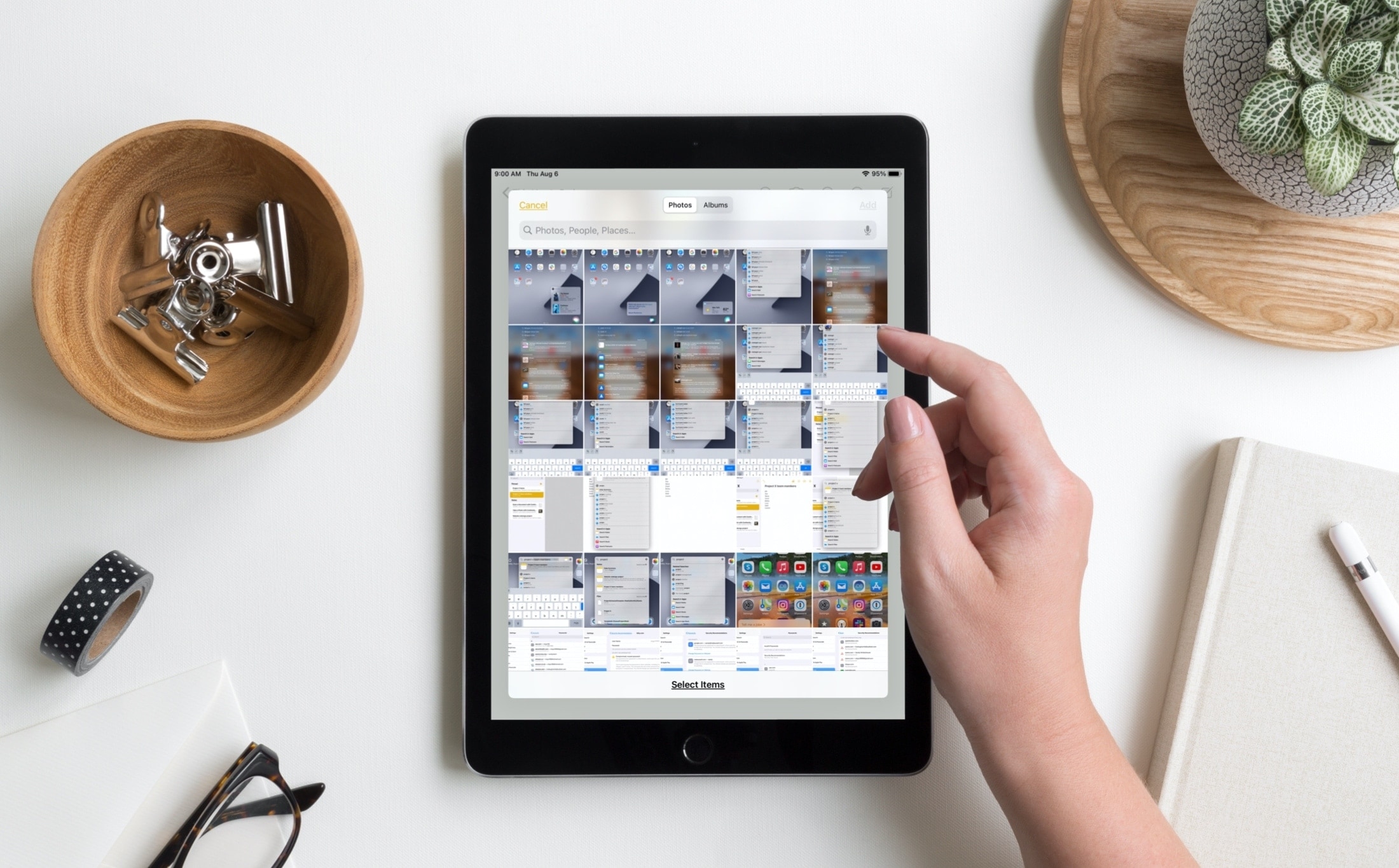
One of those iOS 14 and iPadOS 14 enhancements you might not notice at first, but is definitely an improvement, is the image picker. With this handy tool, you can browse and select images from your Photos library in apps like Mail, Messages, and Notes.
While there was nothing particularly wrong with the tool before, you will notice bigger screen, handy search field, and more effective design. All of this makes it simpler to find the photos you need. Here, we’ll show you how to use this improved image picker on iPhone and iPad.
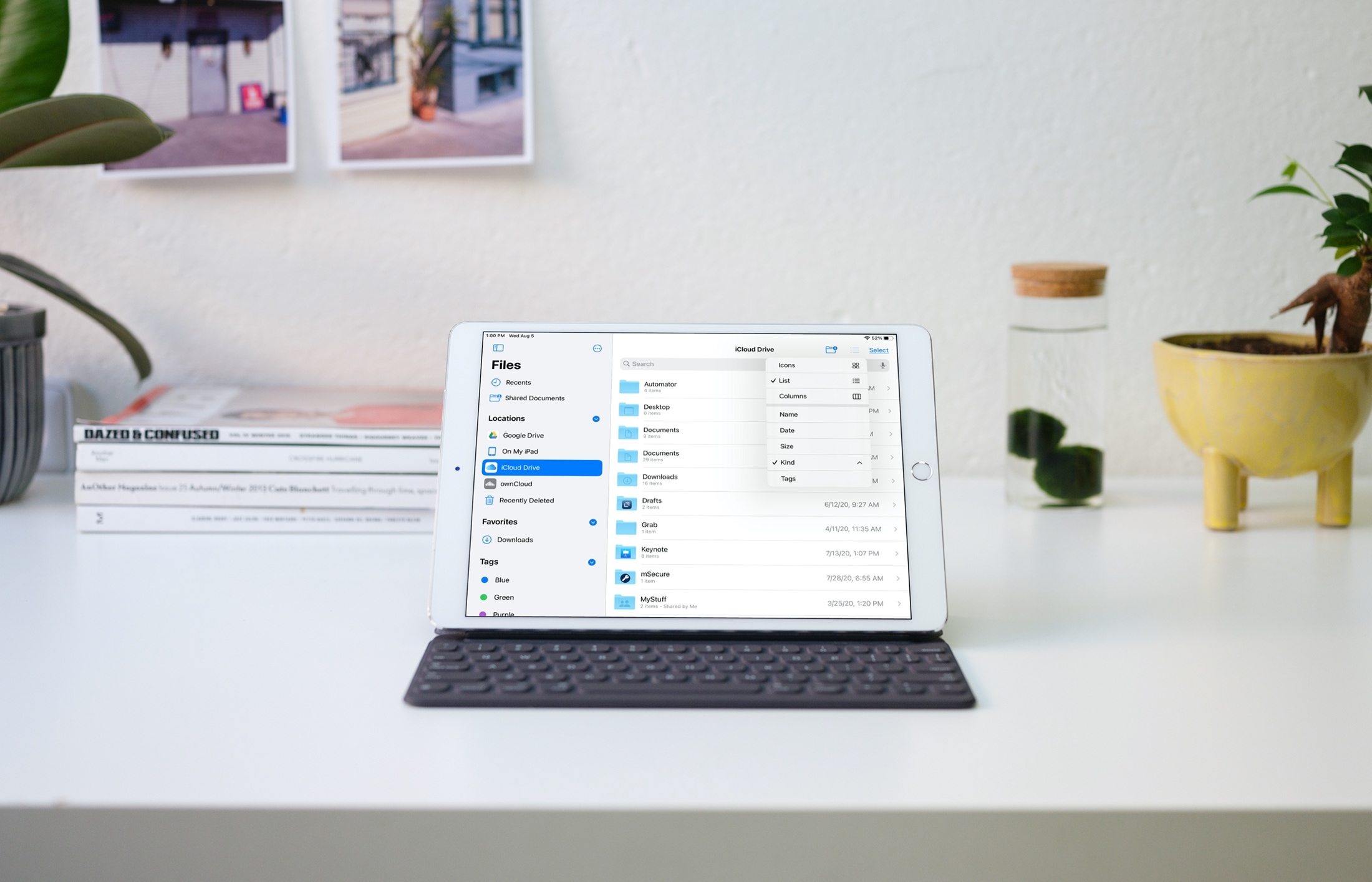
Check out these handy sidebar tips to make the most of the Apple Files app on your iPad and get things done effortlessly.
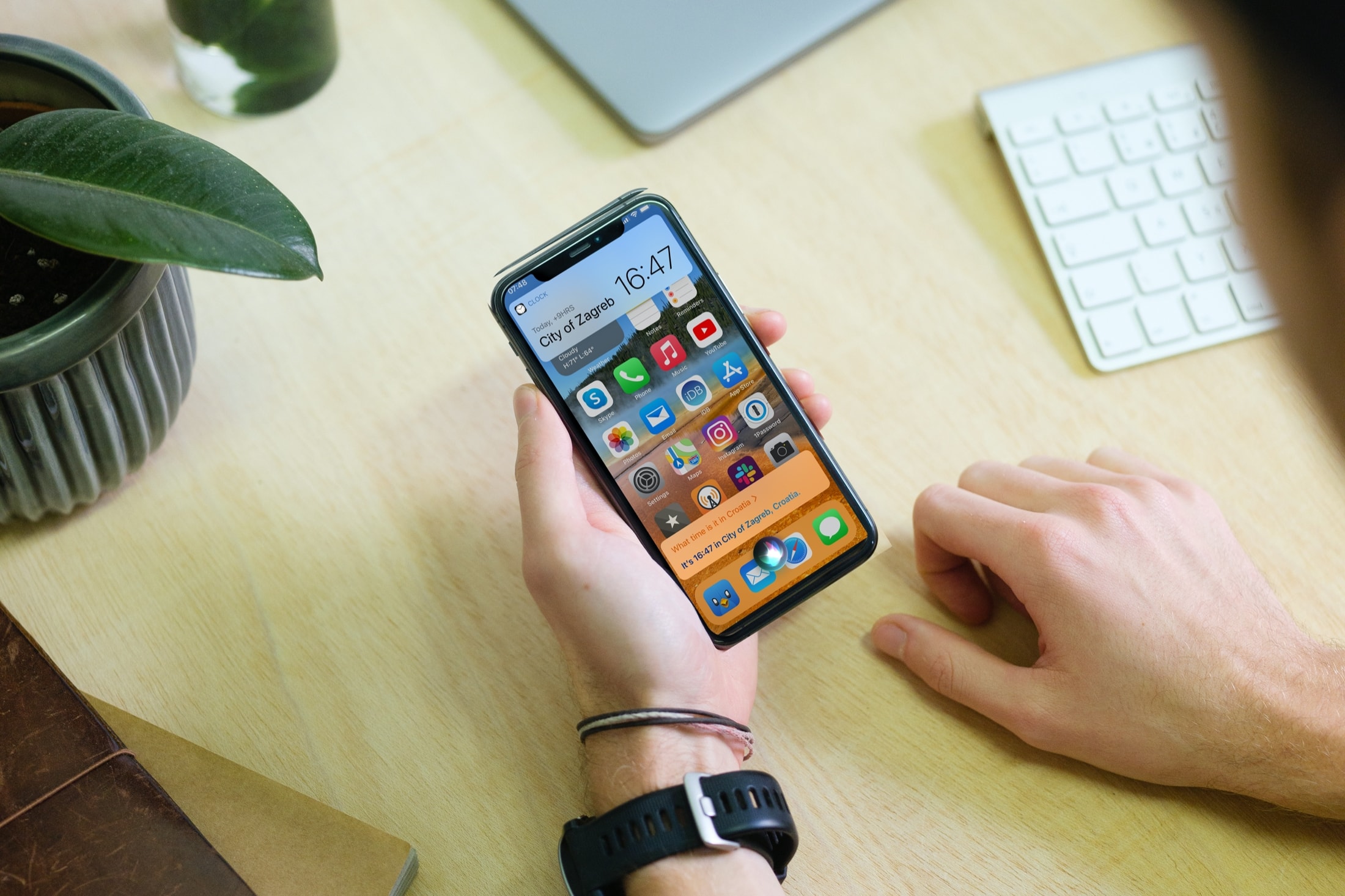
By default, Siri appears in a compact view on your iPhone and iPad. In this tutorial, we'll show you how to use that compact view or go the old way and have Siri take the entire screen.
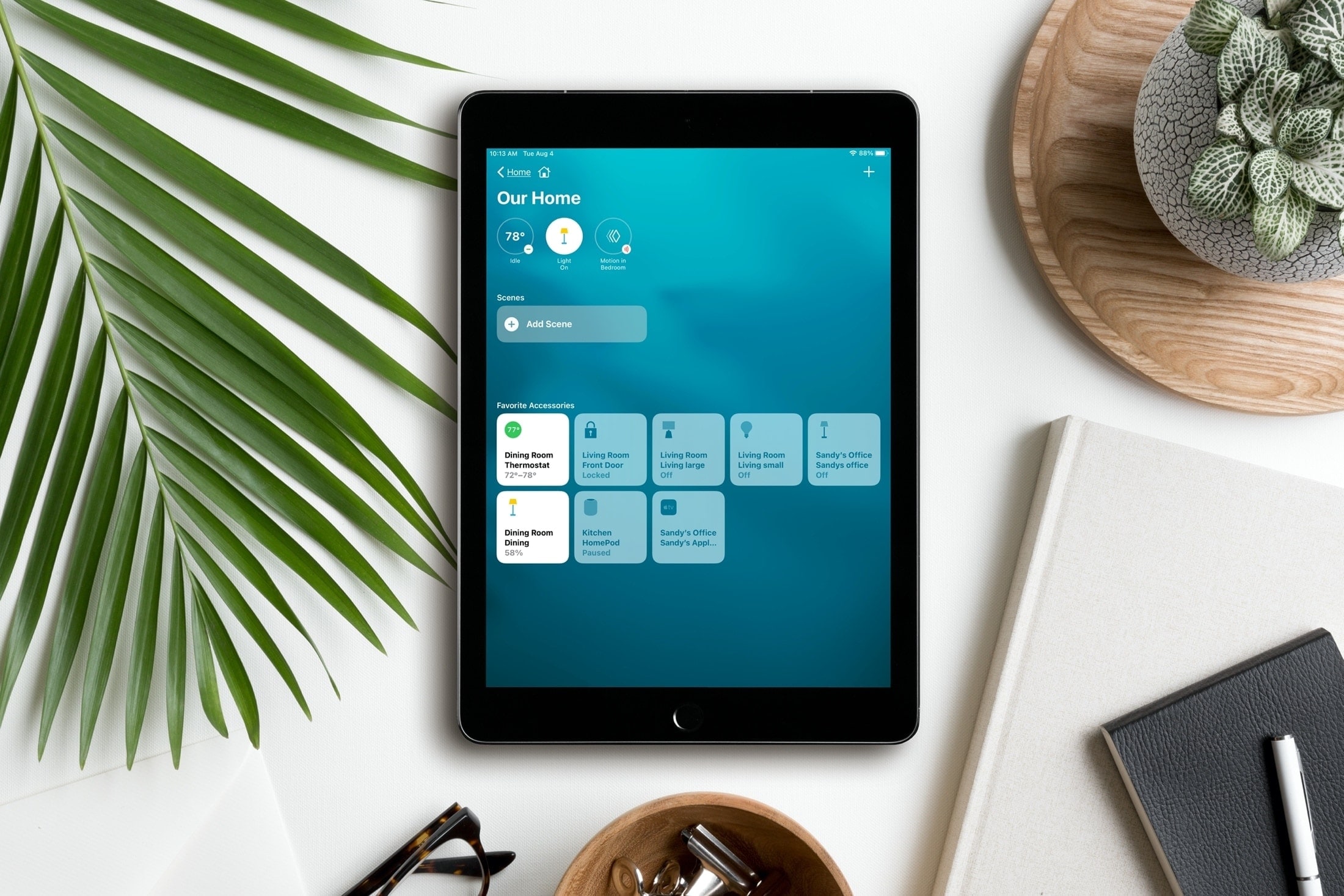
Controlling your smart home from your iPhone and iPad is simple with the Home app. And with iOS 14, iPadOS 14, and macOS Big Sur, you have a clearer way to see and manage your HomeKit accessories.
What used to be written summary section at the top of the Home app is now a visual summary of your connected devices. This allows you to quickly take action or more easily control your accessories. Here’s the scoop on using the visual status section for devices in the Home app.
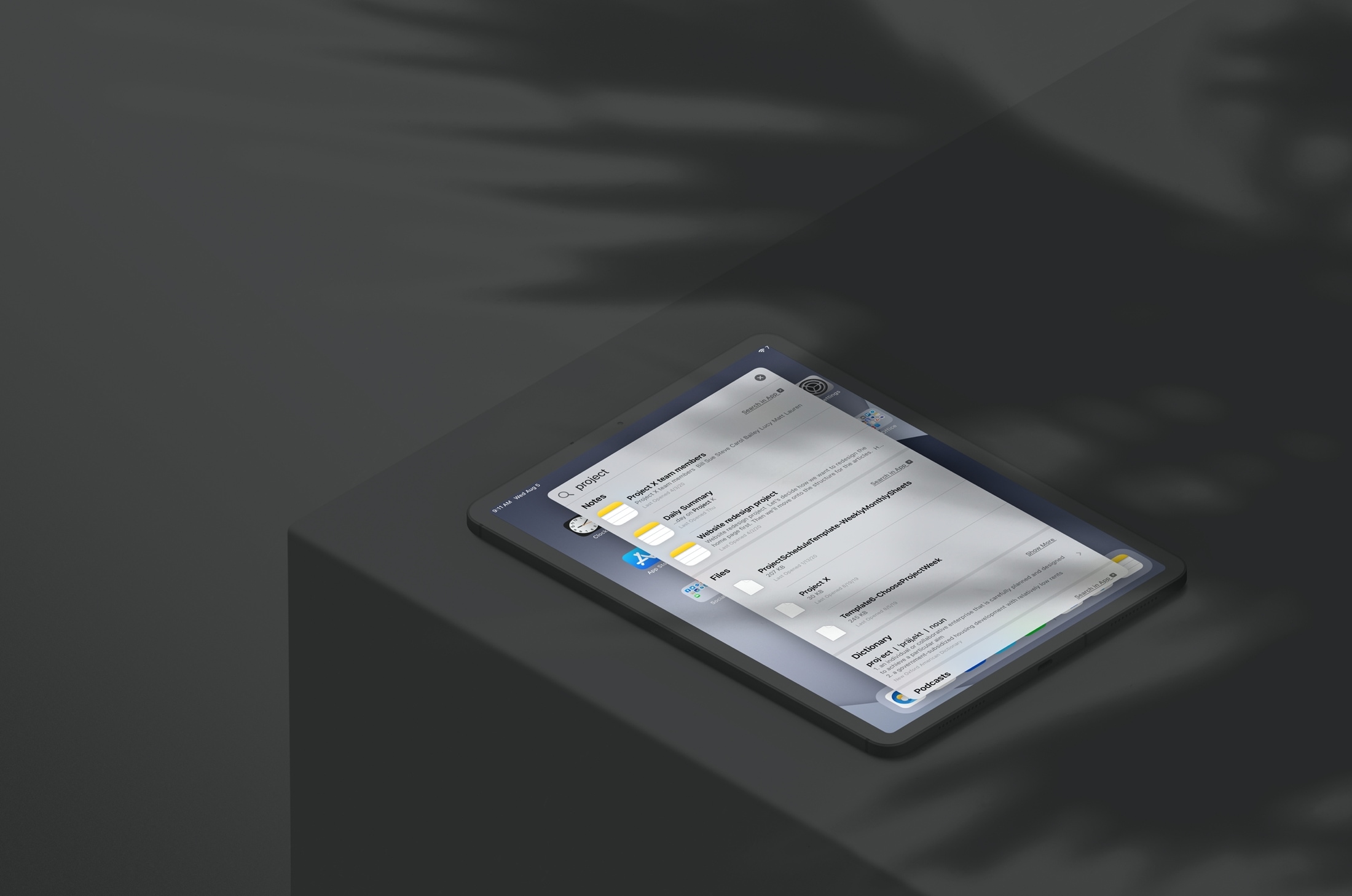
Learn how to save time and effort by searching inside apps on your iPhone or iPad directly using Spotlight Search from your Home Screen.
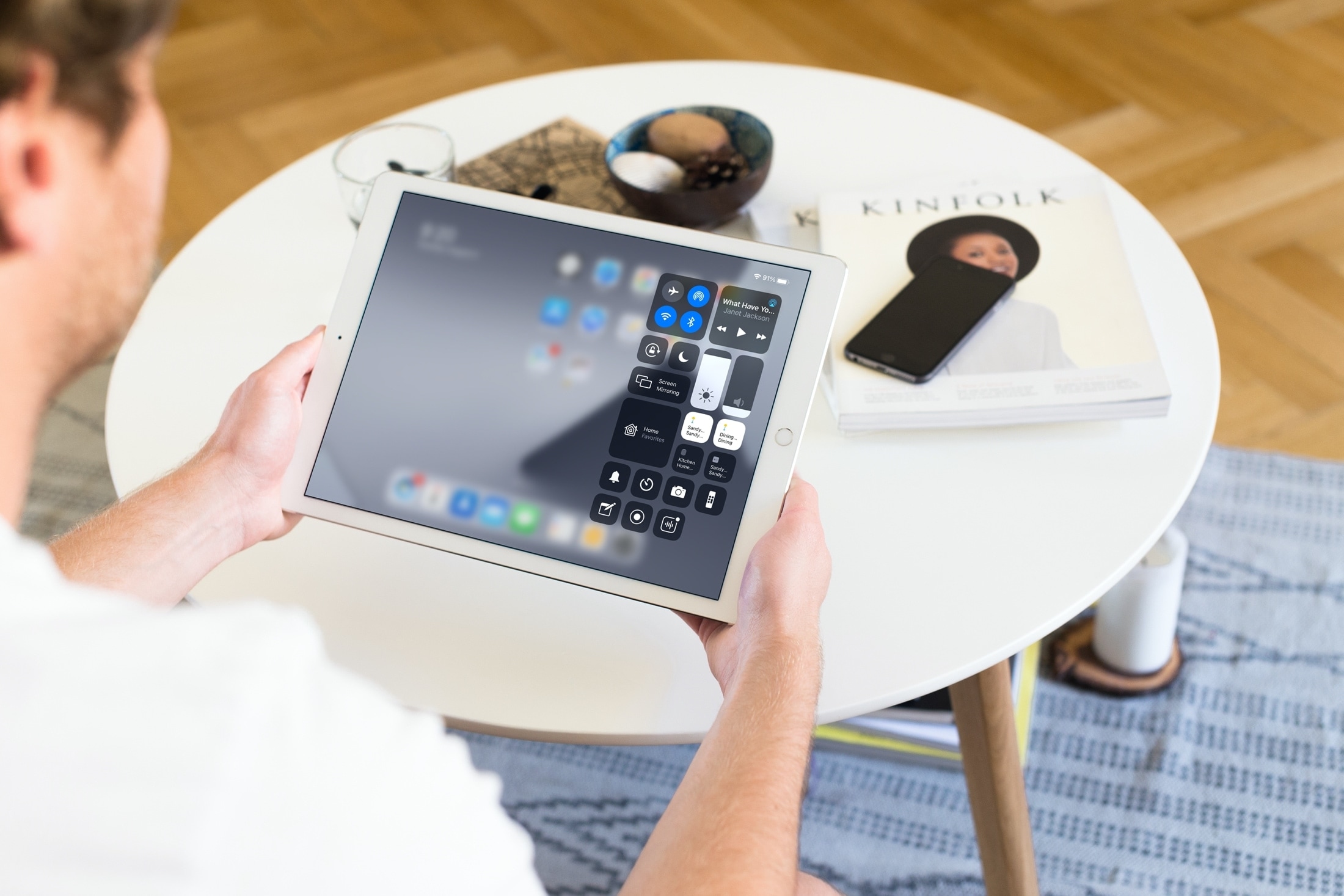
From turning your smart accessories on or off to adjusting their settings, this tutorial shows you how to control and manage HomeKit devices from your iPhone and iPad Control Center.
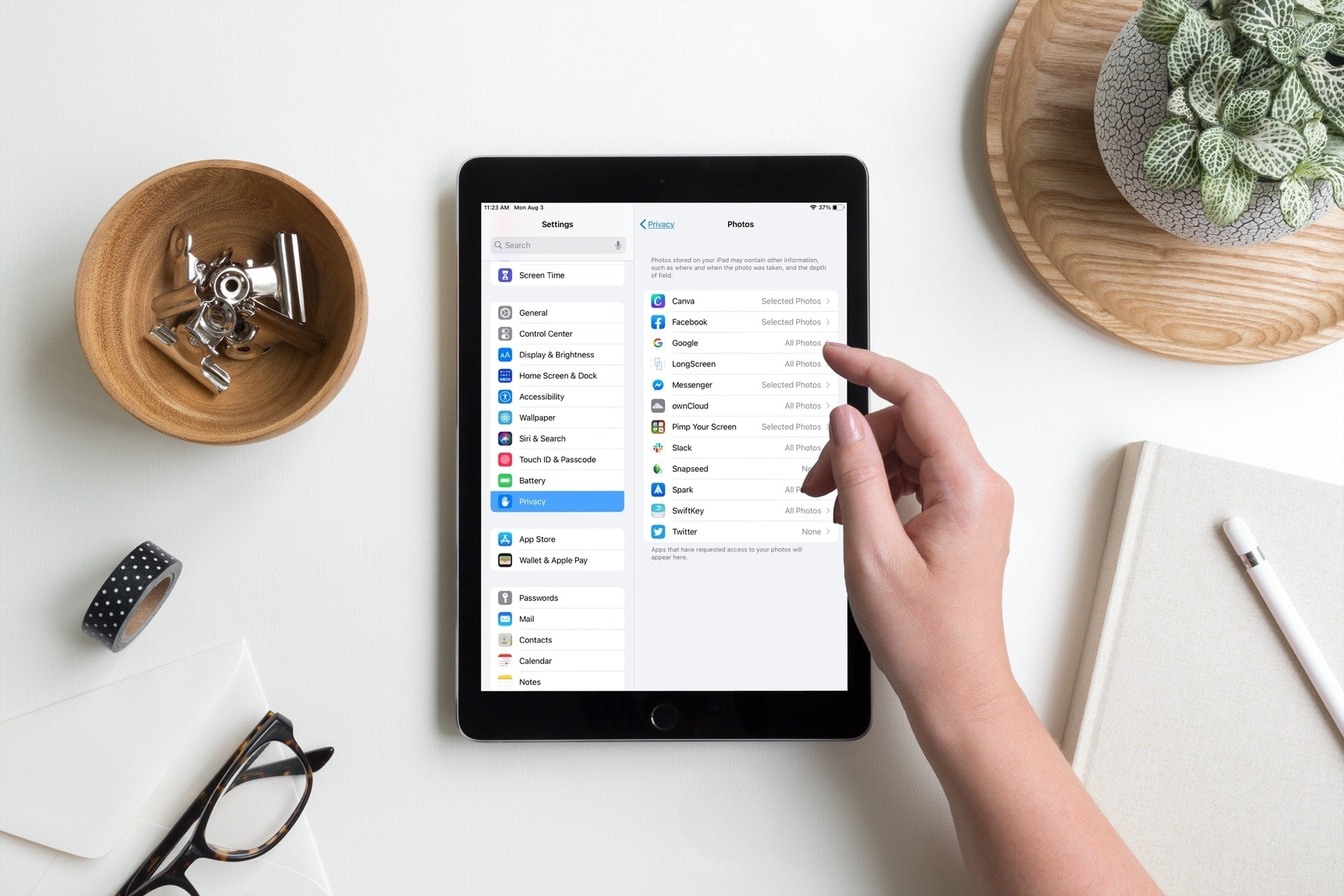
Learn how to restrict apps on your iPhone or iPad from accessing all your images and videos in your photo library, thus enhancing your privacy and security.
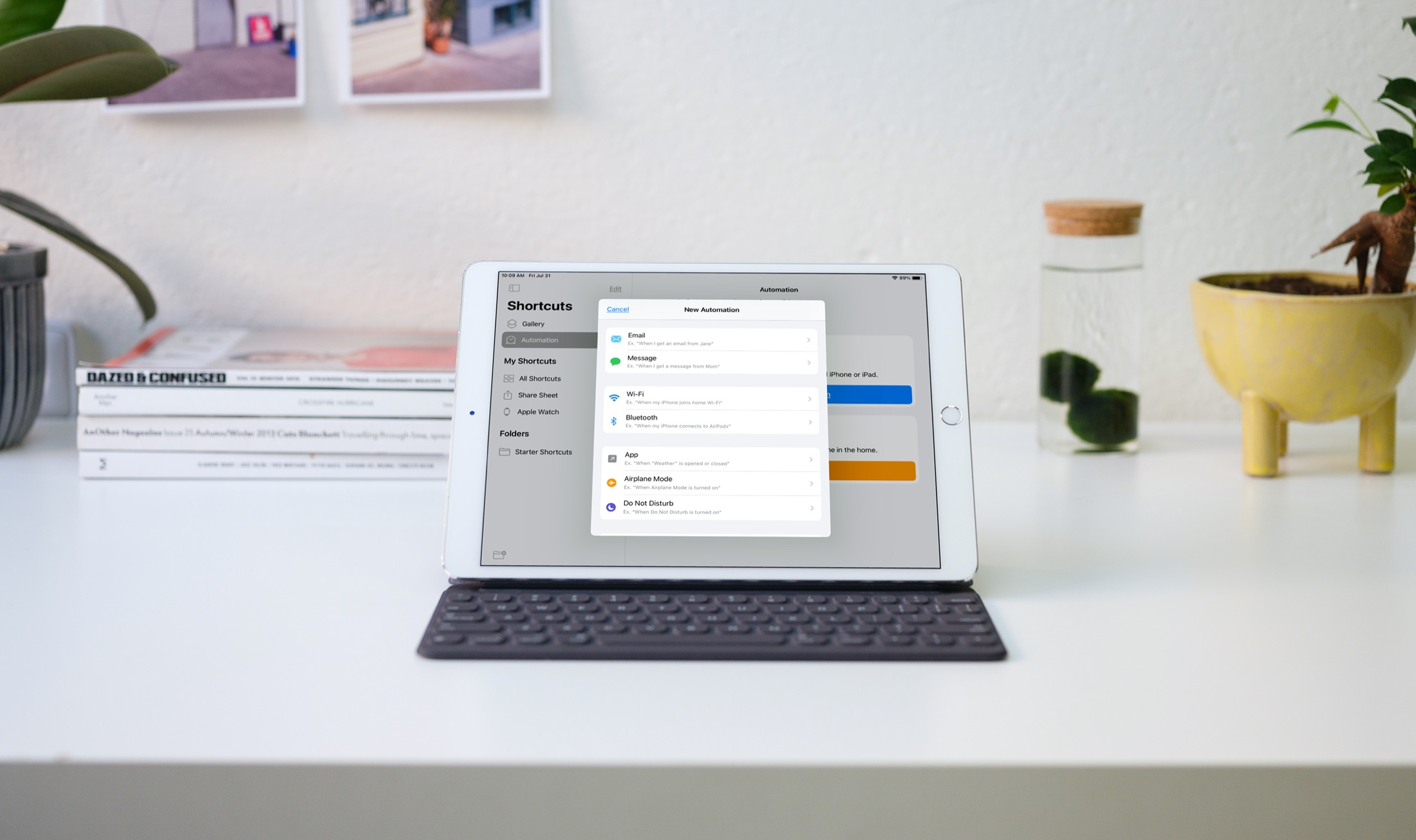
Automations in the Shortcuts app give you awesome ways to make tasks simpler. With automations, you can do things like open an app, play music, or make a phone call, all automatically based on triggers you set up.
The Shortcuts app offers both personal and home automations to make your life a little easier. And with iOS 14 and iPadOS 14, you have even more triggers available. Here, we’ll show you how to use some of these new personal automation triggers in Shortcuts.