Sandy Writtenhouse

With her BS in Information Technology, Sandy worked for many years in the IT industry as a Project Manager, Department Manager, and PMO Lead. She then decided to follow her dream and now writes about technology full-time.

How to customize Slack on your Mac desktop

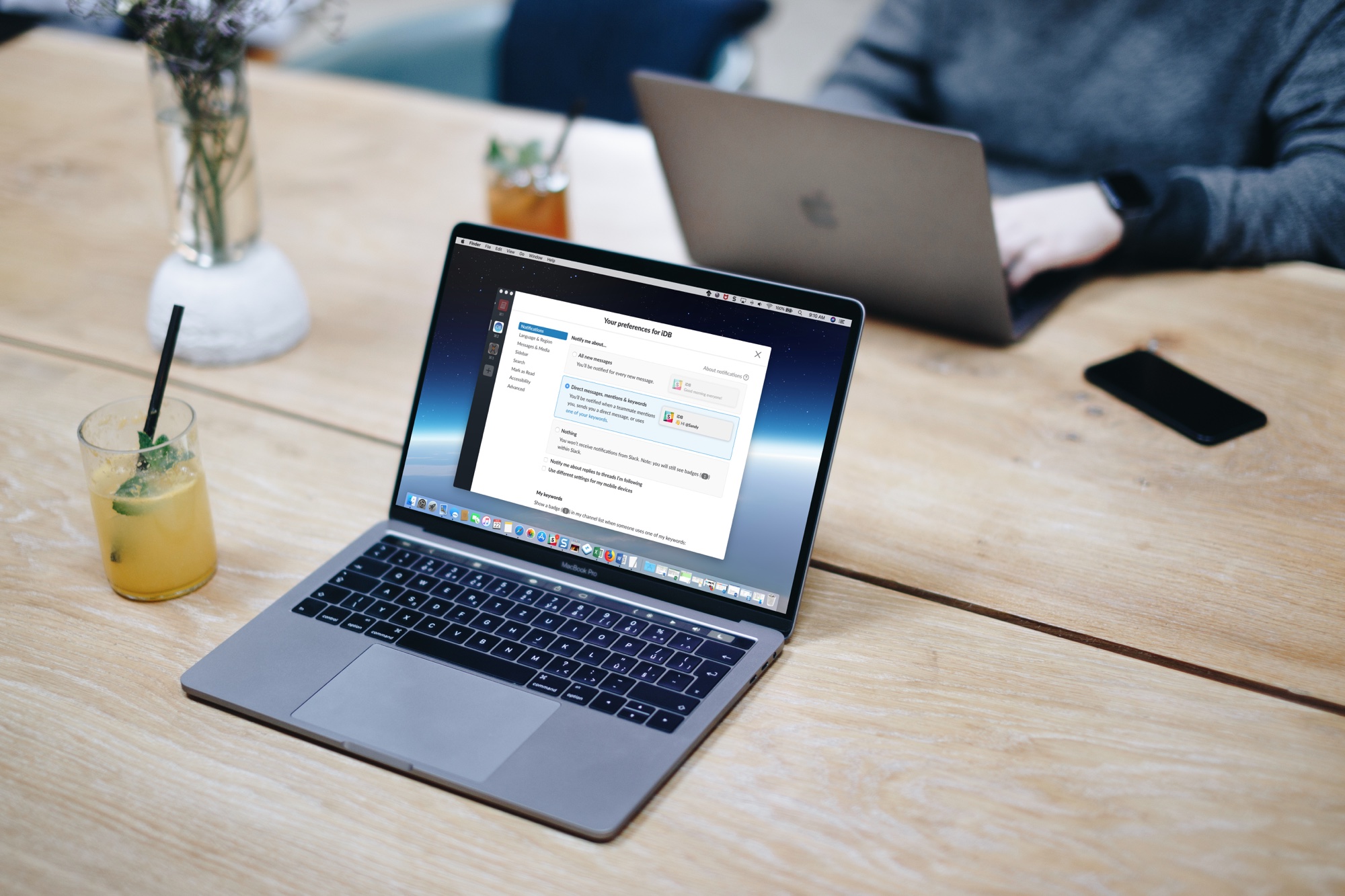
Slack on Macbook Screen

If you and your team use Slack to communicate, then you already know that it’s a flexible tool with great features. So, when it comes to customizations, it’s no surprise that you have a variety of options.

From how to view notifications to marking messages as read to the sidebar appearance, here are the customization options for the Slack app on your Mac.
How to change text and formatting AutoCorrect settings in Word for Mac

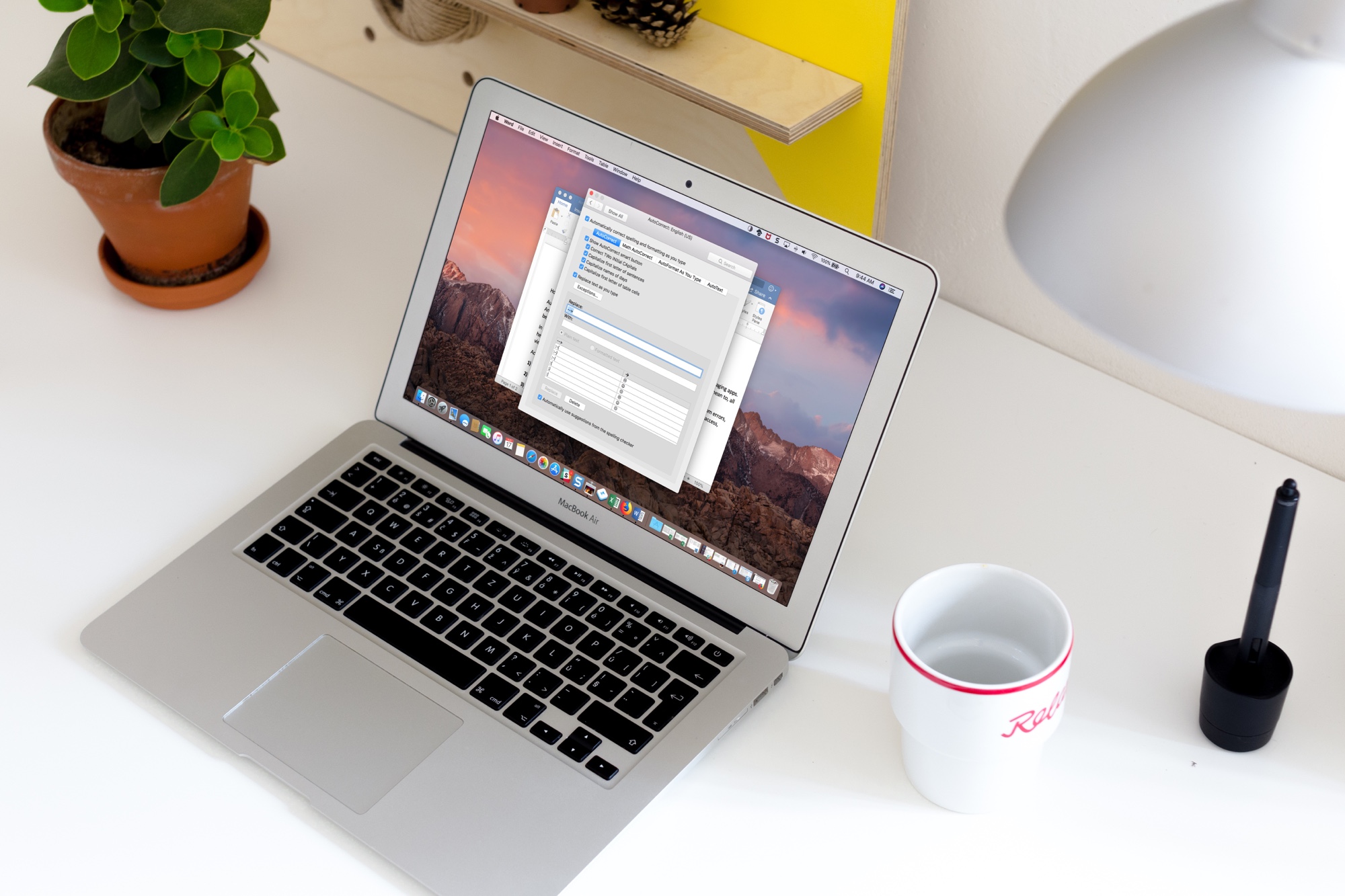
Word AutoCorrect Options on Mac

Auto-correction is one of those features you either love or hate. We see it most in text messaging apps. And, it can be aggravating when you end up sending something in a message that you didn’t mean to, all because it was “automatically corrected” for you.

In Microsoft Word, however, the AutoCorrect feature can be quite useful. It can save you from errors, help you get your words out quicker, and format your document as you type. Here’s how to access, view, and adjust AutoCorrect settings in Word on Mac.

How to customize keyboard shortcuts in Microsoft Word for Mac

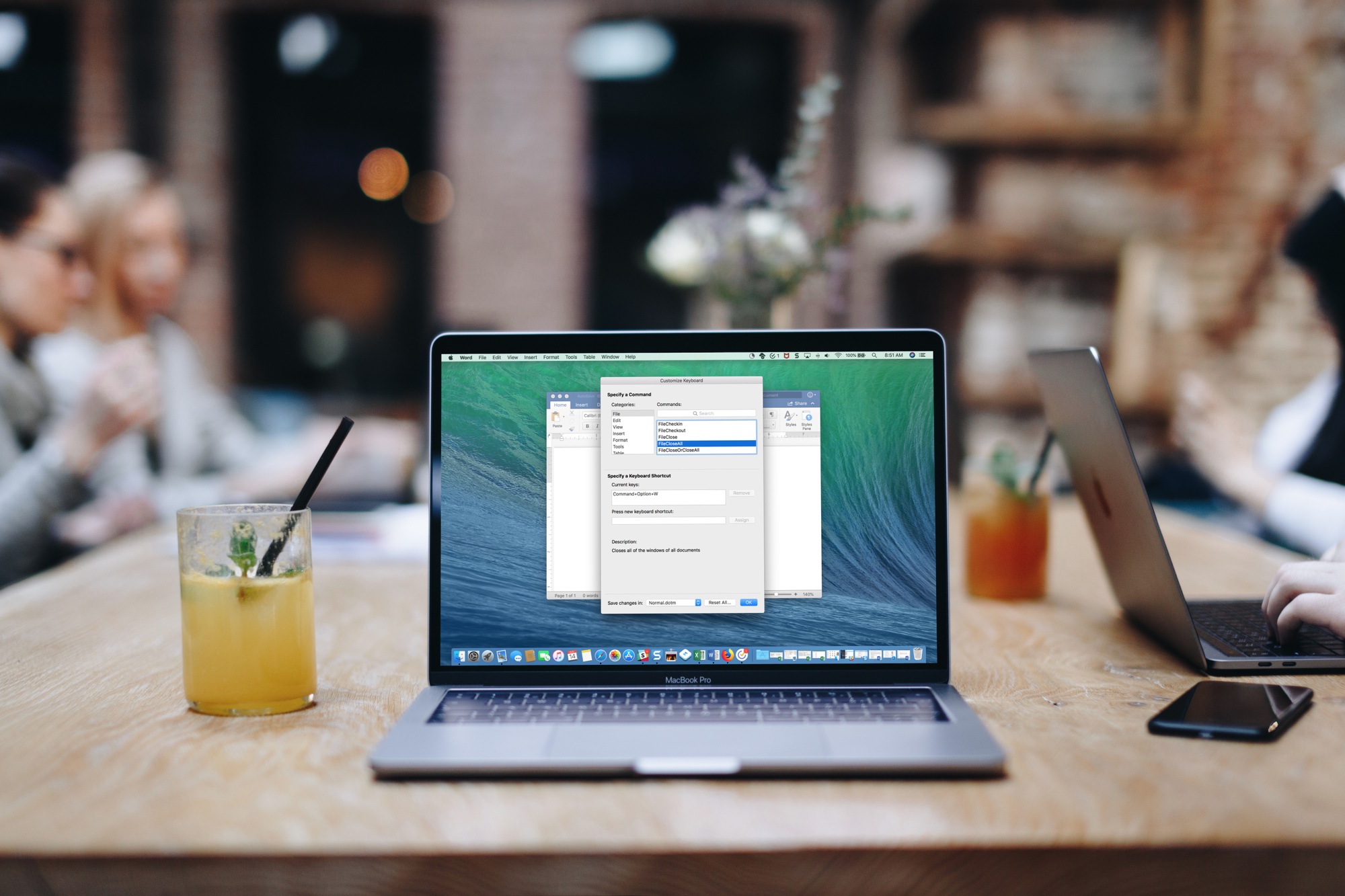
MS Word Keyboard Shortcuts Mac

If you use Microsoft Word on your Mac, then you have more customization options than you probably realize. The settings can help make your experience more efficient and productive each time you use the application.

One of the settings that helps you move through your word-processing tasks faster is the keyboard shortcuts. Without lifting your fingers from the keyboard to grab your mouse or use your touchpad, you can accomplish a variety of tasks. And you can customize the shortcuts to suit what you use most and which keys are easiest to remember.

The best free focus timers for Mac to work, break, and concentrate

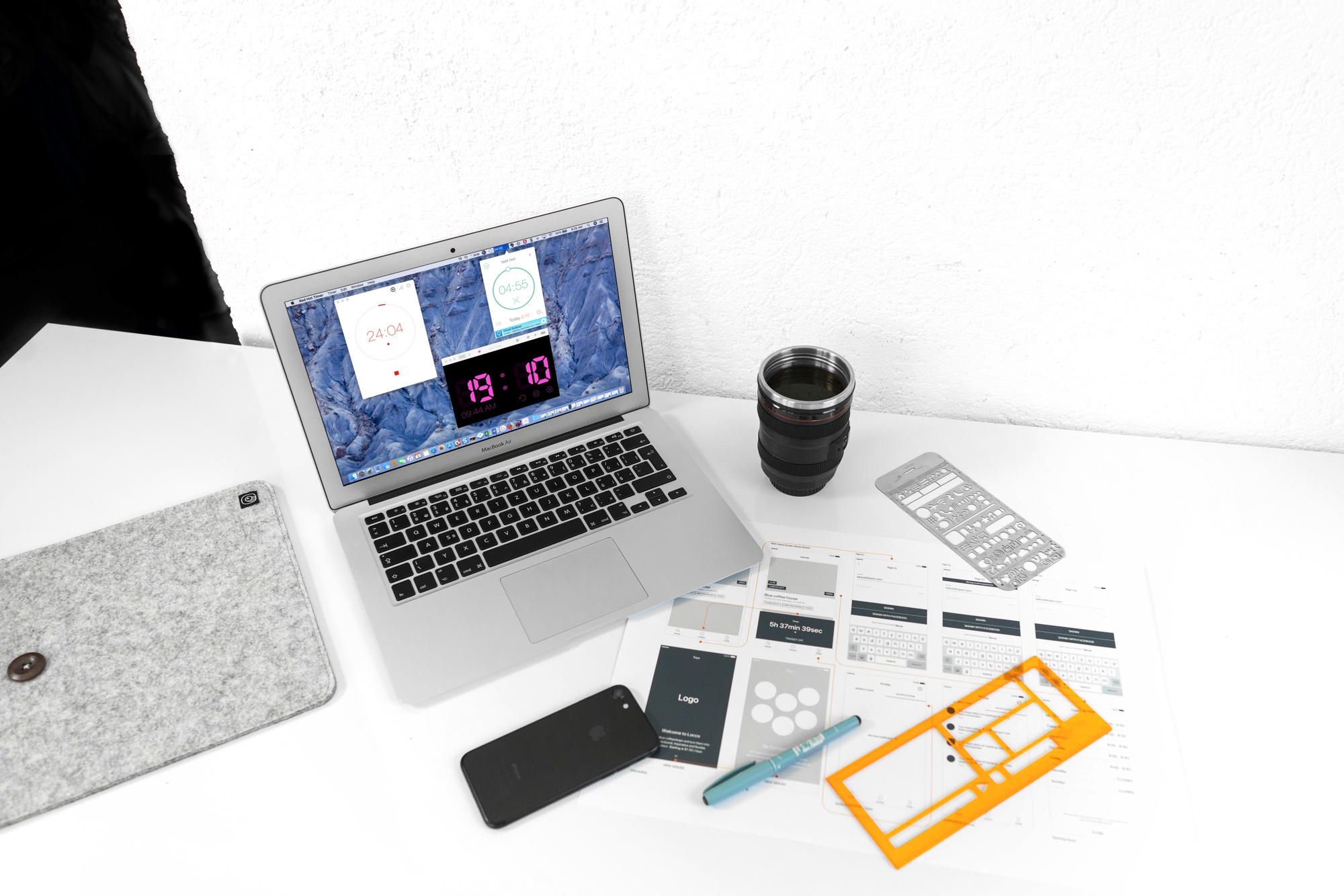
Focus Timers for Mac

When you’re hard at work on your Mac, sometimes you forget to take a break. Then there are other times when that’s all you can think about doing. In both cases, a handy focus timer can help.

Set the timer, focus on the job at hand, and take a short break when time is up. This helps you stay focused on what you need to do for a certain amount of time and take that necessary break without forgetting.

Check out these awesome free focus timers for Mac you can snag on the Mac App Store.

How to configure your Spark email app Smart Inbox

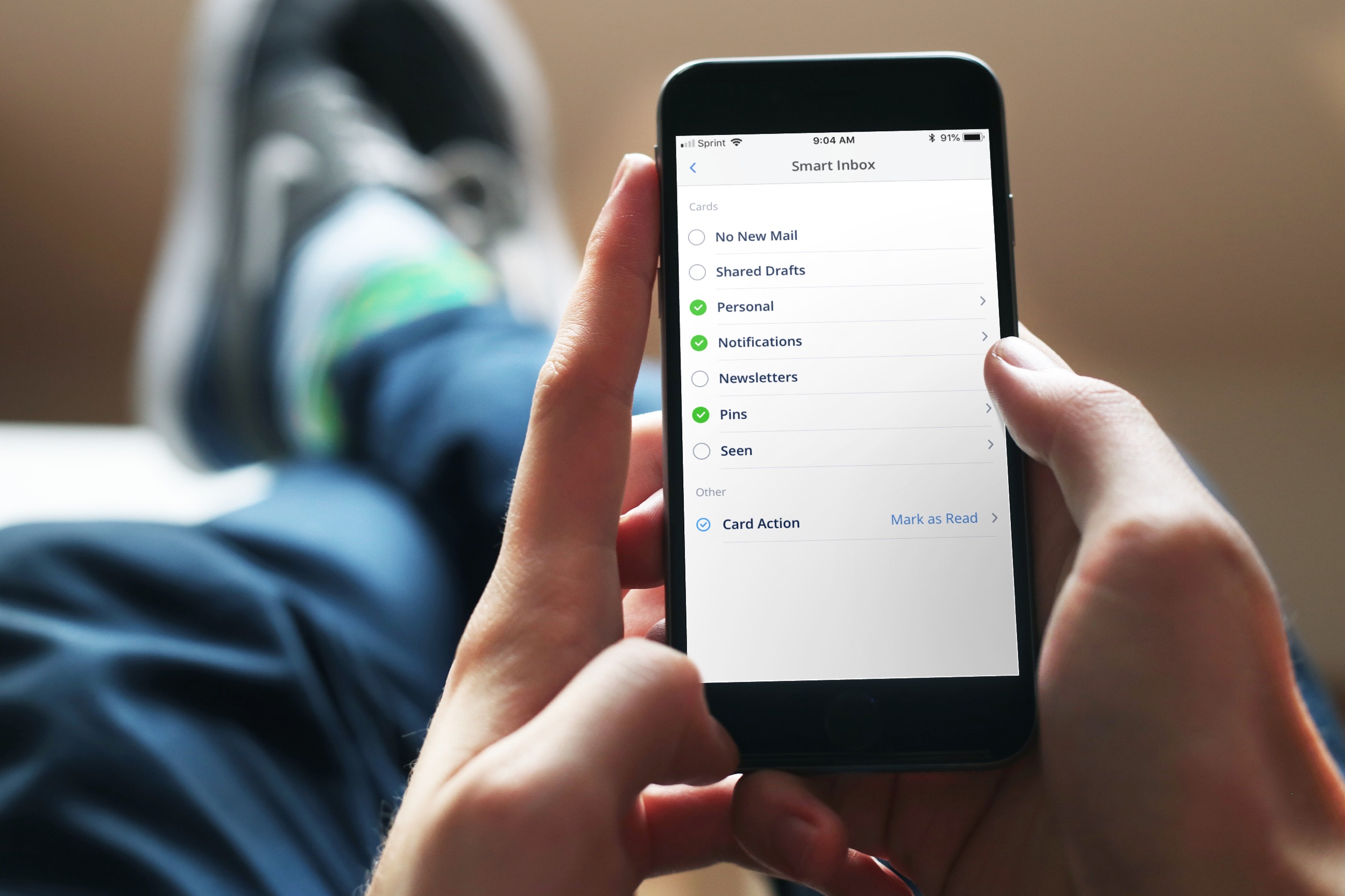
Spark Smart Inbox Settings on iPhone

Spark is a great email solution if you want to move past your default Mail app on iPhone, iPad, or Mac. It offers a host of helpful features and one of them is the Smart Inbox.

The Smart Inbox is a spot in the app that gathers emails from your various accounts and categorizes them for you. This gives you a fast and easy way to zip through your inbox. The key is configuring it to work for you and here’s ways you can do that.

The best iPhone packing list apps for your next trip

Packing List Apps for iOS

When you have to get ready for a trip, whether for business or pleasure, making sure you pack everything you need is essential. These days, there’s no better way to ensure you remember it all than with a handy mobile packing list app.

These packing list apps for iPhone and iPad have terrific features and provide exactly what you need to create your list.

How to create and format lists in Stickies for Mac

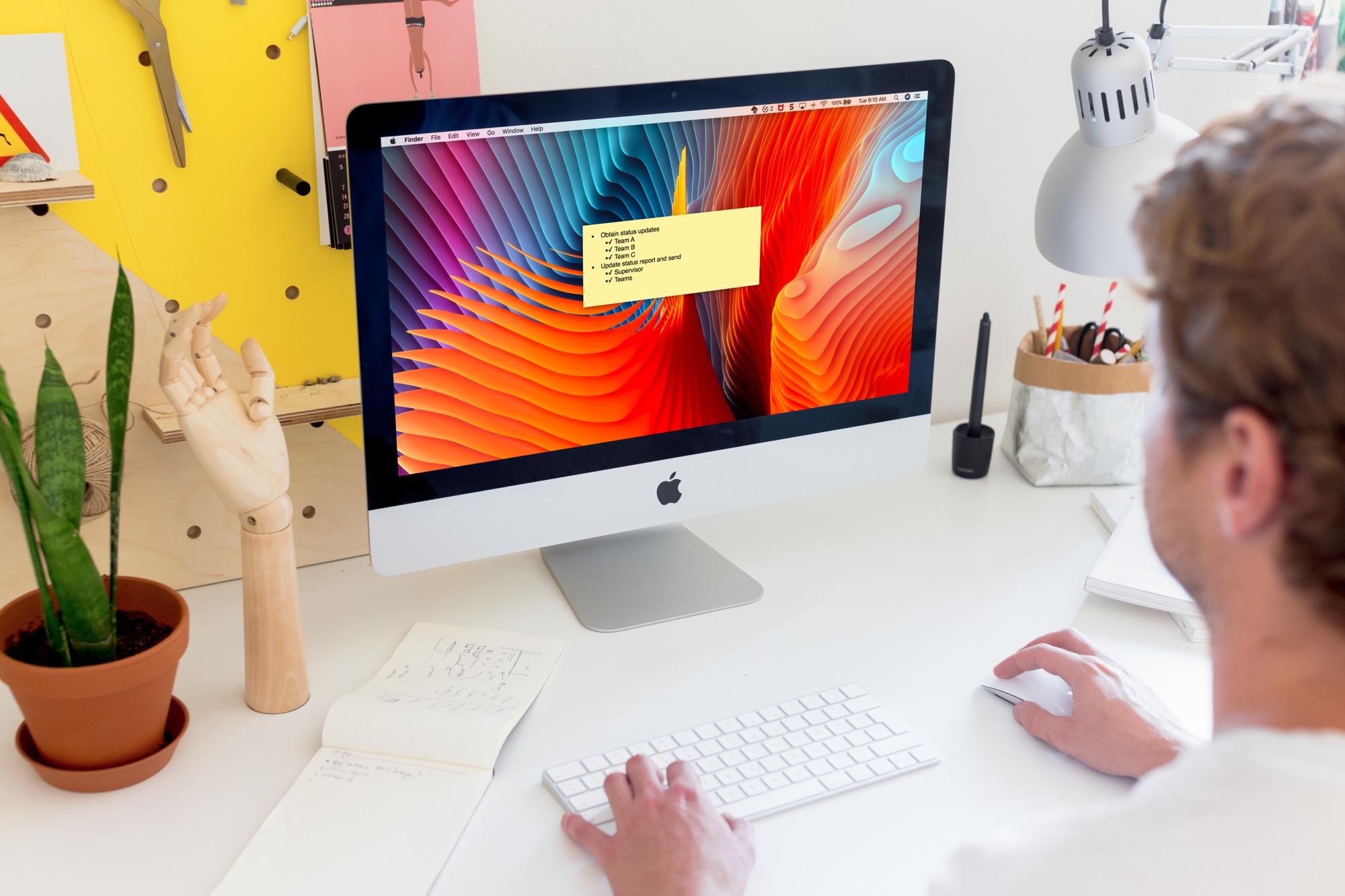
Stickies on Mac Desktop

The Stickies app on Mac is a convenient tool for creating digital notes. You can pop Stickies onto your desktop just like you can put physical sticky notes on your desk.

While it’s a really simple app that comes in handy, it does offer a list feature that makes it even more practical. You can make lists for tasks, shopping, ideas, and more. Here’s how to create and format lists in your Stickies.