Learn how to make your Mac announce the time at regular intervals so you can better organize your schedule and never lose track of time again.

Time flies when you’re having fun!
Whether working, playing a game, or browsing the web on your Mac, time can easily slip away.
To help with that, macOS provides a neat feature to announce the time at periodic intervals and even speak it out loud.
Set your Mac to announce the time
1) Open System Settings on your Mac.
2) Select Menu Bar in the sidebar. On slightly older versions of macOS, click Control Center instead.
3) Click Clock Options next to Clock.

4) Turn on the Announce the time switch.
5) Click the menu next to Interval and select On the hour (every 60 minutes), On the half hour (every 30 minutes), or On the quarter hour (every 15 minutes).
6) Optionally, click Customize Voice to choose between computer voices to announce the time. Finally, click Done to save the changes.

Important: Don’t remove System Speech.app in System Settings > General > Login Items & Extensions under “Open at Login.” Otherwise, your Apple computer will stop announcing the time after a reboot. Also, be sure the volume isn’t too low or muted.

If your Mac is on macOS Monterey or earlier, follow these steps instead:
- Open System Preferences and click Date & Time.
- Select the Clock tab and tick the checkbox next to Announce the time.
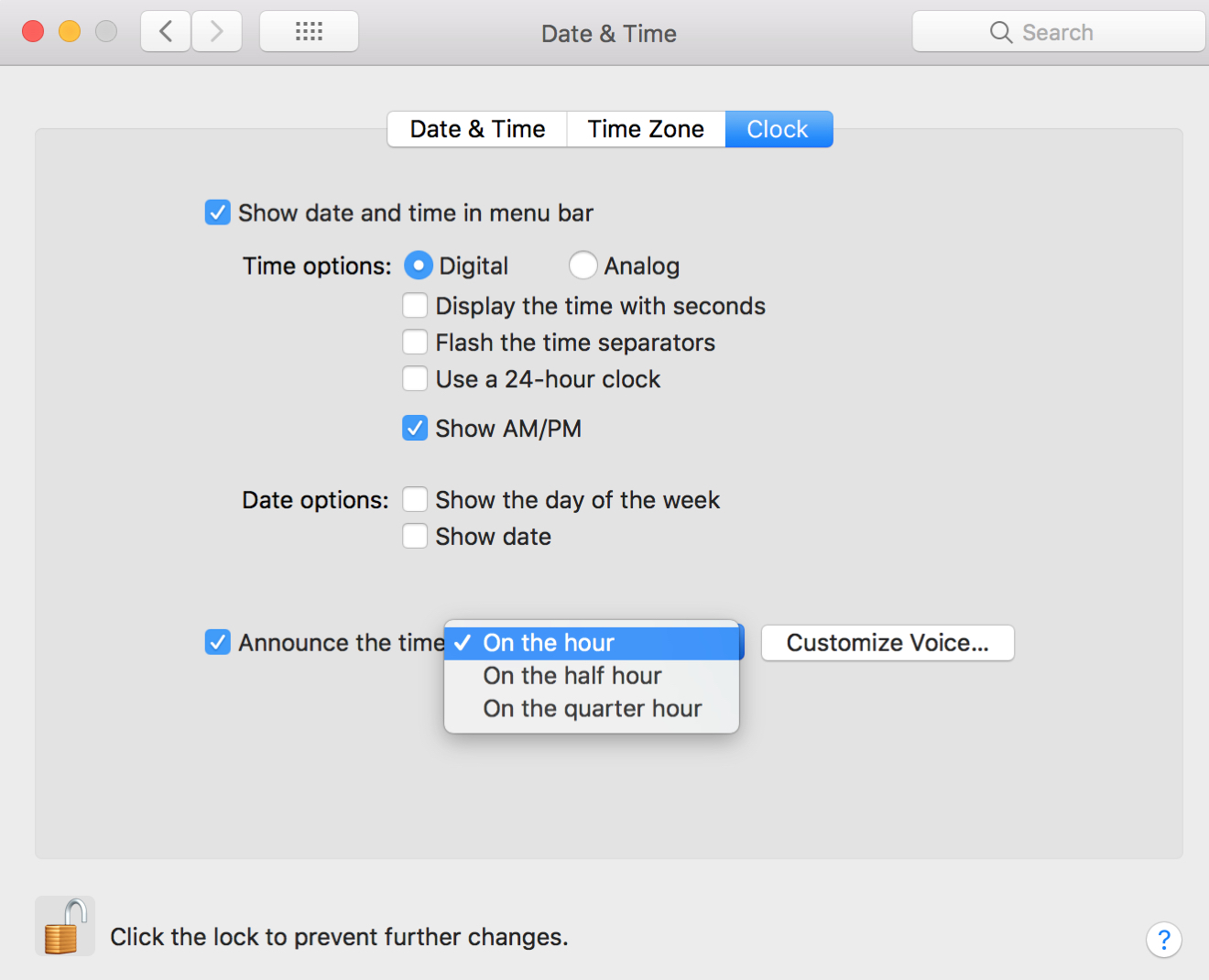
You may need to click the padlock icon in the bottom-left corner and authorize with your macOS account password to make the changes. Here’s how to set the frequency of these time announcements.
- Click the menu next to Announce the time and select between the On the hour, On the half hour, and On the quarter hour options, depending on how frequently you want to hear time announcements.
- Click Customize Voice to adjust speech rate and volume.
- On the voice screen, tick the box next to Use System Voice to change the current voice.
- Choose one or more listed voices or hit Customize to add more voices.
- Click the Play button to test the voice, pitch, and volume.
- Click OK if happy with your picks.
If you had to authorize making changes to your Date & Time settings, click the padlock icon in the bottom-left corner to lock them again when finished.
Other clock tips for your Mac: