Jeff Benjamin

Jeff has been with iDownloadBlog since 2010, acting as resident video specialist, and tutorial expert. He earned his degree in Computer Network Systems back in 2001, but decided Cisco routers and the like just weren’t for him. Since then, he’s been heavily involved with online writing. He’s written for numerous tech and video game sites since the late 1990′s, and has a knack for explaining things in a simple, clear, and concise manner. Jeff works primarily from the east coast on his Retina Macbook Pro, and shoots video with a Canon DSLR. During downtime he likes to travel the world, visiting the various Apple Stores across the globe. You can email him at jeff [at] idownloadblog.com and follow him on Twitter @JeffBenjam or on Google+.

4 ways to locate your misplaced iPhone using Apple Watch

Locate your missing iPhone using your Apple Watch

When your iPhone is buried under sheets, left in another room, or out of sight, the obvious thing to do to locate it is to call your iPhone using another phone. However, this may not be helpful if your iPhone is in silent mode, Do Not Disturb, or has an active Focus mode.

In these situations, or if you don’t have a second phone around, you can use your Apple Watch to play a loud alarm sound on your iPhone or trigger its camera LED to blink.
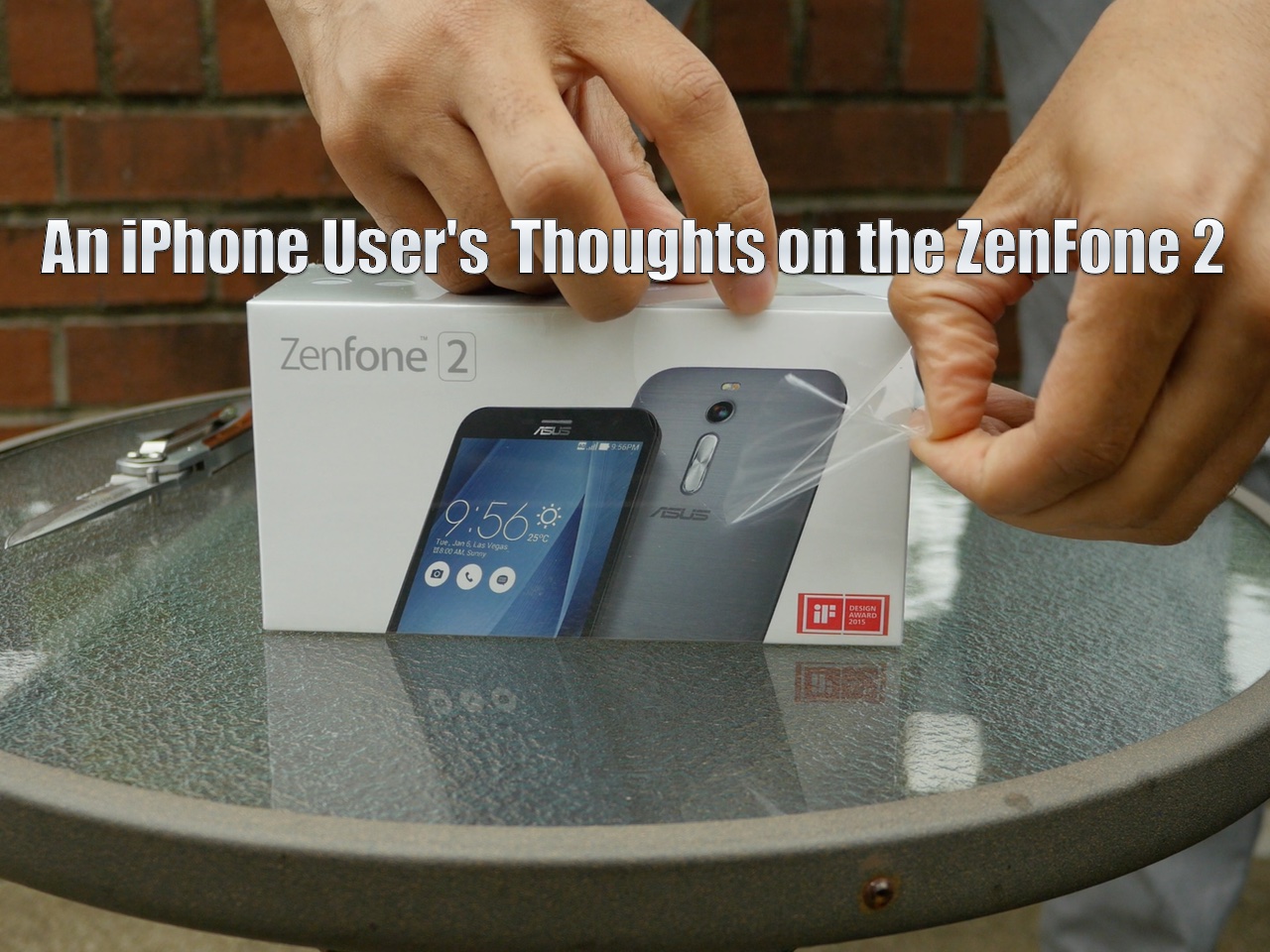

Review: Asus ZenFone 2 from an iPhone user’s perspective

Today, I picked up the ZenFone 2 from Asus. It's a mid-tier Android phone with flagship specifications.

This phone is actually quite good from a pure specs perspective. It features 4GB of RAM, and it's one of the first phones to do so. It also packs in a 64-bit quad-core 2.3 Ghz Intel Atom processor, and 64GB of flash storage, expandable up to 128GB.

The screen is 5.5 inches, and it's roughly the same size as the iPhone 6 Plus, though a bit thicker. Needless to say, this ZenFone is firmly in the realm of the "phablet" and although it's selling at mid-tier prices at $299, it's got some decent specs.

In this review, which won't be your typical review where I spout off statistics and benchmarks, I look at 5 things that this phone does right, and 5 things that it does wrong—all fed through my iPhone-tinted glasses.

How to use Handoff to move between Apple Watch and iPhone

Handoff—a feature that allows you to quickly move between devices and pickup right where you left off—first appeared with iOS 8 and OS X Yosemite. It allowed you to seamlessly move between an iPhone and an iPad, and iPhone and a Mac, Mac and an iPad, etc.

Unsurprisingly, Handoff is now available on the small screen with Apple Watch. It will allow you to do things like check email on Apple Watch, and seamlessly switch to your iPhone to has out a reply. Have a look at our tutorial inside for a walkthrough on how it works.

Let’s Talk Jailbreak 108: What great timing

Episode 108: We discuss the prospect of replacing Siri with third-party voices, and a host of new jailbreak tweaks like Helius 2, LockEmoji, NoBanner, LockEditor, and more.

Subscribe via RSS

Support Let's Talk Jailbreak

Red Hat. Different for the sake of better technology

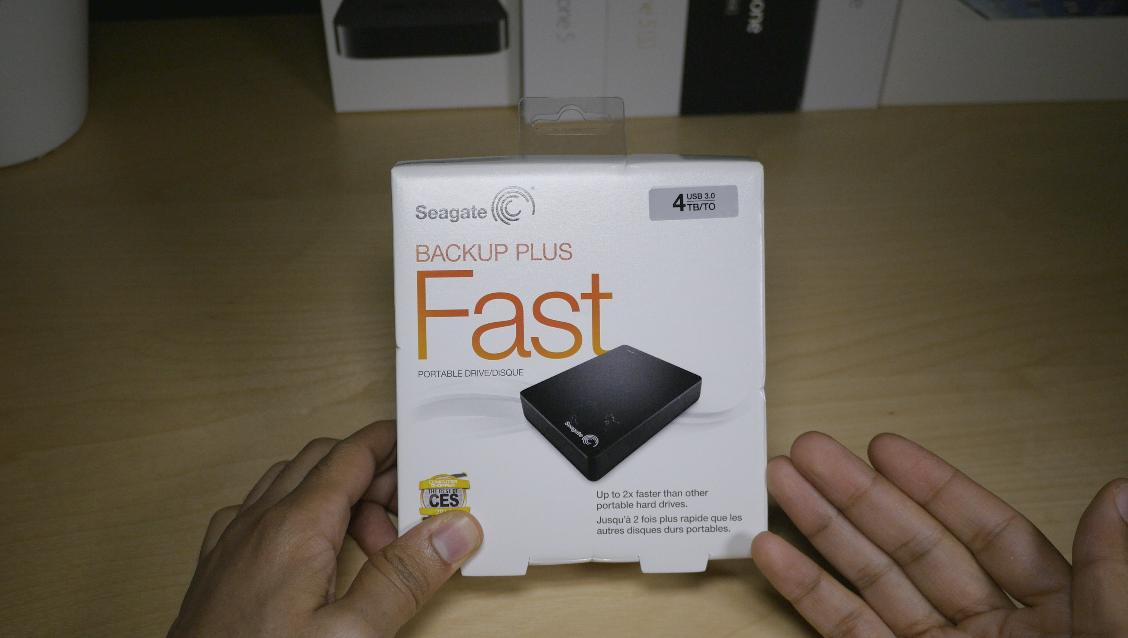
Seagate Backup Plus Fast: a good external drive for Mac users?

As a MacBook Pro with Retina Display owner, disk space is at a premium. My MacBook features 256GB of SSD flash storage, which isn't exactly tiny in most use cases, but is downright microscopic when it comes to editing video and audio.

My video files are extra large due to the fact that I shoot in 4K the majority of the time. In fact, simply gathering the footage for this video review was somewhere in the neighborhood of 25GB, and that's not even an in-depth video like an iPad review or an Apple Watch review.

With this in mind, it became apparently clear that I was going to need an external storage solution. But I also needed something that was fast enough to adequately handle the throughput required by 4K video.

After lots of research, I ended up purchasing the Seagate Backup Plus Fast drive. It's a 4TB RAID 0 drive, so it's fairly fast. A couple of weeks into my purchase, I've accumulated several hours of hands-on experience with this drive. Does it live up to my expectations?

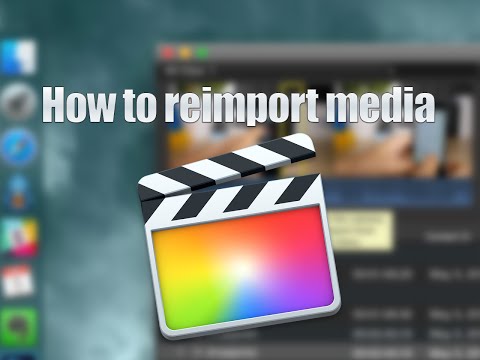
How to fix a “referencing media on the camera” error in Final Cut Pro X

Every now and then, you may run into an issue with Final Cut Pro X where a file doesn't successfully import. Due to this, the media that you're working with in your project is still referencing the location where the file originally was (i.e. SD Card, Camera HDD, etc.).

When this happens, and you try to share/export a project, you'll receive an error message that says "This item cannot be shared while it is still referencing media on the camera."

To fix this problem, you'll need to reimport your footage from the original source using the File menu. It's fairly straightforward, but it's not exactly obvious as to what you should do when you first encounter this issue. Inside, we'll show you the error message and the quick fix in our brief video tutorial.

Helius 2 adds a fresh coat of paint to the Lock screen music controls

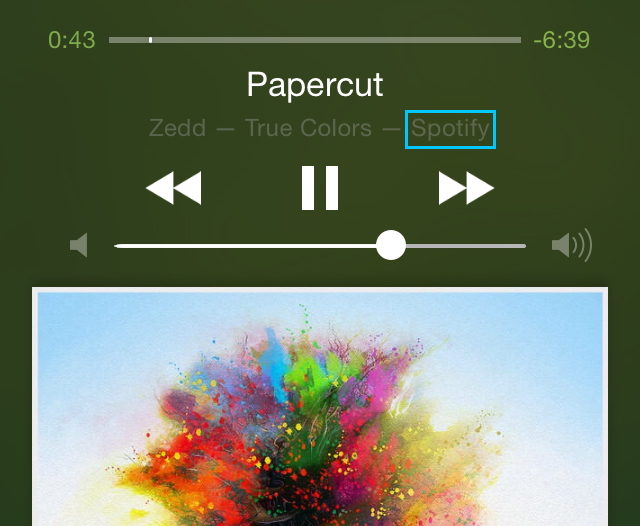
Helius 2 is the follow-up to the popular tweak that redesigned iOS Lock screen media controls. In a nice gesture to owners of the original, developers s1ris and Phillip Tennen have rewritten the tweak from scratch and are providing it as a free upgrade to previous owners of Helius.

In case you've forgotten, or in case you've never used the original version, Helius is a tweak that takes your default media controls on the Lock screen, and provides them with a fresh coat of paint. Have a look at our video walkthrough for more information on how this tweak works.

How to display the now playing app in the iOS media controls

Have you ever glanced at your Control Center or Lock screen media controls, and wondered what app was responsible for playing the now playing song? This tends to happen if you have several music apps installed on your iPhone.

The problem stems from the fact that iOS doesn't display the app responsible for a song's audio output. But a new jailbreak tweak, called PlayingLabel, promises to solve this issue.

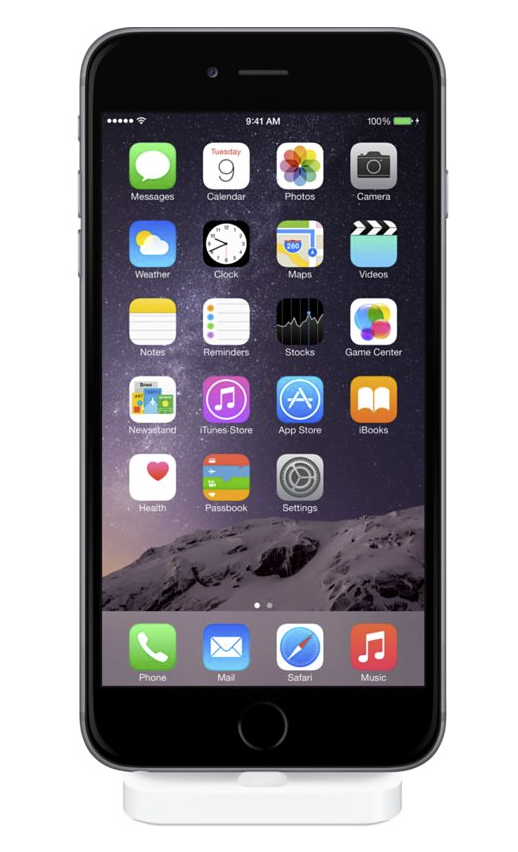
Surprise! Apple releases a Lightning dock for iPhone 6 and 6 Plus

Getting a new 5K iMac for under two grand was nice, and the addition of Force Touch to the 15-inch Retina MacBook Pro was cool. But this release is by far the most surprising release from Apple that we've seen today.

Indeed, has released a Lightning dock for the iPhone 5, iPhone 5s, iPhone 6, and 6 Plus. You can even use Apple's new dock with a Lightning equipped iPod touch.

The dock is available for purchase now for $39.99 and ships in 1-3 business days.

LockEditor lets you modify several Lock screen properties on iOS

If you find the stock iOS Lock screen to be a bore, then LockEditor is here to spice things up a bit. It's a jailbreak tweak that allows you to modify a plethora of Lock screen features, from the passcode rings, to "slide to unlock" text.

In fact, LockEditor contains nearly two-dozen different settings and switches that allow you to customize the look and feel of the Lock screen. Have a look at our video, which showcases some of the features that you'll find in LockEditor.

NoBanner suppresses banner notifications when playing video

Have you ever been in the middle of a great video, only to have the experience interrupted by an untimely banner notification? Not only is this visually disturbing, but incoming banners reduce the audio volume of a playing video as well.

NoBanner is a new jailbreak tweak that puts an end to this issue. It suppresses banner notifications whenever playing video on your iPhone. Watch our video walkthrough for a demonstration of NoBanner in action.