Jeff Benjamin

Jeff has been with iDownloadBlog since 2010, acting as resident video specialist, and tutorial expert. He earned his degree in Computer Network Systems back in 2001, but decided Cisco routers and the like just weren’t for him. Since then, he’s been heavily involved with online writing. He’s written for numerous tech and video game sites since the late 1990′s, and has a knack for explaining things in a simple, clear, and concise manner. Jeff works primarily from the east coast on his Retina Macbook Pro, and shoots video with a Canon DSLR. During downtime he likes to travel the world, visiting the various Apple Stores across the globe. You can email him at jeff [at] idownloadblog.com and follow him on Twitter @JeffBenjam or on Google+.

Let’s Talk Jailbreak 14: WWDC chitchat

It's WWDC week, and that can only mean one thing: iOS 7! Hence, today is a special episode, as we focus on the new features announced for iOS 7 via Apple's WWDC keynote. In addition, we discuss the various apps and tweak ideas that Apple borrowed from the jailbreak community. We also talk OS X Mavericks, and Sebastien gives Jeff a timely lesson in surfing.

How to downgrade iOS 7 to iOS 6.1.3

Apple makes it sound like a life or death scenario when developers decide to install iOS 7 beta on a test device. In fact, it's always done so with its beta releases. In the notes for iOS 7, Apple states that "Devices updated to iOS beta can not be restored to earlier versions of iOS."

The thing is, that simply isn't true. I've always been able to successfully downgrade my firmware in the past for a beta test device, and I've confirmed that the process still works perfectly fine on iOS 7. In fact, it's extremely easy to downgrade your firmware from iOS 7 to iOS 6.1.3; it doesn't even require any special tricks or techniques like some downgrades do. Check inside as I walk you through the extremely simple step-by-step process for downgrading iOS 7 back to iOS 6.1.3.

Ten iOS 7 features that were borrowed from the jailbreak community

Let's state the obvious; iOS 7 borrows heavily from many of our favorite jailbreak tweaks. Without even really trying, I came up with a list of ten different jailbreak tweaks that may have inspired the iOS 7 development team.

Yes, the obvious ones are here, like SBSettings and LiveClock, but some not so obvious ones have made the cut as well. Check inside, as I walkthrough all 10 jailbreak tweak inspirations on video, and compare them with their iOS 7 counterparts.

iOS 7: first boot

iOS 7 is a fairly significant change from its predecessors looks wise, but many of the functional elements of the OS are still the same. For instance, the initial setup wizard looks different, but the basic premise and much of the options and settings are much the same as they were on previous iterations of iOS. Check inside, as I walk you through the initial first boot setup process on video.

iOS 7: Music app redesign

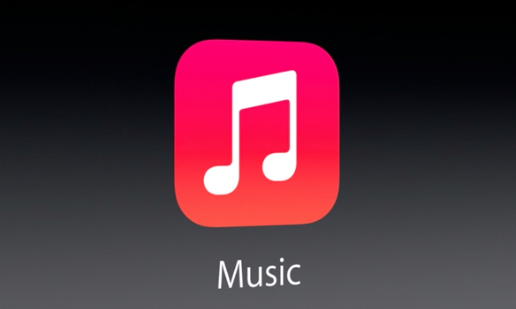
The big news with the Music app in iOS 7 is iTunes radio, but the interface to the Music app in general received a huge update. Compare what we're currently using to what we're going to get with iOS 7, and the current Music app appears hopelessly outdated.

iOS 7: Photos + Camera

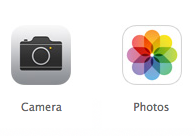
Thew new Photos app and Camera app included in iOS 7 is, as expected, a pretty significant departure from what we currently know and use. First and foremost, the new Photos app. The new Photos app auto organizes pictures based on when and where you took them, a featured dubbed Moments.

One interesting aspect of Moments is the ability to zoom out, and selectively pick specific photos from the grouping by tapping and dragging your finger over the photos. Photo streams have received a significant update as well, as you can now share your photos directly into other's photo streams, and vice versa.

iOS 7: Multitasking

Rejoice, Apple has brought Multitasking to all apps in iOS7. The new multitasking features included new intelligent scheduling, opportunistic updates, adaption to network conditions, coalesced updates, and push triggers.

The new multitasking includes a completely redesigned app switcher with full screen app previews, which will make it much easier to identify running apps. Needless to say, it's a pretty radical change from the current concept of multitasking in iOS...

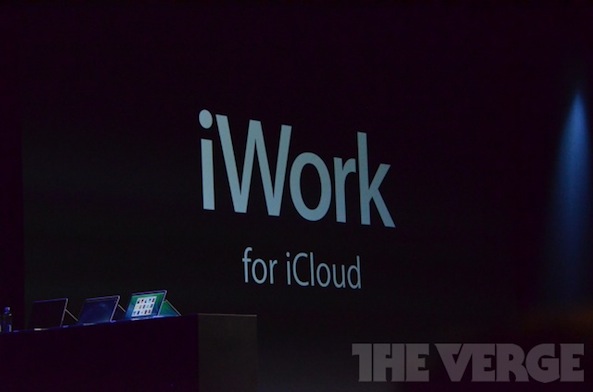
iWork for iCloud unveiled: runs Pages, Keynote, and Numbers right in your browser

iWork for iCloud is a brand new product announced by Apple today at the WWDC keynote. It's a product that will coexist with the currently existing iWork suite. iWork for iCloud exists totally in the cloud, meaning that it runs via Safari and other browsers (IE and Chrome included), similarly to Microsoft's Office 365.

Editing and viewing documents in iWork for iCloud looks almost identical to the current iWork suite experience. Support for Pages, Numbers and Keynote (along with 3D animations) is included.

iCloud Keychain securely syncs passwords and credit card numbers across devices

1Password, look out. Apple has created a new feature in OS X Mavericks called iCloud Keychain, and as you would expect, it allows you to sync passwords, credit cards, and other personal information across multiple devices.

Just like 1Password, iCloud Keychain can generate secure passwords for you. The nice thing about iCloud Keychain is that it is tightly integrated throughout the OS. In total you can save website logins, credit card numbers, Wi-Fi networks, and account information...

Apple will live stream WWDC to Apple TV, iOS, and its website

Great news for those not standing in line at Moscone West right now: Apple will live stream the entire WWDC keynote via the Apple TV.

This really is awesome news, and it's a huge treat for those of us who own an Apple TV. In fact if you check your device right now, you should see the official WWDC app on the Home screen.

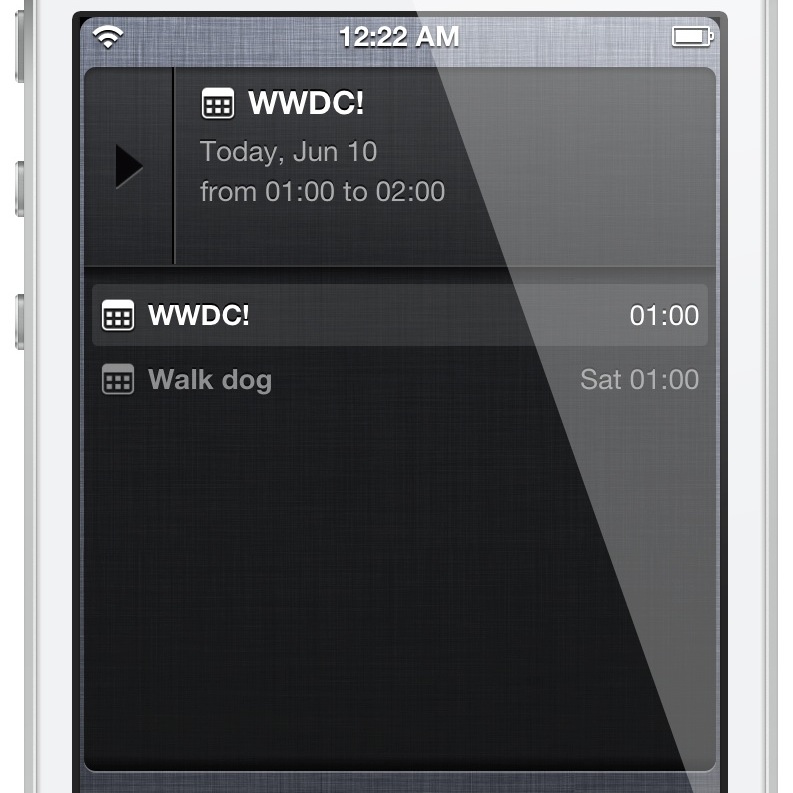
‘Overview’ allows you to manage mail, reminders, and events in one place

Overview is a brand new jailbreak tweak that provides a Notification Center widget containing email, reminders and calendar events. All of these items can be viewed directly via Notification Center. As you'll see, it's a really awesome design and concept, and it's from the same developer that brought us Tap to Widgets: Alan Yip.

You can easily scroll through all of the events, reminders, and email via the Overview widget. By tapping and holding on any of the items, you'll be taken directly to that item's full app. For example, if you tap and hold on an email within the widget, you'll be taken directly to the individual email message within the Mail app.

I've been testing out Overview for a few days now, and I'm confident that you'll like what you find, especially if you liked Tap to Widgets. Want to see how it looks in motion? If so, check out my full video walkthrough after the break...
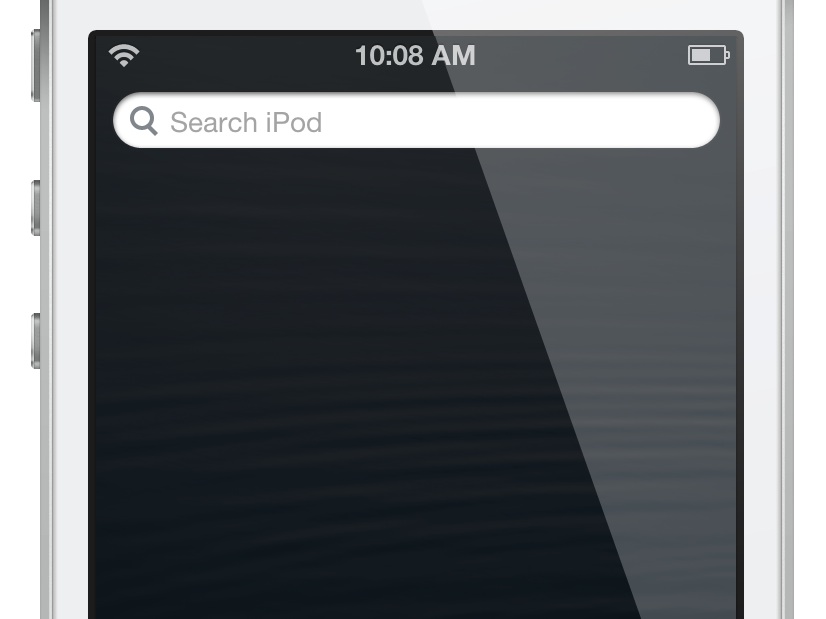
Automatically clear Spotlight search with ‘ClearOnOpen’

Whenever you perform a Spotlight search by typing search terms in the Spotlight search bar, and then exit the search, the Spotlight search field remains populated when you swipe back to the Spotlight search screen. This is how Spotlight search works with stock settings.

ClearOnOpen is a new jailbreak tweak that forces the Spotlight search field to clear when coming back to the Spotlight search page. If you'd like to see how it works in action, then check after the break as we guide you via our video walkthrough.