Jeff Benjamin

Jeff has been with iDownloadBlog since 2010, acting as resident video specialist, and tutorial expert. He earned his degree in Computer Network Systems back in 2001, but decided Cisco routers and the like just weren’t for him. Since then, he’s been heavily involved with online writing. He’s written for numerous tech and video game sites since the late 1990′s, and has a knack for explaining things in a simple, clear, and concise manner. Jeff works primarily from the east coast on his Retina Macbook Pro, and shoots video with a Canon DSLR. During downtime he likes to travel the world, visiting the various Apple Stores across the globe. You can email him at jeff [at] idownloadblog.com and follow him on Twitter @JeffBenjam or on Google+.

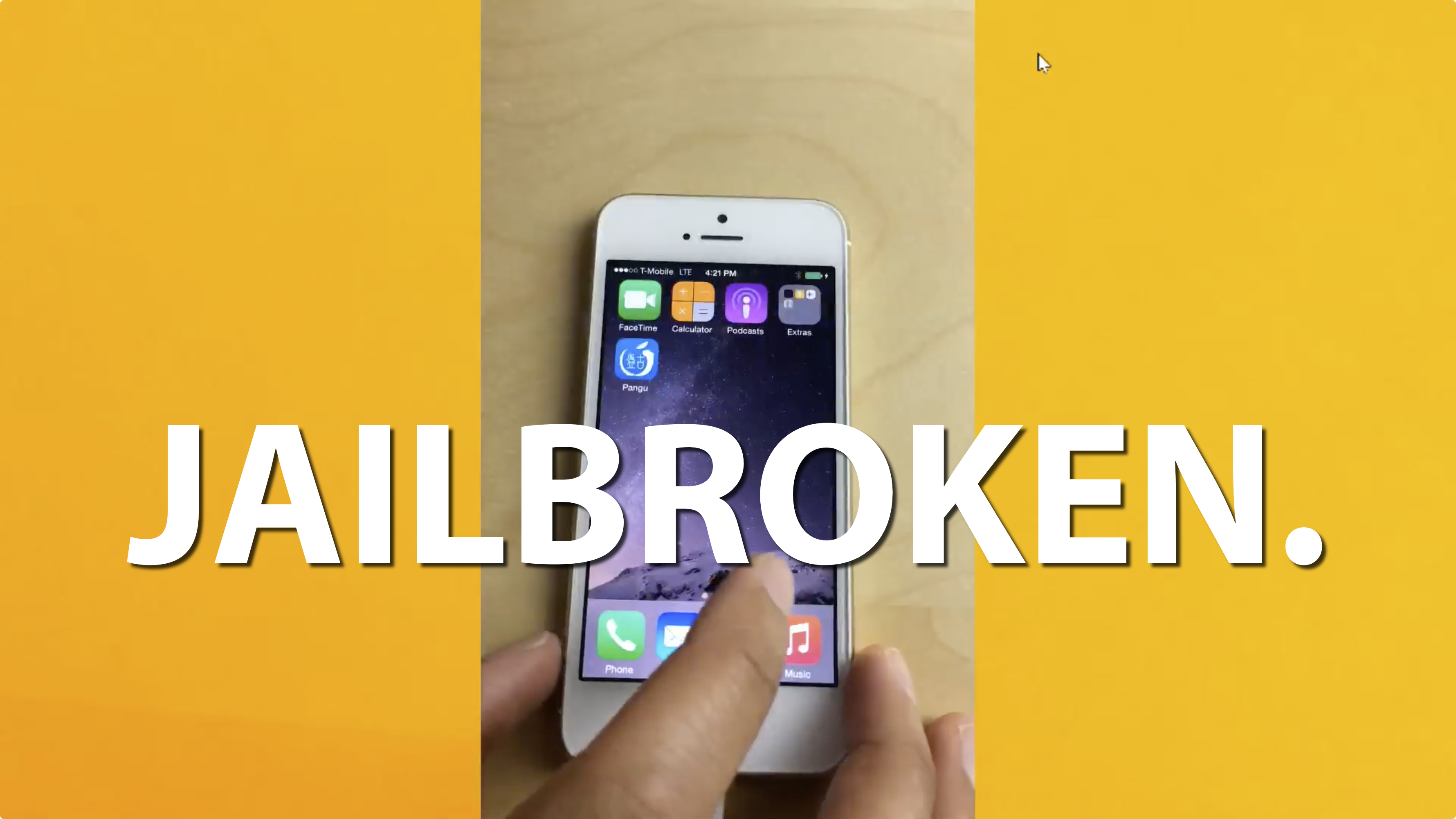
How to jailbreak iOS 8.1 with Pangu 1.0.1 [video]

Pangu for iOS 8 caught us all by surprise, but it shouldn't be a shock that the talented Chinese jailbreak team pulled off a jailbreak in such a short period of time since iOS 8's release. While the Pangu tool for iOS 8 isn't exactly ideal as far as a consumer jailbreak goes—it doesn't come bundled with Cydia, it's in Chinese, and it's Windows only—it's certainly better than nothing.

In this video tutorial, we will show you how to jailbreak iOS 8.1 using Pangu 1.0.1 with a Windows machine. It's an extremely easy and simple process, as long as you follow the steps exactly. This tool can jailbreak the iPhone 5s, iPhone 6, iPhone 6 Plus, and any other device capable of running iOS 8.x. Check out our full video tutorial for the details.

Let’s Talk Jailbreak 78: iOS 8 jailbreak status

Episode 78: We discuss the status of the iOS 8 jailbreak. We also talk about the economics of jailbreaking, the annual lull that seems to hit the community each year, along with a couple of the newest jailbreak tweaks to hit Cydia in the past week.

Note: This episode was posted on the eve of the iOS 8 jailbreak. Hence, the information discussed is outdated and doesn't reflect the current status of the iOS 8 jailbreak.

Subscribe via RSS

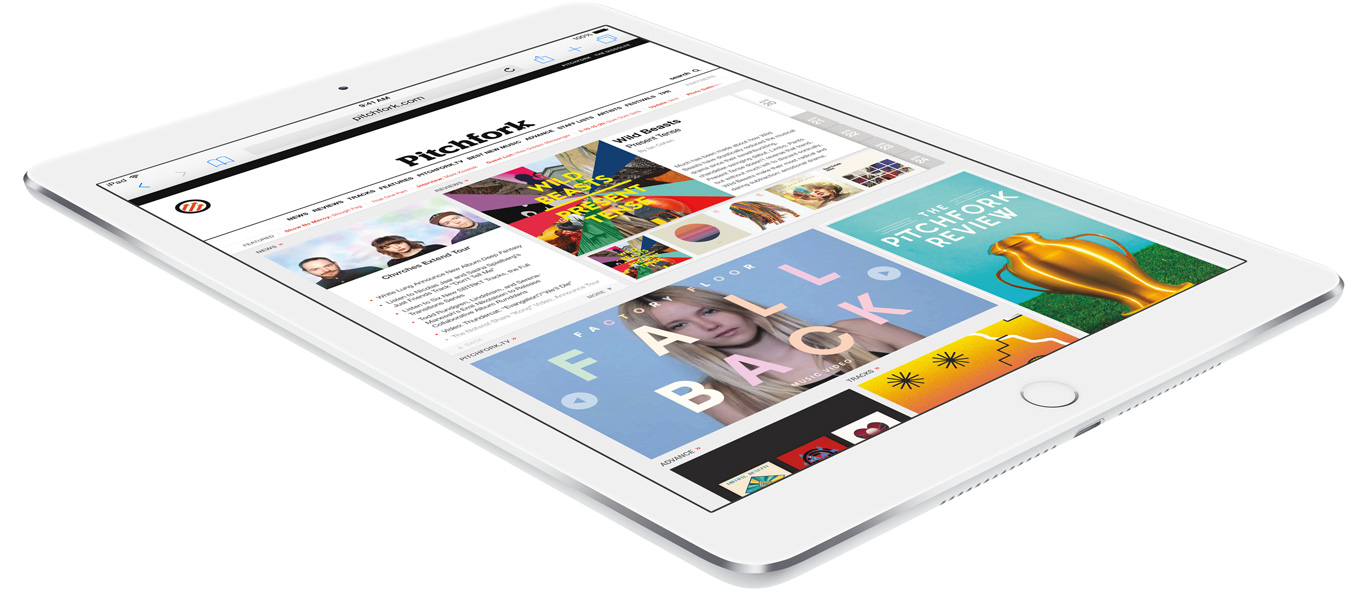
The iPad Air 2 is much faster than the iPhone 6 and the original iPad Air

No big shocker at first glance. Of course the iPad Air 2, a device that's just now landing into the hands of rabid fans, is faster than the year-old device that it's intended to replace. Yes, the iPad Air 2 is faster, but it's the way that it's faster that is truly noteworthy.

The A8X processor that's nestled deep within the confines of the iPad Air 2's new slim and trim body is, for the first time in the history of iOS devices, a 1.5Ghz triple-core processor. The iPad Air 2 also features a healthy 2GB of RAM. Coincidentally, the 2GB of RAM is also a first for any iOS device.

Needless to say, the iPad Air 2 is a beast on paper, but it's no mere paper tiger. This thing screams, and the first benchmarks posted on MacRumors comparing it to previous iOS devices are proving that point.

Be choosy, Apple Pay is limited to 8 credit cards at any one time

I generally keep a lot of credit cards, because I like to play the loyalty frequent flier bonus miles game. I've been able to take some amazing trips for next to nothing over the years as a result.

But telling you about my global travels isn't the purpose of this post. The point of this post is to highlight a limit you'll encounter if you add enough cards to Apple Pay.

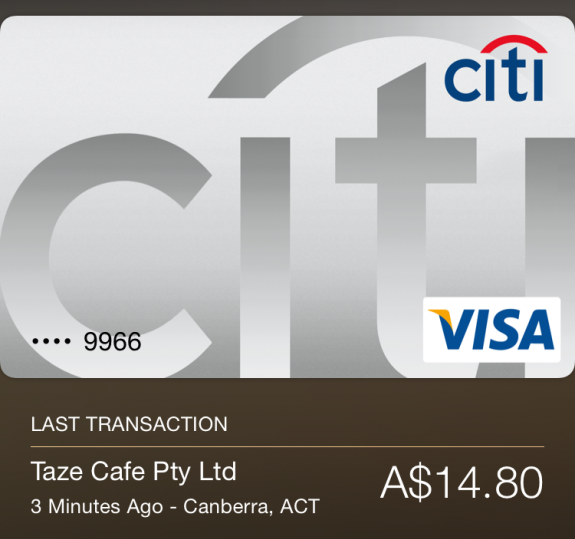
It appears that Apple Pay limits its users to only eight credit and/or debit cards per device. I ran into this limit as I was adding as many of my credit cards into Passbook as I could. It's nowhere near a deal breaker, but this is somewhat disappointing for me...

Apple Pay can work internationally if you have a U.S.-issued credit card

When Apple Pay launched yesterday, it did so within the confines of the United States. Given the amount of hype and the positive experiences from those who used the service, it's no question that many of our friends outside of the United States would love the opportunity to use Apple Pay.

As reported by Mac Rumors, an Australian by the name of Beau Giles was able to successfully use Apple Pay by changing the region of his iPhone from his home country to the United States. Changing the phone's region to the United States on an iPhone running iOS 8.1 enables Apple Pay, and thus allows for the adding of supported credit cards to the Passbook app.

Let’s Talk iOS 052: All about Apple Pay

Episode 52: We discuss Apple Pay, iOS 8.1, new iPads, and the slow demise of the iPod Touch. We also touch on Apple's earnings call along with OS X Yosemite and its many amazing features.

Subscribe on iTunes

Sponsor:

Thinkful, a service that will teach you how to code iOS apps. For 10% off, go to www.thinkful.com/ios

Improved Resize Controls: a new OS X Yosemite Feature

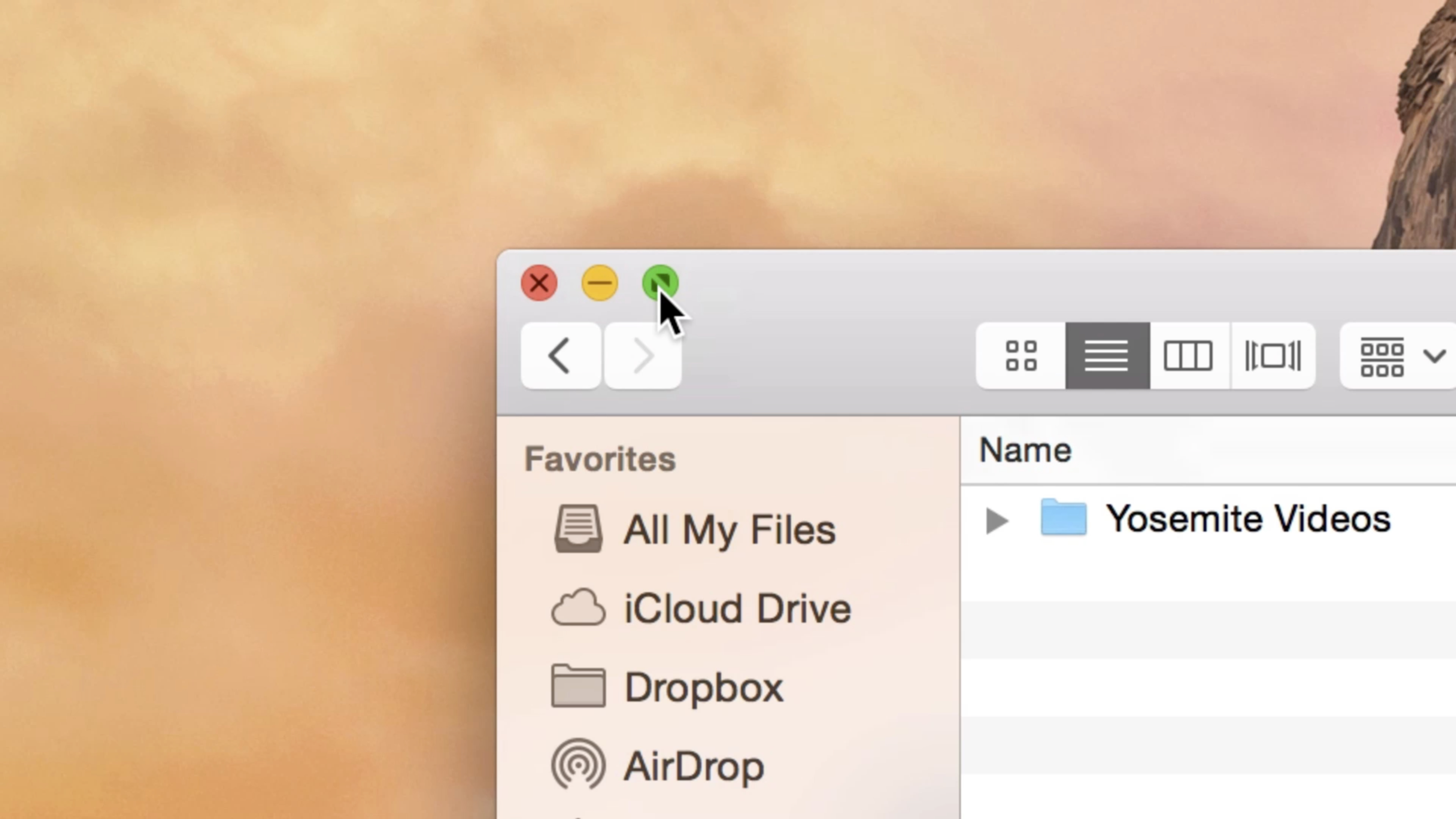
Apple has redesigned and redefined the window controls in OS X Yosemite, and like many of the other changes present in this release, it’s a welcomed change.

All of the window controls in OS X Yosemite—including the ability to invoke full screen mode—are now accessible from the red, yellow, and green “traffic light” buttons in the upper left-hand corner of every app. Check inside for the video details.

How to make and take phone calls on your Mac

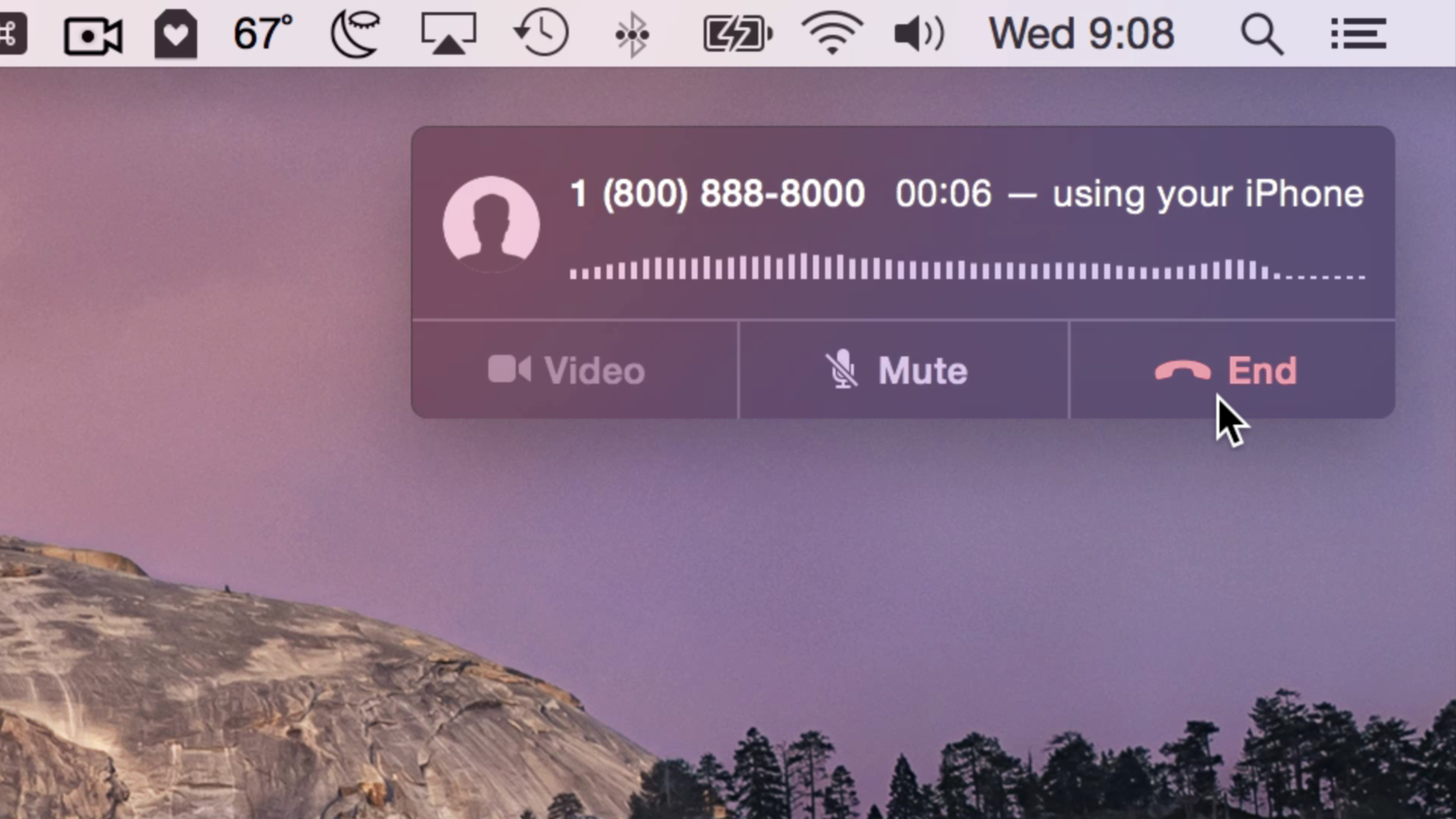
Now that iOS 8 and OS X Yosemite are out, the FaceTime app in OS X Yosemite is now capable of making and taking phone calls. It does so by connecting to an iPhone running iOS 8 to transmit calls via the iPhone’s cellular connection. All calls made from your Mac will appear as if they came from your iPhone’s phone number.

Want to see how it works in action? Check out our video after the break for a demonstration and setup details.

How to use Apple Pay

As expected, Apple rolled out Apple Pay to the masses today, courtesy of its iOS 8.1 update for eligible devices. Apple Pay, as you know, allows users to make in-app and online purchases using certain devices equipped with a Touch ID sensor, and in-store purchases using the NFC chips found in the recently released iPhone 6 and iPhone 6 Plus.

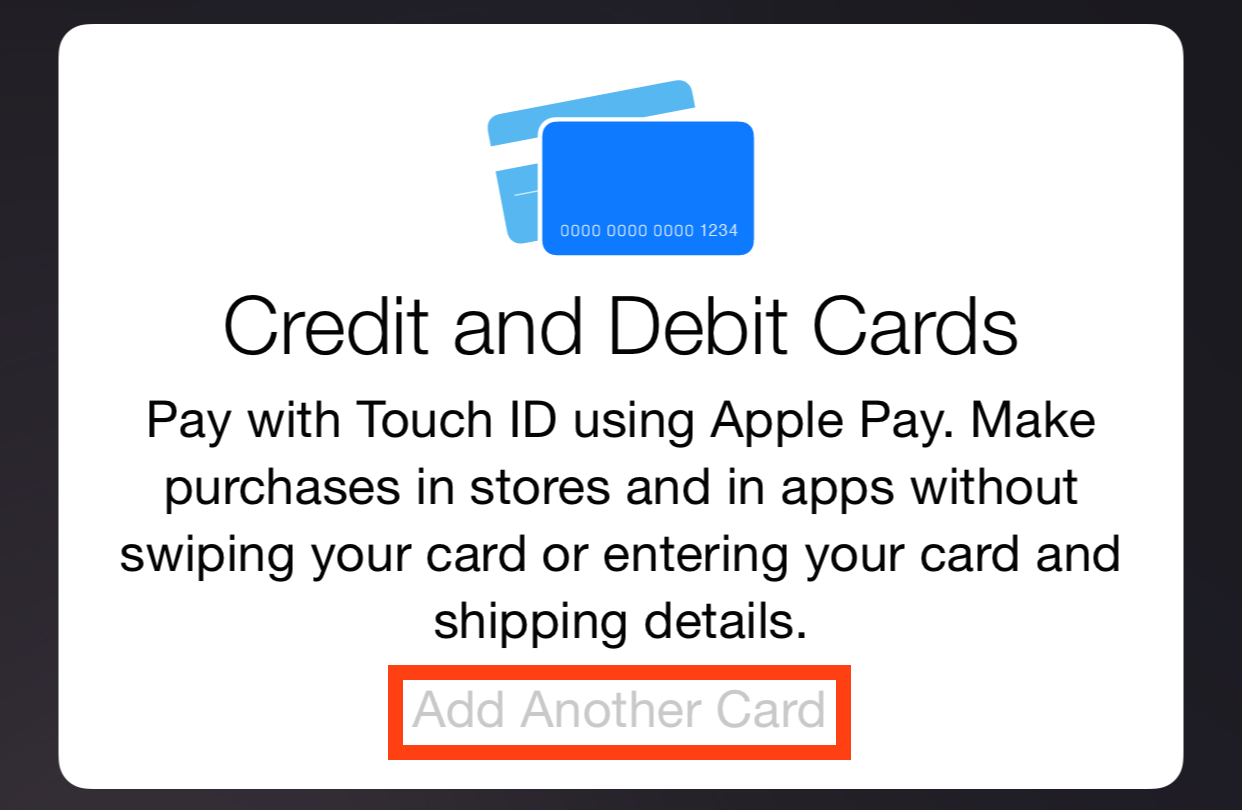
In this guide, we'll walk you through the process of setting up Apple Pay, including adding eligible credit cards, along with making in-app, and in-store purchases.

Helvetica Neue typeface replaces Lucida Grande as the system font in OS X Yosemite

One of the most striking changes that you will notice when you first fire up OS X Yosemite is the system-wide font change. Apple’s previous desktop operating system releases, since 1999, used Lucida Grande as the system font.

Lucida Grande worked well on lower resolution screens, but as high resolution Retina Displays become more common, it's starting to look out of place. To address the issue, Apple decided to adopt iOS’ system font of choice—Helvetica Neue—and make it the system font for OS X Yosemite.

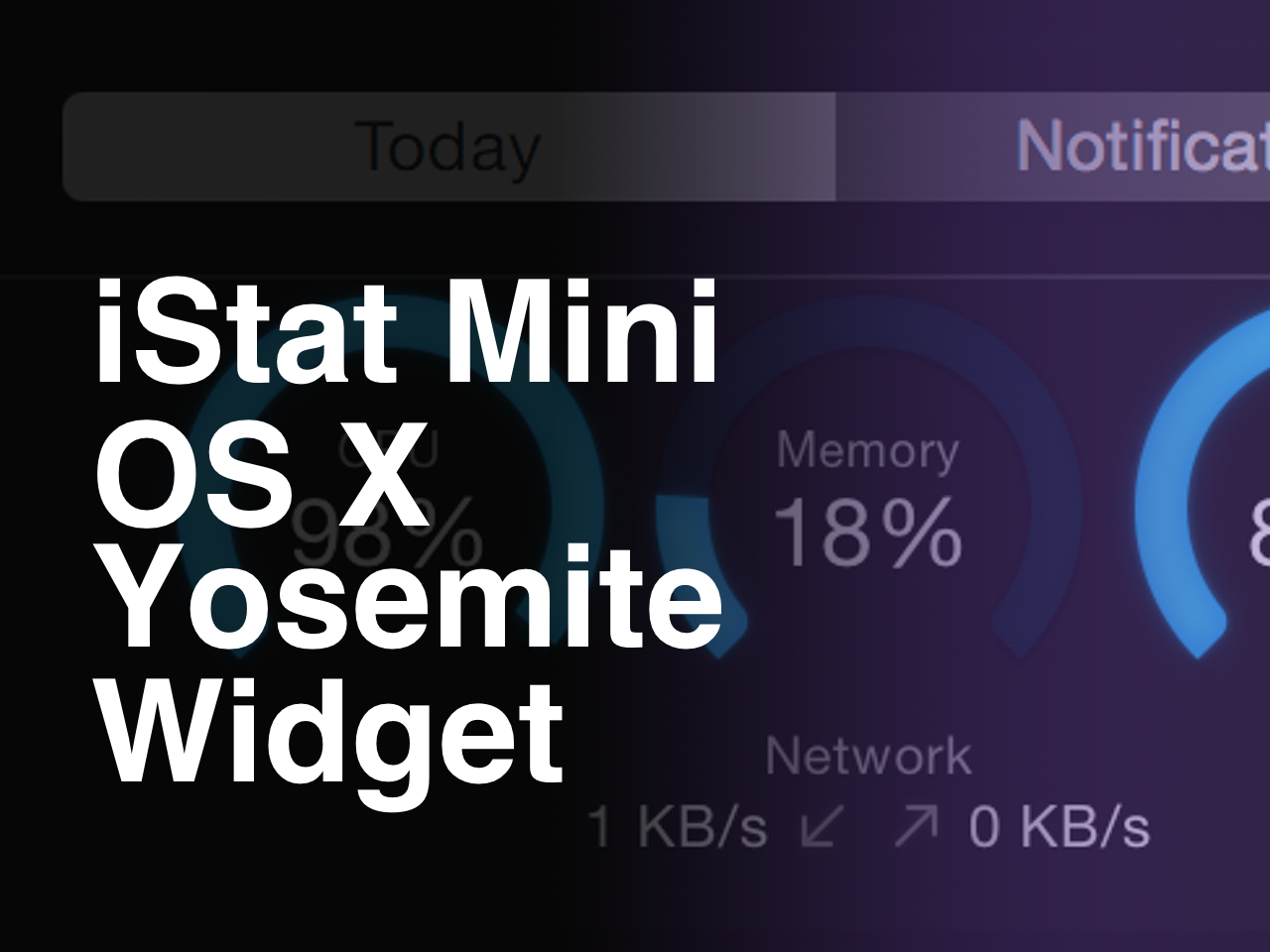
‘iStat Mini’ widget places system stats in OS X Yosemite’s Notification Center

As I discussed on Let's Talk iOS episode 39, Bjango's iStat Menus is one of my favorite Mac apps. It's an app that places a wealth of system status information right in the Mac's menu bar.

The same folks behind iStat Menus have come up with a new app geared towards OS X Yosemite. The app, which is cleverly entitled iStat Mini, places a simple widget in Notification Center's Today View.

Like its big brother, iStat Mini allows you to quickly view the CPU usage, disk usage, and memory usage on your Mac. It also allows you to monitor your Mac's upstream and downstream bandwidth.

Have a look at our 4K ultra-high resolution video walkthrough after the break for more details.