Learn how to optimize Action Mode, the iPhone’s video stabilization feature, for low-light shooting when there isn’t enough light available.
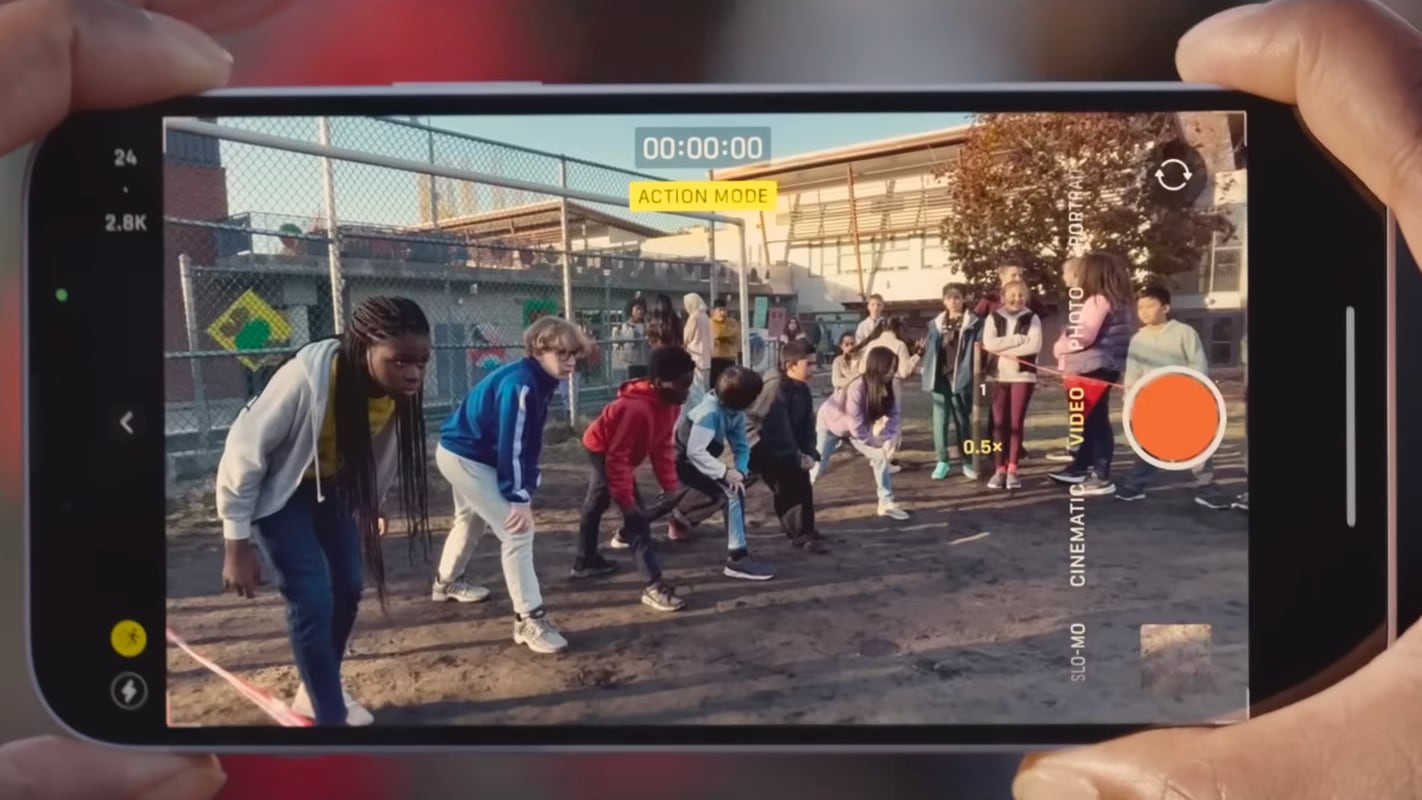
Available on the iPhone 14 lineup and later, Action Mode lets you take smooth handheld footage.
Even though it limits capture resolution from 4K to 2.8K, the feature delivers very impressive results by applying heavy cropping to stabilize shakiness that occurs when shooting video while running or moving around a lot.
Action Mode is an incredibly effective way to stabilize zoomed-in videos, especially if shooting with the telephoto camera. It works best with lots of light, and when you try to record in low or medium lighting conditions, it will show a message in the camera viewfinder saying “More Light Required.”

But you can flip a switch in the camera settings to make Action Mode perform better in dimly lit environments if you’re willing to trade resolution for smoothness.
Shoot low-light Action Mode video on iPhone
- Open the Settings app on your iPhone and select Camera from the list.
- Tap Record Video from the top.
- Turn on Action Mode Lower Light.
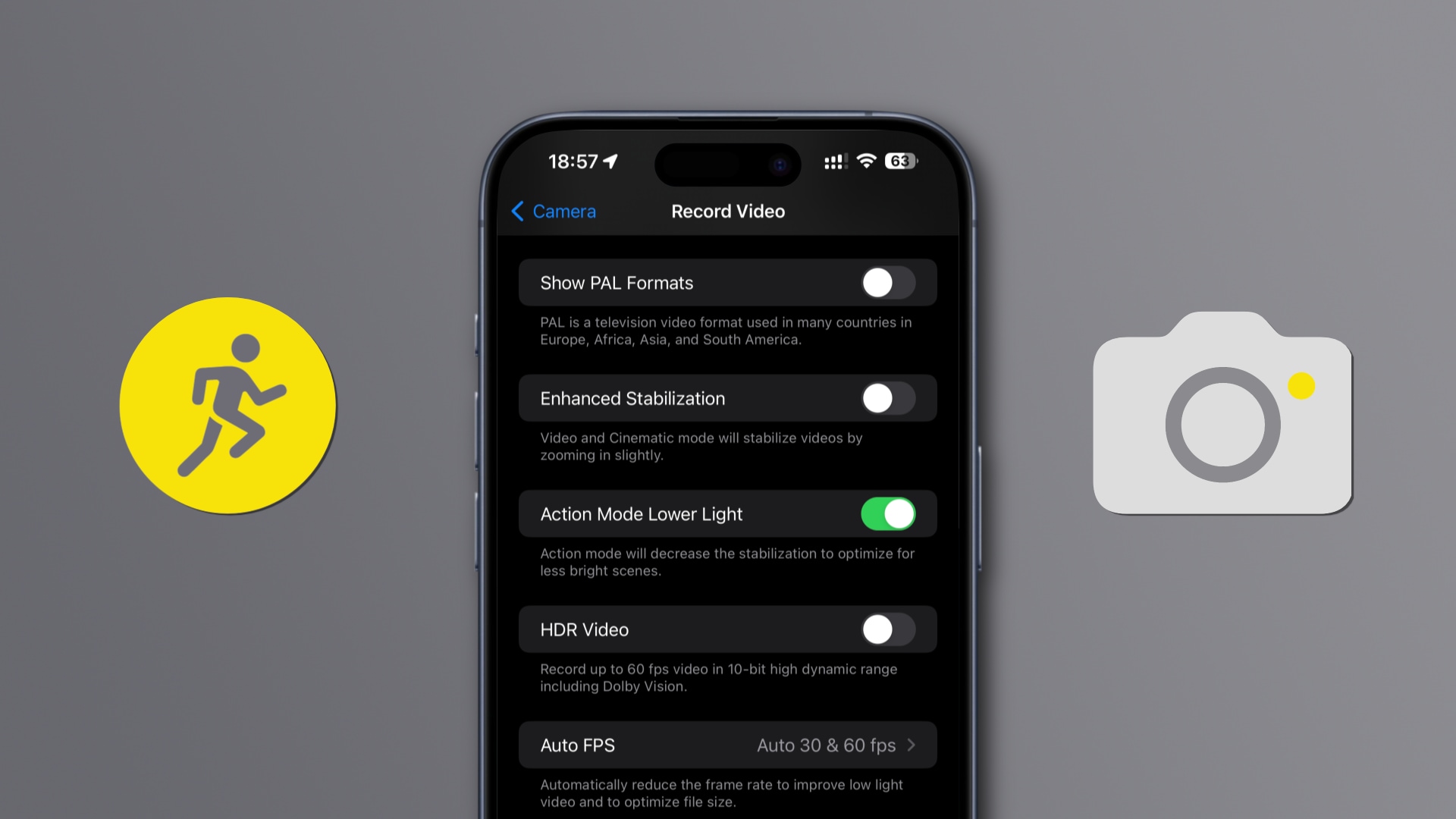
The Action Mode Lower Light setting is turned off by default.
When turned on, Action Mode decreases the stabilization to optimize for less bright scenes. If you still see a “More light required” message when using this feature in the built-in Camera app, it indicates that things are too dark for Action Mode.
Capture smooth-looking video
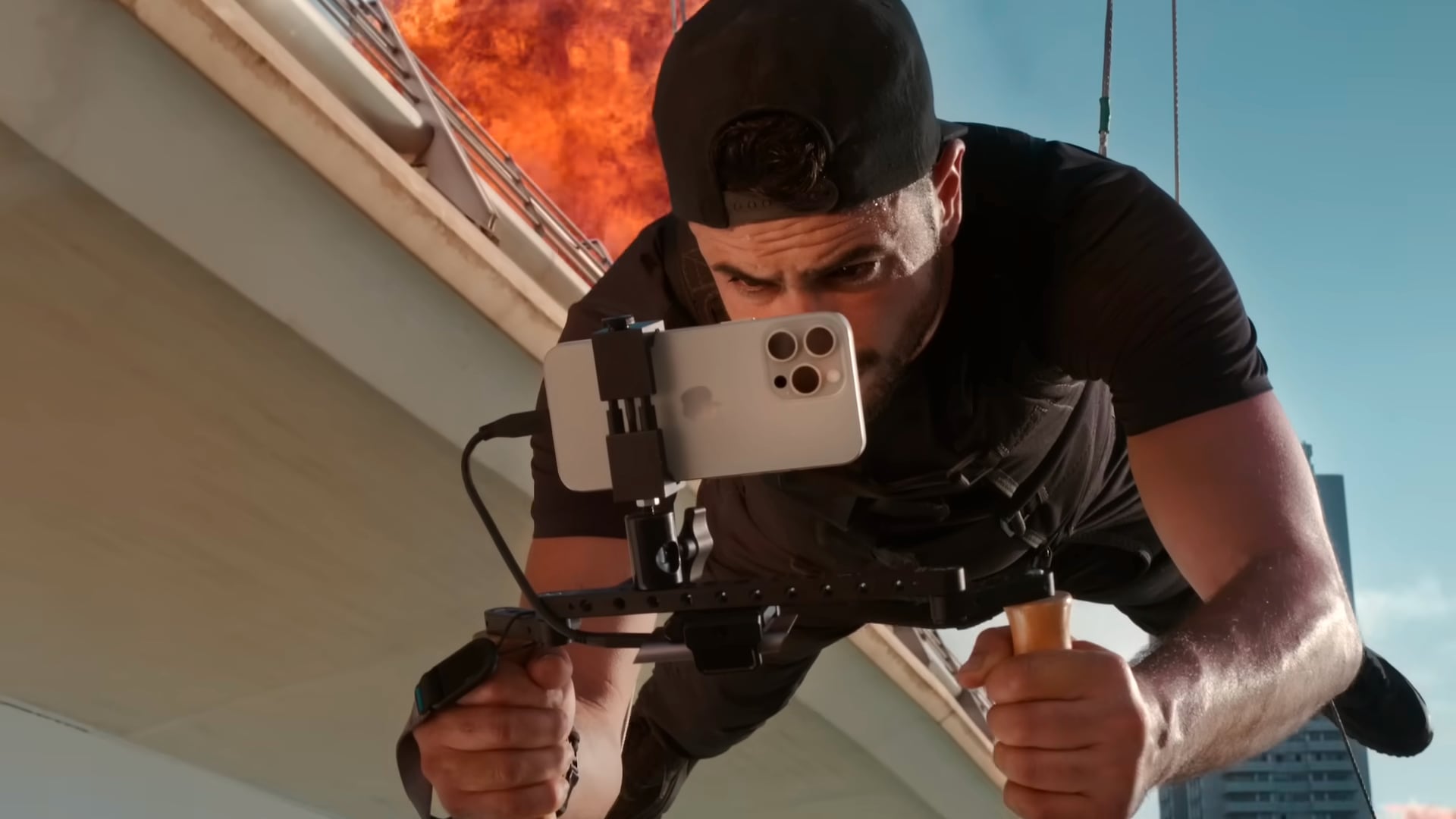
Image stabilization is a crucial feature in the era of smartphone video. No one wants to watch handheld footage that shakes violently, like in the early days of the iPhone when video stabilization on mobile phones didn’t exist.
Over the years, Apple has heavily invested in boosting its imaging stack with computational photography and features like sensor-shift stabilization, which counters shakiness to make your recording as steady as possible.
You don’t need to walk around with a tripod or a gimbal; with the Action Mode Lower Light setting, iPhone owners can capture remarkably stabilized action footage.
Other camera tips for your iPhone: