Learn how to remove Shorts from the YouTube interface if you don’t like short-form video and want more room for the content you actually enjoy.
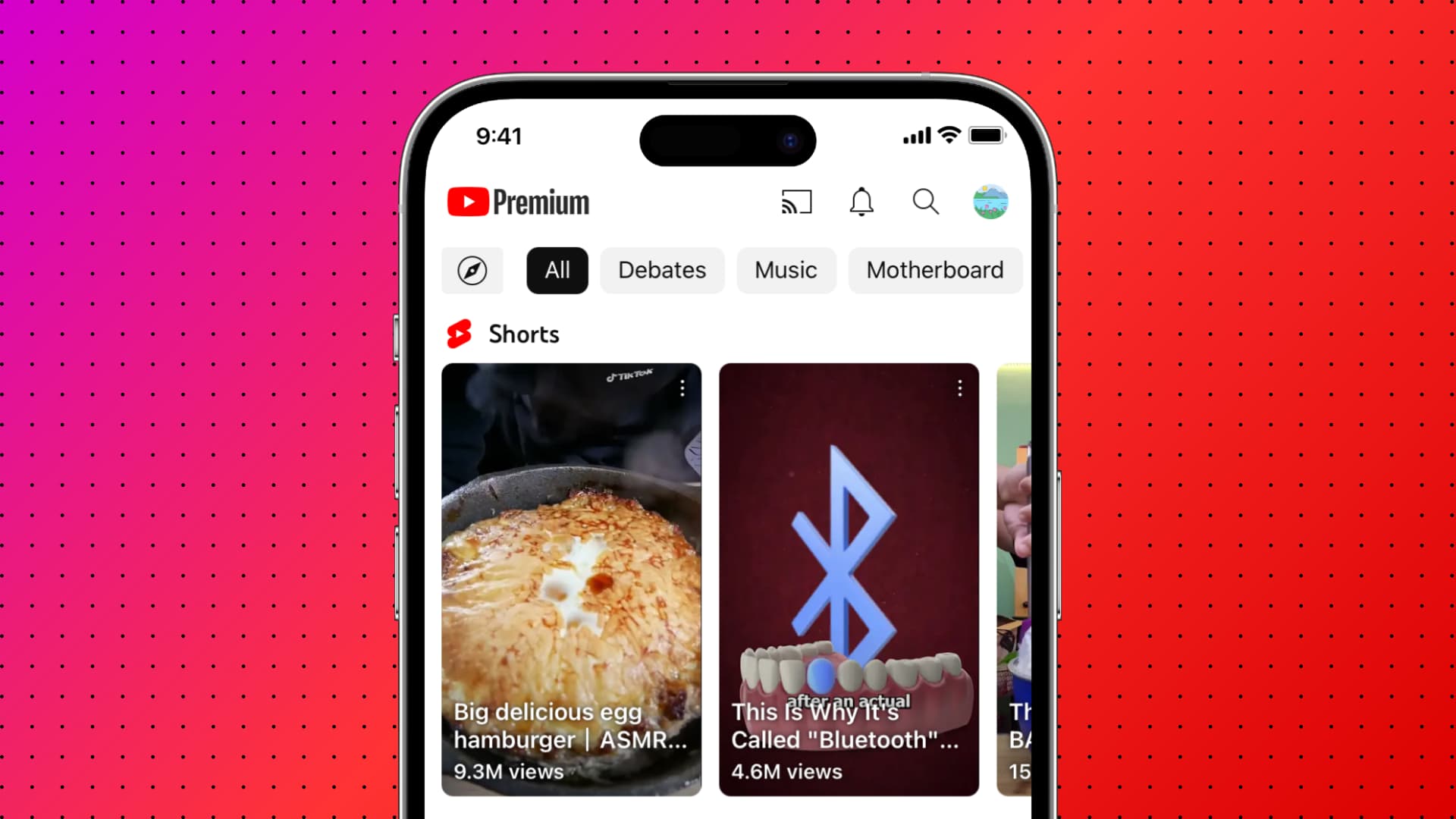
Short-form video was pioneered by Vine before spreading like wildfire thanks to TikTok and other social media and video platforms, including YouTube.
If you’re not a fan of bite-sized video, you can remove Shorts from your YouTube home feed in the mobile app and the web interface, and we show you how.
Set Shorts daily limit to 0 minutes
While this isn’t a proper blocking method, it did work to remove all Shorts from my YouTube Home page. Plus, even if I go to the Shorts tab, it shows a popup saying I have hit my daily limit.
Until YouTube offers a clear way to block all Shorts, this is the best you can do, especially in the YouTube app on your iPhone, iPad, and Android phone (it also works on computers, but there is a better method for this explained later below).
1) Open the YouTube app and go to your profile screen.
2) Tap the gear icon and select Time Management.

3) Scroll down and turn on Shorts feed limit.
4) Select 0 Minutes.

5) Now, go to the Home tab of the app, and Shorts should have disappeared.

Here’s how it looks on a computer (youtube.com/account_time_management)

Use browser extensions
This is the best way to remove Shorts from the home feed and the sidebar on your Mac or PC.
1) Log in to youtube.com on a computer. You’ll see the Shorts section somewhere on the home page, along with the Shorts section in the YouTube sidebar.

2) Install the No YouTube Shorts extension in your Chrome browser. It’s available for Google Chrome, Microsoft Edge, Brave, and other Chromium-based browsers.
3) Refresh the YouTube home page, and like magic, the dedicated Shorts section along with the Shorts option in the sidebar will disappear!

Unfortunately, this extension doesn’t work in Safari and the mobile YouTube app. Android phone owners can try Kiwi Browser instead to use Chrome extensions like this one, but they’ll need to use YouTube in Kiwi to enjoy the home feed without Shorts.
Other options
Aside from the above tips, you can also use these suggestions to fine tune your Shorts experience.
YouTube settings
Log in to youtube.com in a browser, then click the three-dot menu near the window’s top-right corner and choose “Show fewer Shorts.” This will temporarily remove Shorts from the interface, but the section may reappear the next time you visit YouTube. While there are no guarantees, repeatedly enabling this option may lead YouTube to stop showing you short-form content.

Mark YouTube Shorts as “Not Interested”
You can also manually tell YouTube that you couldn’t care less about Shorts by marking individual clips as Not Interested; touch and hold any short or hit the three-dotted menu in the top-right corner of the thumbnail and select Not interested. This setting applies to the selected short instead of all YouTube Shorts. But if you mark a few videos from the same creator as Not Interested, YouTube will eventually stop showing you content from that channel.

Learn to ignore
Yep, you read that right! YouTube curates your home feed based on the videos you like, watch, and engage with. Meaning, if you don’t watch any Shorts and don’t hit that thumbs-up button, the YouTube algorithm may stop serving you these kinds of videos over time. On Android phones, there are third-party YouTube apps, mods, and workarounds that can remove Shorts, but they have their own share of issues. I suppose it’s best to avoid downloading them on your primary phone where you keep all your photos, videos, sensitive documents, contacts, payments, and more.
More on YouTube: