Learn how to turn any website in Safari into a proper web app that you can open on your Mac straight from the Dock or Launchpad.
macOS Sonoma and later let you turn a website into a web app!
All you need to do is add the website in the Safari browser to the Dock. And macOS will automatically turn it into a proper web app that supports features such as offline caching, macOS window management, and more.
Note: Older macOS versions only let you add website shortcuts to the Dock.
About web apps on iPhone and Mac
Progressive web apps (PWA) have been around for many years.
To install a PWA on your iPhone, you choose the Add to Home Screen action in Safari’s Share menu. This enables you to open the web app from the Home Screen like you would any other app, as well as see the web app in the App Switcher, and more.
Websites not designed to work as PWAs open like regular websites on your iPhone and iPad. On the Mac, however, any website can be turned into a web app even if it wasn’t designed to work as one.
Add a website as a web app on your Mac
1) Open Safari and visit your favorite website.
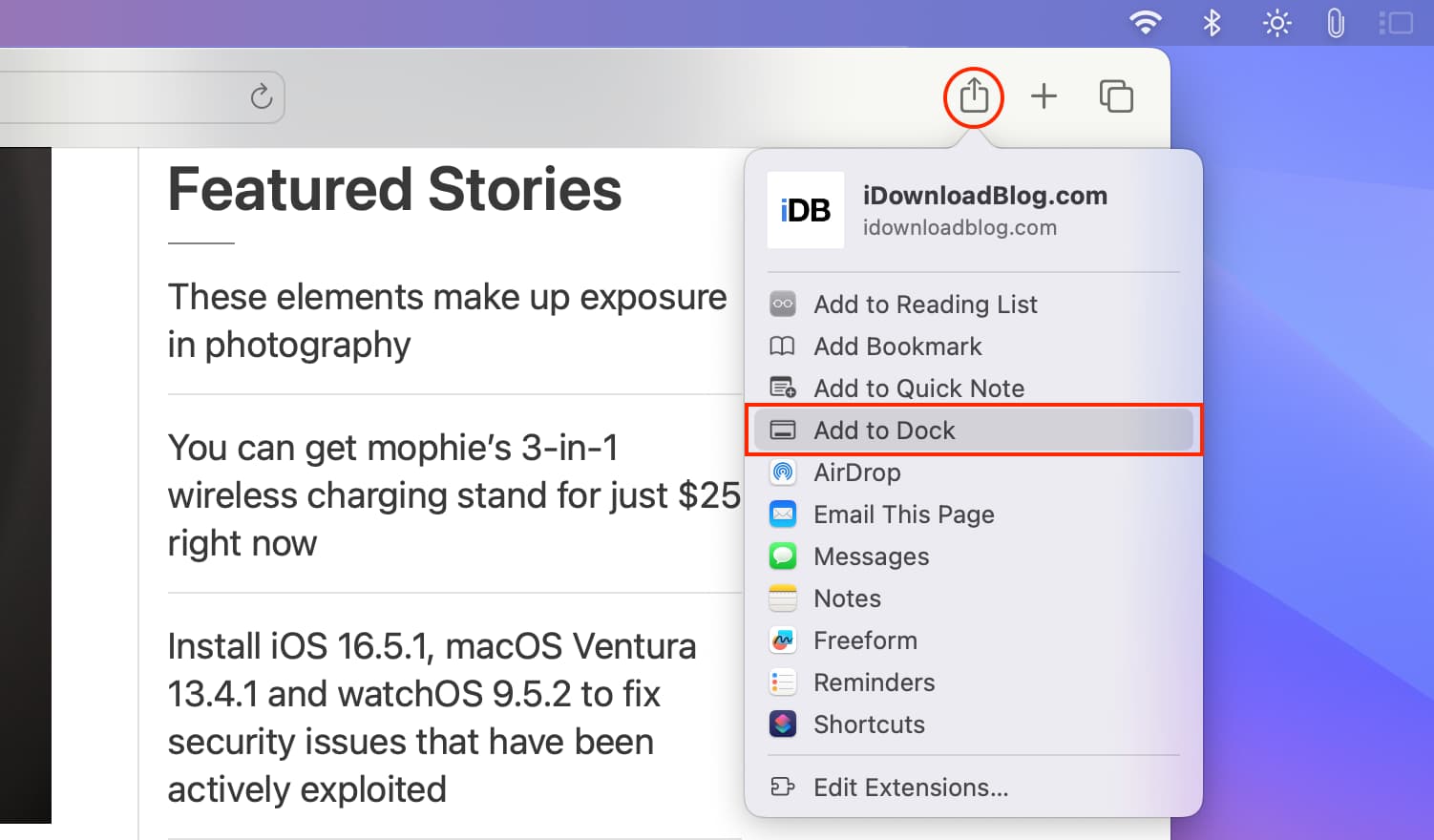
2) Click the share icon in the Safari toolbar and select Add to Dock or click File > Add to Dock in the menu bar.
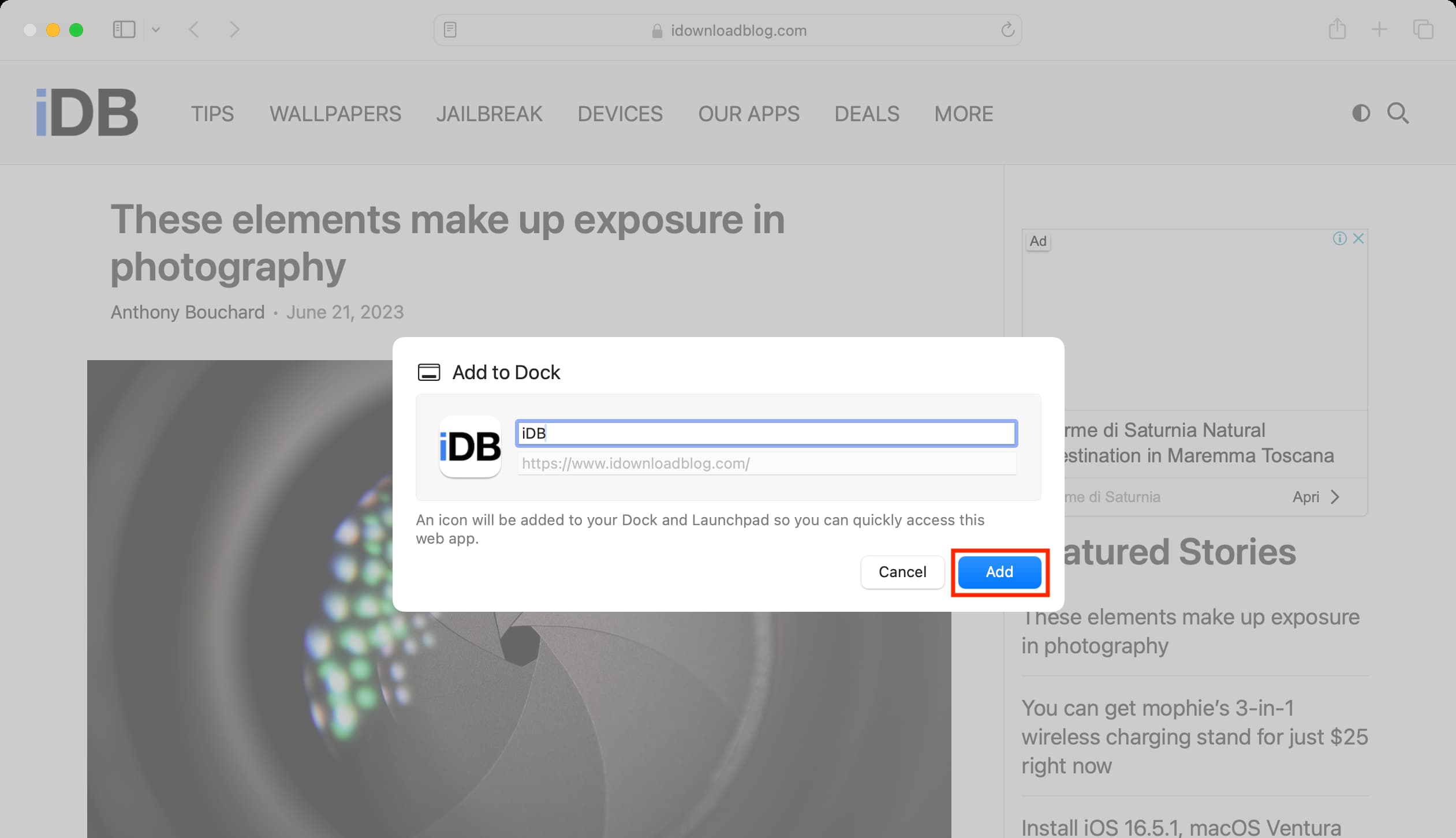
3) Customize the web app title and click Add.
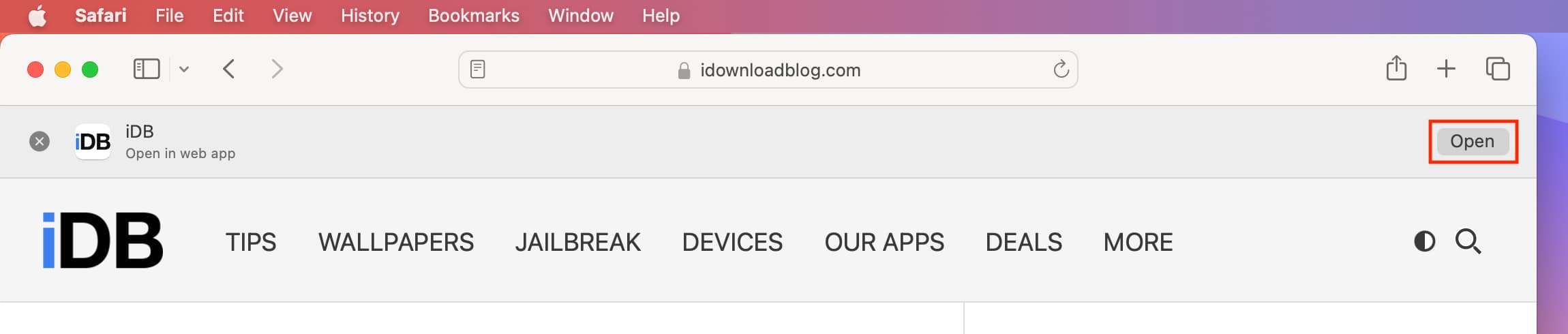
The web app icon appears in both your Mac’s Dock and the Applications folder. Whenever you visit this website in Safari, you’ll see a banner at the top offering to open the website in the saved web app instead.
Using a web app on your Mac
1) Click the web app icon in the Dock or the Applications folder to open it in a borderless Safari view.

2) You can browse the web app as you normally would the website using the back and forward buttons or two-finger trackpad swipes.
3) To open the PWA as a website in your default browser, click the tiny Safari icon in the window’s top-right corner. On macOS Sequoia or later, click the share icon (if you see it) or the Share menu, then choose the Open in default browser action.

Opening internal links in web apps
Internal links don’t link out. For example, all URLs starting with https://www.idownloadblog.com/ are internal to our site. If you save the iDownloadBlog website as a web app and click an internal link like this one, it opens in the same window. Configuring Safari to open links in new tabs, however, means that clicking the same link will instead open a new window.
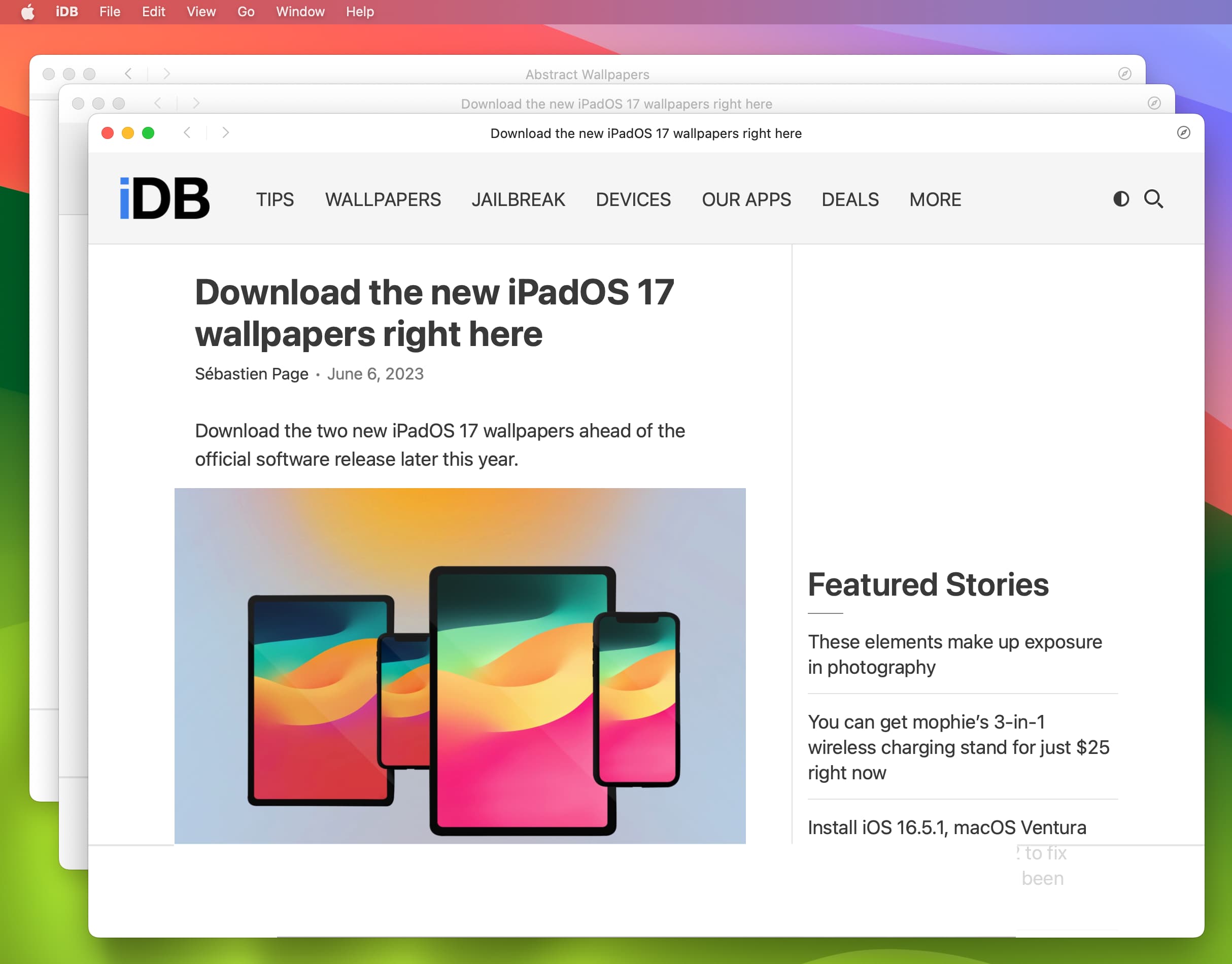
Note: You can also right-click a link and choose Open Link in New Window.
Opening external links in web apps
External links link out of the originating website. For example, all links on our website without an iDownloadBlog.com domain in them are external. macOS opens external links in web apps in your default browser.
Important: In my testing, macOS Sonoma even treated website subdomains like media.idownloadblog.com as external links. Older macOS versions open such links in the default web browser, but macOS Sequoia and later open them in the web app instead.
Change the web app’s icon, name, and other settings
1) Open the web app on your Mac.
2) Click the web app name in the menu and choose Settings.
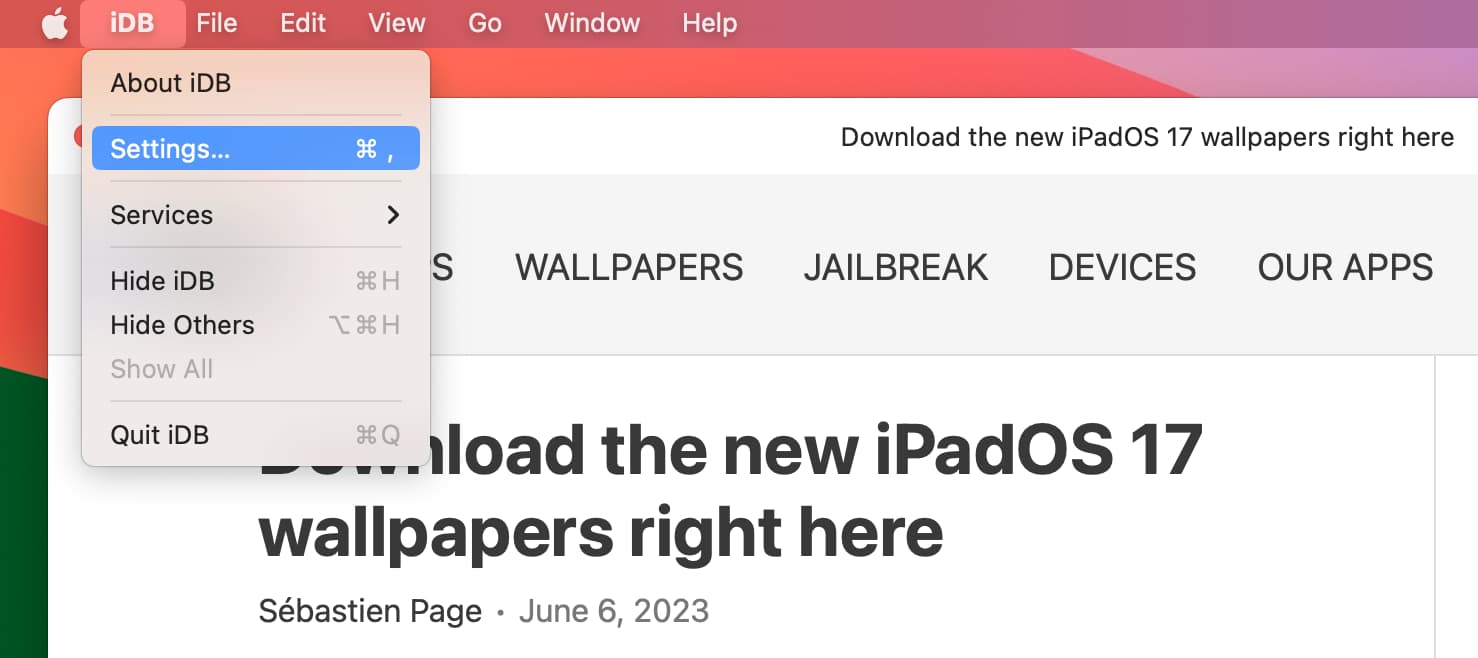
3) Feel free to change the Application Name and the web app Icon.
Unticking “Show navigation controls” will remove the back, forward, and browser icons from the toolbar. To stop macOS from tinting the window title bar with the website’s accent color, untick the “Show color in title bar” option.
4) Select the Privacy tab to clear all cached data and manage permissions for microphone, camera, location, etc.
5) Select the Extensions tab to manage extensions for this web app.

Related: How to change and customize app icons on Mac
The key advantages of using web apps on macOS
- Quick links to your favorite websites are right in the Dock.
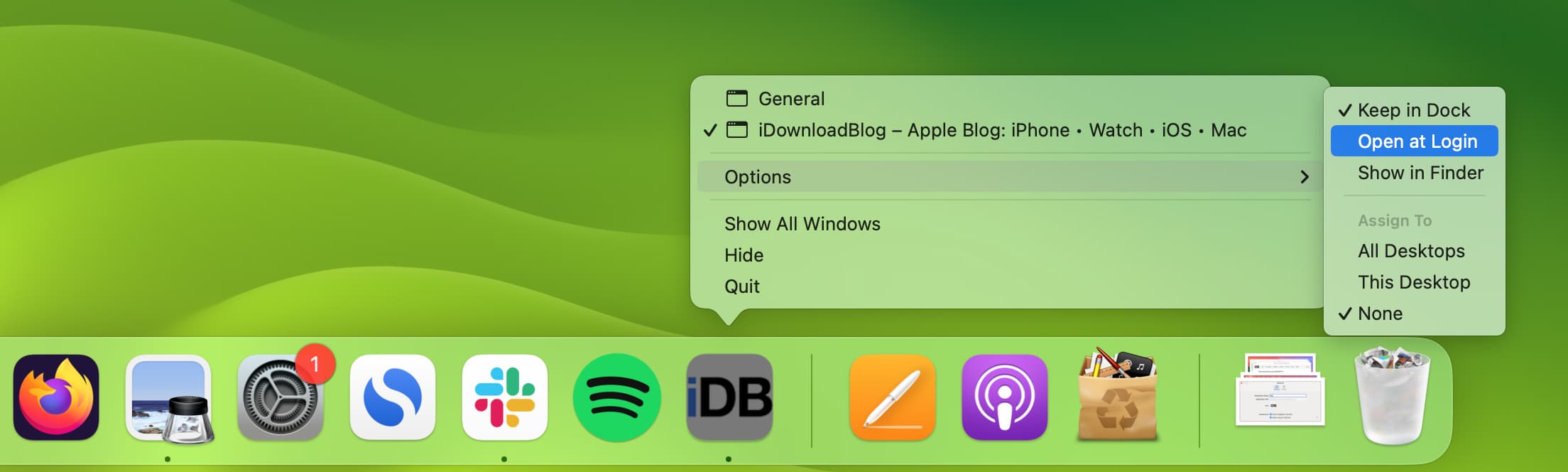
- You can Control-click a web app in the Dock to assign it to a specific desktop space or set it to open when your Mac starts up.
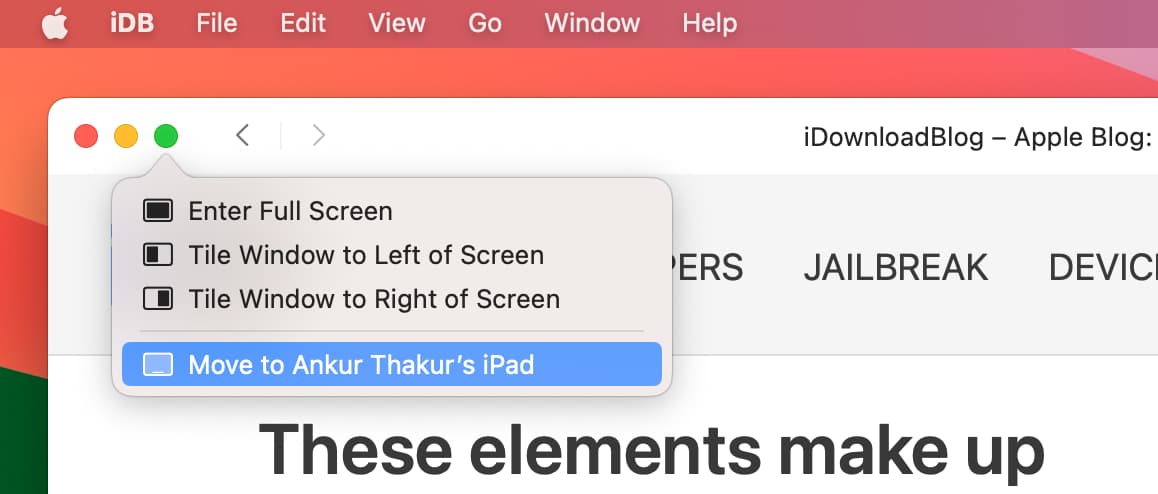
- The macOS window manager treats web apps like native apps. You can resize windows of web apps freely, use web apps in split screen mode, or move them to another connected display without affecting websites in Safari or other browsers.
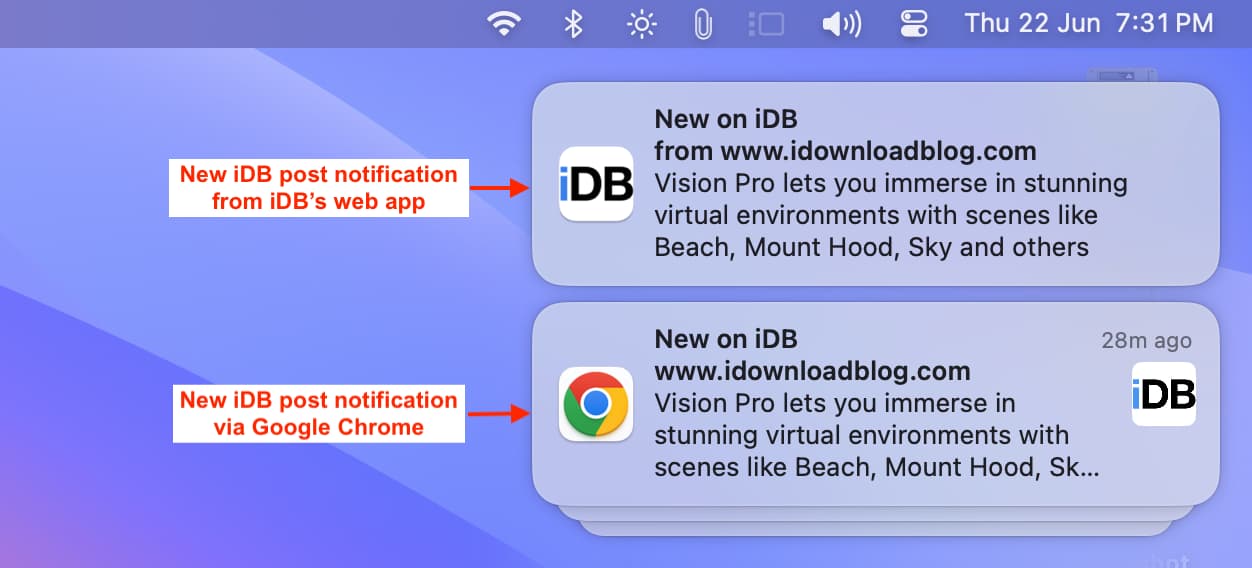
- Web apps can send you push notifications and access your Mac’s microphone, location, camera, and more. You can manage these permissions for web apps in System Settings alongside native apps. To be clear, regular websites can also access your microphone, camera and more, but their permissions are handled within the Safari settings.
Things to dislike about web apps on a Mac
- External links opening in the default web browser instead of the web app is annoying.
- Web apps lack a status bar at the bottom to show the full URL, like in Safari.

- Setting links to open in new tabs will open a new window for each followed link, which can get chaotic fast. By contrast, Safari neatly arranges multiple tabs within a single window, which not only looks better but is much easier to manage.
- Adding web apps can make the Dock too crowded.
Where does macOS save web apps?
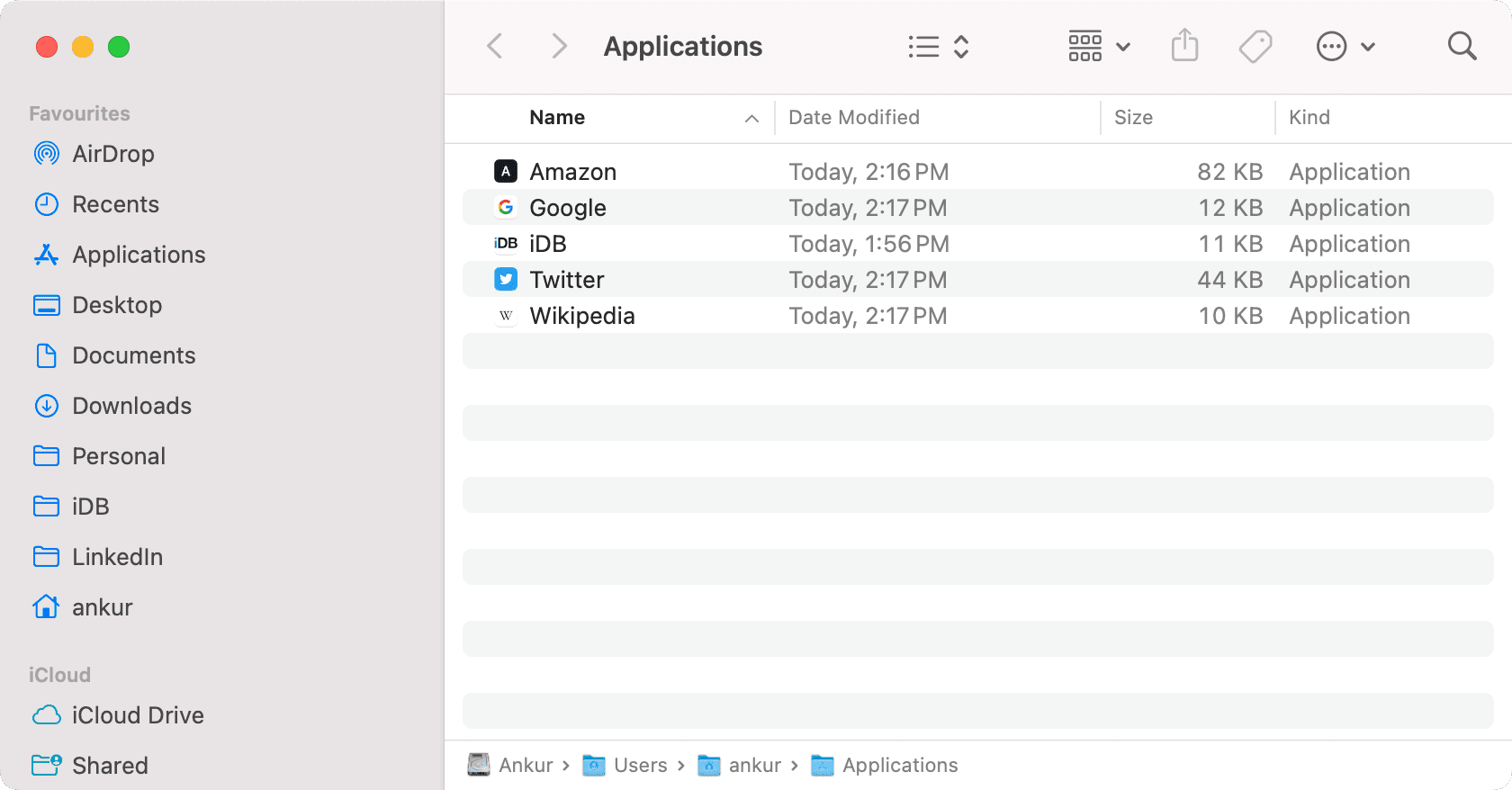
Web apps are saved inside your account’s Applications folder. Follow these steps to see all your saved Safari web apps and Chrome apps in one place.
1) Open a new Finder window.
2) Click Go > Go to Folder in the menu bar.
3) Enter ~/Applications/ and hit the return / enter key.
Delete a web app from your Mac
You can go to the ~/Applications/ folder and delete the web app from there, but the other methods for uninstalling macOS apps also apply to web apps. You can use an app like AppCleaner to remove web apps.
Does removing a web app from the Dock uninstall it?
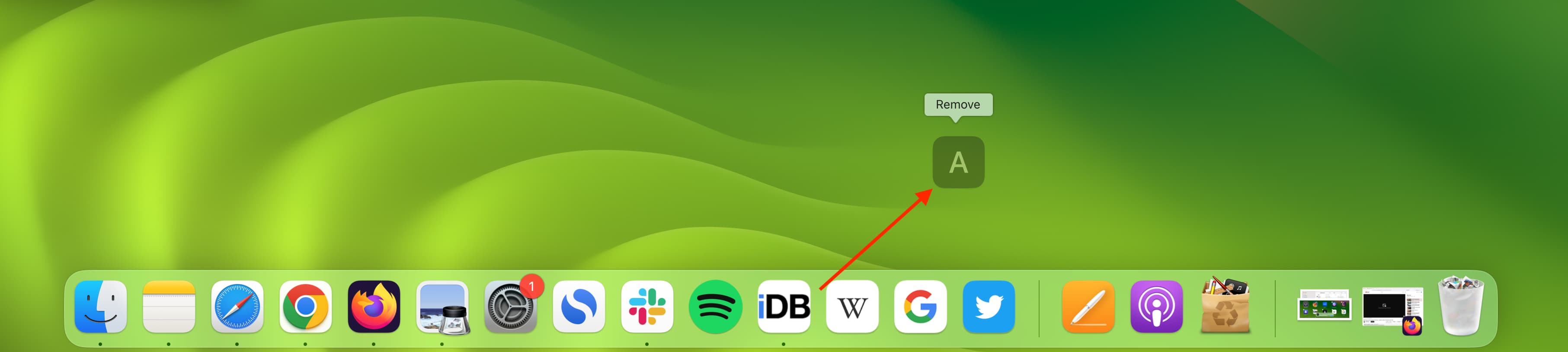
No, it doesn’t. Dragging out a web app icon only frees up space in the Dock. The web app is still taking up space on your machine and appearing in the Launchpad and the ~/Applications/ folder.
Also, check out: How to create and use profiles in Safari on iPhone, iPad, and Mac