Try these troubleshooting tips to stop your MacBook from waking from sleep or powering up on its own, even when you’re not using it.

Stop MacBook from booting when the lid opens
MacBooks released in 2016 and onward turn on automatically when you open the lid, hit a key on the keyboard, or press the trackpad. This can be irritating for many, including myself.
The good news is that we have a tutorial explaining how to turn off automatic boot when opening the MacBook lid. The bad news is, the instructions may not work for Apple silicon MacBooks (M1, M2, M3, M4, M5, etc).
Stop MacBook from turning on automatically on a fixed schedule
You can set your Mac to turn on and shut down automatically at set times. If you’ve enabled this option, follow these steps to turn it off:
- On macOS Ventura or later: Open Terminal > enter
sudo pmset repeat cancel> hit the return key and authorize the action with your Mac’s password, if asked. - On macOS Monterey and earlier: System Preferences > Battery > Schedule > uncheck Start up or wake and Sleep, restart or shut down > Apply.
Turn off wake for network access
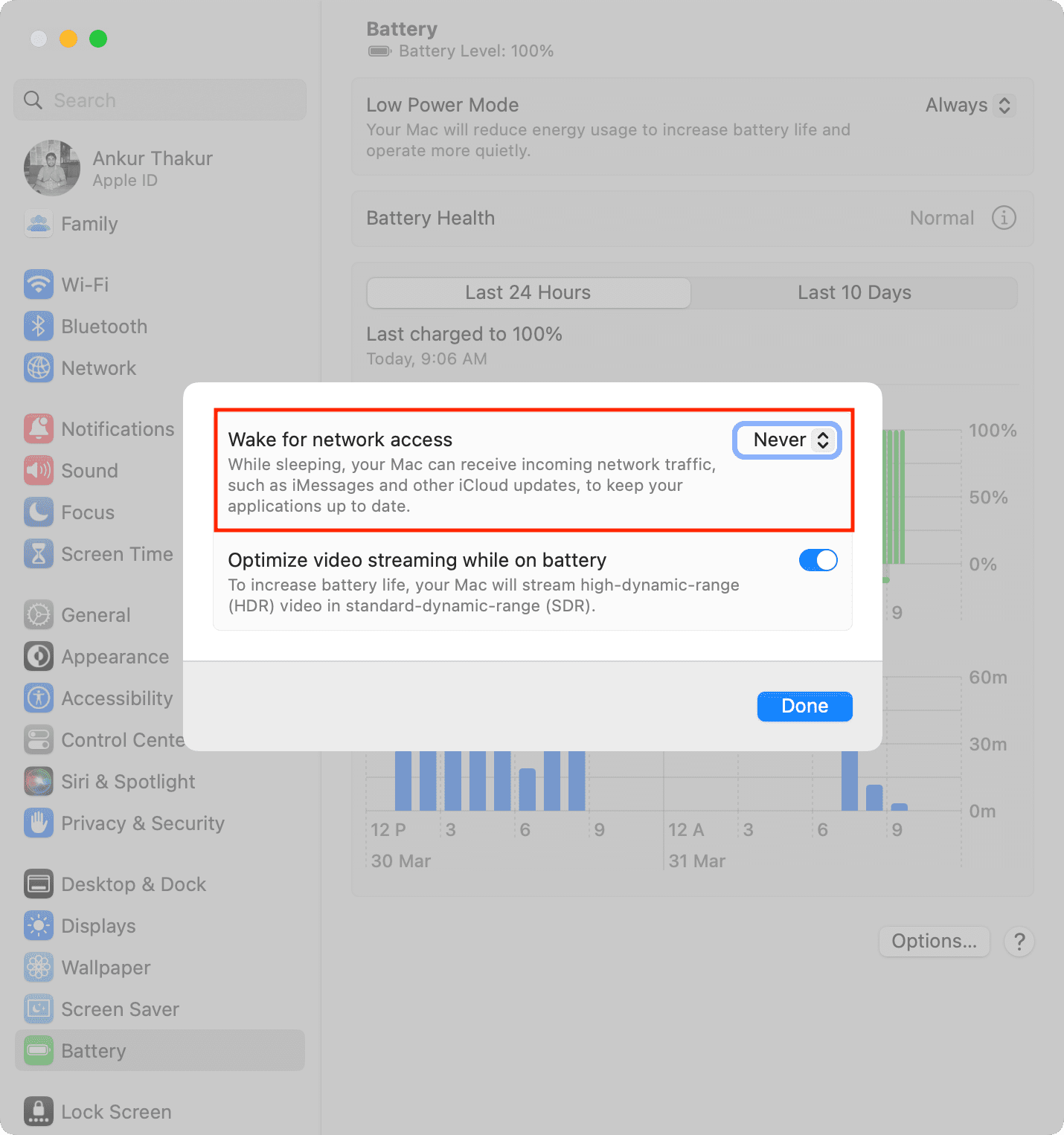
macOS can automatically exit sleep mode to access shared network resources on demand or notify other machines on the network that its resources are available. Follow the steps below to turn off this feature and stop your computer from waking without your command.
- Open System Settings and click Battery.
- Click Options.
- Hit the drop-down menu next to Wake for network access and choose Never. Click Done to save the changes. But note that this may degrade your Find My network experience to locate your lost Mac.
Is a key stuck?
A stuck key can start up your Mac, turning it on again when you shut it down in a loop.
Carefully inspect all keys on the built-in keyboard, ensuring none is stuck or permanently pressed.
If all looks good, open TextEdit. If a key is stuck, its letter or symbol will be repeatedly typed into TextEdit. Press the key repeatedly until it lifts. If necessary, use a toothpick to lift the stuck key and clean the surrounding area with cotton swabs.
Is there a pending macOS update ready to install?
- Automatic update: If a macOS update has downloaded and started installing in the background, your Mac might restart on its own to finish installing the update.
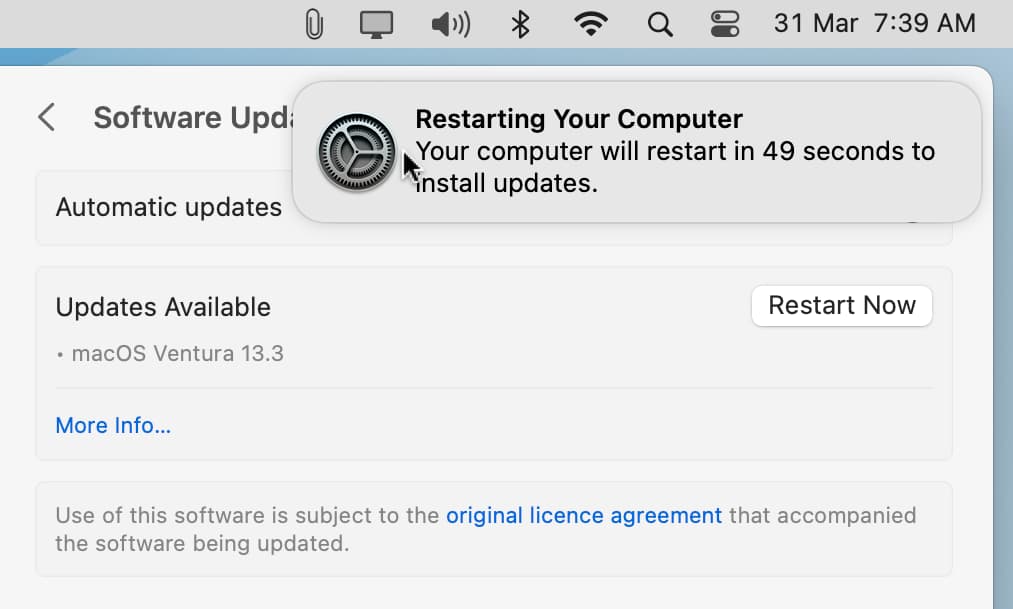
- Manual update: After manually downloading a macOS update, macOS puts up a notification saying the update will auto-start in 60 seconds. Doing nothing will prompt the computer to restart in 60 seconds to install the update. And if you close the alert, the update will pause until the next restart.
Inspect your MacBook carrying bag or sleeve
The MacBook’s lid and the bottom base have magnets and sensors to automatically start up the machine when you open the lid and put it to sleep when you close the lid. If you use a cover or sleeve to protect your MacBook or carry it in a bag, check that these accessories don’t contain magnets, which could cause the computer to start up. If so, replace your laptop bag or carrying case.
Stop MacBook from waking when you open the AirPods case
If the display of your MacBook has turned off to conserve power but the lid remains open, incoming Bluetooth requests can wake it from sleep. For example, opening your AirPods case may wake your Mac or turn on the display. If disabling the Wake for Network Access option doesn’t help with that, follow the steps below.
- Open System Settings and go to Bluetooth.
- Click the info button ⓘ next to your AirPods name.
- Select When last connected to this Mac under the Connect to this Mac heading and hit Done.
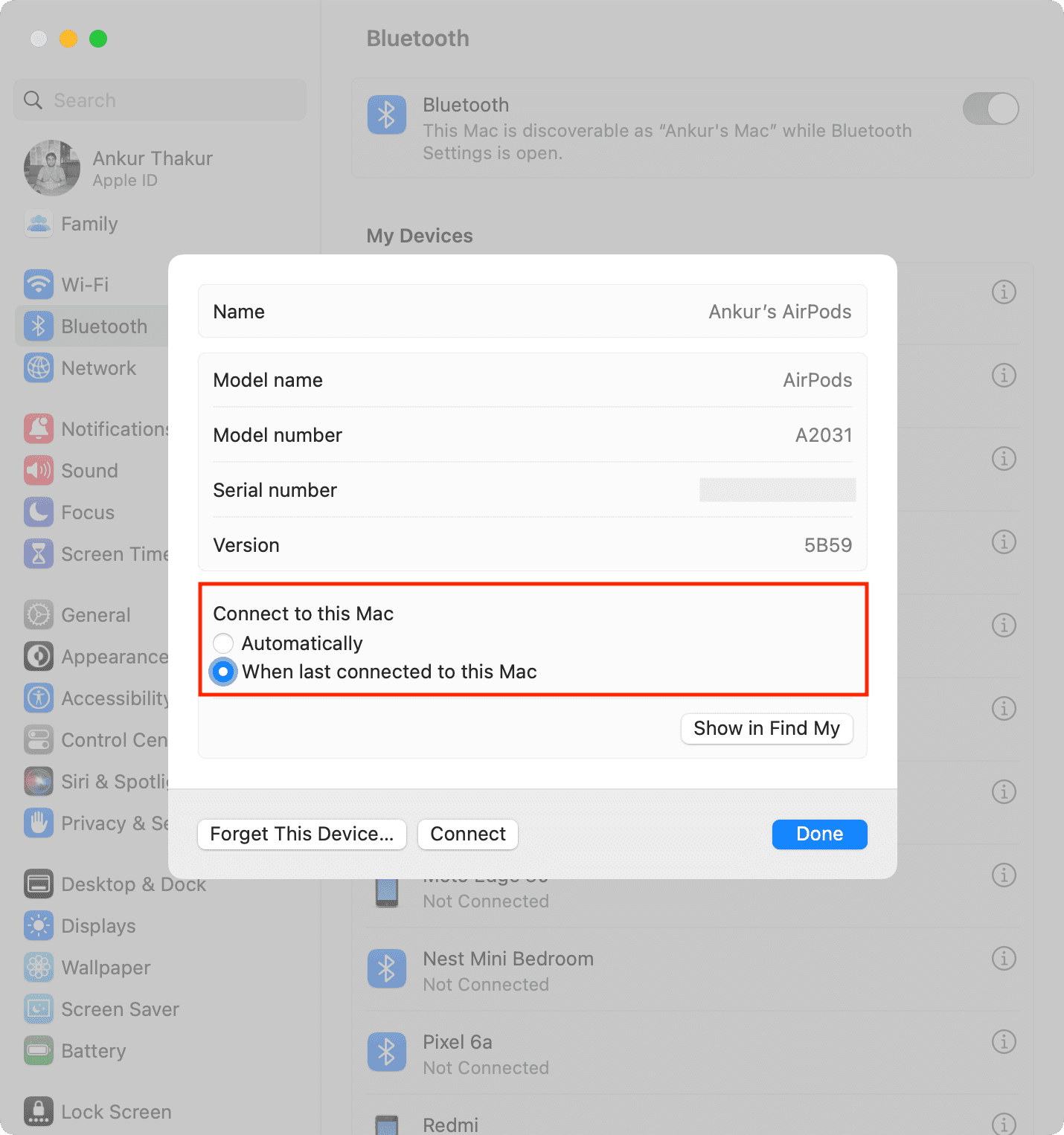
AirPods will no longer connect to this Mac automatically; instead, they’ll only connect if last used on this Mac.
Turn off notifications on the Lock Screen
With the lid open, the macOS Lock Screen lights up automatically when a new notification arrives. You can imagine how frustrating it can be when your MacBook wakes from sleep in the middle of the night, illuminating the room. You can stop this by blocking alerts on the Lock Screen:
- Open System Settings and click Notifications.
- Turn off “Show Notifications when display is sleeping” and “Show Notifications when screen is locked.”

Disconnect accessories
- Wired: Shut down your Mac laptop and disconnect any wired peripherals such as the mouse, printer, projector, display, external drive, or other accessories.
- Wireless: Reset your Mac’s Bluetooth module if you believe a Bluetooth accessory may be forcing your Mac to wake abnormally.
If you have paired a Bluetooth device
After hooking up my Windows laptop to my MacBook via Bluetooth, the laptop kept waking up periodically. Turning off Bluetooth on my PC has fixed this annoyance for good.
Update your Mac
macOS bugs may cause your Mac laptop to automatically power on, restart, or wake from sleep. To get rid of the bugs and ensure a smooth operation, update your Mac to the latest version by going to System Settings > General > Software Update.
Reset SMC
SMC (System Management Controller) handles important hardware subsystems, such as power and display management. If the solutions above didn’t help, reset your Mac’s SMC.
Reset NVRAM
NVRAM (Non-Volatile Random Access Memory) on Intel-based Mac computers remembers things like the selected startup disk, display resolution, time zone, sound volume, etc. Reset the NVRAM may fix your Mac powering on automatically.
Note: You don’t need to reset NVRAM on an Apple silicon Mac.
Run Apple Diagnostics to test your Mac’s hardware
Apple Diagnostics, formerly Apple Hardware Test, is a built-in tool for detecting hardware issues with your Mac. Start up your MacBook in diagnostics mode and note the error code.
- ADP000: This means no issues are found.
- PPN001 or PPN002: There may be issues with power management.
If you get a different code, match it with this list of Apple Diagnostics reference codes. You can also share this code with Apple Support if you decide to contact them.
Reinstall macOS (without losing data)
Before you move to the final solution, you can reinstall macOS without losing any data.
Have a specialist check your MacBook
But if nothing helps, it may be high time to take your MacBook to an Apple store or an authorized service center and have it inspected by a trained technician.
Check out next: What you should do if your Mac won’t turn on