Use these troubleshooting tips to fix WhatsApp video calls not working in picture-in-picture (PiP) multitasking mode on your iPhone.
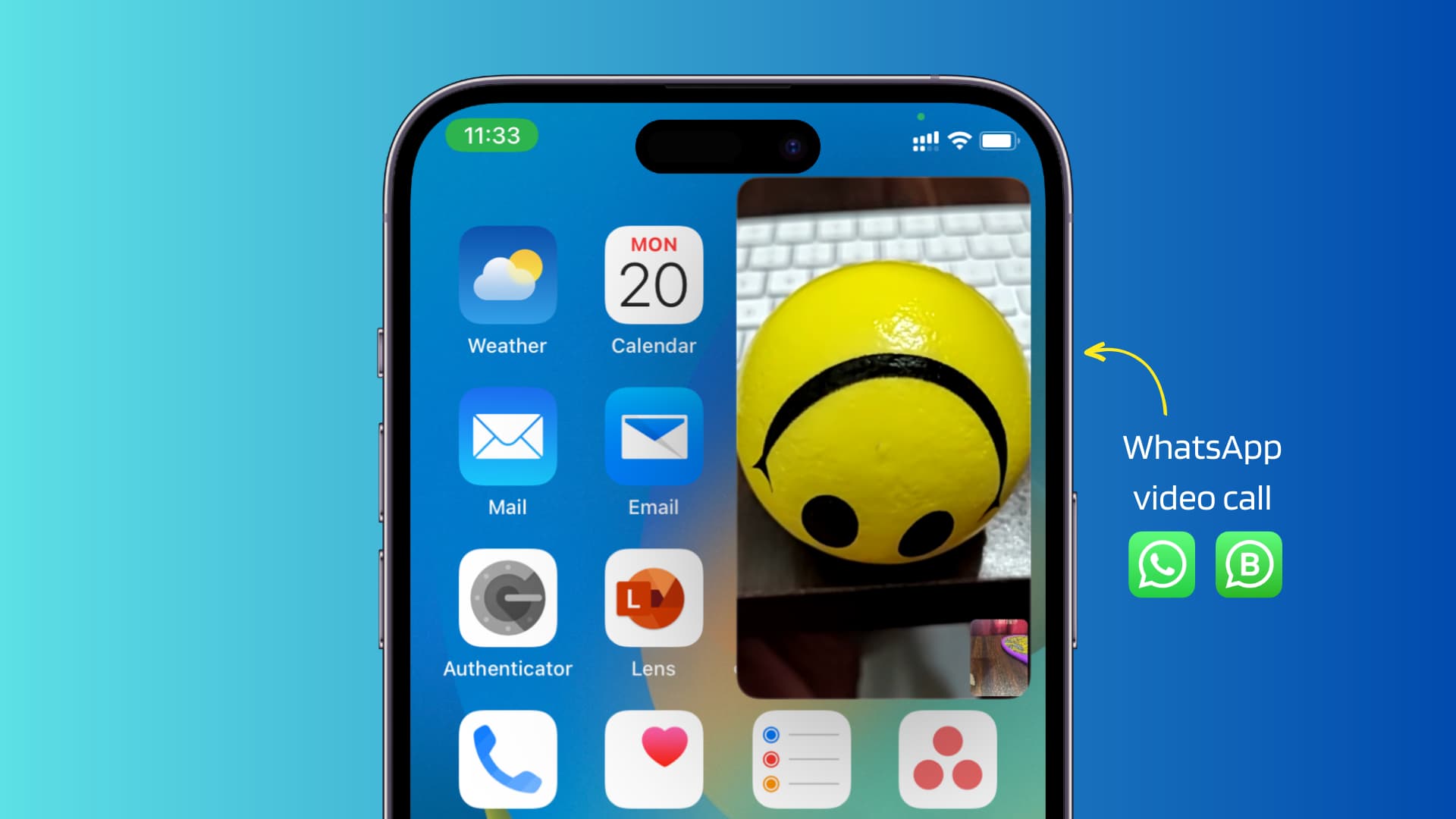
Like FaceTime, WhatsApp supports the picture-in-picture (PiP) feature for video calls. With it, you can multitask and use other apps while the video call continues in a small popup window.
Picture-in-picture on WhatsApp video calls
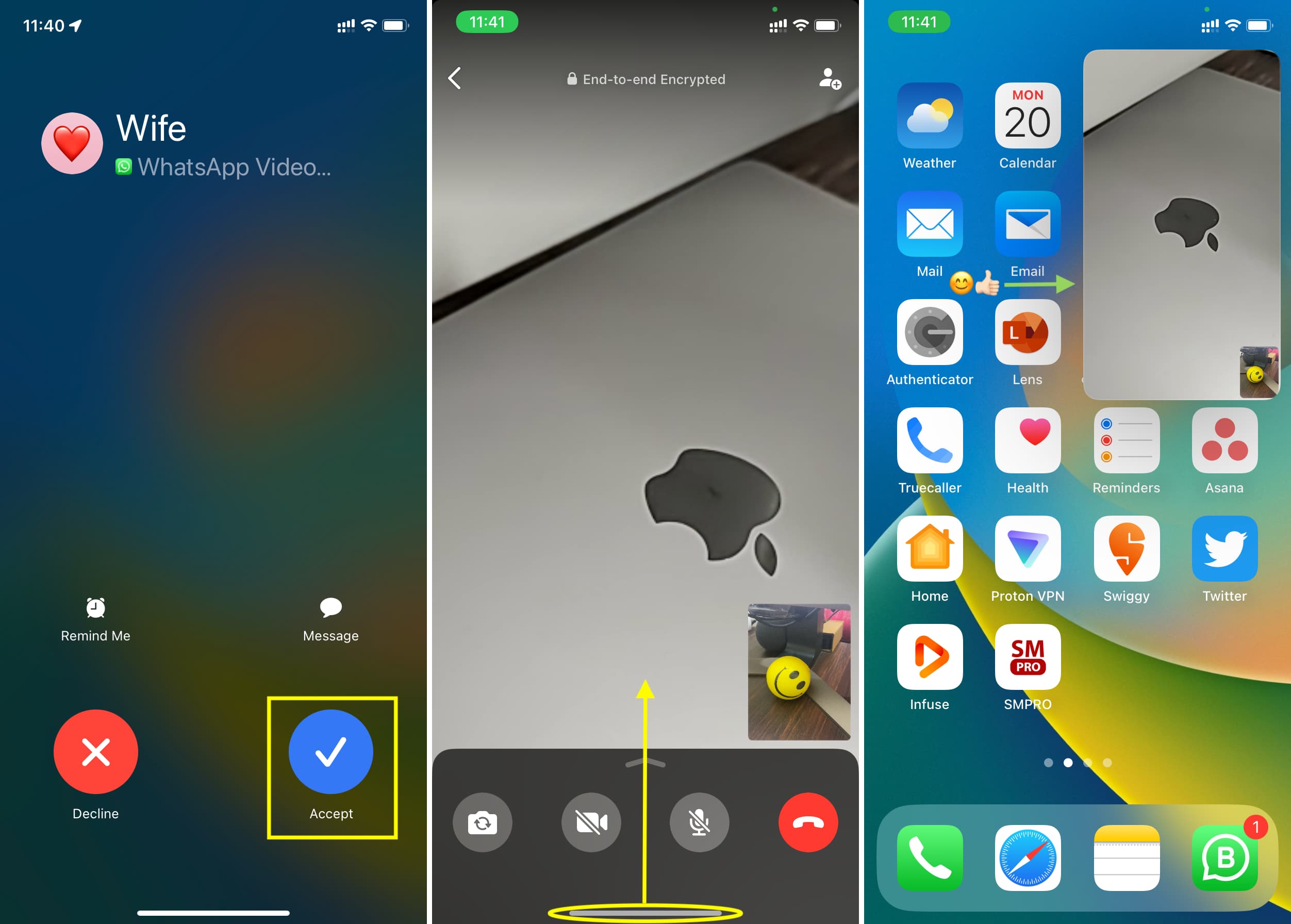
Before we start, it’s essential to know how to enter picture-in-picture on WhatsApp:
- Make or accept a video call on WhatsApp.
- Once the call connects, make sure you are on the video call screen.
- Swipe up from the bottom or press the Home button to exit WhatsApp.
The video call won’t pause but will continue in a small floating picture-in-picture window.
Note:
- Drag the PiP window to the preferred screen corner.
- Double-tap the PiP window to make it bigger or smaller.
- PiP doesn’t work with audio calls.
Use these tips if WhatsApp PiP doesn’t work for you on iPhone or iPad.
Update WhatsApp
WhatsApp app version 23.3.77 introduced PiP for video calls. If you’re still on an older version, you won’t be able to use PiP on video calls until you get the latest version. Updating also fixes bugs, ensuring a smoother app experience, so don’t skip this step.
Note: It would also help if you asked the other party to update their WhatsApp app.
Allow picture-in-picture in the Settings app
- Open the Settings app on your iPhone.
- Tap General and select Picture in Picture from the next screen.
- Turn on the switch for Start PiP Automatically.
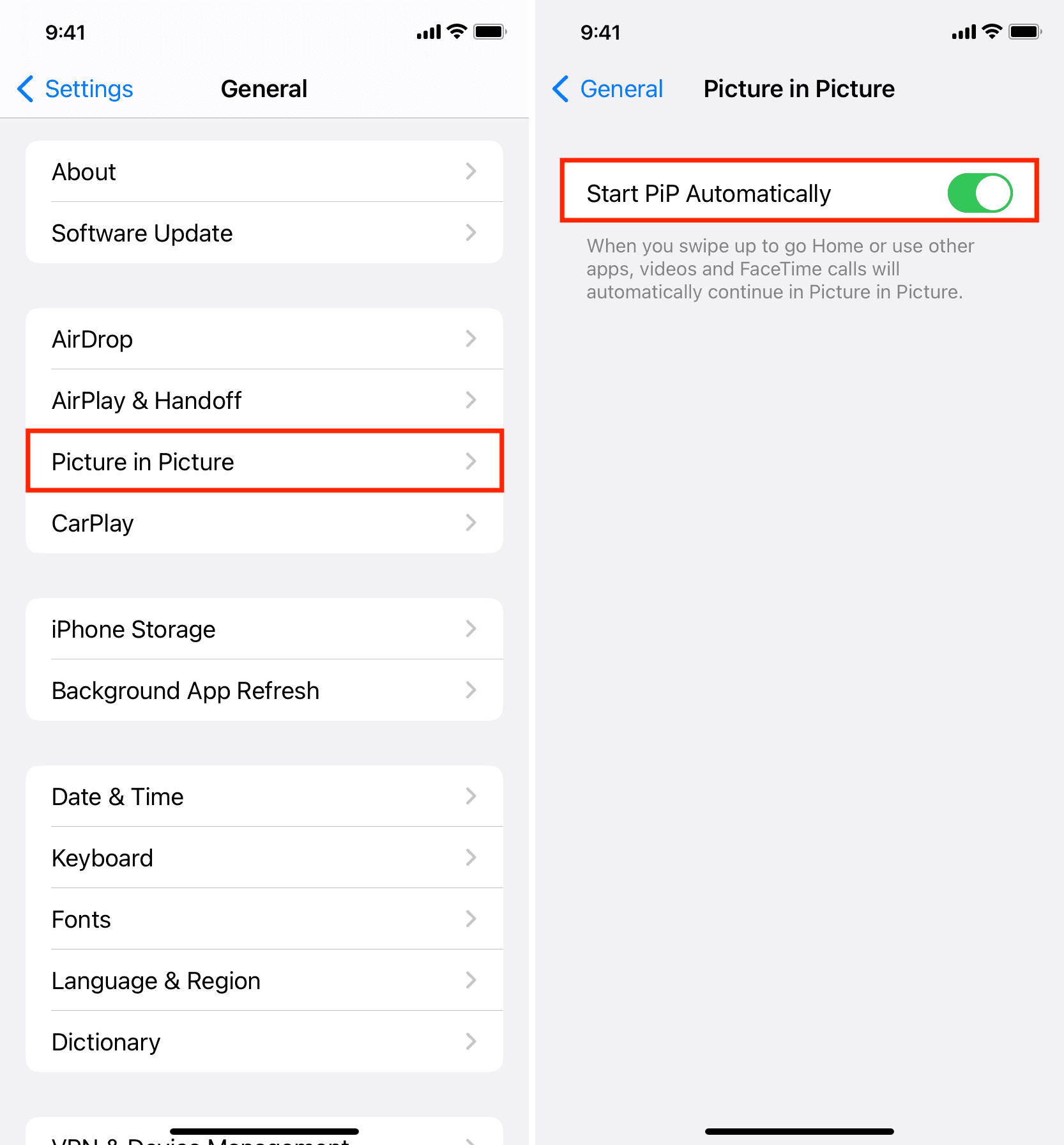
Now, when you swipe up or press the Home button on the calling screen, the video call should continue in picture-in-picture multitasking mode.
Quit and reopen WhatsApp
The WhatsApp app may experience glitches, stopping it from working currently. To rule this out, force quit WhatsApp on your iPhone, then reopen it. If you now initiate a new video call and exit WhatsApp, the call should continue running in PiP.
Restart your iPhone
If you have not turned off and turned on your phone in a long time, then do that now. A restart can solve many common issues causing apps or system services to stop working correctly.
Update to the latest version of iOS
If WhatsApp video calls still won’t run in PiP mode, go to Settings > General > Software Update and be sure to install the latest version of iOS.
Turn off WhatsApp Lock
If you’ve locked WhatsApp chats for increased privacy, you may run into unexpected problems like video calls failing to continue in PiP mode. Try turning off the WhatsApp lock by following these steps.
- Open WhatsApp and tap You.
- Tap Privacy.
- Scroll down and tap App Lock.
- Turn off the switch for Require Face ID or Require Touch ID.
- Now force quit and reopen WhatsApp or restart your iPhone. After this, make a video call on WhatsApp, and you should be able to continue it in PiP mode.

For those using Apple’s built-in app locker feature, touch and hold the WhatsApp app icon on your Home Screen and select Don’t Require Face ID.
Delete and reinstall WhatsApp
Lastly, if nothing works and you have confirmed that Picture-in-Picture works in FaceTime, Apple TV, YouTube, Safari, and other apps, then the problem is definitely with WhatsApp on your device.
Deleting and reinstalling the app should certainly fix the problem. But before you do that, back up your WhatsApp chats so you can restore them later.