Learn how to remotely sign out your Netflix account on unrecognized devices to get rid of freeloaders (like your ex or long-lost friend) without having to change the password.

Netflix announced the Manage Access and Devices feature on November 15, 2022, to limit account sharing by letting you selectively sign out of any unfamiliar devices or those you no longer want signed in. Doing so will prevent unauthorized access and increase the security of your account.
Available in your account settings, it lists recent Netflix devices that have streamed from your account. For each logged-in device, it shows information such as device type, last-watched date and time, and in some cases, even the city, IP address, and the most recent Netflix profile used to stream on the device.
Maybe you logged in to Netflix while at a hotel or at your friend’s house, but forgot to sign out. With this handy feature, you can remotely sign out of individual devices.
Sign out of Netflix from all devices
It takes only a minute or two to sign out of all devices, and you can do it from your computer or mobile browser.
Using your iPhone or iPad
1) Open the Netflix app on your phone and select your profile.
2) Tap My Netflix from the bottom, then tap the hamburger menu icon at the top, and select Account.

3) Scroll down and tap Access and Devices.
4) Tap Sign Out of All Devices and confirm. Note that it could take up to eight hours for this to take effect, and it affects all of the profiles associated with your account.

Using a computer browser
1) Visit Netflix.com in a web browser, log in, and select your profile. Remember not to pick the Children’s profile.
2) Click the profile icon from the top right and choose Account.
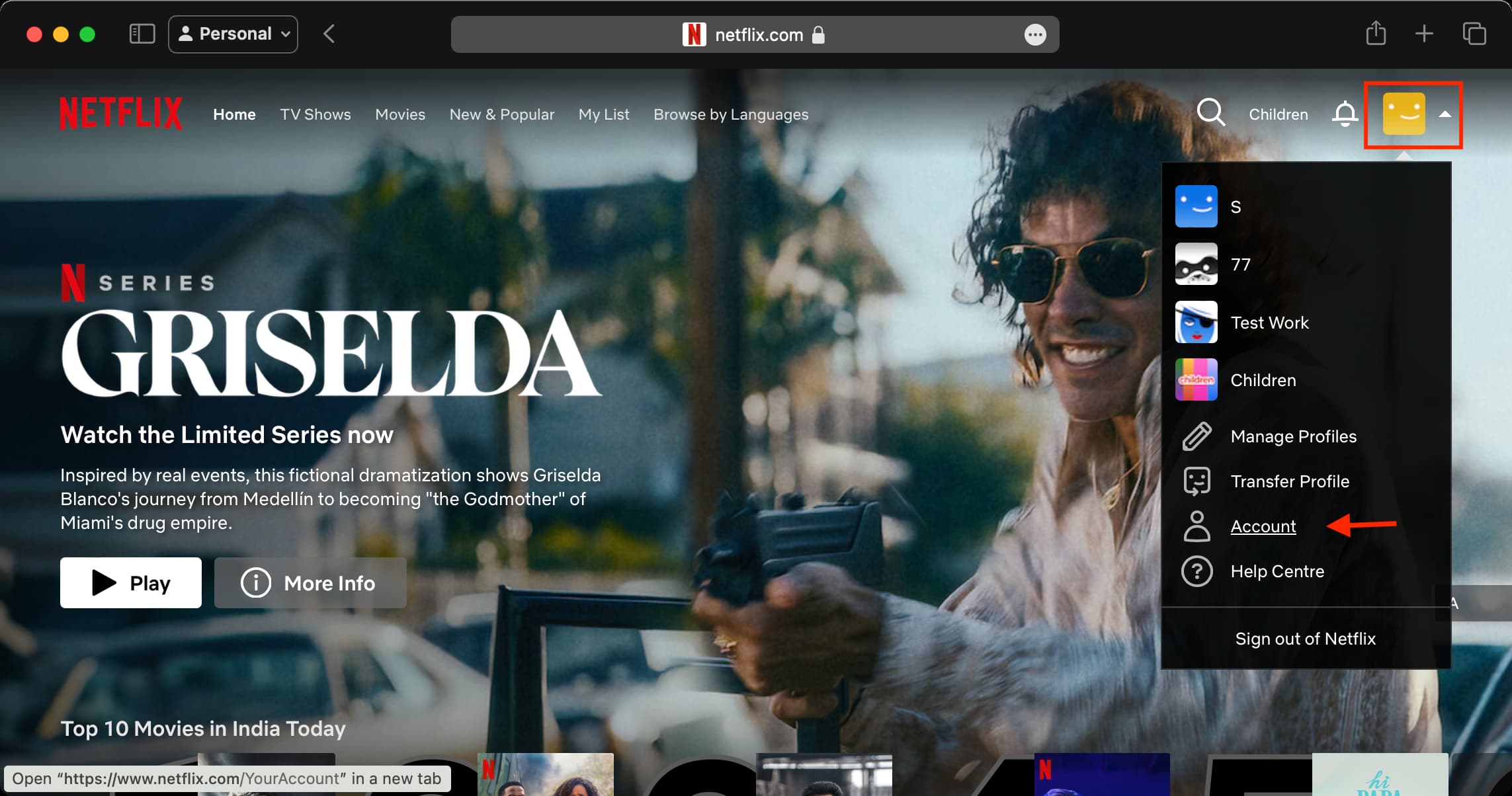
3) Click Devices on the left side, followed by Access and Devices.

4) Click Sign Out of All Devices and confirm.

Sign out of selected Netflix devices you don’t recognize or no longer want to stay signed in
In case you don’t want to log out of all devices, you can see all the places where you have logged in to your Netflix account and log them out as needed.
To do that, follow the above steps on your computer or phone to access your Netflix settings, and use the Sign Out button for a phone, computer, or TV you don’t recognize or no longer want to stay signed in on.

Other Netflix tips for you: