Learn how to secure your Netflix profile using a four-digit PIN on iPhone, iPad, and web browser to prevent other family members or roommates from accessing your watch history and messing up your recommendations.
Does this sound familiar? You log into Netflix, head to your queue or watch list, and there are shows that you didn’t put there! Aha, it was your roommate, in-law, or pal who also uses the Netflix account! They selected your profile instead of theirs.
You can stop this from happening by protecting your profile with a PIN.
Furthermore, once you add a PIN to your profile, other people with whom you share your Netflix account cannot see which movies and TV shows you watched and the shows that are in your My List watch later section.
This will also ensure your kids cannot access non-kid-friendly content by using your profile instead of the Children’s profile. Lastly, preventing others from using your profile will ensure your Netflix recommendations are tailored to your taste.
You can add the PIN from your phone or computer, and it will secure your profile on all devices where you are signed in to your Netflix account.
Using an iPhone or iPad
1) Open the Netflix app and tap Edit on the ‘Choose your profile’ screen. Then, tap the pencil icon on your profile to open the editing screen.

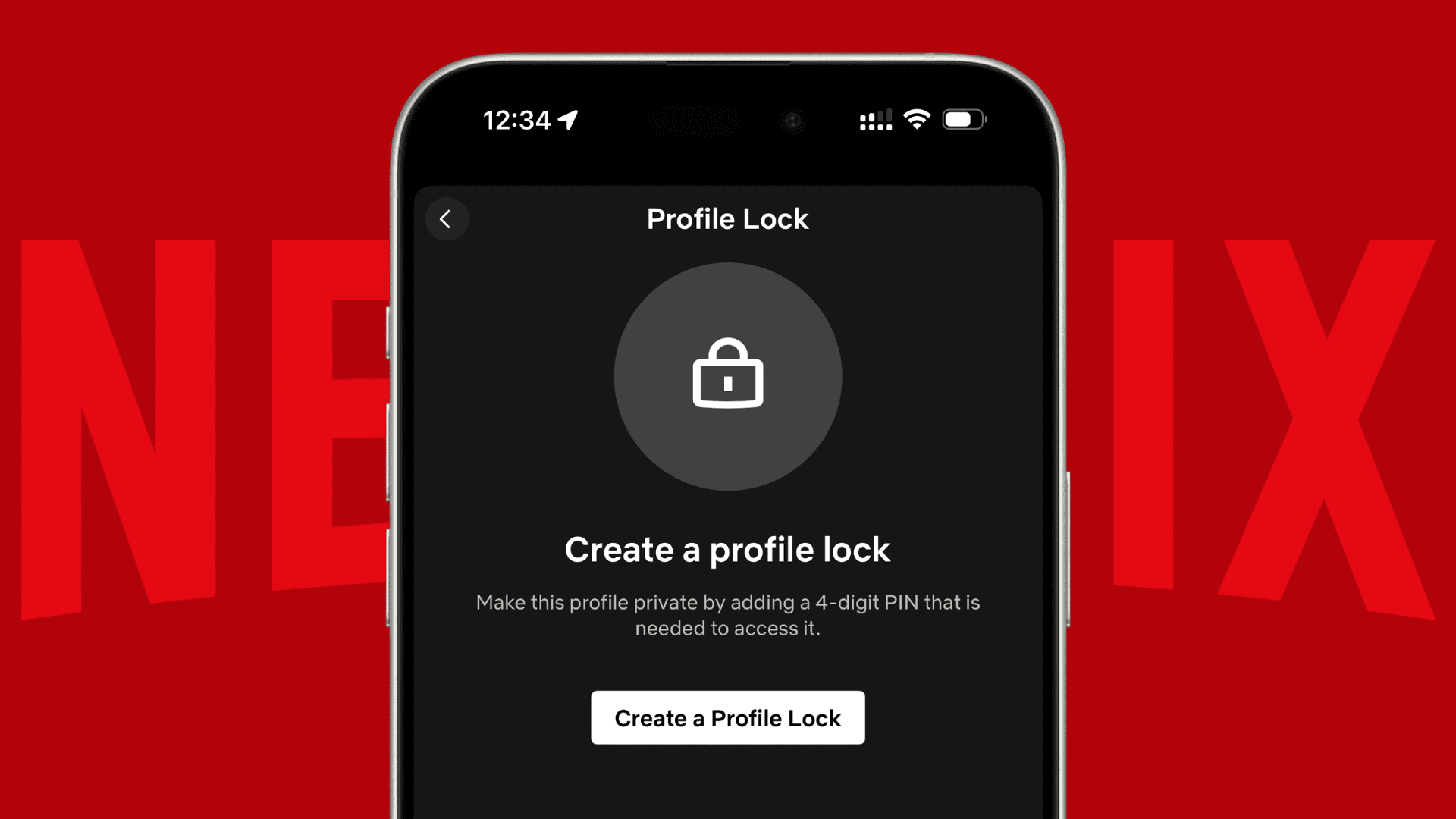
2) Tap Profile Lock, followed by Create a Profile Lock.

3) Enter your Netflix account password. And then, add a 4-digit PIN to secure your profile.

From now on, when you or someone with access to your account logs in to Netflix and selects your profile to watch or browse, it will prompt to enter the PIN.
Using a web browser
You can follow the steps in the iPhone section above, or set a PIN after logging in to your profile in a web browser like Chrome or Safari.
1) Go to Netflix.com and log in to your account if you haven’t already.
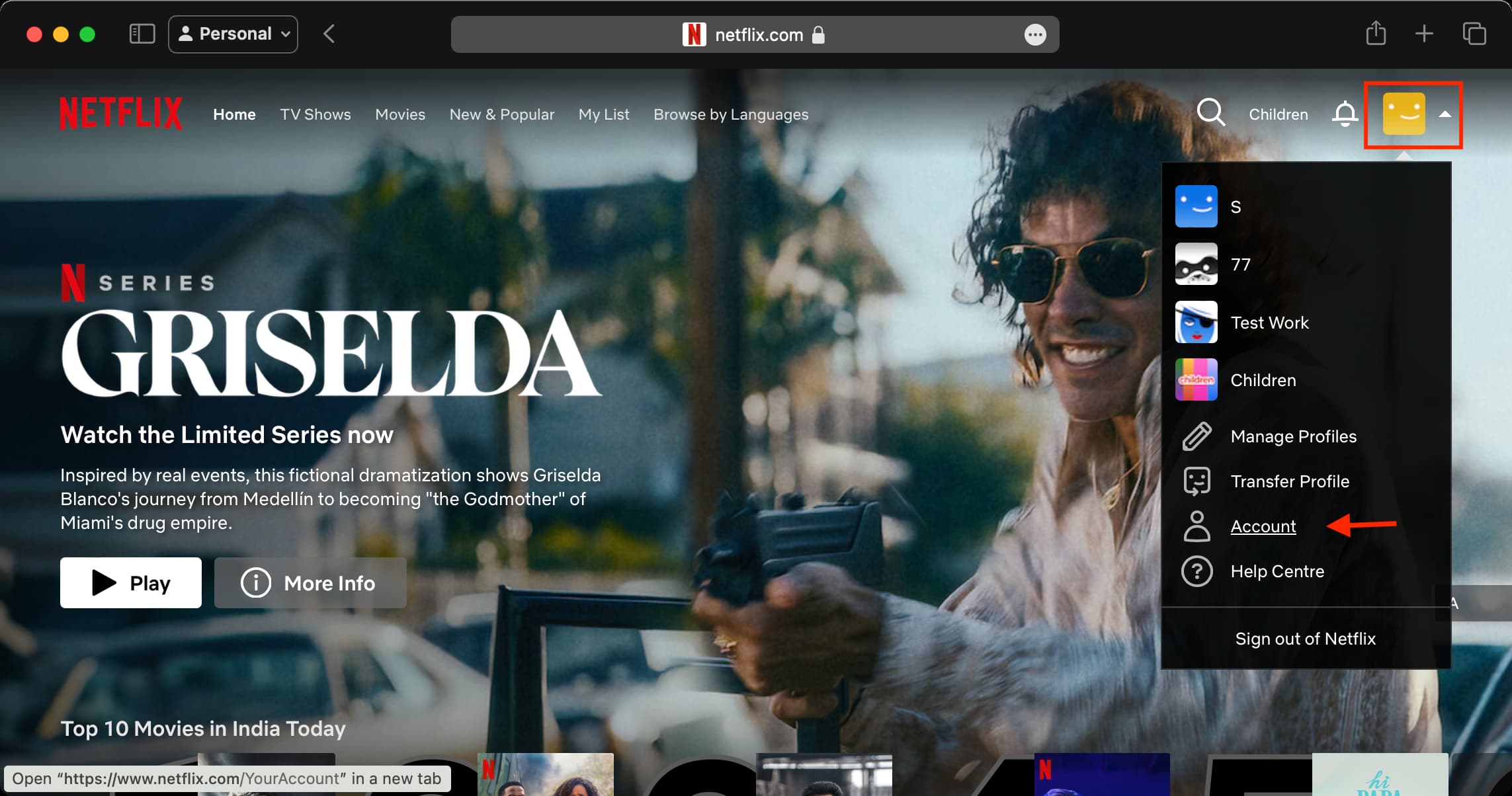
2) Click the profile option on the top right and select Account.
3) Scroll down and click Manage Profiles.
4) Select your profile, click Profile Lock, and add a passcode.

Are you going to set up a PIN for your Netflix profile?
Other Netflix tips: