In this quick tutorial, we show you how to have your iPhone or iPad automatically turn on Low Power Mode when the battery charge hits a custom percentage threshold, such as 30%, 40%, 50%, or something else.
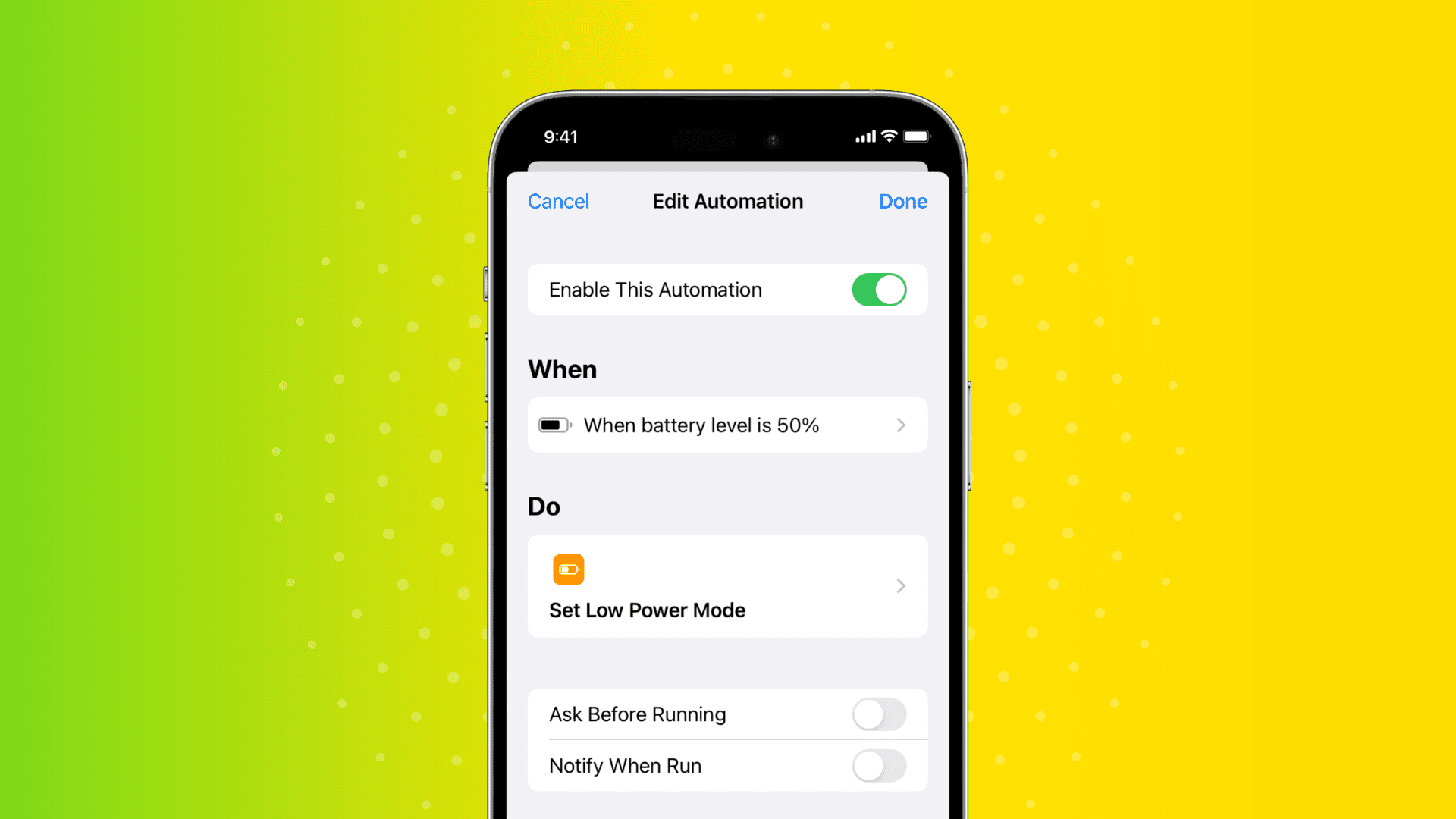
Your iPhone or iPad alerts you to enable Low Power Mode when the battery charge falls to 20% and again when it drops to 10%.
The low-battery notification is handy, but what if you’d like your iPhone to enter the power-saving mode sooner? You can always switch on Low Power Mode manually, but why not automate this task to make your iPhone or iPad activate Low Power Mode when the battery charge hits a custom threshold?
Automatically enable Low Power Mode when your iPhone battery drops to a specific percentage
1) Open the Apple Shortcuts app, select the Automation tab at the bottom, and tap New Automation. If you already have an automation, tap the plus button (+) instead.
2) Scroll down and tap Battery Level from the list of conditions.

3) Drag the When slider to a custom percentage. You can set the slider to 50% to have Low Power Mode auto-enable when the battery drops to 50% and so on. After that, select Equals 50% or Falls Below 50% to start the automation when the battery drops to 50% or below 50%.
From the same screen, select Run Immediately so the automation runs without confirmation, and tap Next to continue.
4) Swipe the options under the Get Started section to find and pick the Set Low Power Mode action. If you can’t find it, use the search bar at the top or create a new shortcut and add the Low Power Mode action to it.

5) Make sure the Set Low Power Mode action says “Turn Low Power Mode On” and tap the checkmark icon or Done. If it reads Off, tap the word to change the option back to On.
Congratulations, you’ve successfully created custom automation that will enable Low Power Mode when the battery charge hits the set percentage.

Stop iPhone from automatically entering Low Power Mode
If you no longer need this automation, you can deactivate it or delete it.
1) Open the Shortcuts app and go to the Automation tab.
2) To deactivate: Tap the automation, and then set Automation to Don’t Run.
3) To delete: Swipe left across the automation and hit Delete.
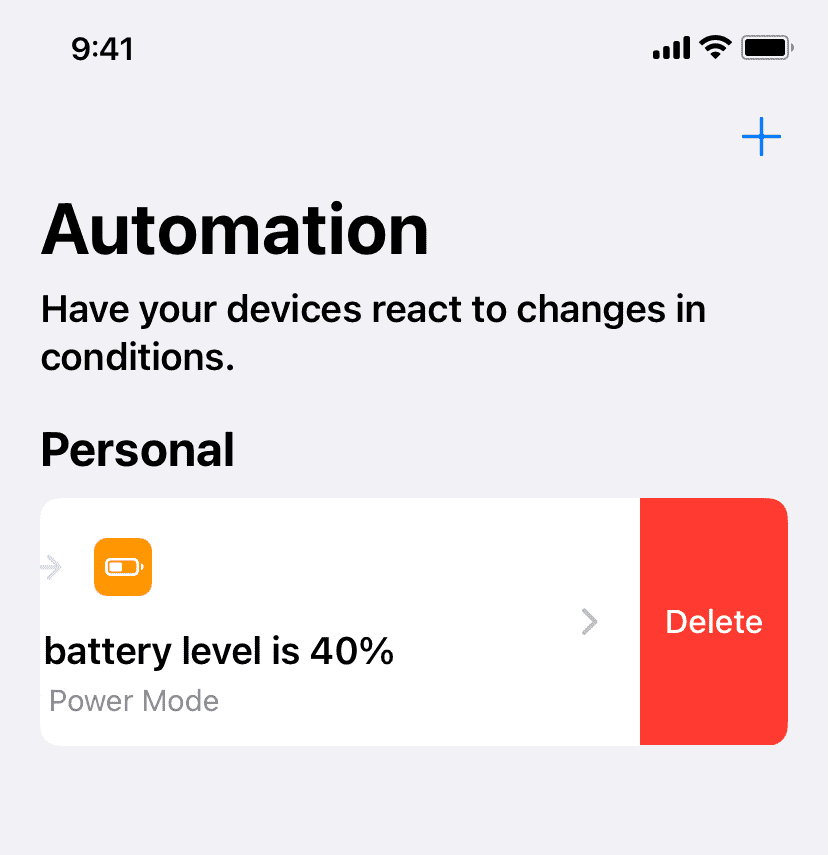
Your iPhone will no longer automate Low Power Mode
On a related note: