Learn how to hide, blur, or pixelate sensitive parts of a photo on your iPhone or iPad before sharing it online or with others to protect your privacy and keep confidential information secure.
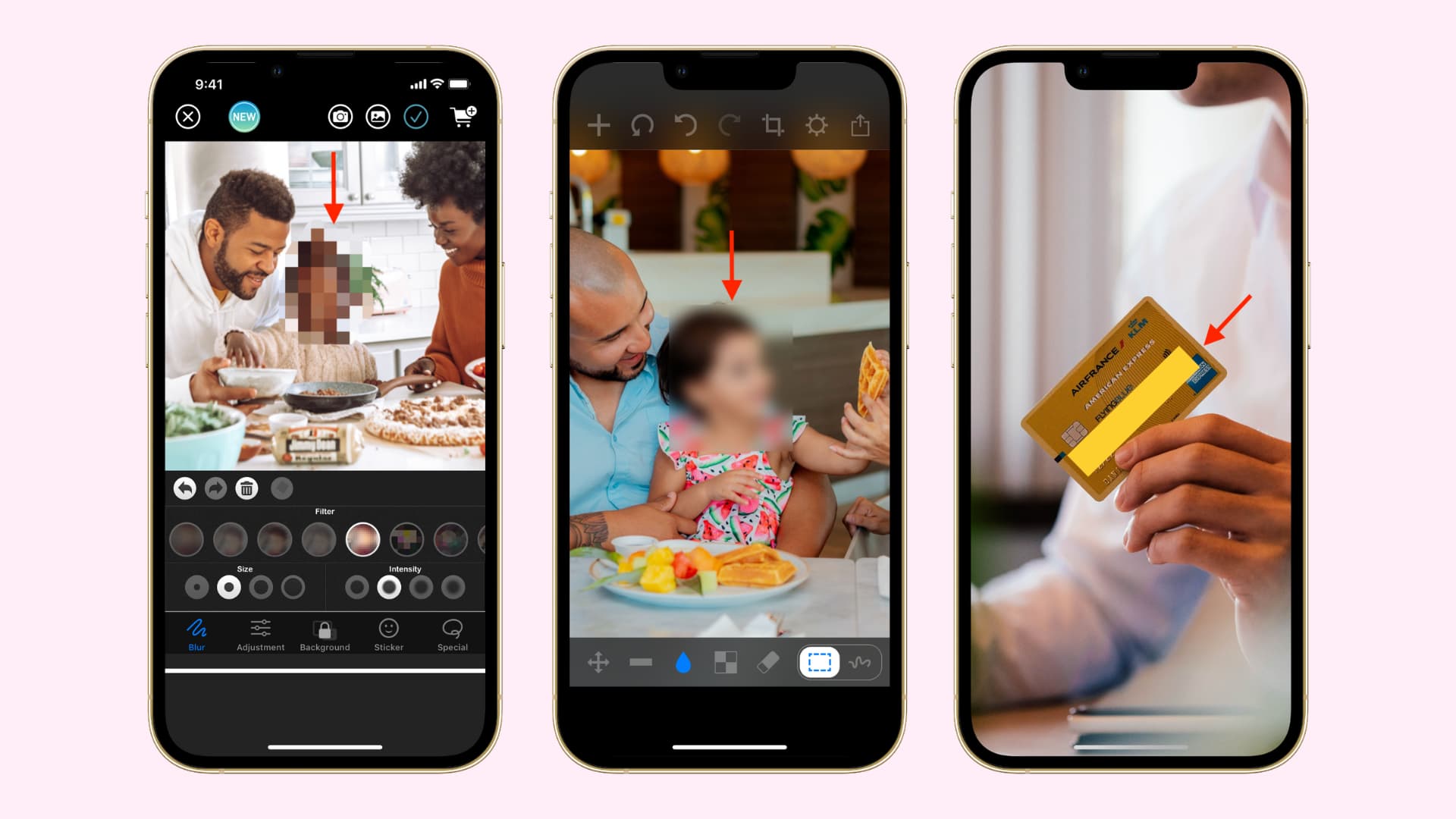
The following tips will help you conceal not only dirty laundry in the background or your kid’s face on images, but also addresses, card numbers, license plates, etc.
You should always hide sensitive information before posting images on social media sites like X (Twitter), Facebook, or Instagram, or sharing them with people via email, iMessage, etc.
Also see: How to blur or pixelate images and screenshots on Mac
Use Markup in the Photos app
Markup is a handy tool built into the Photos app on iPhone, iPad, and Mac (our step-by-step tutorial shows you how to use this feature). Use it to hide parts of a picture by following these steps:
1) Open an image in the Photos app on your iPhone or iPad, then tap the edit icon at the bottom.
2) Tap the Markup icon in the top-right corner that looks like a pen tip.

3) Use these tools to hide parts of your image, then tap Done to save your edits.
Pen or highlighter
- Select the pen or highlighter icon, then tap the same icon again to select a thick brush.
- Next, tap the colored dot to pick a desired hue, but be sure to set the opacity to 100%. Anything below that will start revealing hidden parts, and that’s not what you want. To pick a custom color from your image, select the blue color picker icon from the top left.
- Now use your finger to draw a line or an arbitrary shape across the image parts you’d like to hide. Just like drawing with a crayon on a piece of paper, the selected color should darken when dragging the finger repeatedly over the same area.

Use shapes
- Tap the plus (+) icon, followed by Add Shape, then pick one. A square or circle usually works best.
- Place the selected shape over a sensitive area. Use two fingers to rotate the overlay shape and drag handles to change its shape and size so that it completely covers the part you’d like to hide. You can also adjust the shape color and opacity, and use other tools to adjust how it looks.

Use emoji
Responsible parents usually put a huge emoji over their kid’s face to protect their Junior’s identity before sharing photos publicly. When posting Instagram Stories, for example, you can use Meta’s creative tools to do just that. Alternatively, follow these steps to plaster an arbitrarily-sized emoji over an image using free tools you already have on your iPhone or iPad.
- Tap the plus (+) icon on the Markup screen in Photos, then choose Add Text.
- Double-tap Text and add a desired emoji using iPhone’s emoji keyboard.
- Hide the keyboard, tap the emoji, choose the AA button, and use text sizing options to make the emoji bigger. When satisfied, drag the emoji anywhere on the photo to hide that part.

Use stickers
If you previously created some stickers, use them to hide parts of the image.
- Tap the plus button (+) in Markup, then choose Add Sticker, and pick one.
- Drag the sticker over an area of the image you want hidden, then pinch to change the sticker’s size or rotate it.

Use the Blur app
Blur app is a free iOS app with optional in-app purchases to blur or pixelate sensitive parts of your image by following the steps below.
1) Download and open the free Blur app, then tap the photos icon and pick an image from your Photos library.
2) Choose either the Blur or Pixelate option under the Filter section.
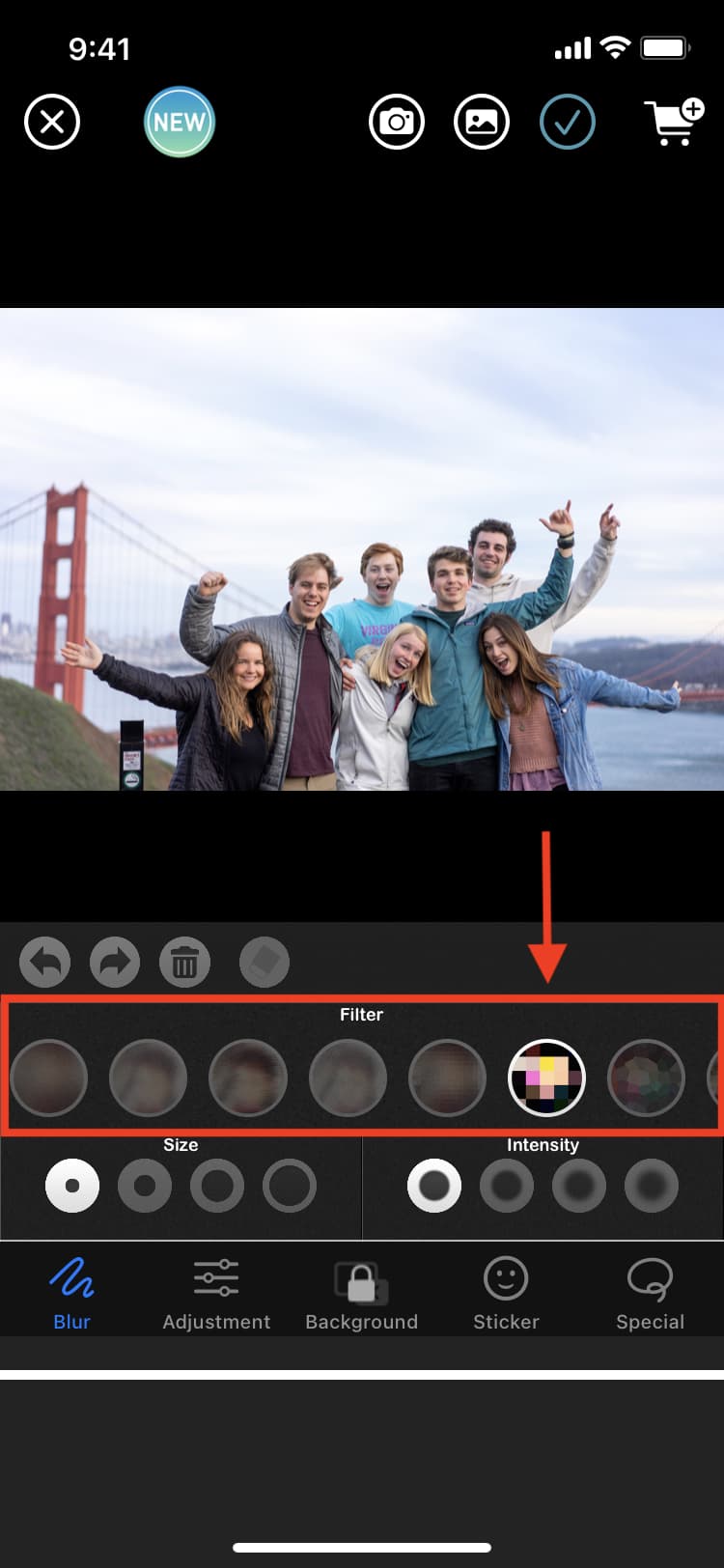
3) Adjust the size and intensity of your blur/pixelate effect.
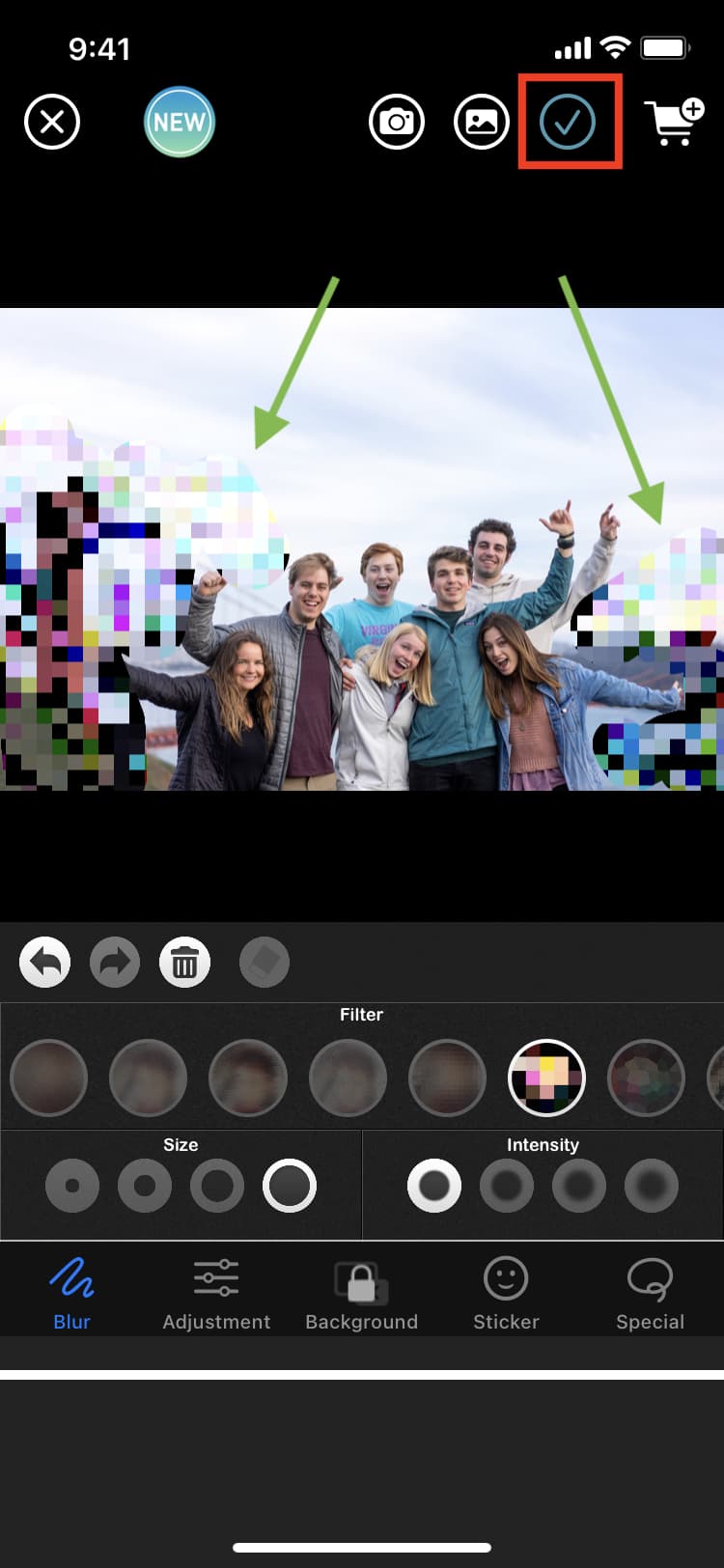
4) Using your finger, draw a line or shape over any areas you’d like to hide.
5) When done, tap the checkmark icon to save the image or share it with people, apps, or websites.
Use other iOS apps to hide sensitive info on images before sharing
Congratulations, you now know how to blur, hide, or pixelate specific areas on images for free. We suggest trying all of the methods above before settling on one that feels most comfortable. If you’d like to go down the paid route, here are a few recommended apps:
All images used in this article are from Unsplash.
On a related note: