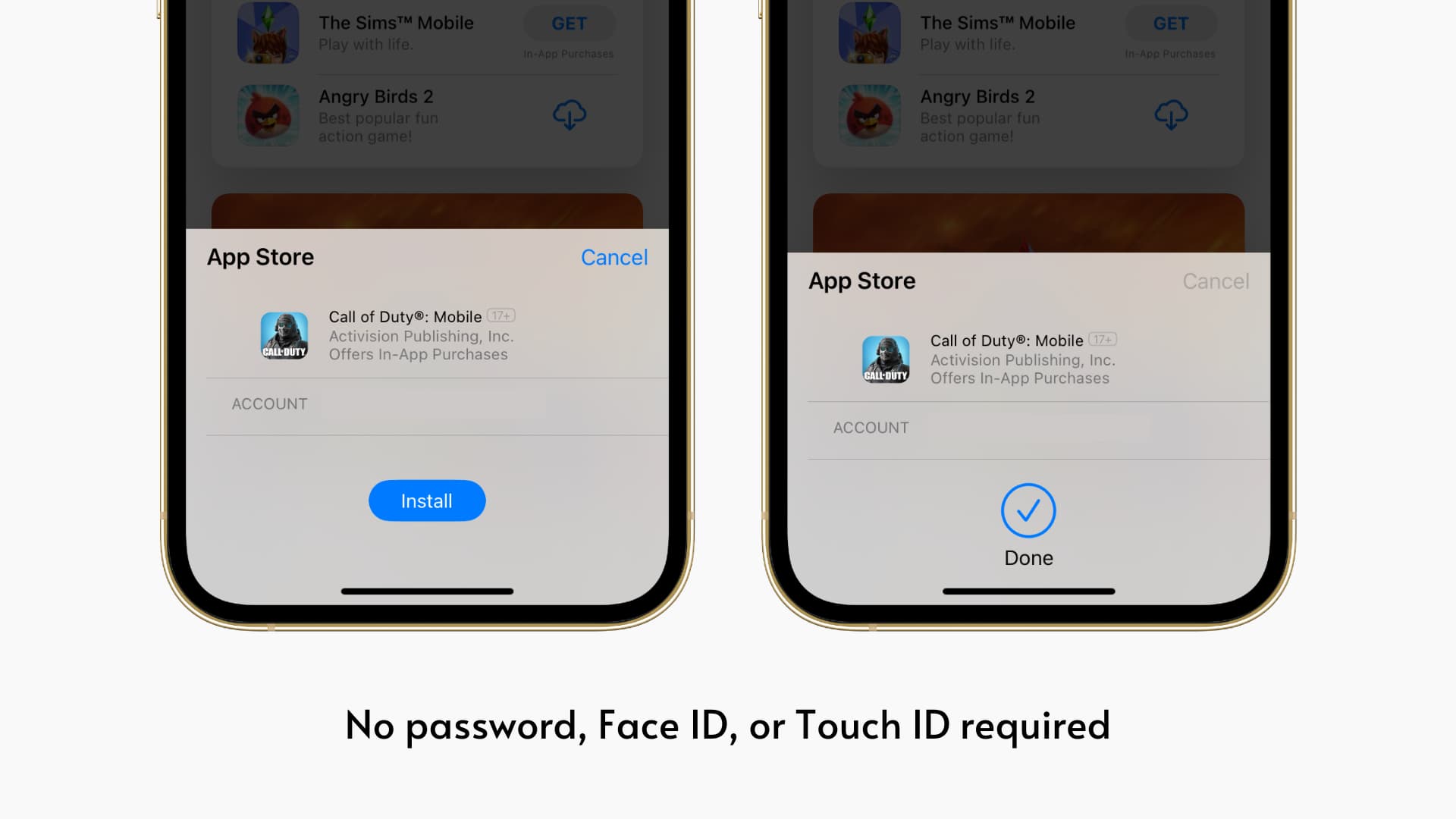
Learn how to get free apps from the iPhone or iPad App Store without Face ID or Touch ID authentication and without entering your Apple Account password.
Also see: How to download Mac apps without Touch ID or password
When the App Store asks for the password while downloading apps
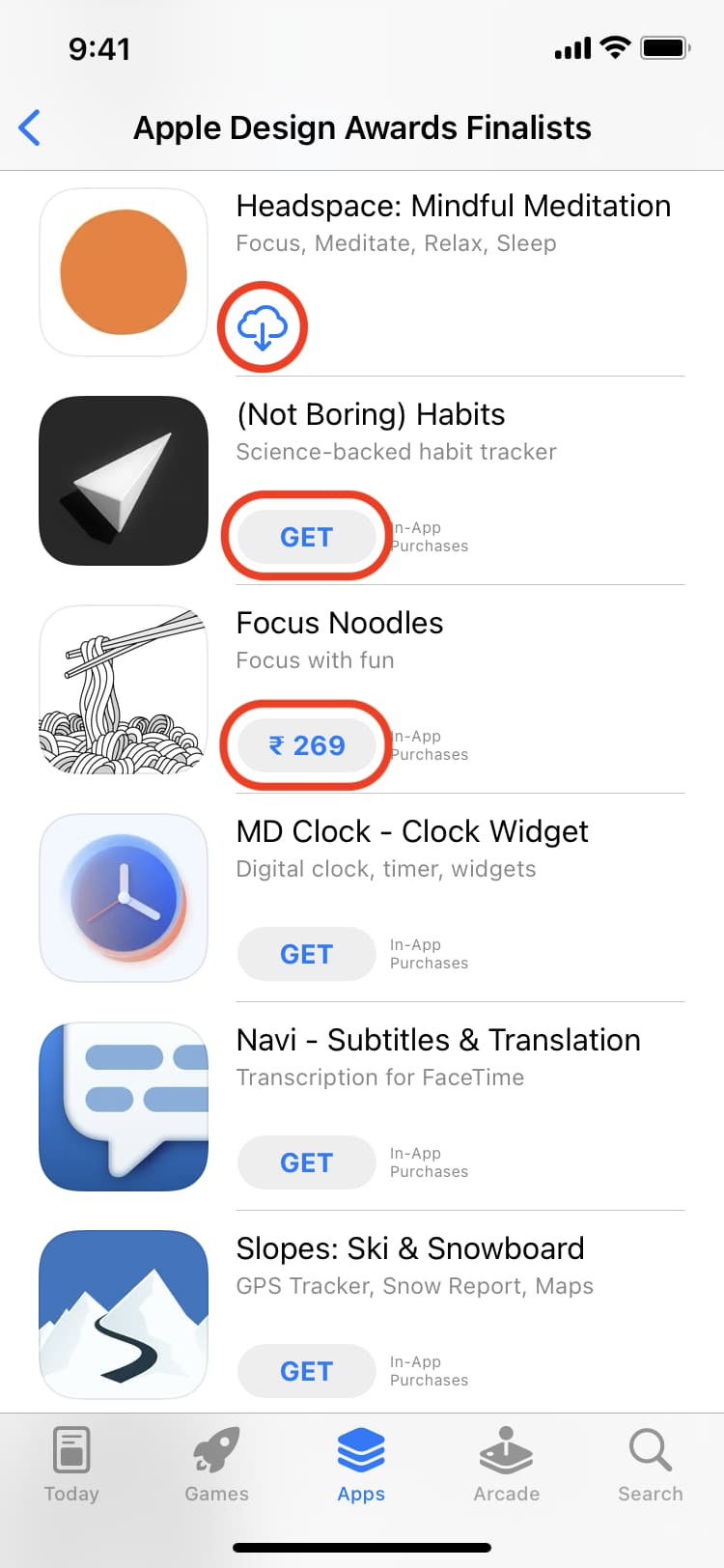
You’re asked to confirm via password or Face ID/Touch ID only when you download a free or paid app you have never downloaded or purchased before. Such apps show the GET button (if the app is free) or the price (if the app is paid).
Apps you have downloaded or purchased in the past and then uninstalled show a download arrow. In this case, you’re just re-downloading the apps; thus, the App Store doesn’t ask you to enter the password or authenticate via Face ID or Touch ID.
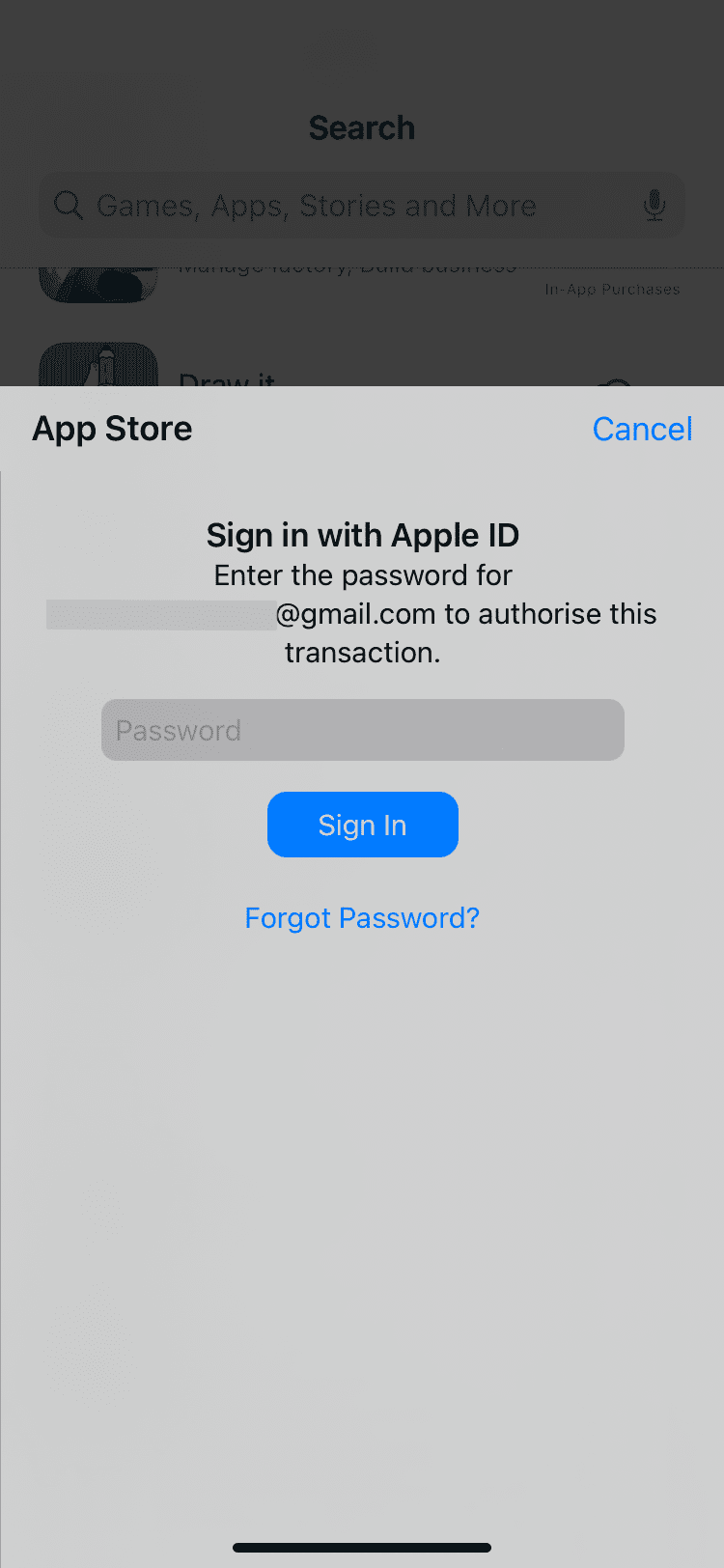
Which password you are asked to enter
App Store prompts you to enter your lengthy Apple Account password when downloading iOS apps. But this can get cumbersome.
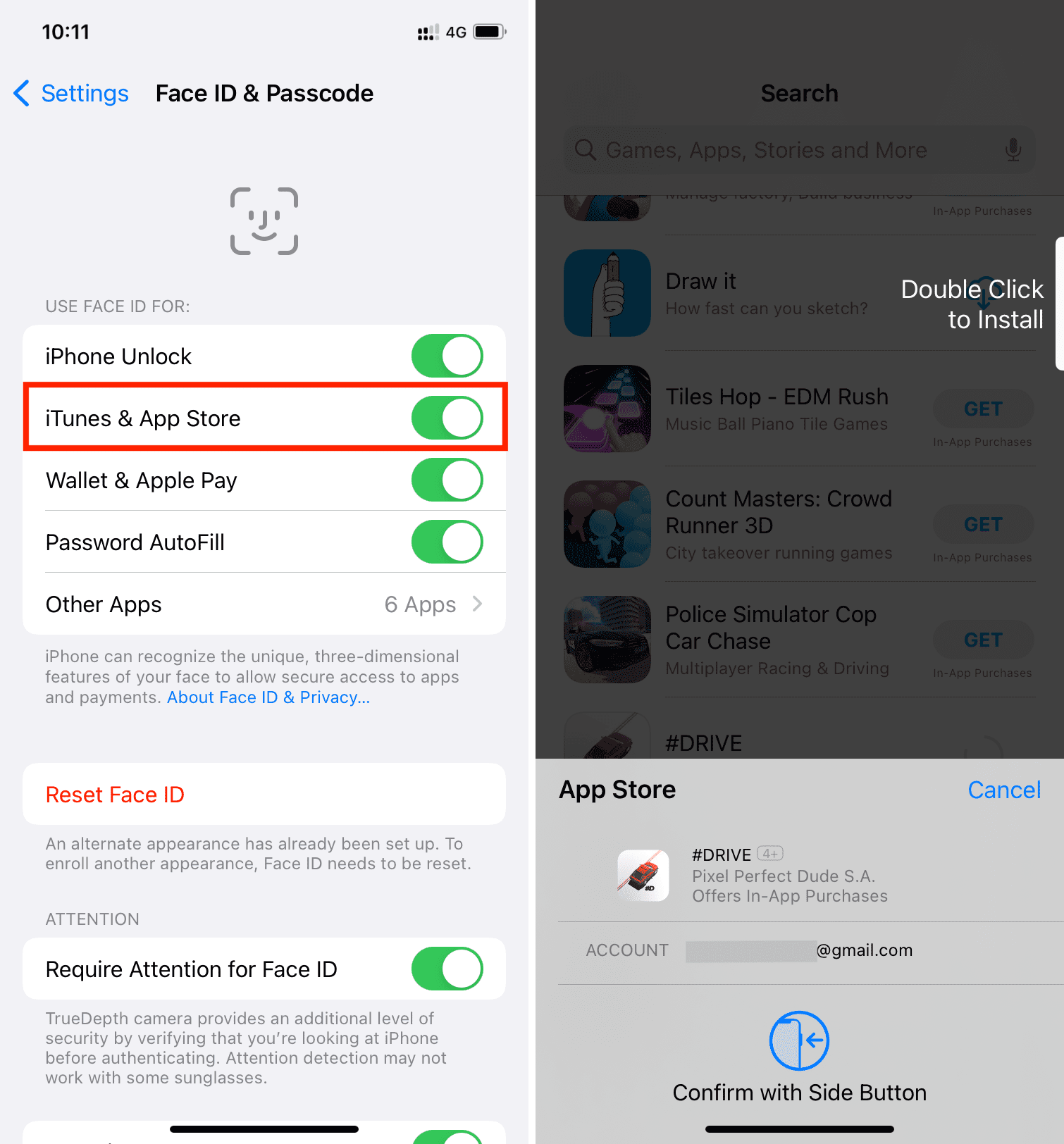
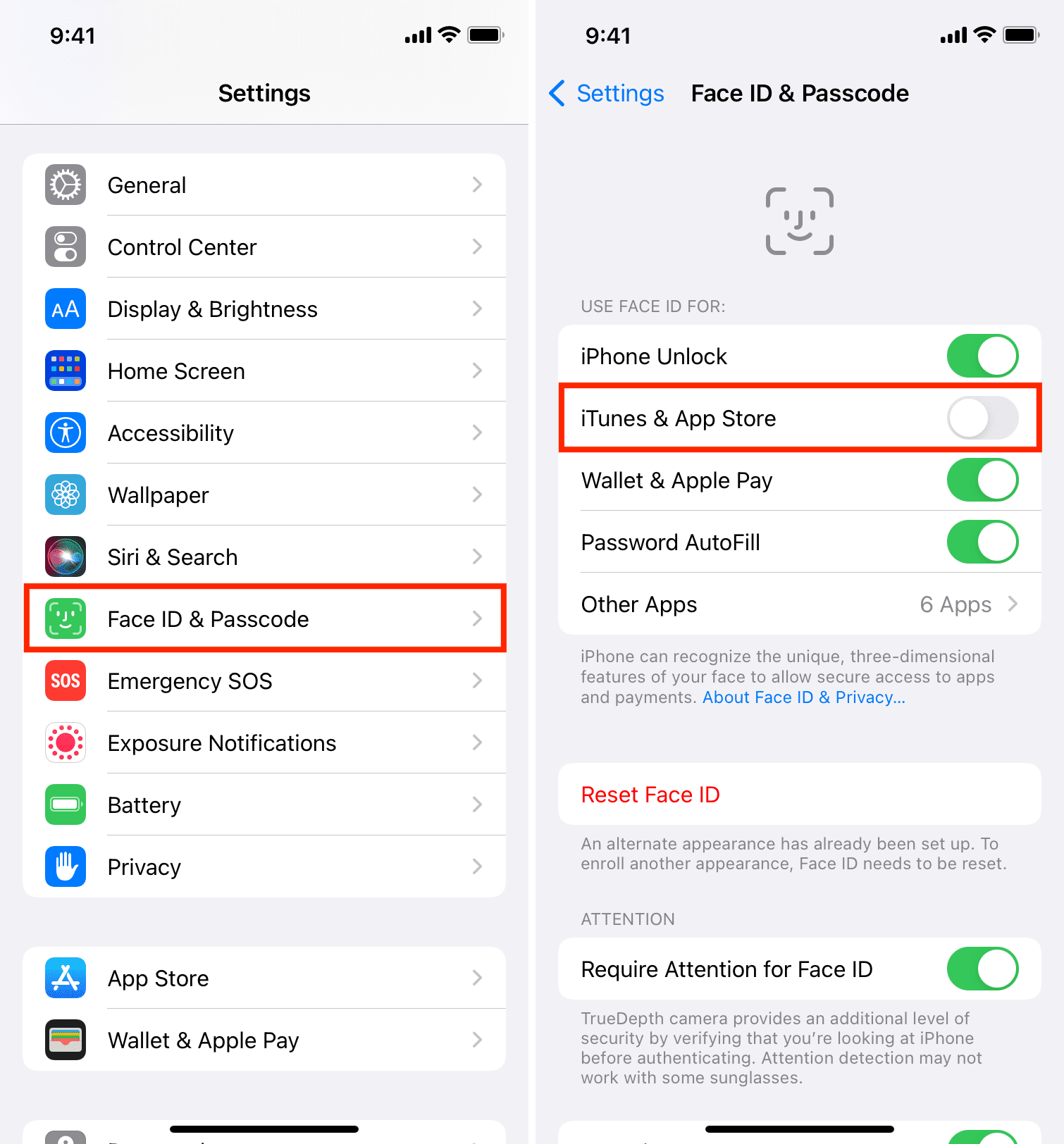
To address this, go to Settings > Face ID/Touch ID & Passcode and enable iTunes & App Store. Thereafter, when you tap GET to download a free app, you can simply authenticate via Face ID or Touch ID (you don’t have to enter your lengthy Apple ID password).
Exception: You’ll be asked to enter your Apple Account password if you made changes to your Apple Account, such as adding a new address, editing the payment method, and so forth.
Why I’m not okay with even using Face ID or Touch ID for downloading apps!
Confirming via Face ID or Touch ID to download a free app or purchase a paid app is pretty easy. But this is only true if you download apps occasionally.
In my case, as an iDB writer, I download several apps every week to test before mentioning them in our articles. So, authenticating 15 times in a row to download 15 new apps in a span of a few minutes can be irritating. Plus, with my iPhone kept on the table, it gets annoying to pick it up every time for Face ID to work.
Overall, I don’t particularly appreciate authenticating free app downloads using Apple Account password or even Face ID or Touch ID. So, I set my iPhone and iPad not to ask me for authentication while downloading free apps. Allow me to share those steps with you.
Download iOS apps without Apple Account password, Face ID, or Touch ID
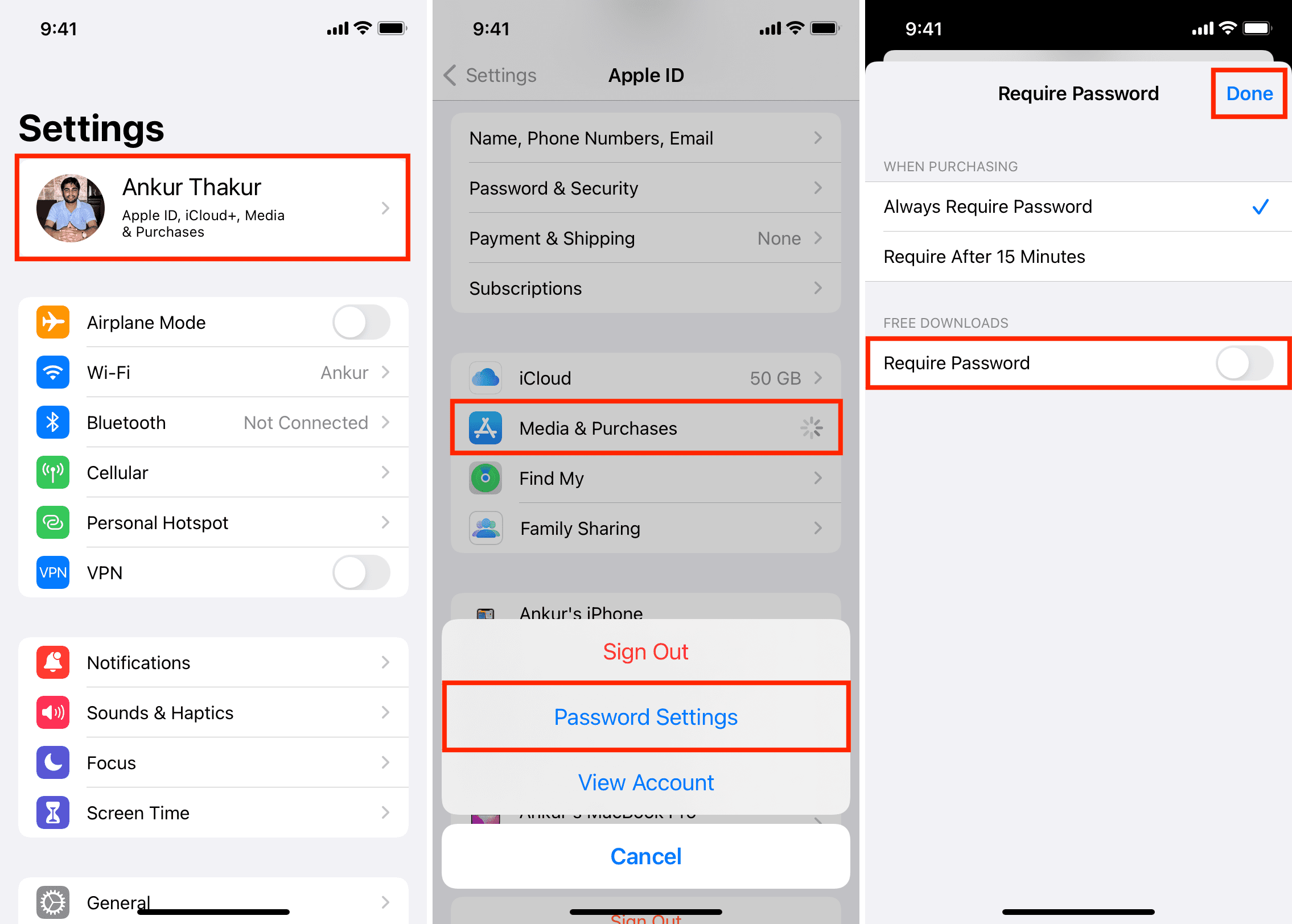
1) Open the Settings app on your iPhone or iPad and tap your name at the top.
2) Tap Media & Purchases and choose Password Settings.
3) Turn off the toggle for Require Password under Free Downloads and tap the checkmark icon or Done. Enter your Apple Account password if prompted.
4) Return to the first page of the Settings app and tap Face ID/Touch ID & Passcode. After that, enter your iPhone passcode to get inside.
5) Turn off the toggle for iTunes & App Store.
Going forward, when you tap GET to download a free app from the iPhone App Store, you won’t be asked to enter your Apple Account password or confirm the purchase by Touch ID or by double-pressing the Side button and confirming via Face ID. All you need to do is tap GET and then tap Install. No other authentication is required, and the free app will start downloading.
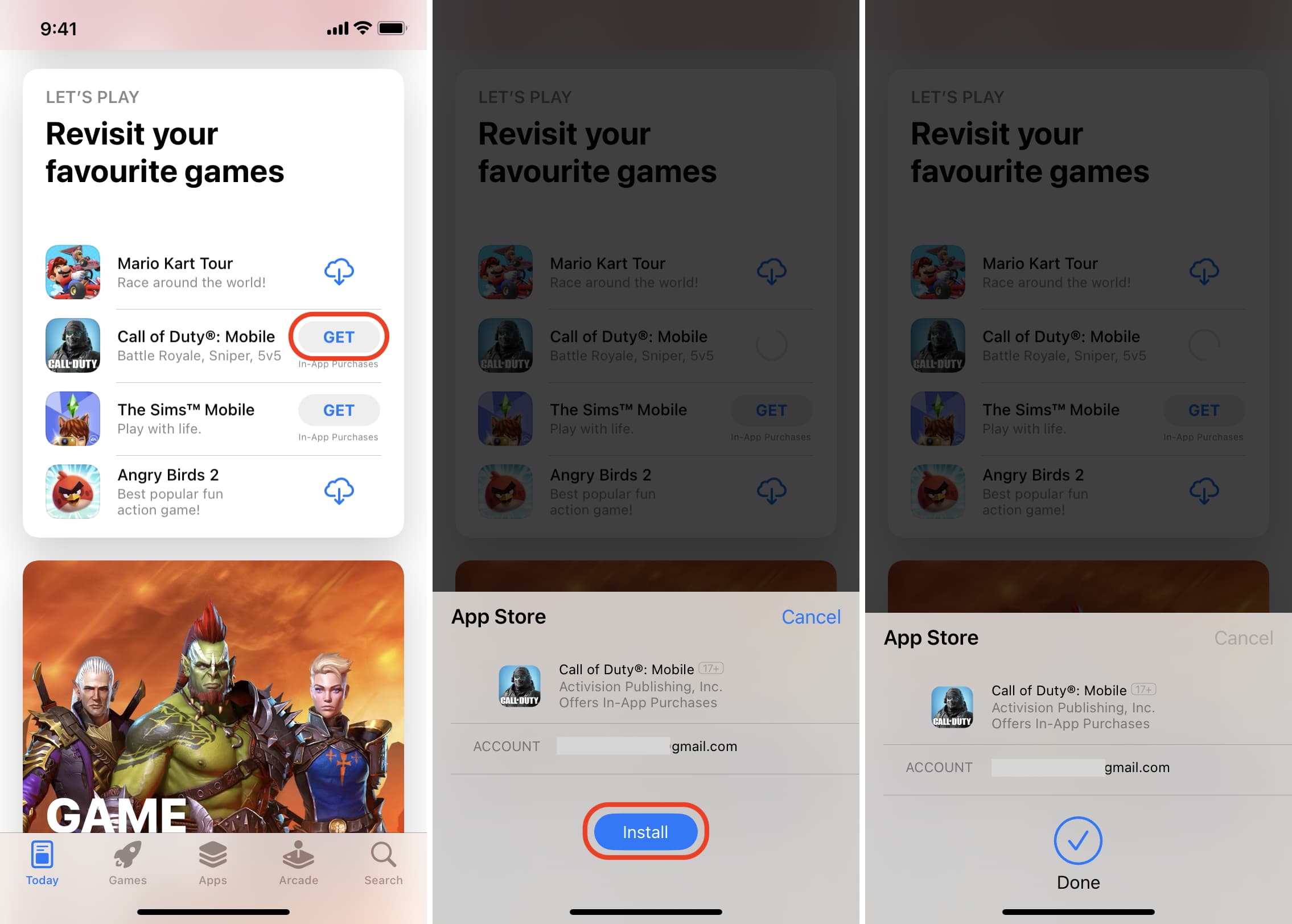
Note: You may be asked to enter your Apple Account password the first time you download an app after following the above steps.
But what about paid apps?
Go to the Settings app > your name > Media & Purchases > Password Settings and make sure “Always Require Password” is checked under When Purchasing. With this setting, your iPhone will ask you to enter your Apple Account password whenever you try to buy a paid app. Free apps will continue to download without authentication (if you followed the above steps).
On a related note: