Check out multiple ways to download Instagram Reels, photos, and videos to your iPhone or iPad for free, in full quality, and without a watermark.
If you come across a funny or informative post, you might want to download it locally to your iPhone to share the actual file (and not just the link) on other platforms like Messages, WhatsApp, X, Mail, etc. You can also keep it for offline viewing later, or extract audio from the Instagram Reel.
Use the Reshare app
1) Download and open the free Reshare app for Instagram by iDB. Allow it to access your photos so it can save downloaded media to your iPhone’s Photos app.
2) Open the Instagram app and visit the post you want to download. Then, tap the send arrow icon and choose Copy link.

3) Now, open the Reshare app and make sure you’re in the Posts section. The app should automatically paste the copied link if you tap Allow Paste, or you can paste the copied link manually. After that, tap Preview Photo or Video. Log in if prompted (more on it later).

4) Tap the blue share icon and choose Reshare on Instagram. And done!
5) You can exit the app now. There is no need to post anything to Instagram. The Instagram Reel, video, or photo is already downloaded to your iPhone. Open the Photos app, and you’ll find it there.

If the Instagram post has multiple photos or videos, you can swipe in the Reshare app and tap the share button > Reshare on Instagram individually to save them offline.
You can also use this method to download videos from Instagram Stories. In other words, this one app does it all.
Download Instagram videos from private accounts
If the app asks you to log in, please do that. This will ensure you don’t have any difficulty downloading Instagram Reels and photos, including ones from private accounts you follow. The app doesn’t see or store your Instagram login info. Everything is handled by Instagram, so you can proceed without hesitation.
Note: You may notice that there are some Reels you can’t download. This is due to the privacy settings of that individual Reel, not a failure of our app.
Download Instagram Reels to the iOS Files app
If you don’t want to clutter your iPhone Camera Roll with Instagram Reels, you can save them to the Files app.
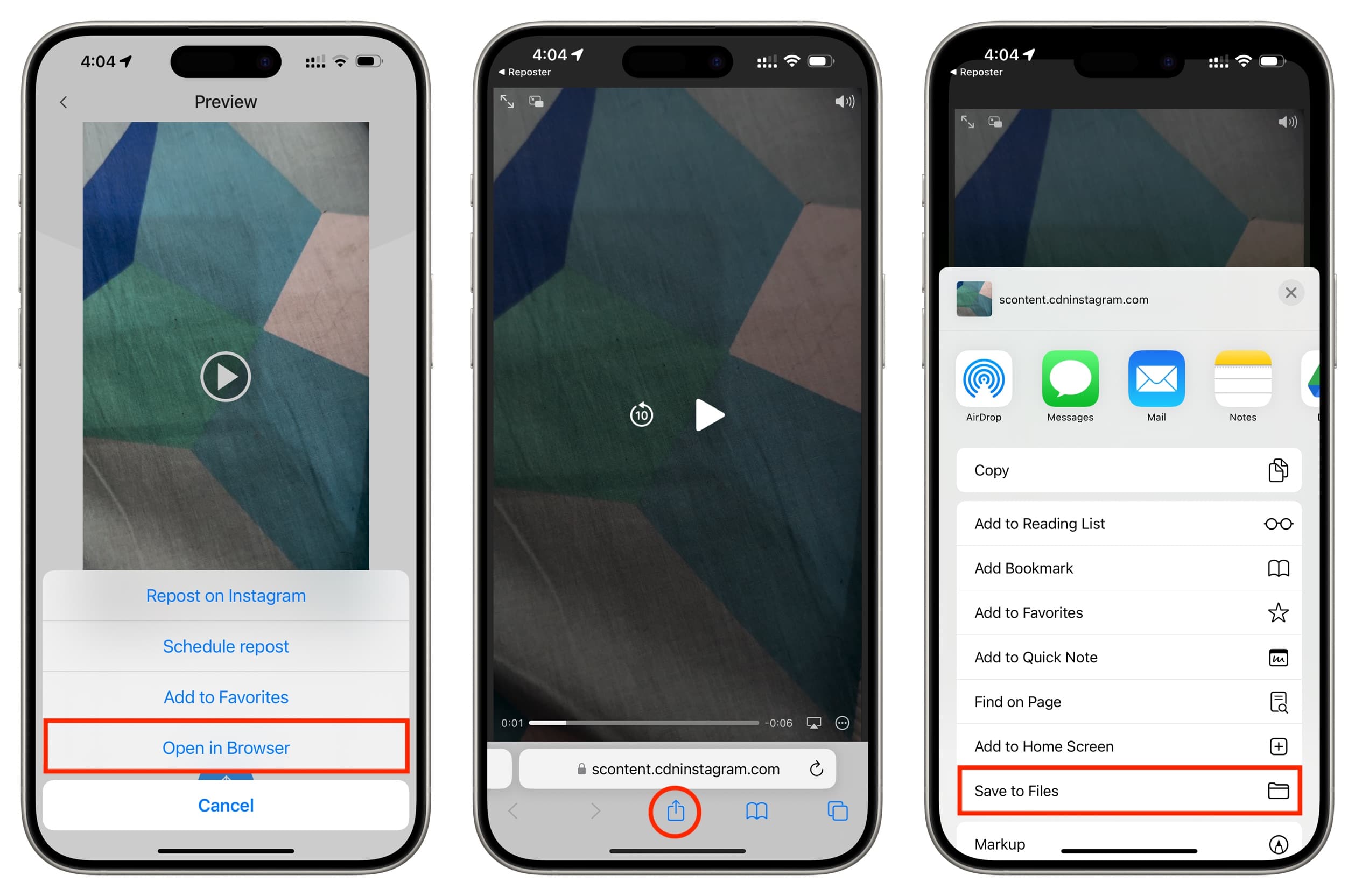
For that, follow the initial steps, and instead of “Reshare on Instagram,” tap Open in Browser. Now, tap the share icon and choose Save to Files > Save.
Other methods
Here are five other options to save Instagram posts on your iPhone.
1. Take a screenshot
If you have to save a photo post, you can simply take a screenshot and then crop it accordingly to remove the unneeded parts.
2. Use the built-in option
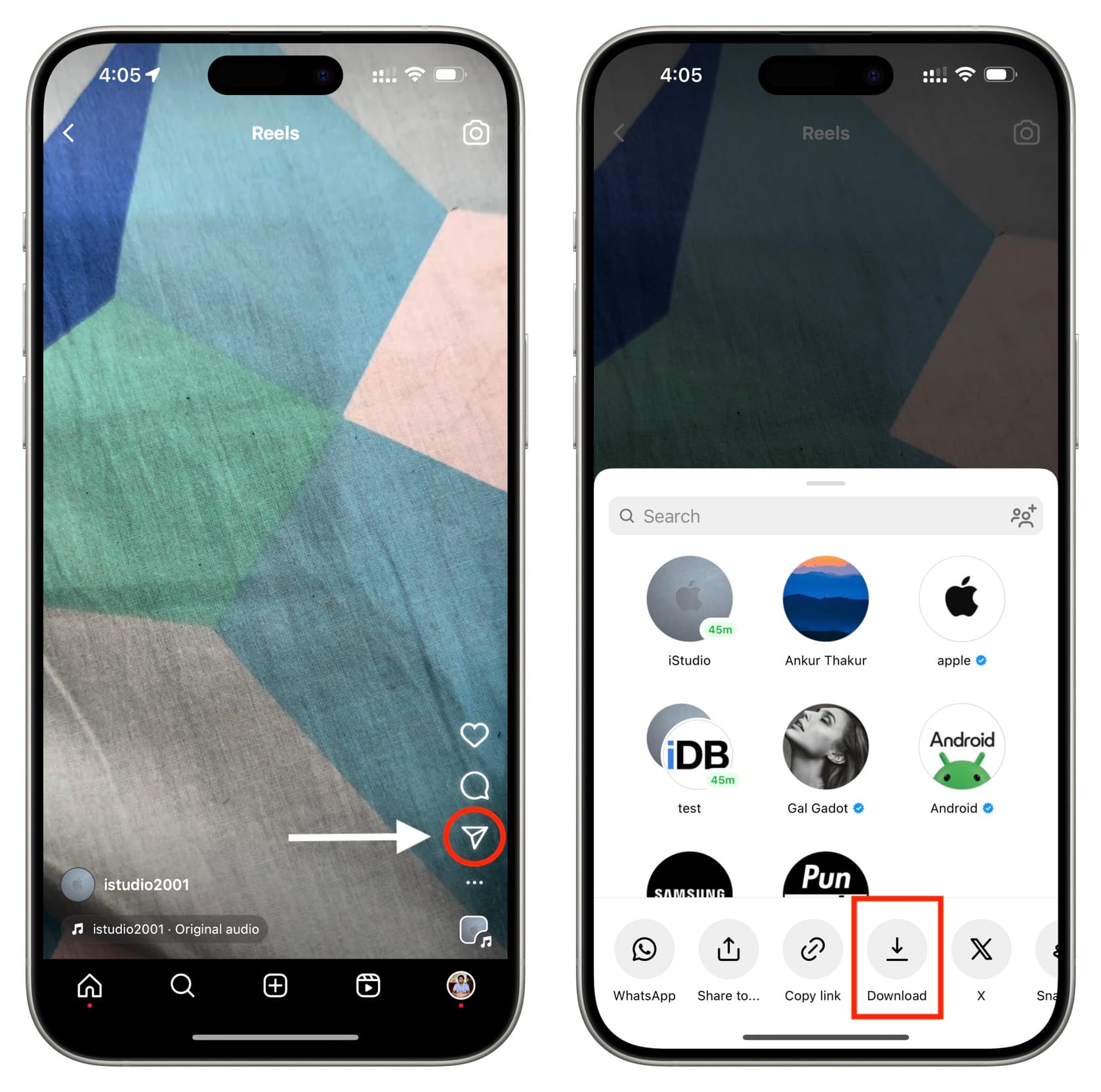
Instagram also has an option to download Reels, but it will work only if the original poster has allowed people to download them.
To download Instagram Reels without using an extra app, tap the send arrow icon for a Reel and choose Download. Now, go to your iPhone’s Photos app to find the Reel there, but with the original username’s watermark on the video.
3. Do a screen recording
You can also record your iPhone screen with and without sound, but the file size will be huge and fill up your local storage. Plus, this recording video will include all the UI buttons and everything that’s visible on the screen, thus making your final video look messy.
4. Save Reels inside the Instagram app
Tap the three-dots icon for an Instagram Reel and tap Save. This will not download it locally to your iPhone but only add it to the “Saved” section of your Instagram profile. It works to save posts for future viewings, like the bookmark feature.
5. Use other third-party apps to save Instagram Reels
The App Store has apps that let you download Instagram Reels, but most of them will add a big watermark to the video. You can’t remove the watermark without paying. Plus, the free version will also have ads.
You don’t get a watermark on the downloaded Instagram Reel in the app we mentioned above. Sure, the free version has ads. But once you get past the ad, you can use it to download Reels without a watermark.