Learn how to use Telegram emoji reactions to spice up your conversations with a red heart, fire, party popper, or other expressive emoticons.
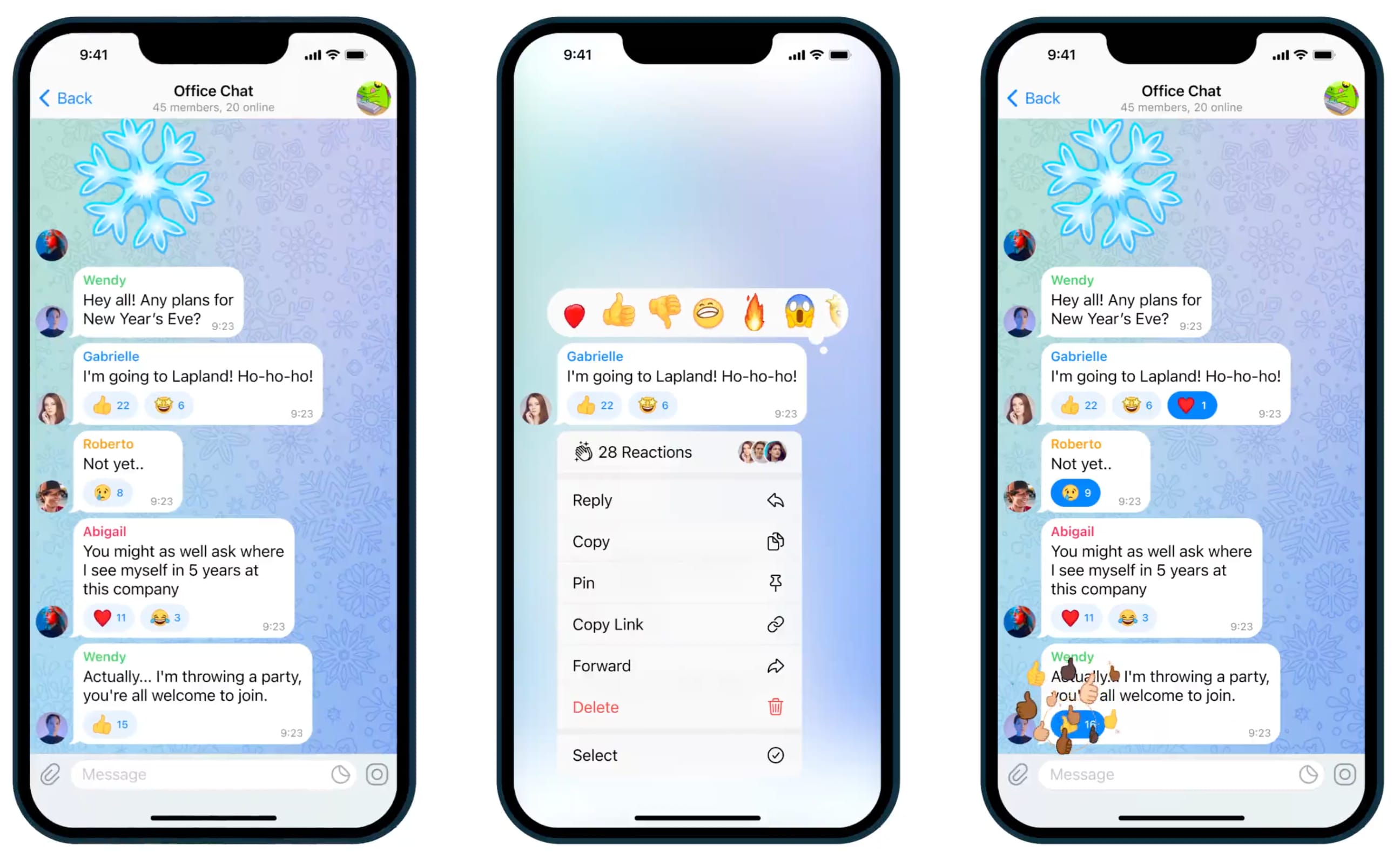
Similar to other messaging clients like iMessage, Messenger, WhatsApp, Discord, Slack, and many others, Telegram also lets you react to messages with an emoji.
You can use several emoji reactions in the free version of Telegram, and some of the important ones are:
- Thumbs up 👍
- Thumbs down 👎
- Red heart ❤️
- Fire 🔥
- Smiling face with 3 hearts 🥰
- Clap 👏
- Big smile 😁
- Thinking face 🤔
- Exploding head 🤯
- Face screaming in fear 😱
- Abusing face 🤬
- Crying face 😢
- Party popper 🎉
- Star-struck 🤩
- Vomiting face 🤮
- Poop emoji 💩
- Praying/Namaste emoji 🙏
- and many more, as seen in the image below

If you upgrade to Telegram Premium, you unlock additional emoji reactions.
Use emoji reactions on Telegram
- Open a one-on-one or group chat on Telegram.
- Touch and hold a message and choose an emoji reaction. Tap the arrow button to see more emojis and pick one.

Each reaction appears with its own unique animation, which is lovely to look at.
Use quick emoji reaction
Simply double-tap a message to send a quick reaction with the default emoji, which is the heart emoji ❤️. However, you can change this heart emoji to something else of your choice in Telegram settings.
Change the default quick reaction emoji on Telegram
Double-tapping attaches a heart ❤️ (earlier thumbs-up 👍) reaction to the selected message without sending any messages, but you can set this gesture to another emoji in Telegram settings.
- Open the Telegram app and tap Settings.
- Tap Appearance > Stickers and Emoji.
- Select Quick Reaction.
- Tap Choose Your Quick Reaction and pick one of the listed emoji to assign it to the double-tap gesture.

Remove the added reaction
Simply tap the added reaction to remove it.

Use reactions in group chats
In group chats and channels, group administrators decide whether to turn reactions on or off, as well as choose which reaction emoji are available in the chat.
- Open your group or channel in Telegram for iPhone.
- Tap its name from the top to access your group or channel’s Info Page.
- Tap Edit and select Reactions.
- Now, you can enable or disable reactions for that particular group or channel, as well as cherry-pick the reaction emoji that will be available in the selected chat.

According to Telegram, this enables many different ways to collect feedback, from simple likes to upvote and downvote systems and beyond.
Other useful Telegram tips for you: