Learn how to quickly refresh a web page in Apple’s Safari browser, especially when using your iPhone with one hand and with the URL address bar displayed at the bottom.
On iPhone or iPad
To refresh a web page in Safari on iPhone and iPad, tap the little reload icon in the address bar, press a dedicated shortcut on the keyboard, or perform a downward swipe on a web page.
Method 1: Address bar
Whether you’re using Safari with the address bar at the top or bottom, there’s a dedicated reload icon available at the right edge of the address bar. Conveniently, this shortcut is instantly reachable with the bottom address bar in one-handed mode.

Method 2: Keyboard shortcut
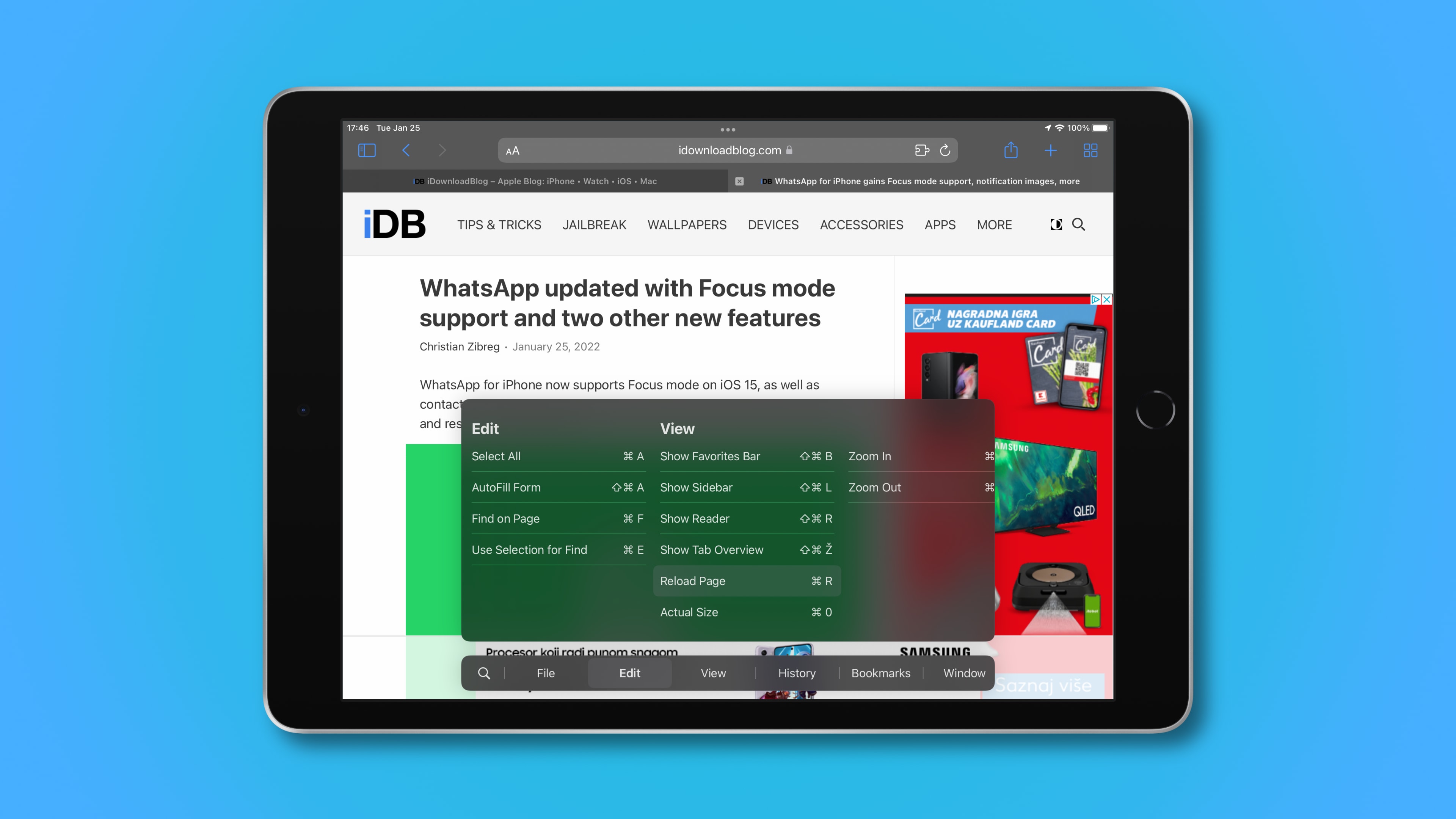
If you use a wireless Bluetooth keyboard with your iPhone or iPad, you can press the dedicated Command (⌘) + R shortcut on the keyboard to reload the currently viewed web page.
Extra tip: You can display a cheat sheet of all the keyboard shortcuts an app supports by simply pressing and holding the Command (⌘) key. In fact, you can choose the Reload Page command (or any other shortcut, for that matter) right from this cheat sheet.
Method 3: Pull-to-refresh
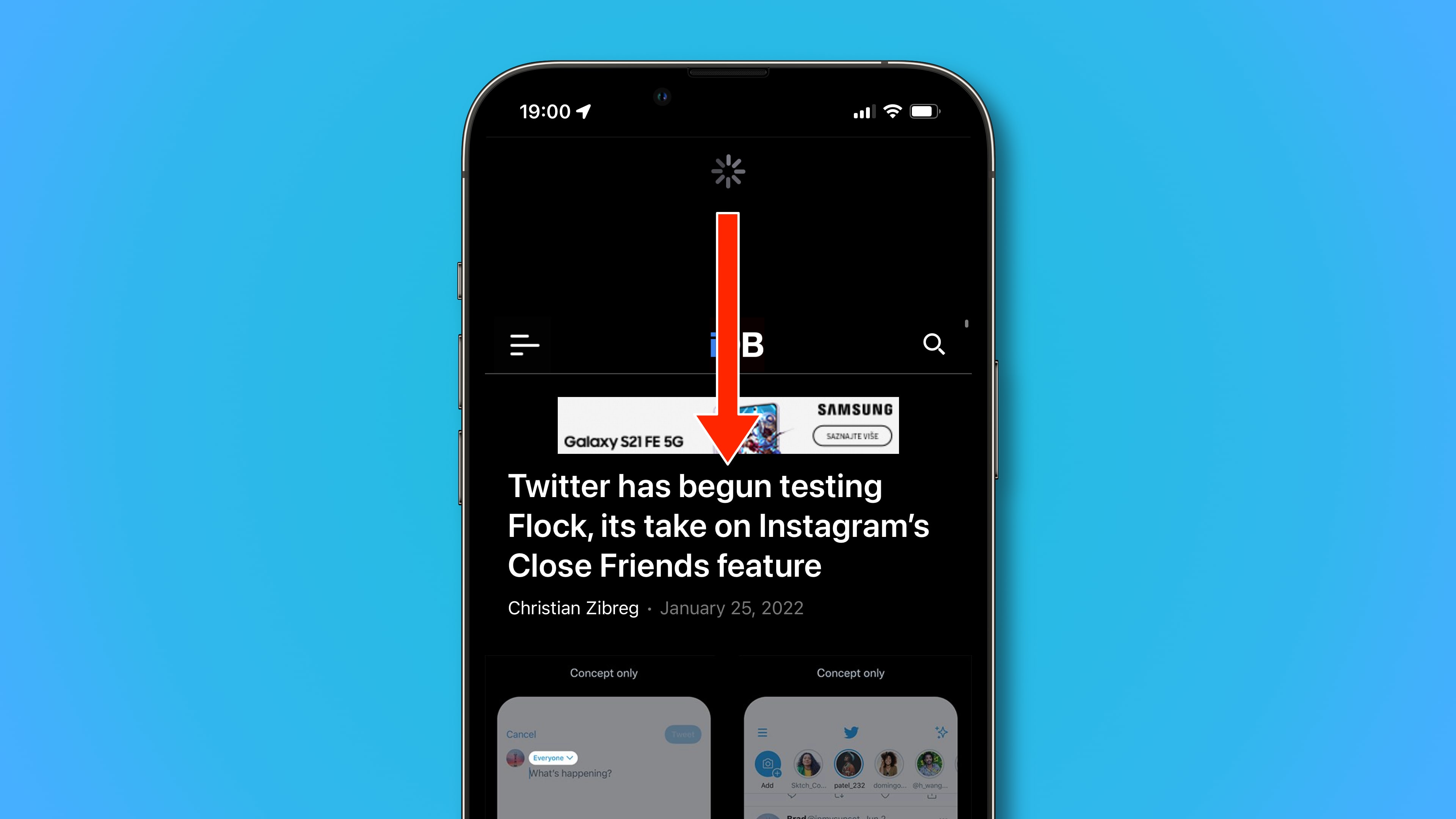
Lastly, you can refresh a web page by pulling it down from the top. If you’ve already scrolled, simply touch the iOS status bar to jump to the top of the page, then pull down to refresh. This pull-to-refresh gesture is especially convenient when using your iPhone in one-handed mode.
On Mac
To refresh a web page in Safari for Mac, click the reload icon within the address bar, press a keyboard shortcut, or choose an appropriate command from Safari’s menu.
Method 1: Address bar
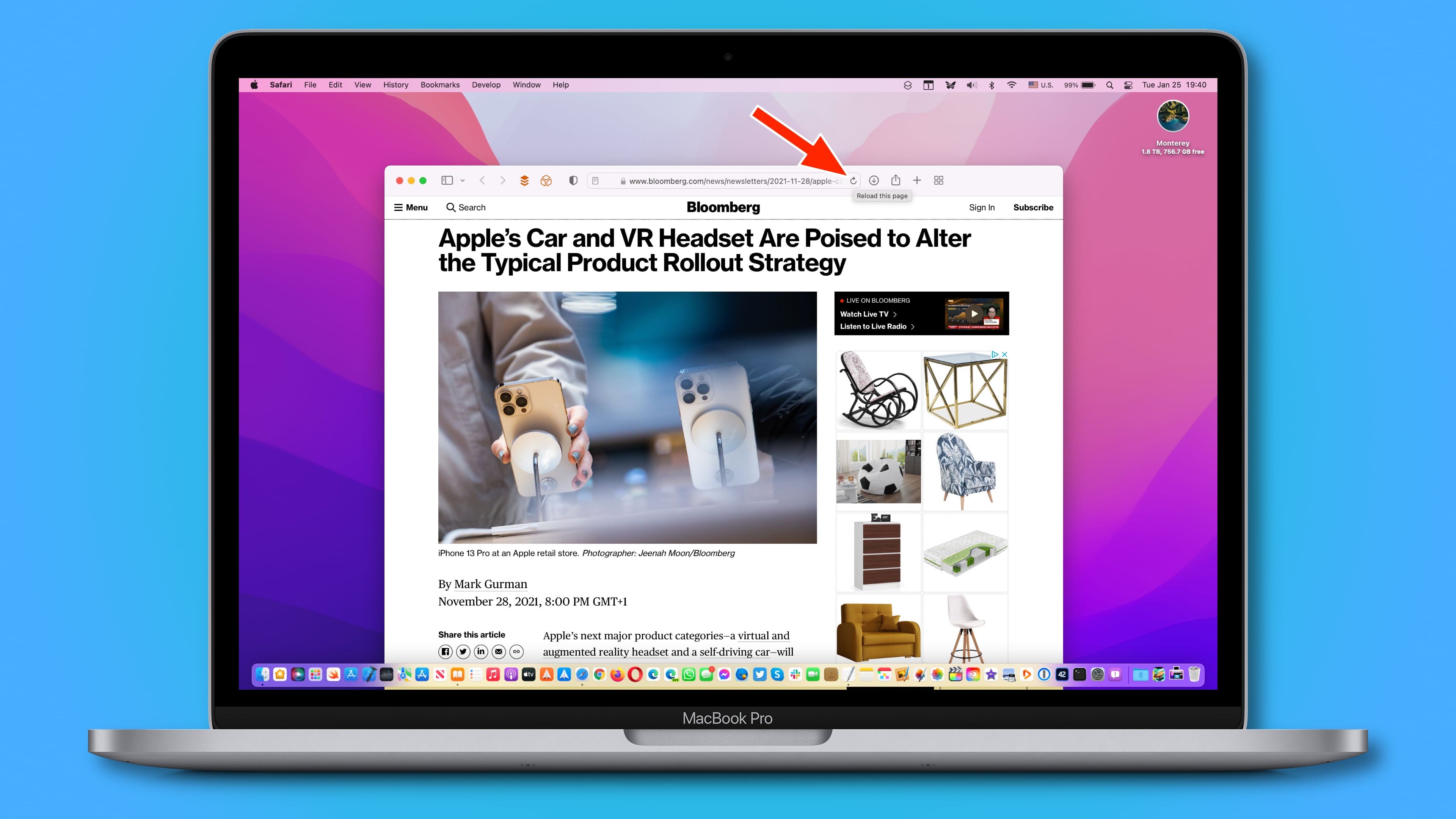
Like with Safari for iOS, Safari for macOS also includes a reload icon within the address bar on the rightmost side. Click it to reload the current page.
Method 2: Keyboard shortcut
Alternatively, you can press the Command (⌘) + R shortcut on your Mac’s keyboard in Safari to reload the web page that you’re currently viewing.

Method 3: Menu command
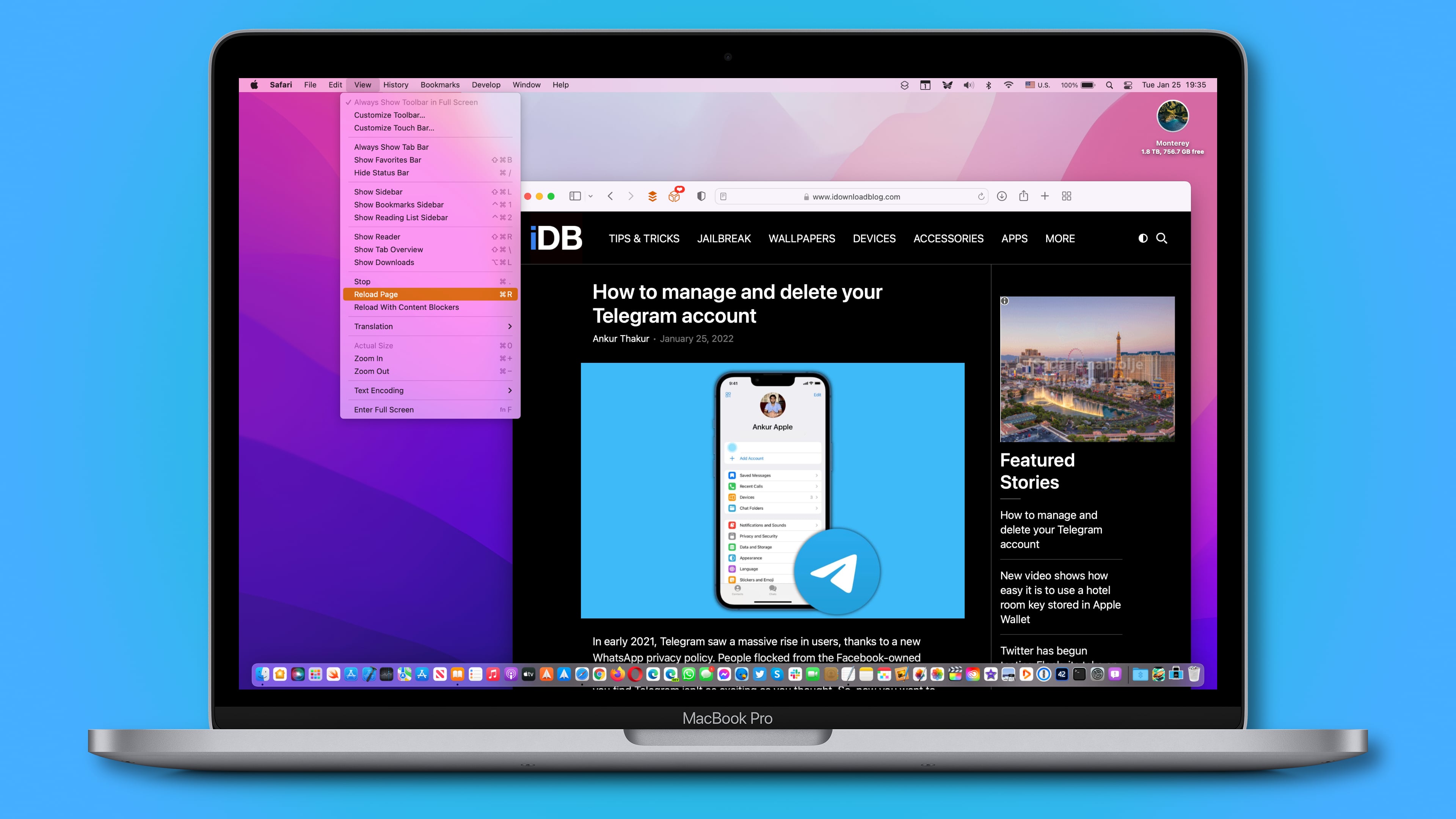
You can also find the Reload Page command in Safari’s View menu.
Hard refresh a web page in Safari on Mac
When you reload a web page, Safari may fetch some of the assets, like cookies, from its temporary cache. If the web page has since changed, you may not get an up-to-date version.
Thankfully, you can tell Safari to perform a hard refresh, which causes it to also clear cache and cookies for a given web page. To hard-refresh a Safari web page, press the Option + Command + R combination on your keyboard.
Alternatively, press and hold the Option key while clicking Safari’s View menu, then choose “Reload Page From Origin.” Lastly, you can also hold the Shift key whilst clicking a reload icon within the address bar. All those methods will prompt Safari to load the web page along with any same-domain resources requested by the web page without using the browser cache, presenting you with a newly downloaded view.
Do more in Safari: