Learn how to sort mailboxes in alphabetical order in the iPhone, iPad, and Mac Mail app to keep them better organized.

The Mail app on iOS and macOS offers plenty of organization options, including the ability to sort mailboxes as per your liking.
If you’re someone who receives hundreds of emails in a day, then you probably have created different mailboxes to organize emails according to the sender. In such cases, you may want to organize the mailboxes in a certain order so that it’s easier to access.
One way several people like to organize or sort mailboxes in the Mail app is to sort them in alphabetical order.
Sort mailboxes on Mac
It’s fairly simple to arrange or sort mailboxes, but there’s no automatic way, so you’ll need to do it manually.
- Open the Mail app on your Mac.
- You should see the mailboxes on the left panel. Click a mailbox and drag it to where you want to move it. Make sure not to drop a mailbox over an existing one; but drop it above or below one.
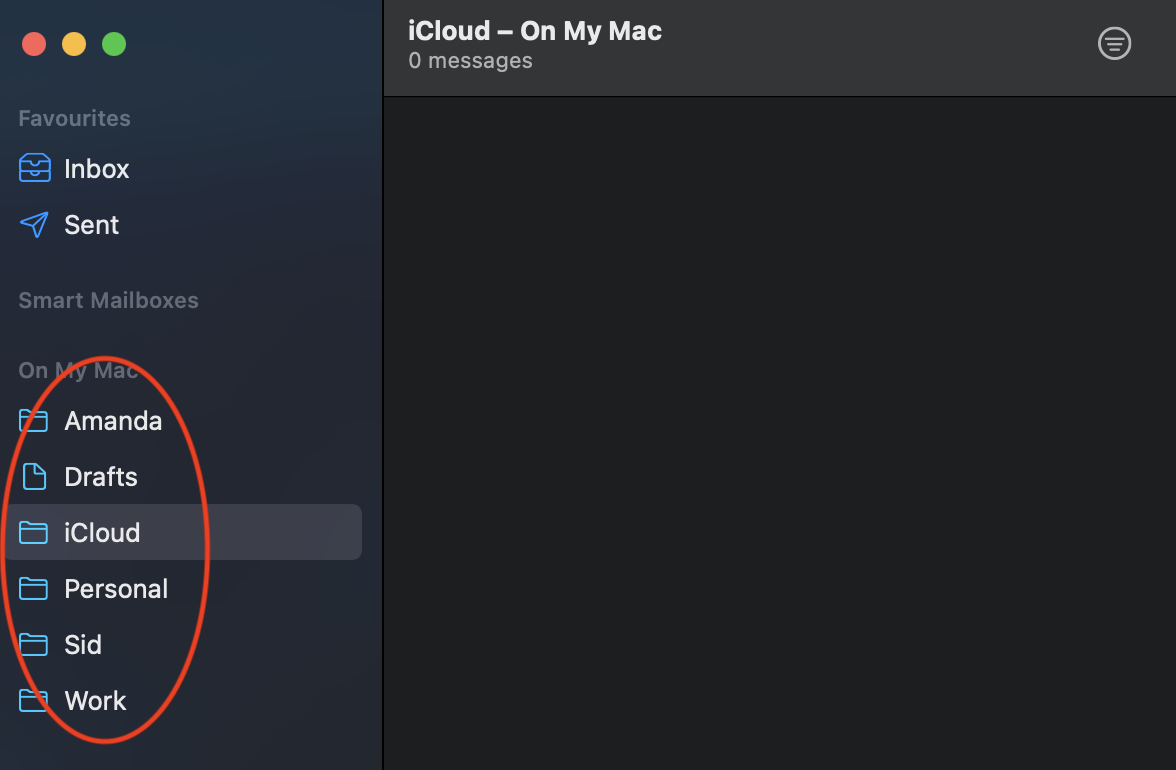
This could take a while, especially if you have a lot of mailboxes. However, if there are only a few to arrange, then you can sort them alphabetically in no time.
Sort mailboxes on iPhone or iPad
The process is similar to what you would do in the Mail app on Mac.
- Open the Mail app on your iPhone or iPad.
- Tap the back (<) or the Mailboxes button in the top-left corner.
- Tap Edit at the top of the list.
- Now, touch and hold the hamburger icon (three-line icon) next to the mailboxes and sort them alphabetically.
- Finally, tap Done to save the changes.

You can tap Add Mailbox when editing and then add the manually created Mailboxes to the top Mailboxes section. Once they are added there, you can organize them in a way that works best for you.
On a related note: