In this tutorial, we’ll show you how to use shortcuts and automations to silence your Apple Watch automatically based on where you are.
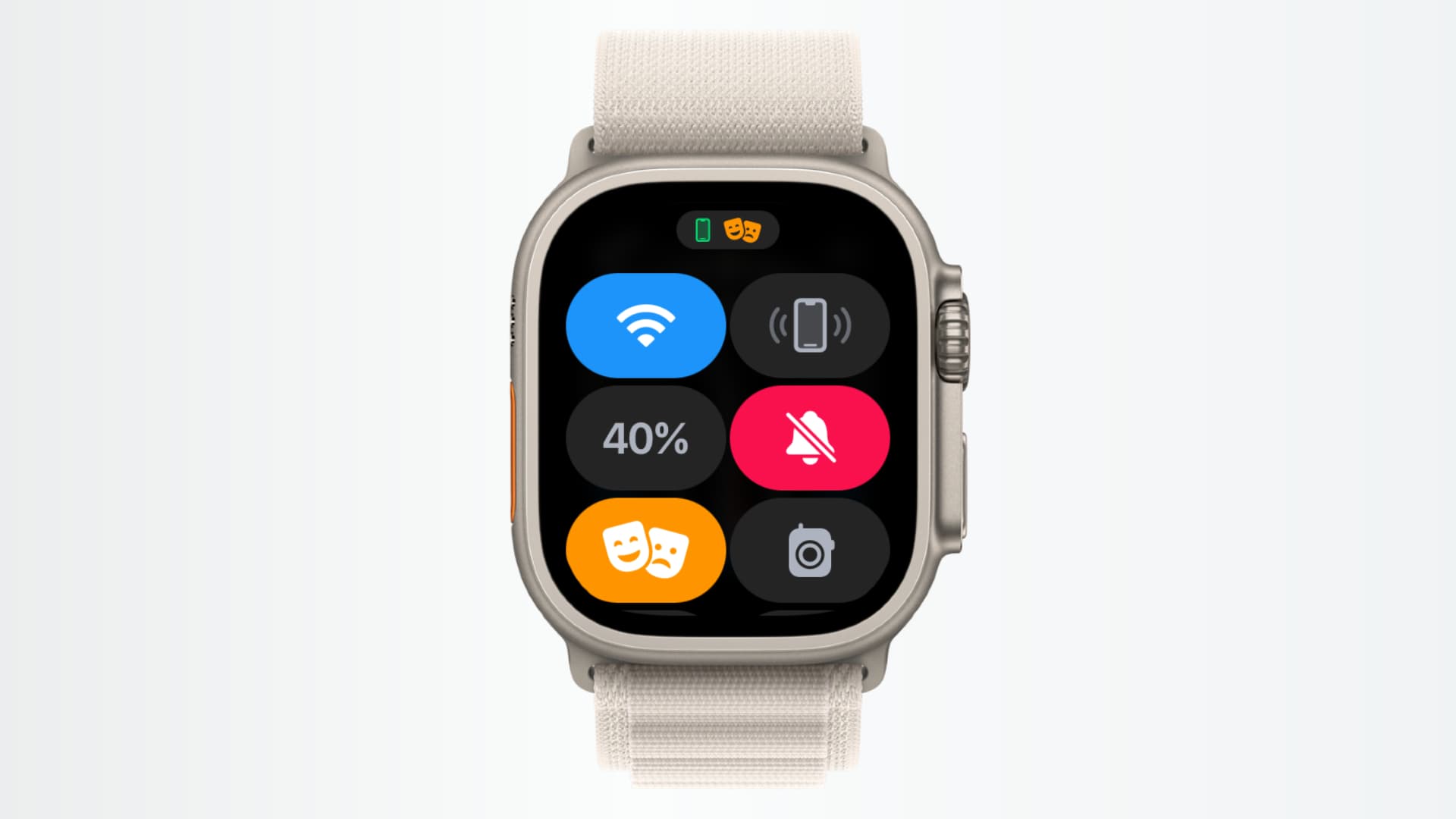
While your Apple Watch makes some nice and useful sounds, you don’t always want to hear them. You may have sounds for alerts, reminders, or to let you know the time. But if you’re heading someplace where those sounds can annoy others, you probably want to silence them.
To make sure you never forget to enable Theater Mode or Silent Mode at school, church, library, office, or elsewhere, you can set up automations to turn these on automatically based on your location.
Automatically enable Theater Mode on Apple Watch when you arrive at a specific location
Theater Mode on Apple Watch is ideal when you’re at the movie cinema or even a live theater show. With Theater Mode, your Watch is silenced, and the display stays off when you raise your wrist, but you can still receive your important alerts via haptic notifications.
1) Open the iOS Shortcuts app on your iPhone, go to the Automation tab, and then tap New Automation or the plus sign.
2) Select Arrive from the list of options.

3) Tap Choose next to Location, search for the desired location, select it, and tap the checkmark icon.
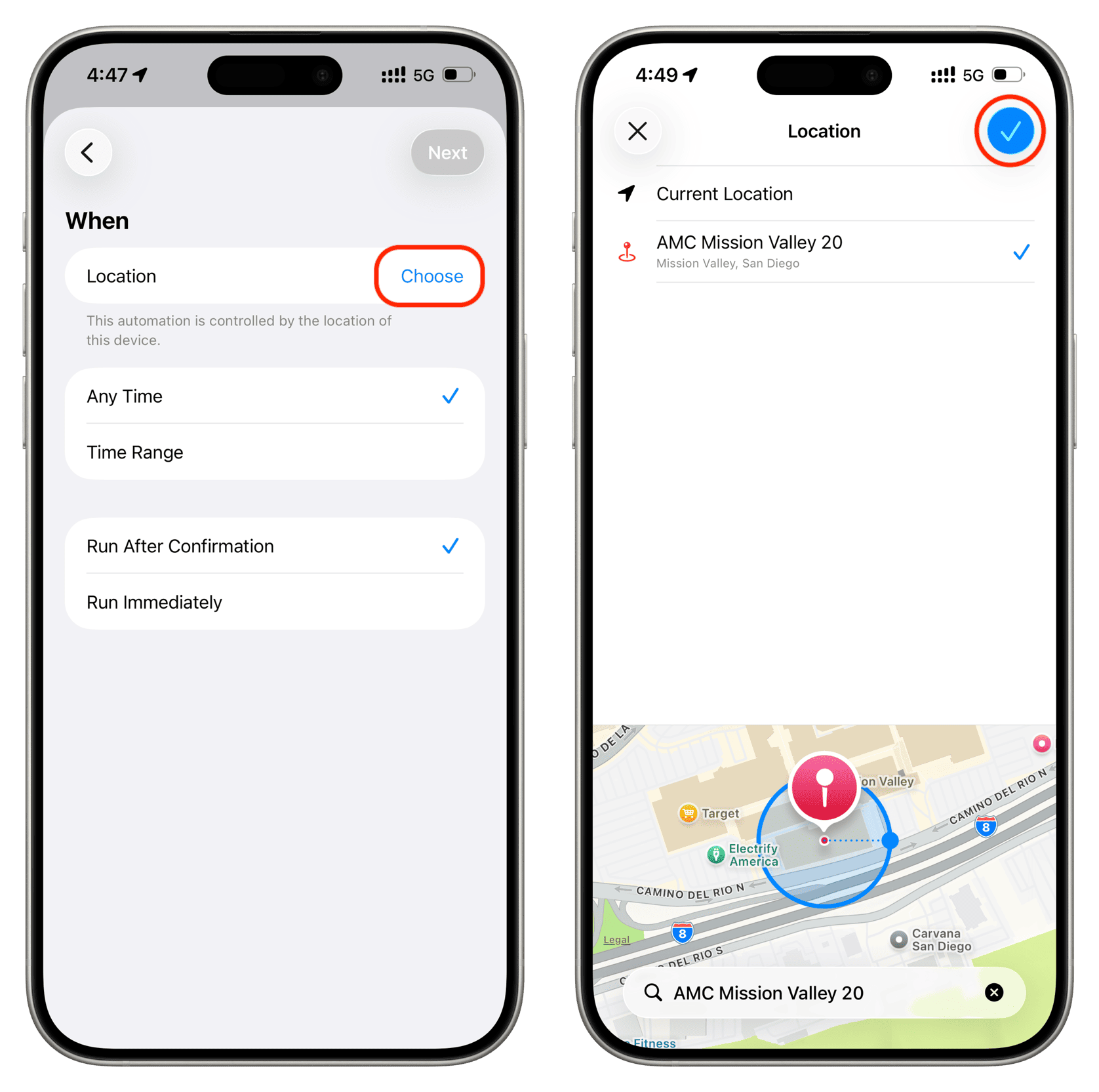
4) You can optionally select a Time Range or simply set it to Any Time. After that, remember to select Run Immediately so this automation runs without your confirmation and tap Next.
5) Tap Create New Shortcut.

6) Search for Set Theater Mode and add it. It should say, “Turn Theater Mode On.” Leave it as it is and tap the checkmark icon.

You have now created an automation that will automatically activate Theater Mode on your Apple Watch when you arrive at the chosen location. If you frequent more than one cinema or theater, you can create additional automations for those, too.
Automatically enable Silent Mode on your Apple Watch when you reach a location
There may be other places you go where Silent Mode is best. You can still raise your wrist to view the time, but you won’t hear a sound from your Apple Watch. Good examples of situations for Silent Mode are when you go to church, have a doctor’s appointment, or visit a nursing home or hospital.
The entire process is very similar to what we have explained for Theater Mode. So, here’s a quick recap.
1) Go to the Apple Shortcuts app > Automation > plus button > Arrive. Now, choose a location, set the automation to Run Immediately, and tap Next.
2) Tap Create New Shortcut, search for Set Silent Mode (select the one with the watch icon), leave it as it is, and tap the checkmark icon.

Your Apple Watch will now enter silent mode automatically when you go to this location.
Automatically turn off Theater Mode or Silent Mode when you leave that location
Follow all of the same steps in the first set of instructions to create the automation, with these two changes:
- When you are creating the shortcut, tap the On placeholder text and set it to Off.
- When you are creating the automation, select Leave in place of Arrive.

Now, when you leave the theater, church, or wherever you use one of those modes, it automatically turns off, and you’ll hear your Watch sounds like before.
Check out next: