Attach a file, video, or photo to the Apple Notes app so you can keep those items as references in one spot.
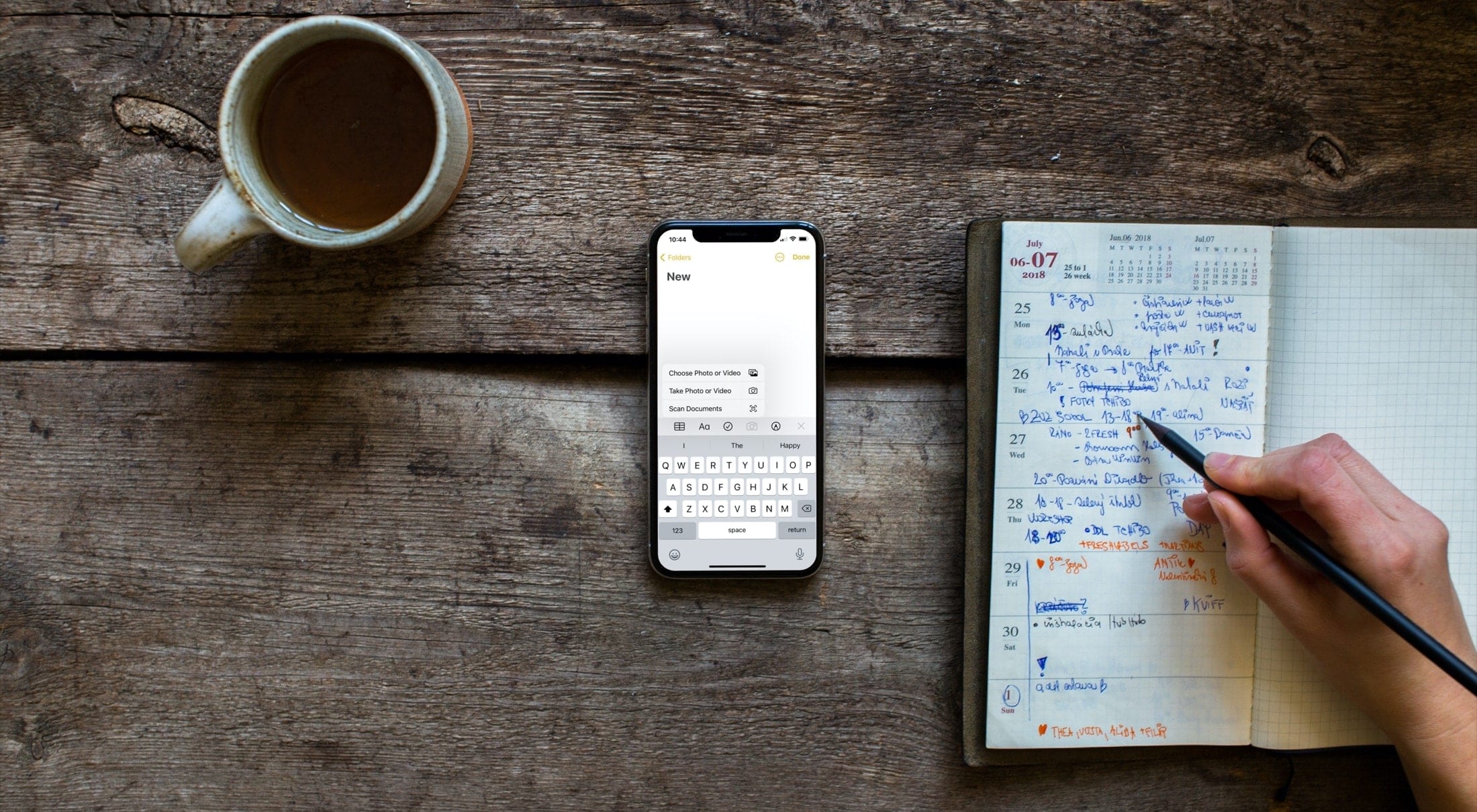
The Notes app is a terrific tool for keeping, syncing, and referencing your notes. And one thing that makes it even better is the ability to attach files or add images to your notes. When you’re taking notes for a lecture, jotting down instructions, or making a list, adding a PDF, photo, video, or other item that pertains to the note is super convenient.
We’ve shown you how to scan documents in Notes and insert links in your notes. So it seems fitting to walk you through adding other items like files and images to Notes on iPhone, iPad, and Mac.
Here are three ways to attach items to Notes on iPhone and iPad.
Use drag & drop
You can touch and hold an image in the Photos app or a file in the iOS Files app/macOS Finder and then drag it to an open Notes and drop it there to add it. For more help, here’s how to use drag and drop on iPhone/iPad and Mac.
Use the in-app button to add media
Open the Apple Notes app and hit the paper clip icon to scan documents, take a photo or video, insert one or more photo or video from your photo library, generate an AI image using Image Playground, record audio, or attach a file from the iOS Files app/macOS Finder.

Here’s how it looks on Mac:

Use the Share Sheet to add media, documents, and other files
Simply open a photo, video, or file in Apple Photos, Files app, Finder, or other apps, tap the share option, and select Notes.

This also works on macOS:

If you don’t see Notes in the Share Sheet, here’s how to add it on iOS and macOS.
For more, take a look at: