Learn how to use the hidden QuickTake feature in the iPhone Camera app to record video without switching out of Photo mode and never miss a moment.
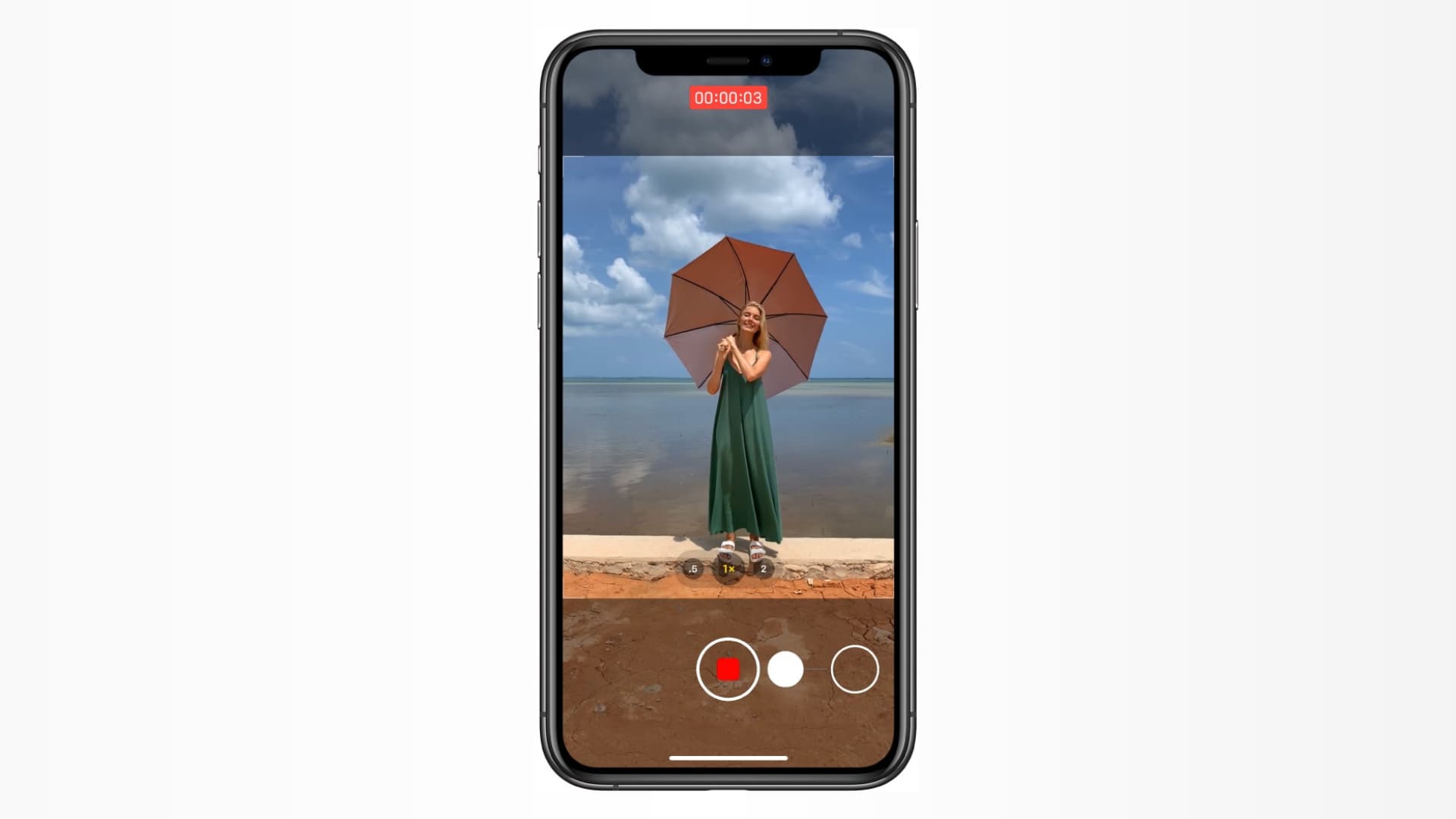
With QuickTake, you can immediately start capturing video without swiping to Video mode first, but there are a few caveats.
QuickTake video on iPhone 16 and later (except iPhone 16e and 17e) is up to 4K at 60 fps in Dolby Vision HDR. However, on older models, it’s limited to 1080p at 30fps, which doesn’t look that sharp.
Additionally, features like custom resolution settings, recording stereo sound, and using audio zoom are unavailable until you switch to Video mode.
QuickTake works on iPhone XS/XR and later. It isn’t available on iPad.
Record a QuickTake video on iPhone
- Open the Camera app on your iPhone and make sure you’re in Photo mode.
- Touch and hold the shutter button to start recording a QuickTake video.
- Release the button to stop recording.
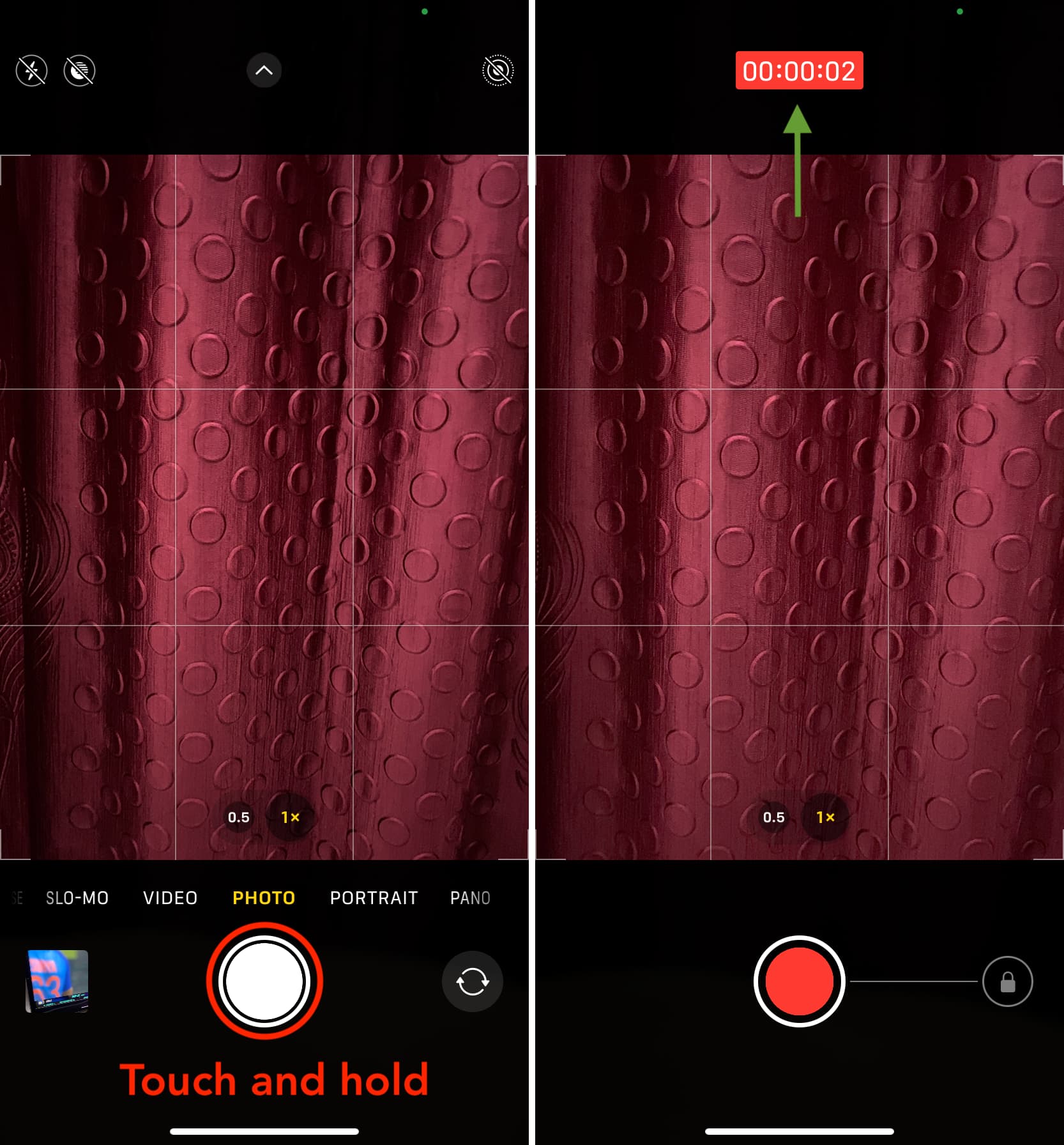
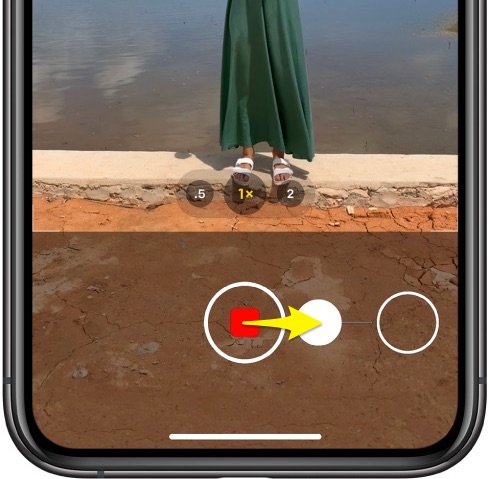
For longer QuickTakes, swipe right while holding the shutter button to move it into the lock position, then let go for hands-free recording.
Press the volume down button while in the Camera app’s Photo mode to start recording a QuickTake video. If you’d like to use the volume up button instead, go to Settings > Camera and turn off ‘Use Volume Up for Burst.’ Holding the volume up button will now record a QuickTake video instead of taking burst photos.
Taking stills while recording a QuickTake video
Start recording a QuickTake video and then lock it by dragging your finger to the lock position on the right side. Now tap the white shutter button to take a still photo while your QuickTake continues recording.
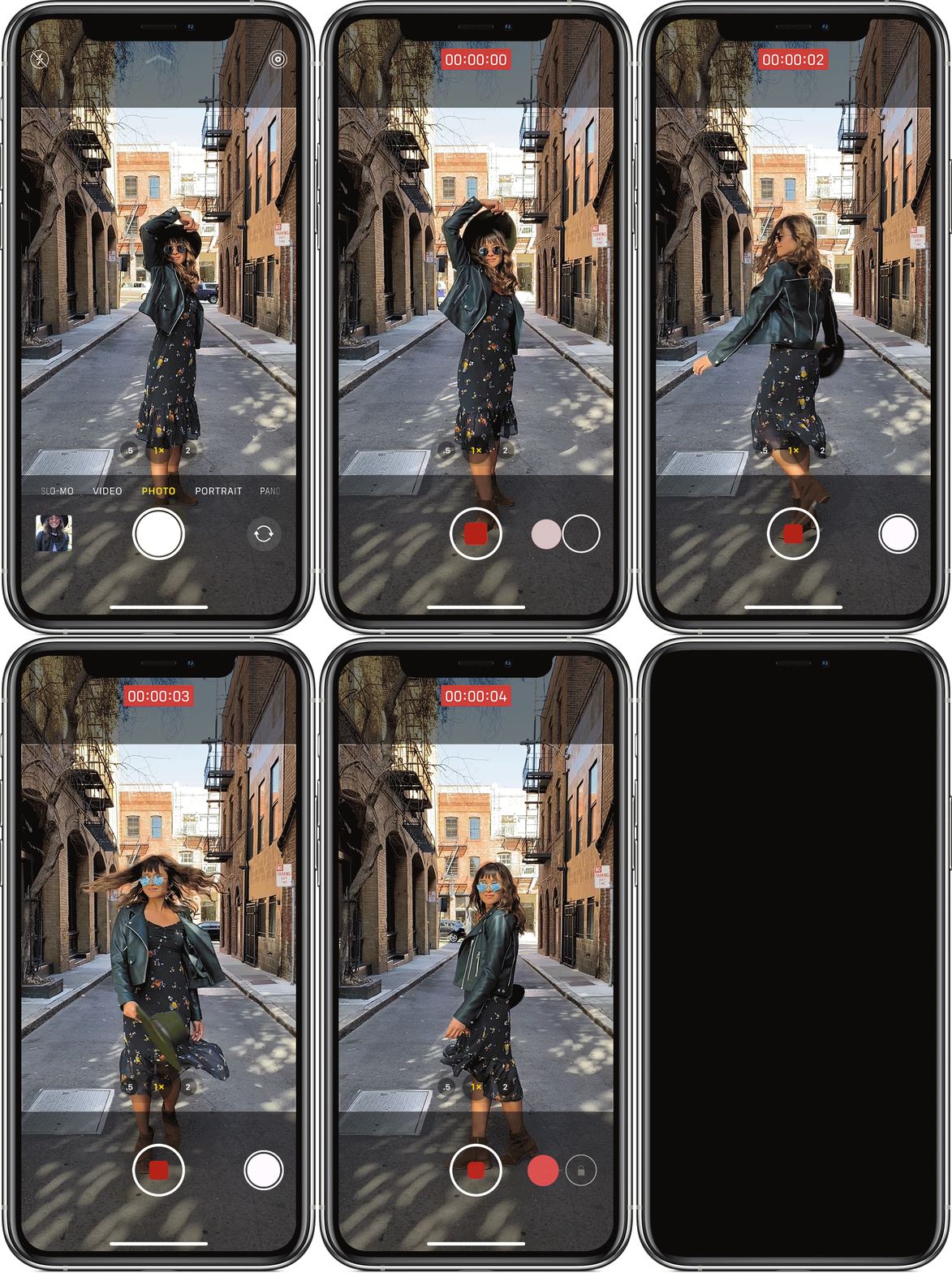
Never miss a cool moment with QuickTake…
QuickTake was designed for those times when something cool happens that you’d like to record, but the Camera app is in Photo mode, and you don’t mind a lower recording resolution. This isn’t the only hidden feature in the built-in Camera.
For example, the hidden level feature lets you align shots perfectly. And if you’ve ever wanted to capture mirrored selfies on your iPhone that match what you see in the viewfinder, you can do that easily by flipping a switch in Settings.