Label specific audio recordings as favorites in the Voice Memos app on your iPhone, iPad, and Mac so you can quickly access those important voice clips when needed.
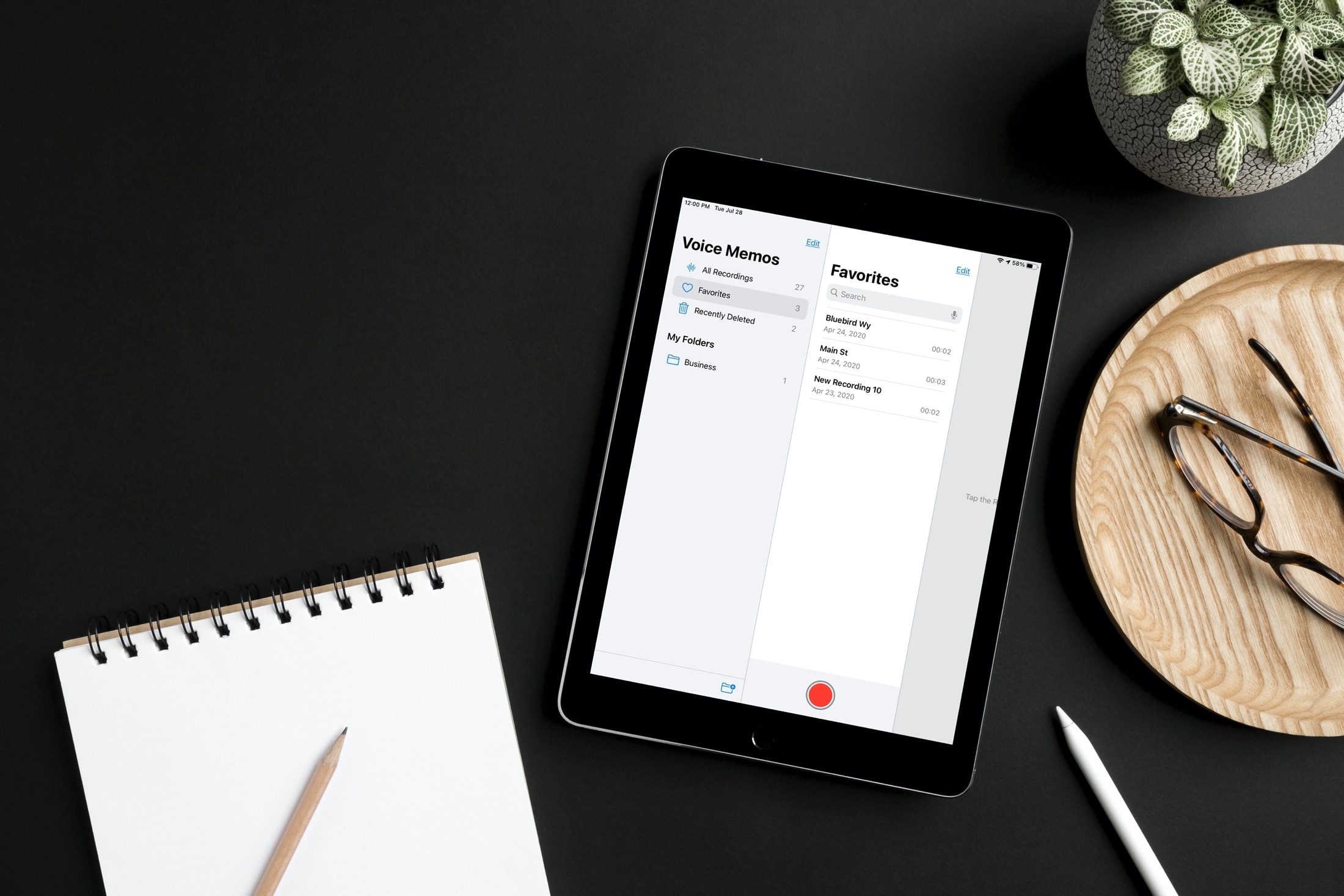
The Voice Memos app lets you create folders to organize recordings, take advantage of Smart Folders, name your files per the location they were recorded, and mark recordings as favorites.
Like with people in Contacts or pictures in Photos, you can have quick and easy access to those favorite memos you mark with that handy heart.
Note that marking a voice recording as a favorite syncs via iCloud to all your other Apple devices.
Mark audio recording as favorite in the Voice Memos app
Open the Voice Memos app on your iOS or macOS device and do one of the following:
- Swipe left to right on a recording on iPhone, iPad, or Mac and tap the Favorite button.

- Swipe right to left on a recording on iPhone or iPad, tap More, and select Favorite from the Share Sheet.
- Select a recording on Mac and click Edit > Favorite Recording from the top menu bar.
- Drag a recording and drop it over the Favorites folder.
- To favorite several recordings at once, tap Select on iOS, mark the recordings, tap the share button, and pick Favorite from the Share Sheet.

Keep in mind that you can also unfavorite a recording using the same steps!
Access your Favorites
Along with the ability to mark a favorite recording in Voice Memos, you also have a Smart Folder to hold all of your Favorites.
On iPhone, tap the arrow (<) to view your folder list, and on iPad and Mac, use the sidebar button. You’ll see a folder called Favorites, where you can view all of your marked recordings.

Like other apps, marking your favorites makes them easy to find when you need them. And if you change your mind or are done with quick access to it, you can simply unmark a favorite recording just as easily.
Check out next: How to improve the sound quality of your Voice Memos recordings with a single tap