Learn how to declutter the system-wide share menu on your iPhone or iPad to only show the apps, people, and options you frequently use.
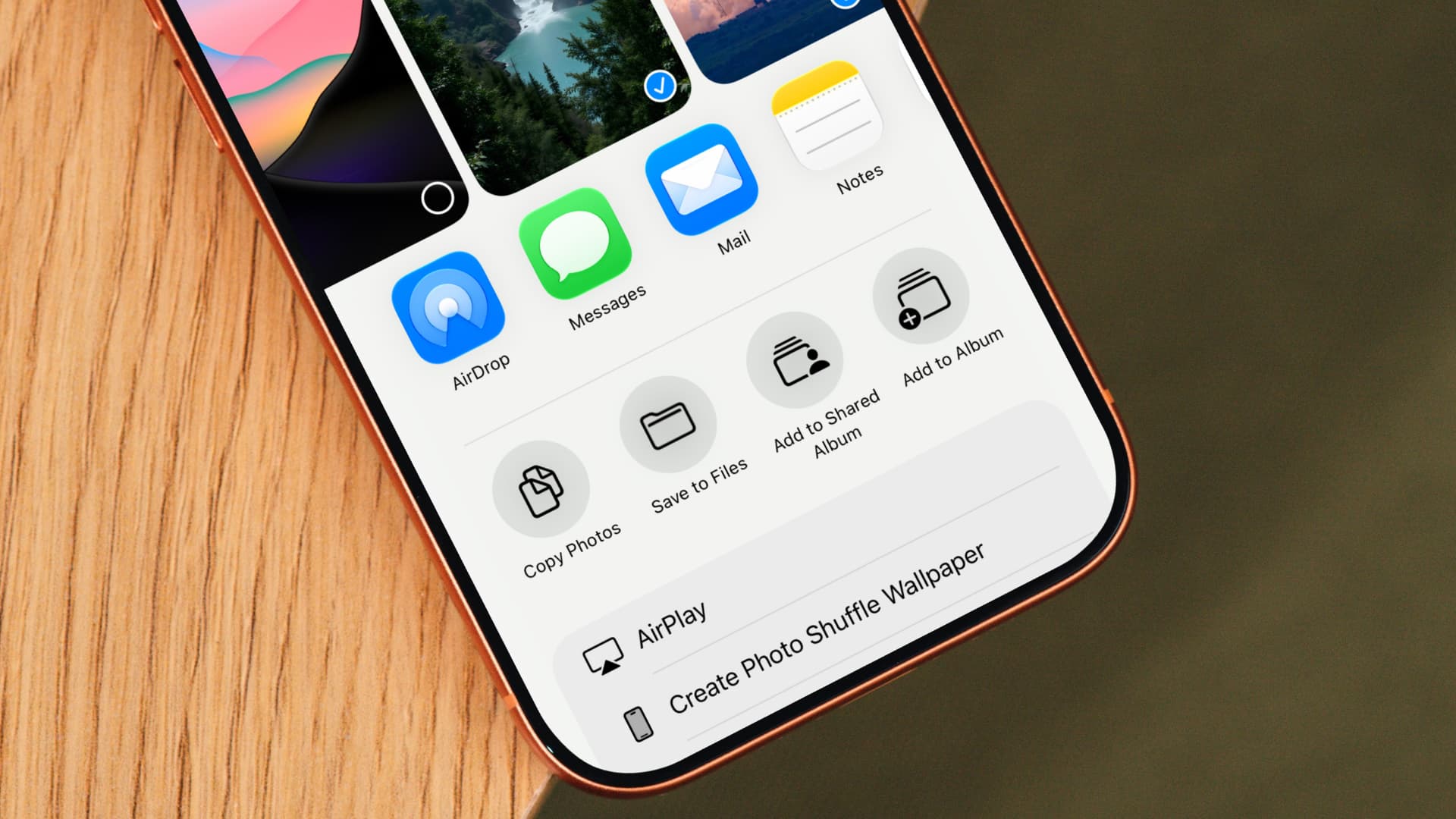
When sharing something from your iPhone, you want the process to be quick and painless.
We’ve already shown you how to customize the Mac’s Share menu to your liking, and now we’ll lay out the steps for iPhone and iPad.
What is the share menu?
The share menu or Share Sheet is available in many built-in and third-party apps. It consists of three sections, starting with your Siri-suggested contacts at the top, followed by related sharing actions that depend on your current context.
To open the share menu, tap the icon resembling a rectangle with an upward-pointing arrow.
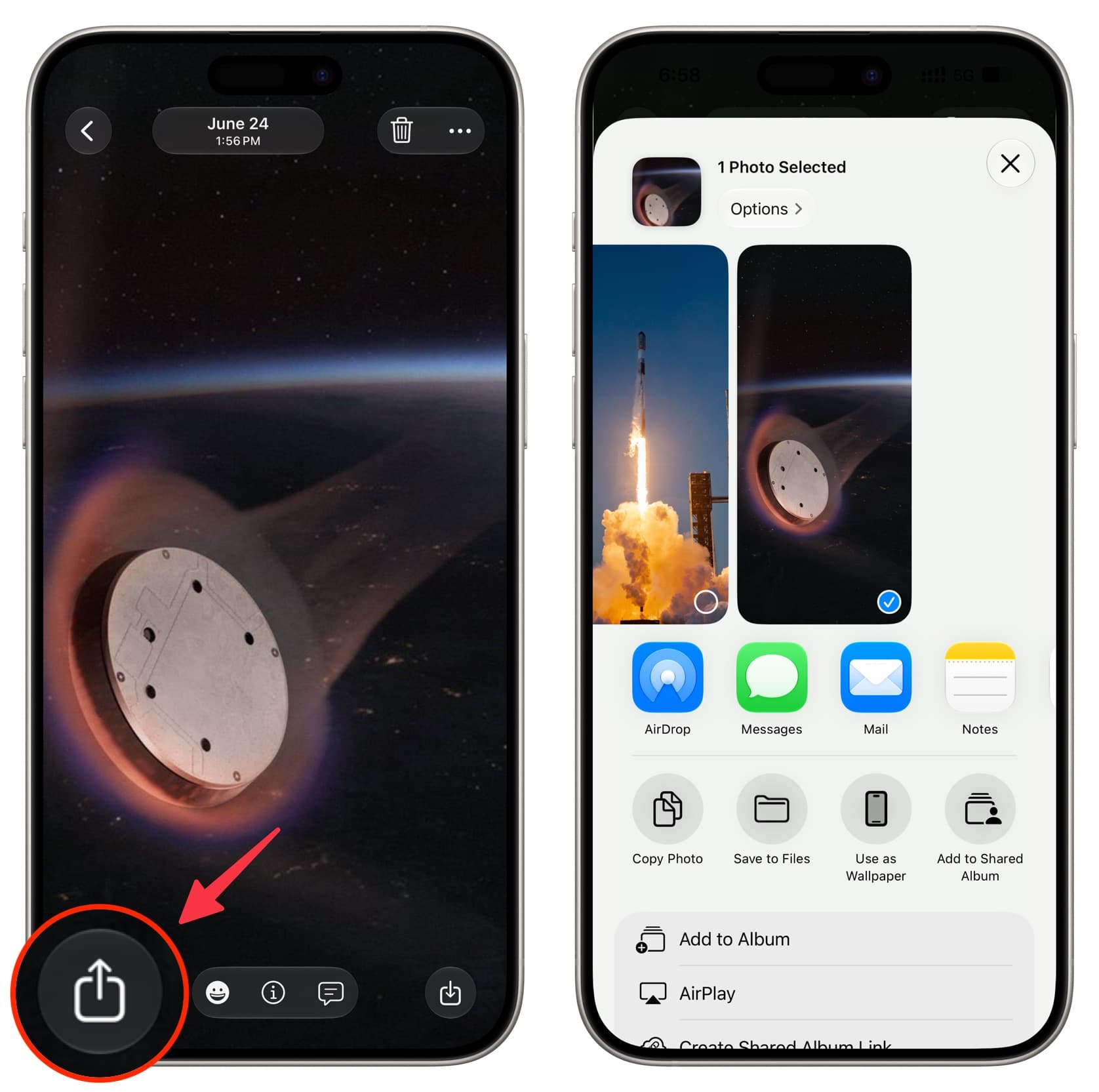
The steps below will walk you through customizing the apps and actions that appear in the share menu.
Customize apps in the Share menu
1) Open the Share Sheet in an app by tapping the share icon. Then, scroll all the way to the right of the top apps’ row and tap More.

2) Tap Edit in the top-right corner of the interface.
3) Scroll down to the Suggestions section and tap the green plus sign next to the desired apps to make them appear in the Share menu. AirDrop has a permanent spot in the Favorites list, but you can remove an option from the Share Sheet by tapping its minus sign.
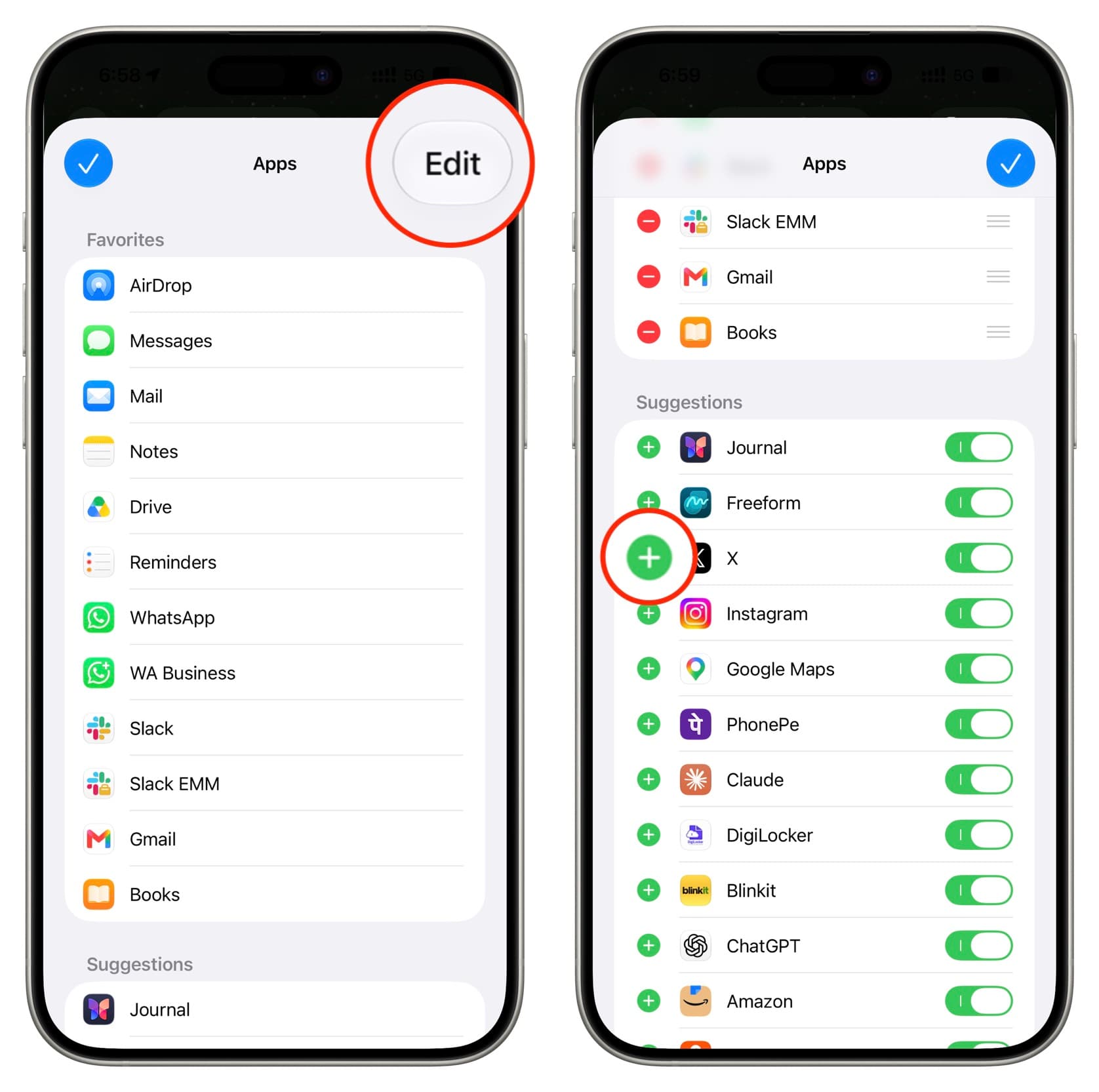
4) Touch and hold the three lines to drag and reorder apps. Finally, tap the checkmark icon twice to save the changes.

Sharing apps are listed in the Share menu in the same order they appear in the Favorites section. Move the sharing options you frequently use to the top so they’re right at your fingertips every time you open the Share menu.
Customize Share Sheet actions
The Share menu includes app-specific actions. For instance, Safari actions include bookmarking a page, but it won’t appear if you’re viewing an image in the Photos app instead of browsing a website in Safari. Likewise, sharing actions for Photos may include adding an image to an album and setting it as wallpaper. You can customize app actions in the Share menu by following the steps below.
1) Tap the share icon in an app to open the Share Sheet, scroll to the very bottom, and tap Edit Actions.
2) Actions listed under the Favorites section are always visible on the Share Sheet. Tap the minus sign (-) to remove ones you don’t need or the plus sign (+) to add new ones. More actions may be available under the Other Actions heading.
3) Use the three horizontal lines next to an action in the Favorites section to change its position. Finally, tap the checkmark icon to save the changes.
Now, open the Share menu and your Favorites will appear in the top row, followed by your preferred sharing actions.

Sharing is caring!
Take some time to customize the Share menu on all your iPhones, iPads, and Macs to your liking. Doing so will save you time and aggravation by keeping your frequently used apps and sharing actions readily available at the top of the Share Sheet whenever you open the Share menu.
What do you use more often, sharing apps or sharing actions? Let us know in the comments!
Also, check out: How to remove the row of suggested contacts from the iPhone and iPad Share Sheet