You can grant third-party apps and services access to your Apple Music for various reasons. For instance, you might allow Alexa access so you can play Apple Music on your Amazon smart speaker. But if there comes a time when you want to revoke access to an app or service for privacy or security reasons, you can do that easily by following the steps here.
On iPhone and iPad
You have a few different ways to see which apps and services have access to your Music library.
From inside the Music app
1) Open the Music app and tap your profile photo or icon at the top.
2) Tap Account Settings from the bottom and enter your Apple ID password.

3) Tap Apple Music under the Account Access heading to see all apps and services that have access to your music library. Tap the Edit button from here.

4) Tap the red minus button to revoke access, and finally tap Done.

From the Account Access screen
- Open the iOS Settings app and tap your name at the top.
- Tap Media & Purchases, followed by View Account, and authenticate with your Apple ID password.
- Tap Apple Music under the Account Access heading. Then, tap Edit > red delete icon > Done.

From privacy settings
If you know that you’ve granted access to another app but don’t see it listed in either of the above two locations, there’s one more place to look.
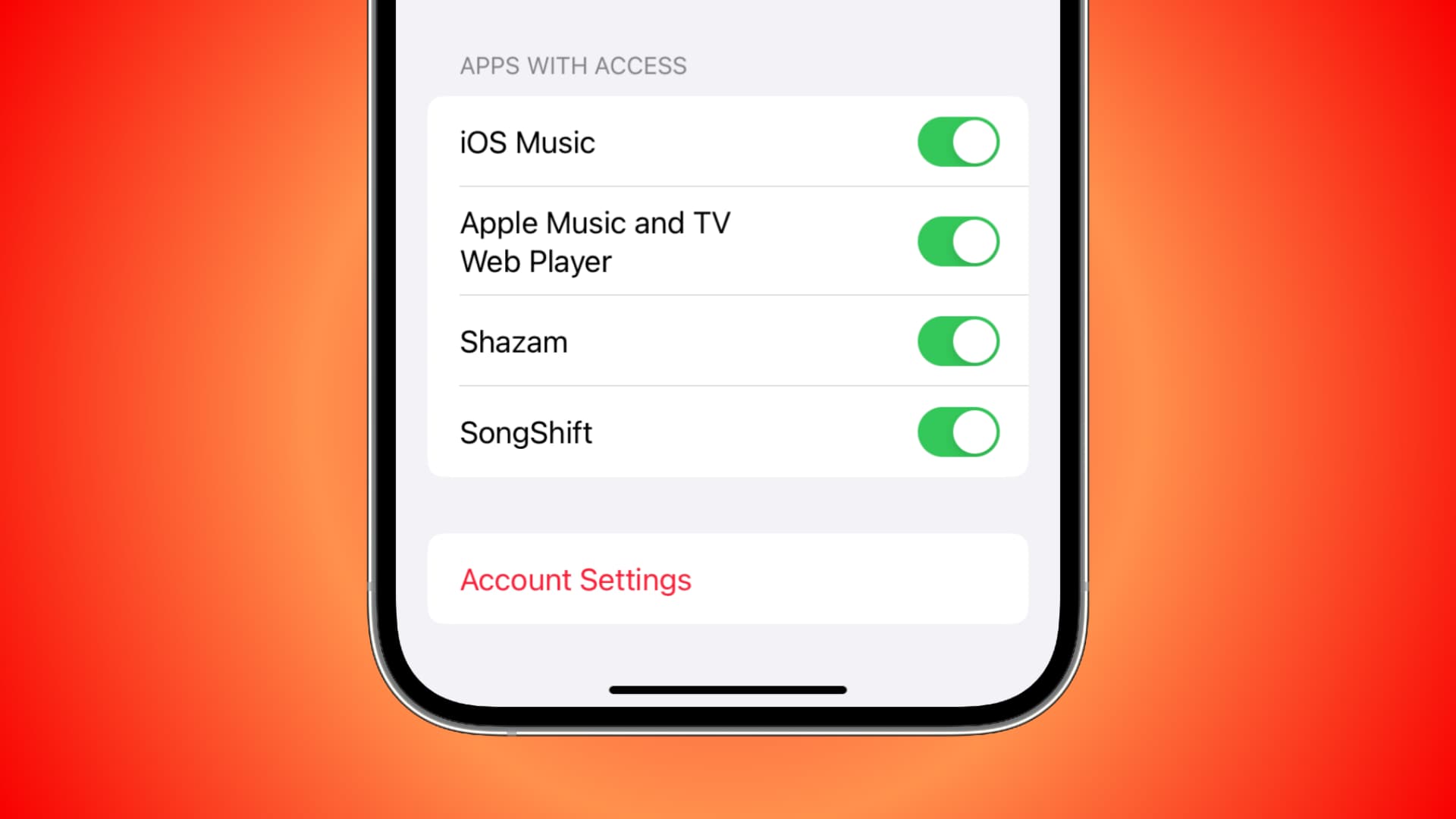
- Open the Settings app and tap Privacy & Security.
- Tap Media & Apple Music.
- You’ll find apps that have access to your media and music library and activity. Move the toggles to disable access to any apps you like.

On Mac
There are a few spots to check for apps and services with access to Music.
From the Music app
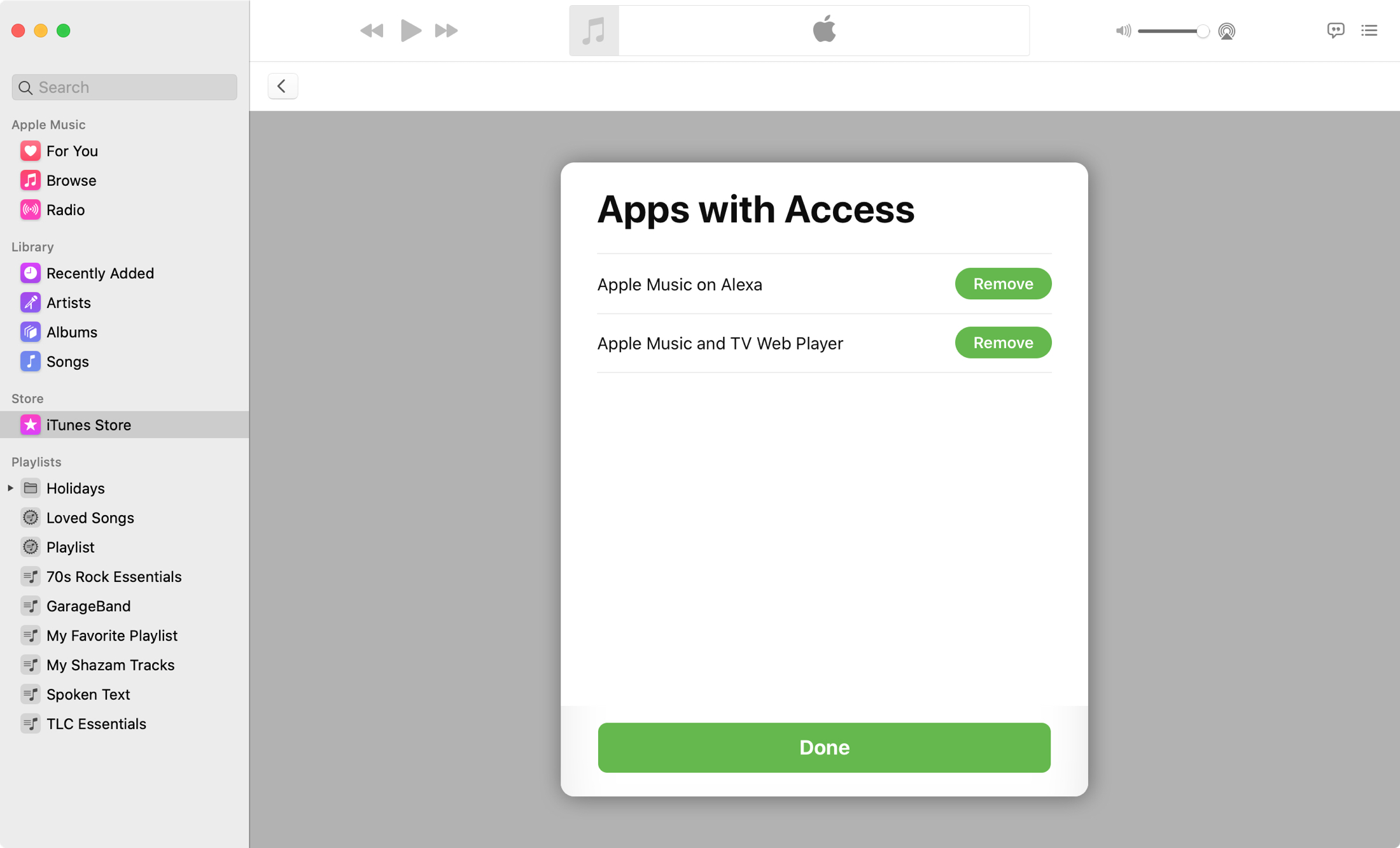
- The quickest way is to open the Music app and click Account > Apps with Access from the menu bar.
- Click Remove next to an app or service you want to revoke access, or click Done if you were just taking a look.
From your account
1) Open the Music app on your Mac, click Account > Account Settings or View My Account from the top menu bar, and sign in if prompted.
2) Scroll down to Account Access, and click Apple Music to see apps with access.

3) Use the Edit button, followed by the red minus button, to revoke access.

From System Settings
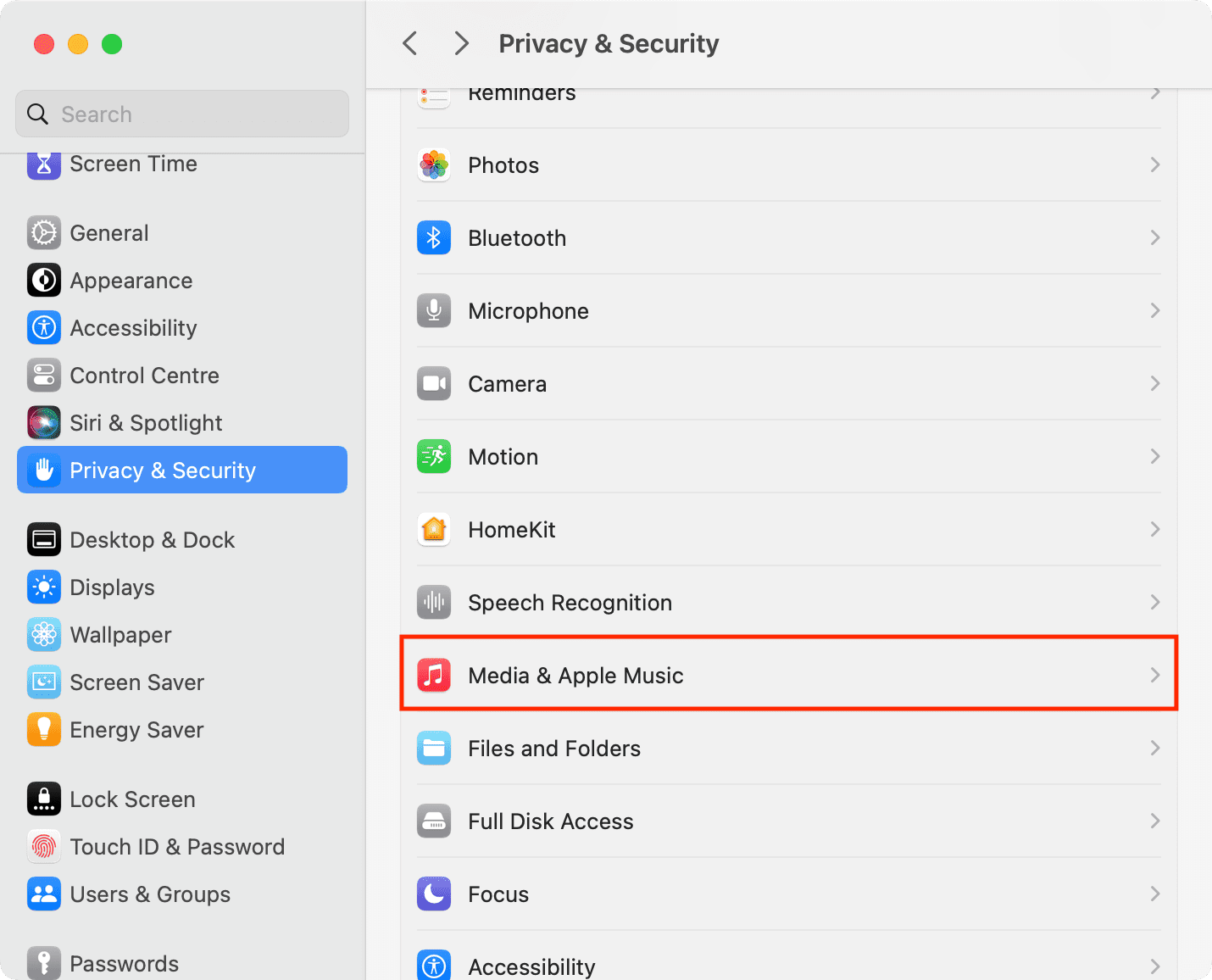
Go to System Settings > Privacy & Security > Media & Apple Music to see apps that can access your media library.
Allowing access to your Apple Music is great for listening to your tunes in different ways. But if you no longer use an app or service, it’s best to revoke that access.
How many apps and services do you allow to access your Music?
Also, check out: