Use the Messages app on your Apple Watch to share your real-time live location with friends and family so they can know your whereabouts at all times.
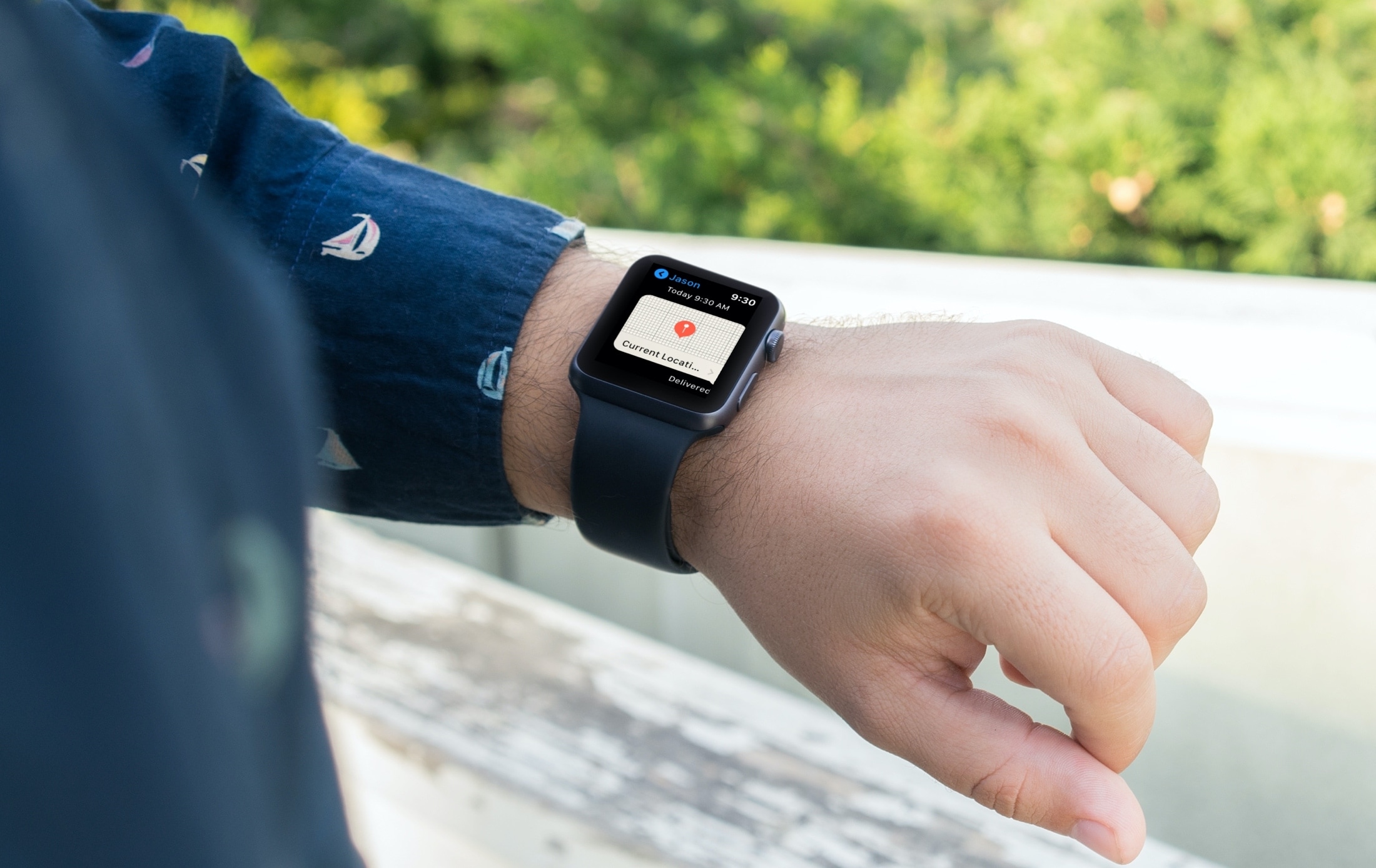
Whether you’re traveling somewhere new or just out for a walk, you may want to let your friends or family know where you are. This helps you feel safer and is a good precaution to take these days.
Your iPhone lets you send your location in the Maps app. If you use the Find My app and share your location, you can do it there, too. But one more super handy spot is right on your wrist using your Apple Watch.
Send your current location from the Apple Watch
- Open the Messages app on your Apple Watch and go into the person’s conversation with whom you want to share your location.
- Tap the plus icon and select Location.
- Now, you can use the Request button to ask the other person to send their location to you. But since you want to send yours, tap the Share button.
- Select till when you want to share your location: For One Hour, Until End of Day, or Indefinitely.

The Messages app will locate your current spot and send it to your recipient. They will get a notification, and when they tap it, they can then see where you are and get directions to your location in the Find My app on their device.

Stop sharing your location
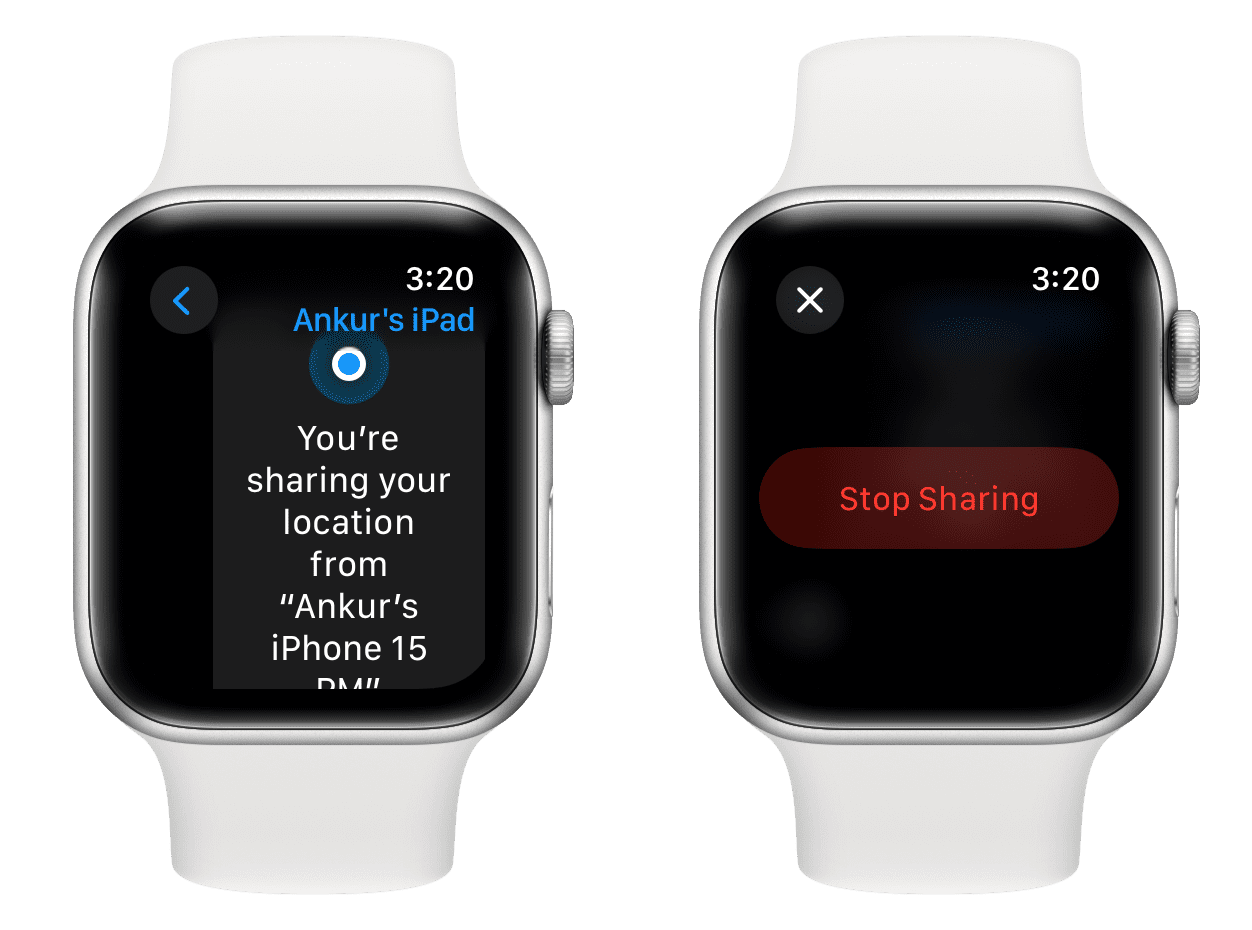
Go to the Messages app conversation on your Apple Watch, tap the sent location card, and hit Stop Sharing.
Unable to share your location?
- Restart your Apple Watch: If nothing works, turn off your watch and turn it back on.
- Check the internet: Make sure your Apple Watch is connected to the internet. To check, invoke Siri and ask it a web-based question, such as “How is the weather in Paris?”
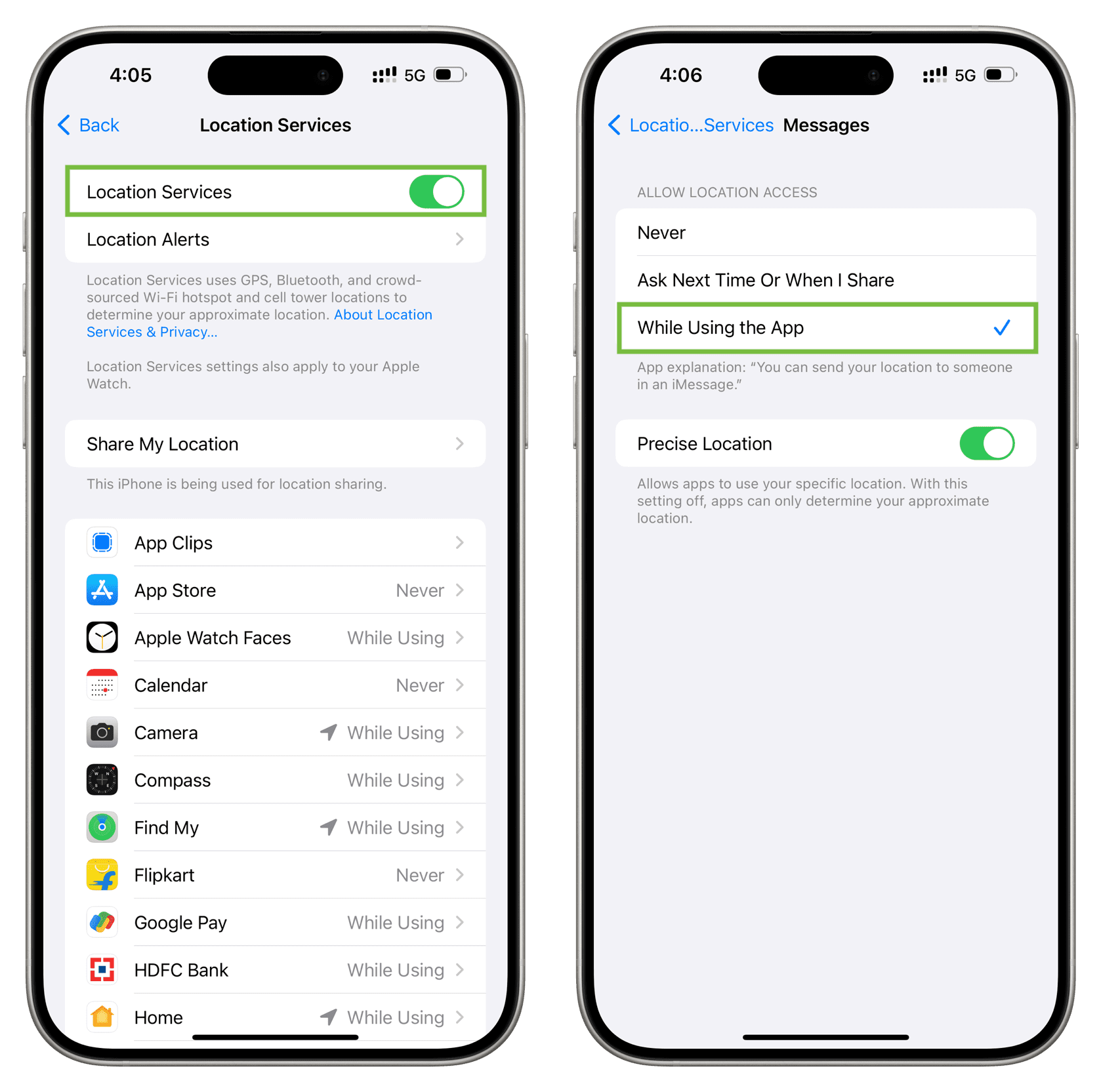
- Allow location access: The first time you attempt to send your location in Messages on Apple Watch, you may see a message that you need to enable Location Services. You can enable location services on your Apple Watch or iPhone from Settings > Privacy & Security > Location Services. After that, tap Messages from this screen and ensure it’s allowed to access your location.
More on location sharing: