Learn how to add frequently accessed websites to your Safari favorites on an iPhone, iPad, and Mac so you can quickly revisit them with just a tap or click.

Safari bookmarks is a great feature for saving links to websites you wish to revisit or reference in the future. Safari also has a Favorites section, which lets you revisit your most frequently accessed websites with just a click, right from the Start Page. Your Safari favorites also show up when you open the browser, create a new tab, or open a new window.
On iPhone or iPad
- Visit a website in Safari on iOS 27.
- Tap the menu icon in the address bar and select Add Bookmark to.
- Rename the bookmark if needed, make sure the location is set to Favorites, and tap Save.

If your iPhone is on iOS 26, tap the three dots button and select Add Bookmark to instead.

Manage your favorites
To remove a favorite website, touch and hold its icon on your Safari Start Page and tap Delete.
Touch and hold a favorite website icon and drag it to another spot to arrange them the way you like.

You can also tap the book icon at the top and select Favorites to manage them. From here, tap the three dots icon to create a new folder. And then, you can select that folder when adding a website to your favorites.

In iOS 26, tap the three dots icon > Bookmarks > Favorites to manage your favorites.

On Mac
Your favorites sync across your Apple devices using the same Apple account, provided Safari is enabled in the iCloud settings on each device. A website favorited on your iPhone will show up in the Favorites section on your iPad and Mac, and vice versa. You can add websites to Safari for Mac’s Favorites section in four different ways, so feel free to use whichever method is convenient for you.
- Open the webpage you want to favorite in Safari.
- Click the share button and choose Add Bookmark to.
- Select Favorites in the “Add this page to” drop-down menu, then click Add.

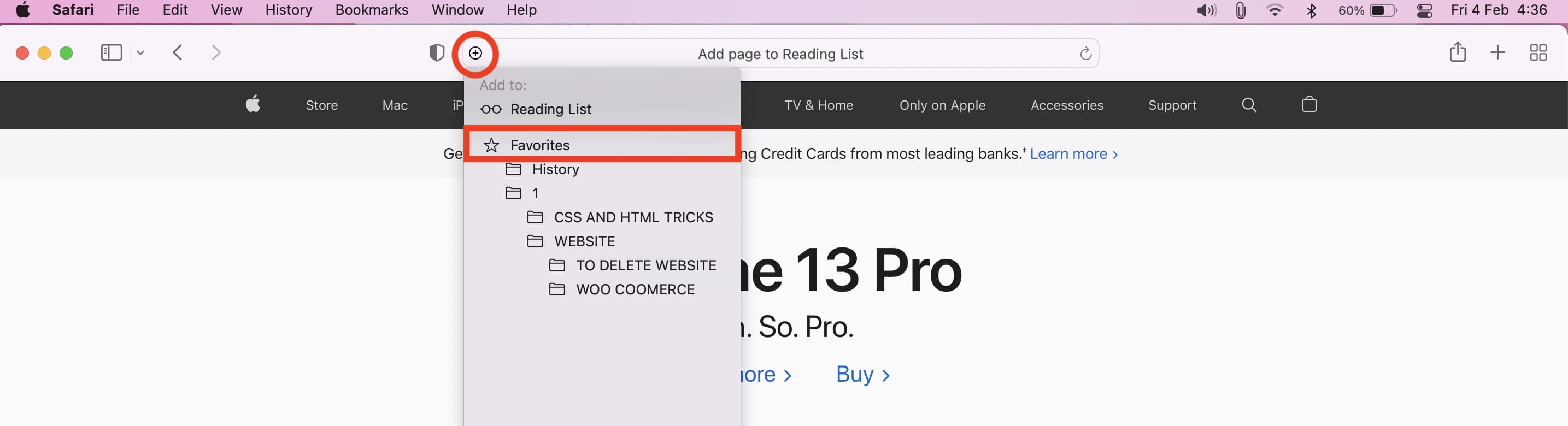
- Hover over the leftmost side of Safari’s address bar until the plus sign (+) appears.
- Then click and hold the plus button and select Favorites from the menu.
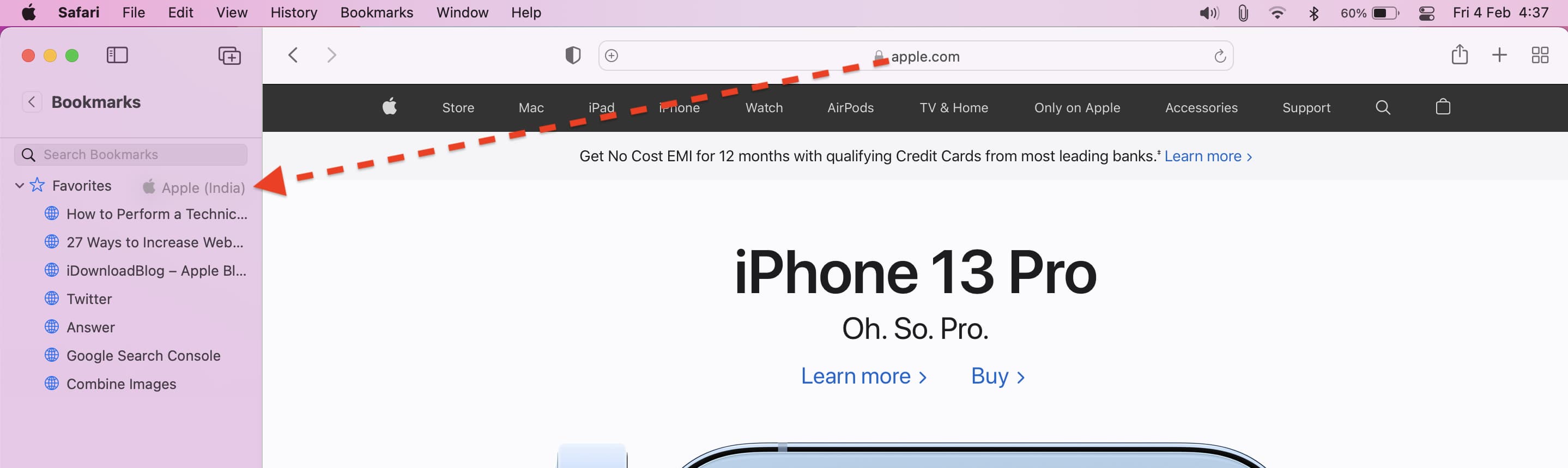
Drag and drop
Click View > Show Sidebar and expand the Favorites section in the sidebar, then drag the website URL from the address bar and drop it into place in the Favorites section.
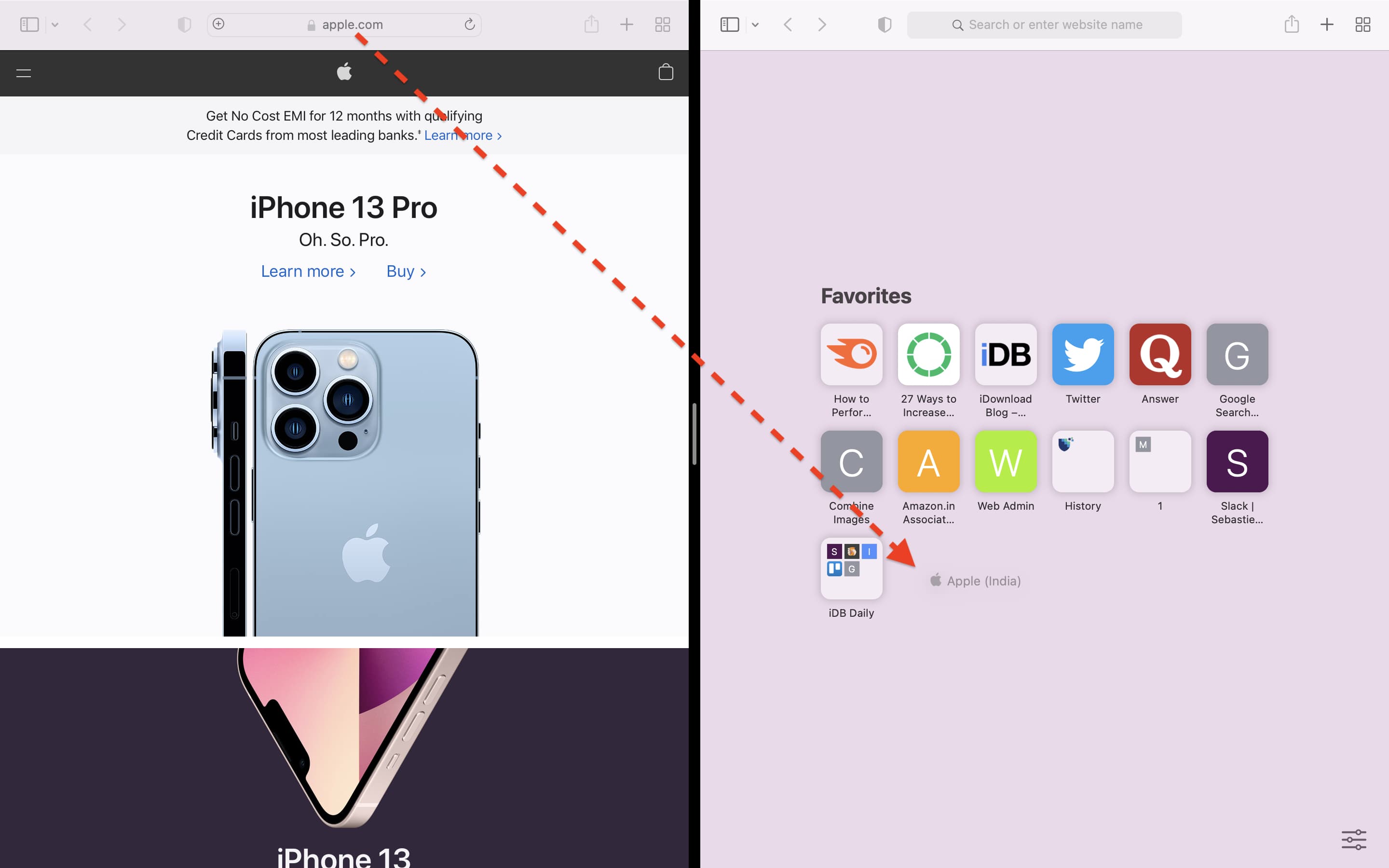
Favorite websites in the Split View multitasking mode
- Open the website you want to favorite in Safari and press Command + N to open a new Safari window.
- Put both windows in Split Screen mode by hovering the pointer over the green traffic light button in the top-left corner and selecting Full Screen > Left of Screen or Right of Screen.
- Now drag the website URL from the address bar of the first window and drop it onto the Favorites section of the Start Page of the second window.
Manage the Safari favorites on your Mac
You can manage your Safari favorites on a Mac in several ways, including the Favorites section in the sidebar, the Favorites toolbar, and the Favorites page. You can drag to rearrange your favorites and right-click for quick actions like renaming or deleting the entry, editing the URL, or creating a new favorites folder.
Also, check out: