Learn how to turn on and use the Apple TV Conference Room Display mode for your business or classroom so you and others on your team can AirPlay from their iPhone, iPad, or Mac onto the big television screen.

If you use an Apple TV in a business setting or classroom, Conference Room Display mode is ideal.
Rather than showing the Apple TV Home Screen, you’ll see instructions for how to connect via AirPlay, a custom message, and a background that you choose.
The AirPlay instructions are convenient for companies, and the message and background are great for school settings.
Turn on and customize Conference Room Display
- Open the Settings app on your Apple TV.
- Select AirPlay and Apple Home in tvOS 27. On older versions, select AirPlay and HomeKit.
- Select Conference Room Display.
- Click Conference Room Display again on the next screen to turn it on.

Now, you can customize the display with these options:
Require PIN Every Time
If you turn this on, anyone connecting to the Apple TV via AirPlay will be prompted to enter the PIN displayed on the TV.
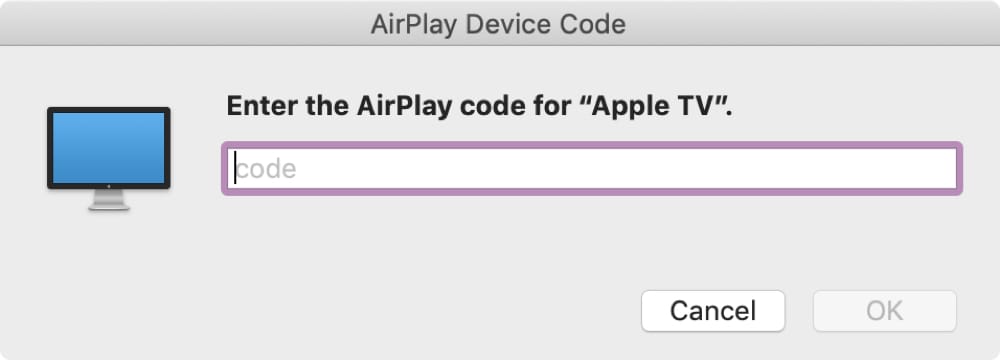
Note: You’ll need to remove this Apple TV from your Home to use the PIN feature.

Preview
This is just a quick preview of what the display will look like. You can check this out now or after setting the custom message and photo background.

Custom Message
You can show a message such as “Welcome” or your company or department name at the bottom of the box containing the AirPlay instructions.

Select Photo
Choose one of Apple’s photos or your own iCloud Photo (like the company logo) to show as the background for the Conference Room Display.

4) When you finish customizing the display, restart your Apple TV from Settings > System > Restart.
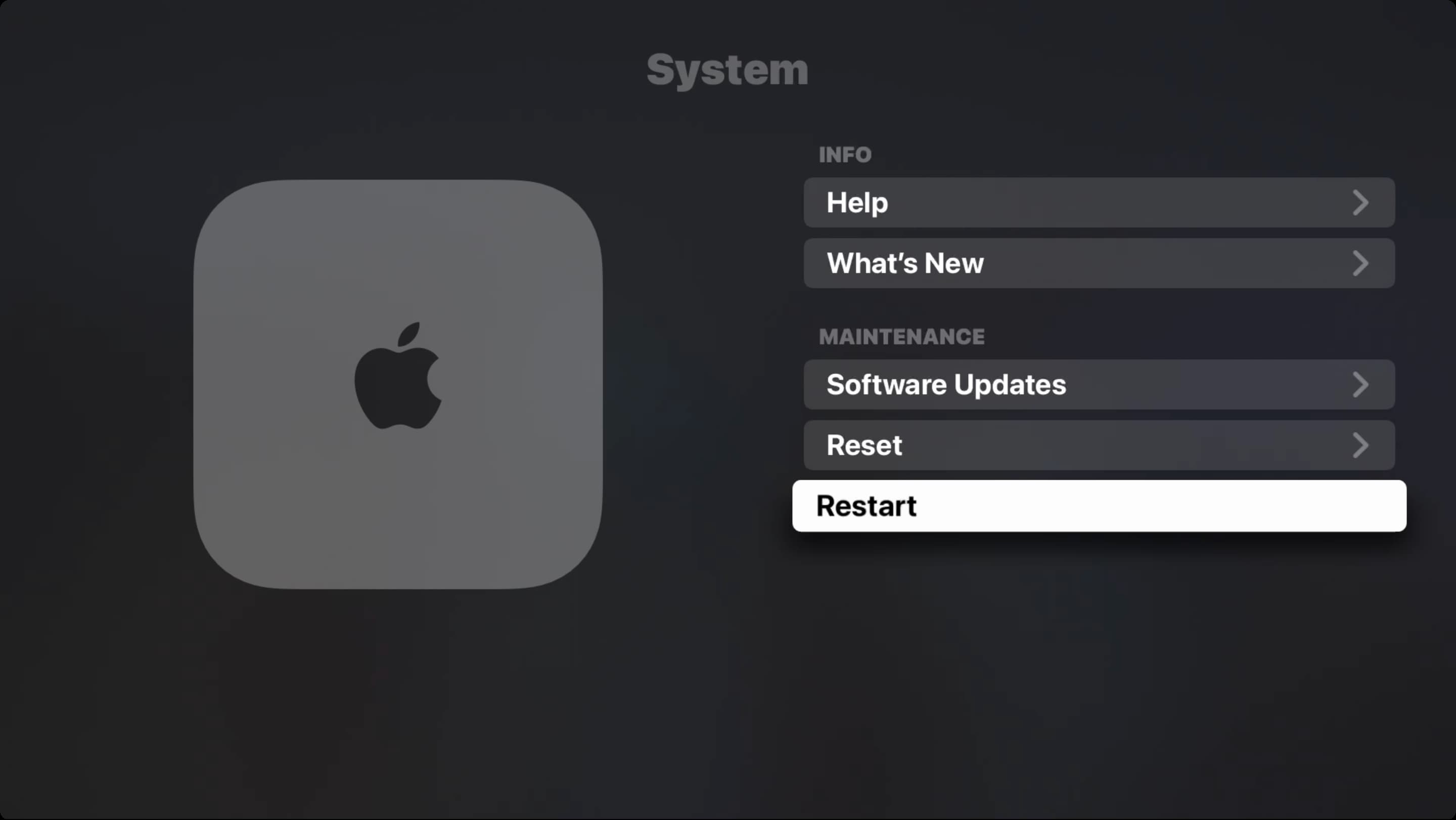
Now, when your Apple TV comes back on and when you turn it on each time after, the Conference Room Display will appear on the screen instead of the Home Screen.
To access the Home Screen, just click the TV/Menu button on your Siri Remote.
If you press the back button (<) again on the Siri Remote while on the tvOS Home Screen, it will start showing the screen saver with the Conference Room Display information.

Do you have an Apple TV in a business or school setting that could benefit from this mode? Let us know if you plan to use it!
Do more with your Apple TV: