Learn how to convert a piece of text on your Mac from uppercase to lowercase letters instead of manually retyping all caps as small letters and vice versa.
Sometimes, you need to switch some text between UPPERCASE and lowercase letters.
Maybe you received a text file written in all caps. Or perhaps you’re editing a Word document and need to convert a passage of text to uppercase for emphasis.
macOS provides built-in features that make it a cinch to change letter case between different styles, including uppercase and lowercase.
Convert UPPERCASE text to lowercase on a Mac
- Open Apple Notes or the TextEdit app on your Mac and select some text.
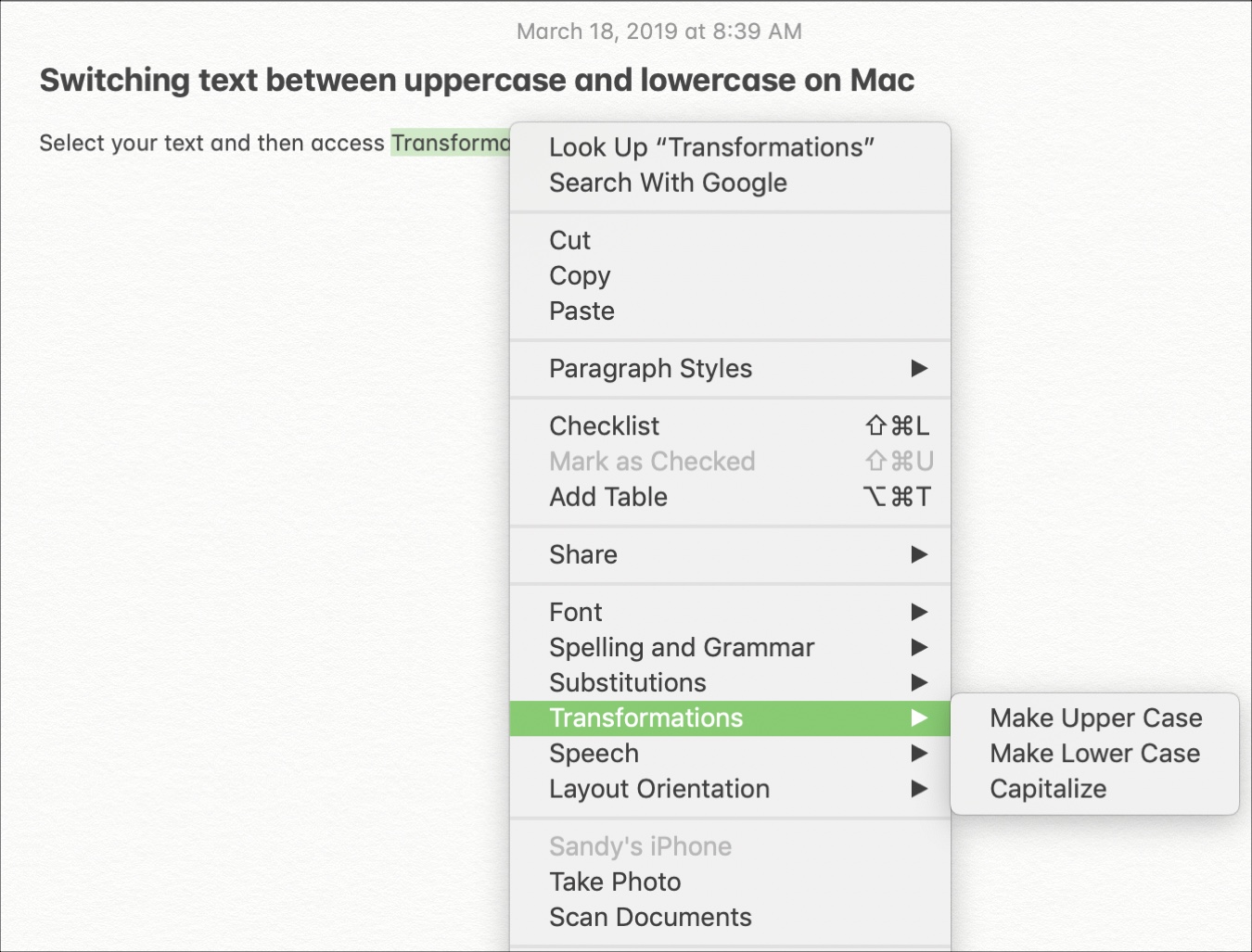
- Right-click or Control-click the selection and select Transformations in the menu.
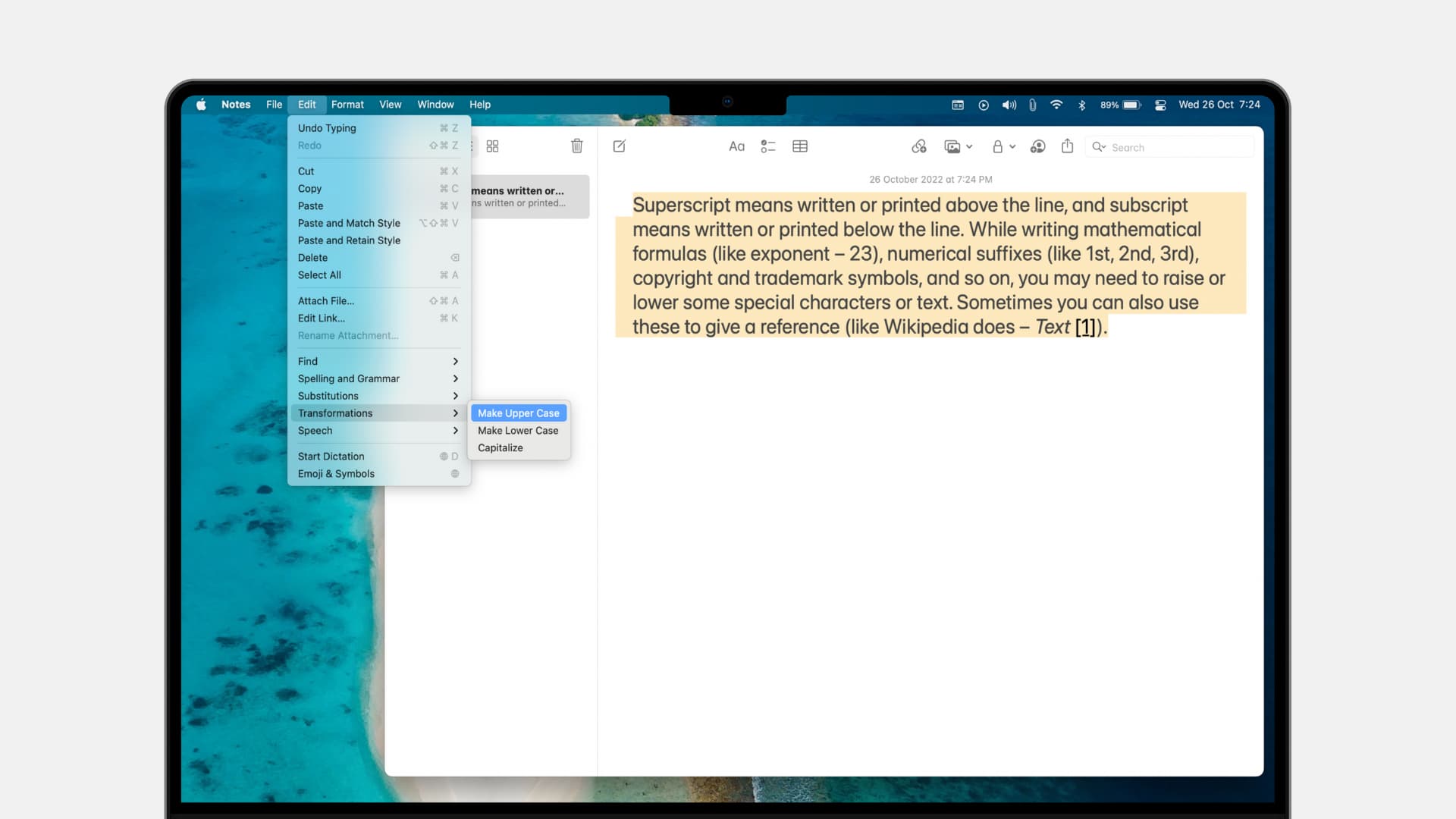
- Choose Make Upper Case, Make Lower Case, or Capitalize. The first two options will change the selection to uppercase or lowercase, while the third choice will only capitalize the first letter of each word. You can also click Edit > Transformations from the top menu.
Switch between uppercase and lowercase in Word for Mac
The above steps work in most Mac apps, except Microsoft Word, which uses a keyboard shortcut to toggle letter case. Simply select some text in Word, whether a single word, a couple of paragraphs, or an entire document. Then, hold the Shift key and press the F3 key to cycle between the various uppercase, lowercase, and capital letter formatting options.
Change letter case easily on your Mac…
Switching between uppercase and lowercase letters on a Mac might not be something you have to do often, but it’s good to know how to do it when the time comes. macOS provides advanced text and typing features.
Regardless of whether you use the built-in MacBook keyboard or an external keyboard, you can easily type accents on your Mac as well as superscripts and subscripts. And if you like emoticons, macOS lets you access the emoji picker with a custom keystroke.