Learn how to turn off iPhone and iPad animations if you don’t like them or are sensitive to motion, which can cause sickness and headaches.
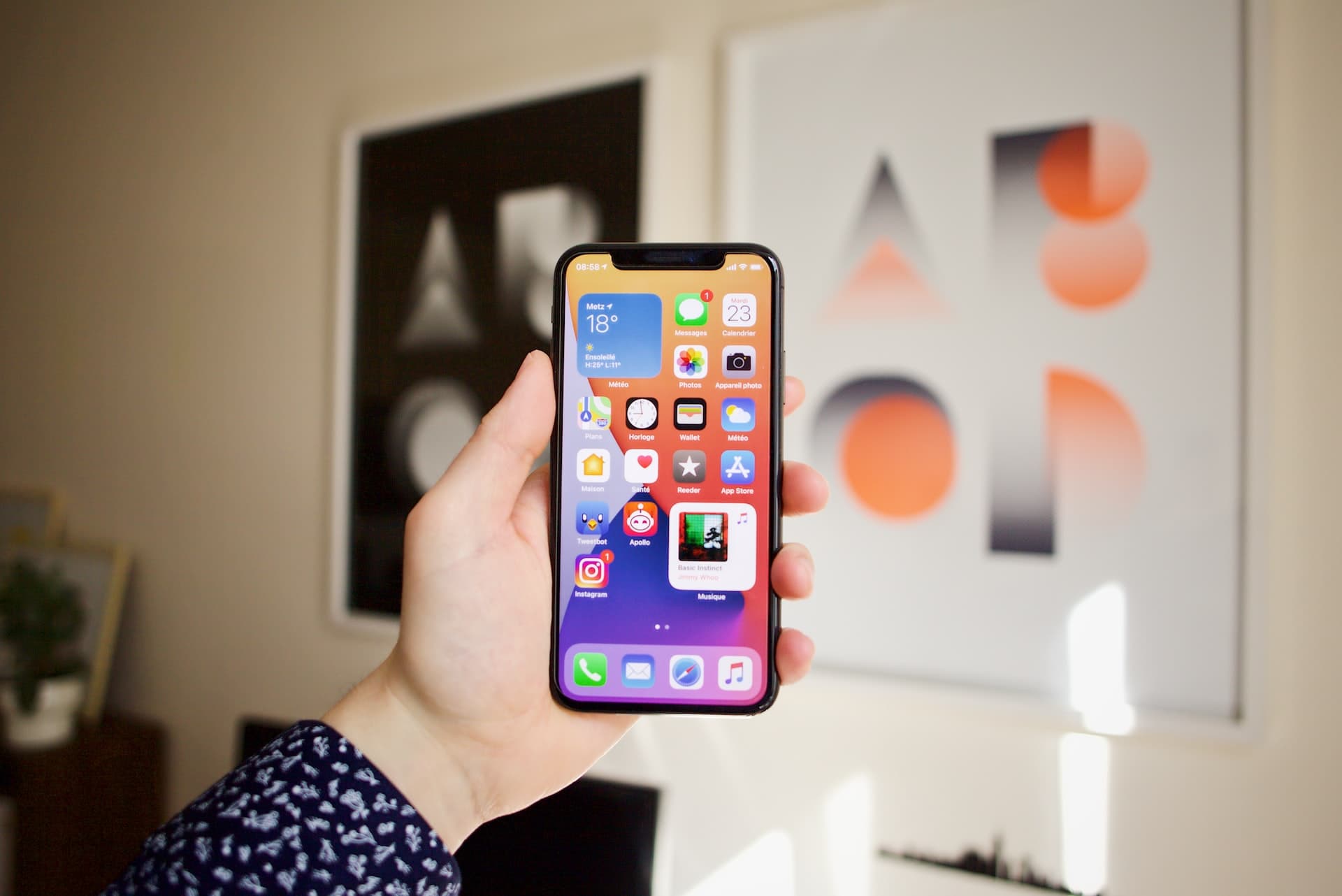
Apple employs animation features on iPhone and iPad that most people really like. For instance, opening and closing apps use a zoom type of effect, and sliding across pages of apps has a slide-in animation.
Sure, these animations are cool for most, but not for some who are sensitive to motion. For this reason, Apple offers an accessibility option to turn it off.
Switch off motion and fast animations on your iPhone or iPad
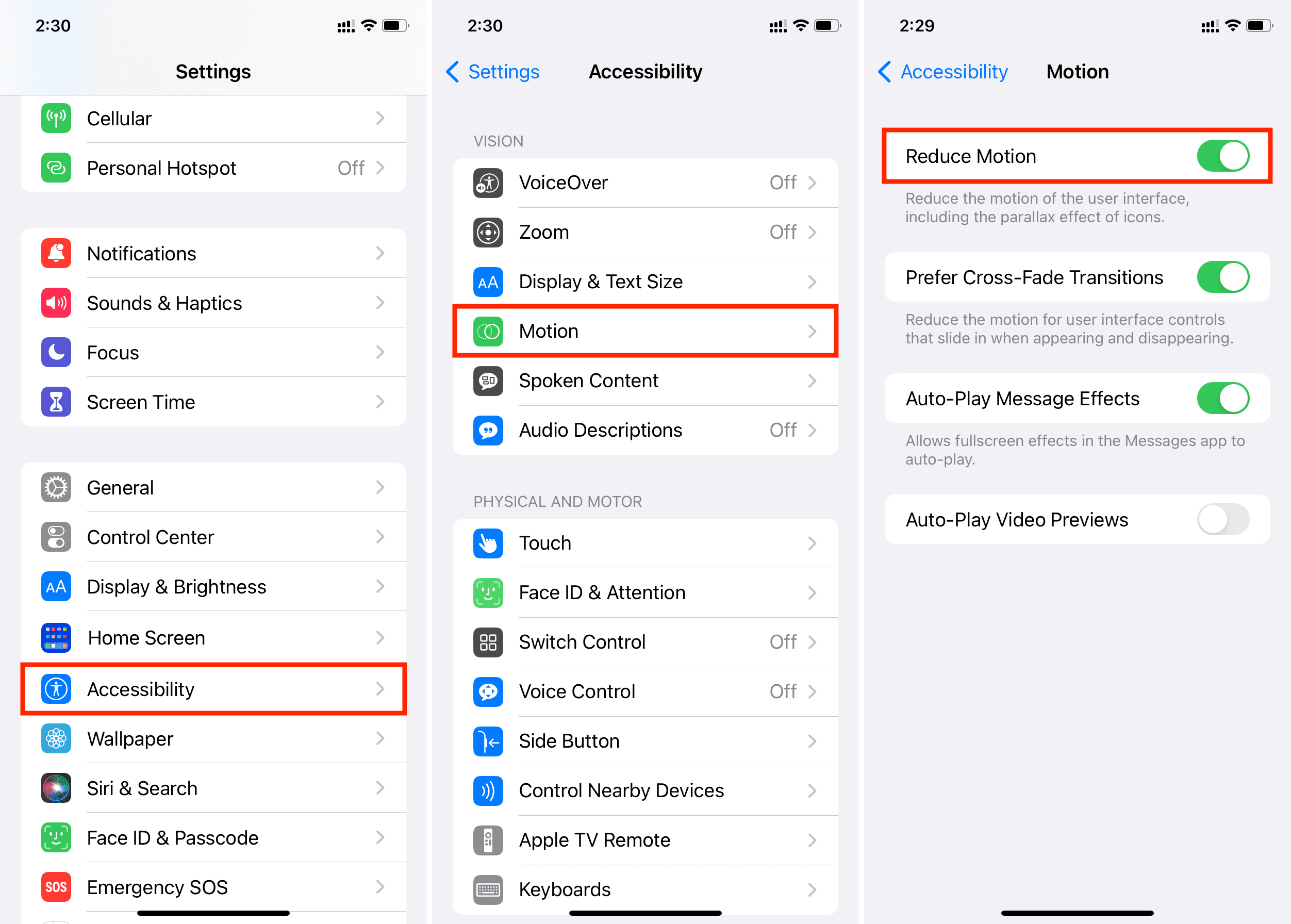
1) Open the Settings app and tap Accessibility.
2) Select Motion.
3) Turn on Reduce Motion to disable the screen animations.
4) After switching on Reduce Motion, you’ll get a new option called Prefer Cross-Fade Transitions. Enabling this reduces the motion for slide-in transitions, like what you get when you tap the back (<) or other relevant buttons from the top left of the iPhone screen.
5) Further, you can disable Auto-Play Animated Images, Auto-Play Video Previews, and Auto-Play Message Effects. The last option turns off the bubble and screen effects in Messages and lets you tap the arrow for the message if you want to play the effect.
After following the above steps, you will notice a lack of quick animations throughout iOS. For instance, with Reduce Motion enabled, opening and closing an app will no longer use zoom animation. Instead, it uses a simple dissolve or fade effect.
Similarly, when using the App Switcher, the apps won’t zip across quickly as you swipe. Animations in certain apps will also be affected, depending on the app.
To be fair, these animations don’t appear to serve any functional purpose, and they’re merely for aesthetics. So, if you prefer to go without them, you can do so quite easily.
On a related note: