Learn how to spice up your iMessage conversations with bubble and fullscreen effects that play in the Messages app on iPhone, iPad, Mac, and Apple Watch.
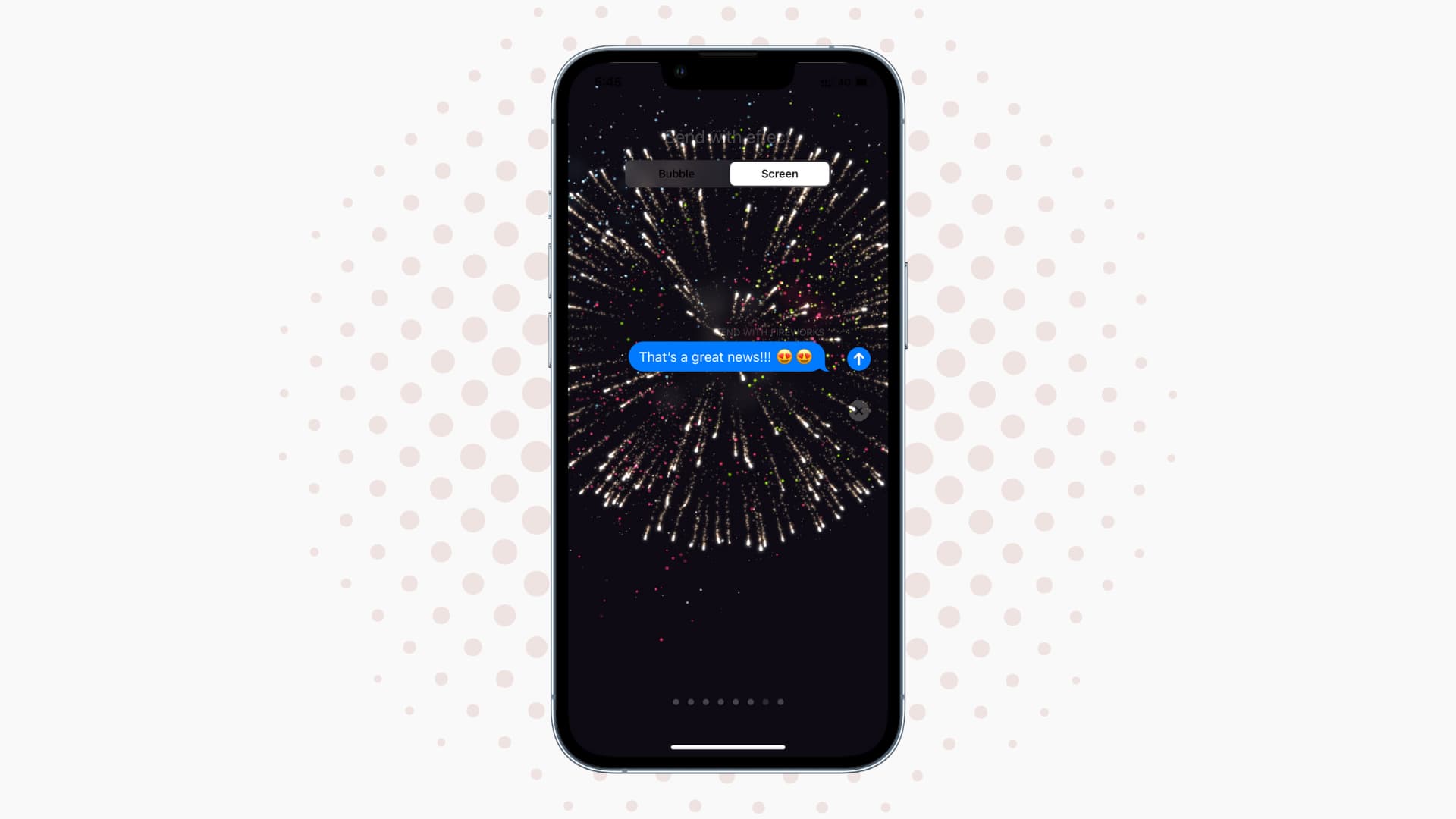
The built-in Messages app on iPhone, iPad, Mac, and Apple Watch can liven up chats with slick animations and effects that take over the entire screen. You have four built-in effects for chat bubbles and eight for full-screen animations at your disposal. Use them sparingly when you’d like to send messages with some flair.
The Messages app automatically plays an appropriate screen effect for specific message contents, like:
- “Happy Birthday” (balloons)
- “Happy New Year” (fireworks)
- “Congratulations” (confetti)
You can apply these effects to SMS/MMS texts, but they won’t animate. To ensure compatibility, Android owners and people who don’t use iMessage will see an effect description in parentheses, like “Sent with Balloons” or “Sent with Slam.”
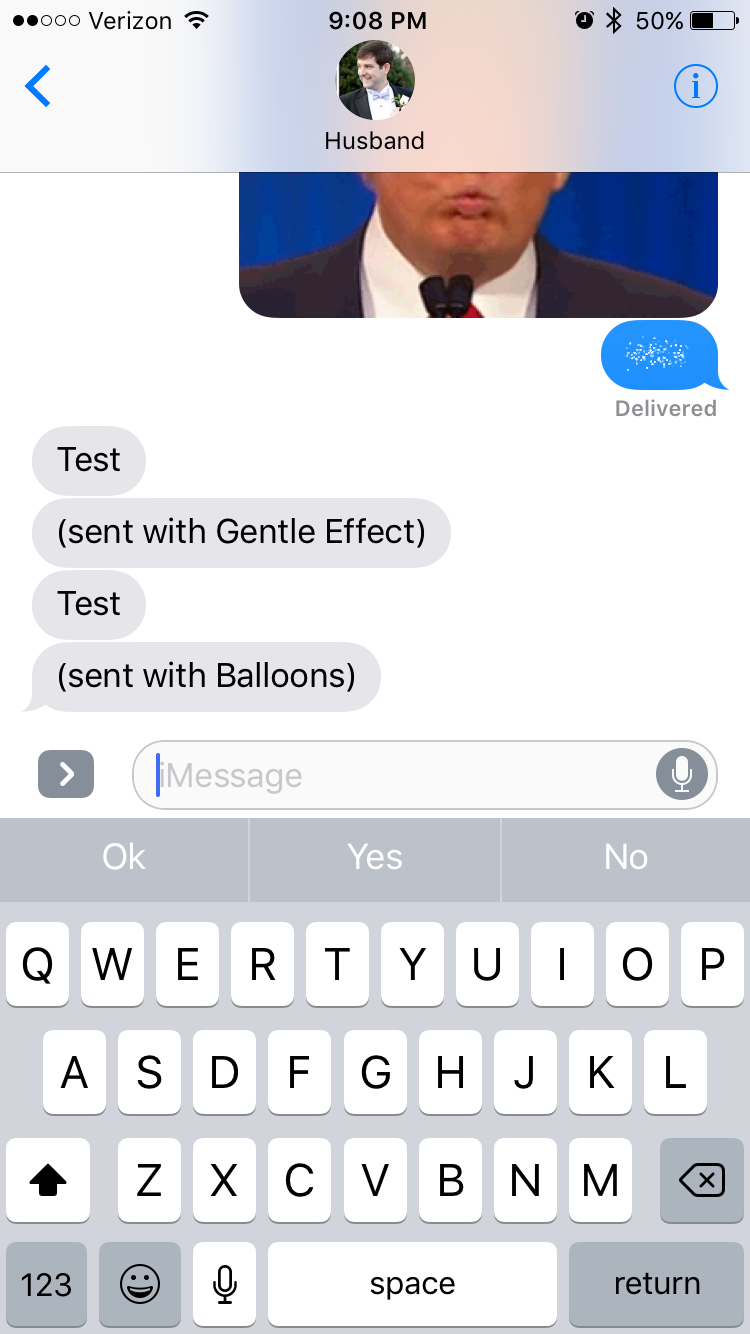
Message effects on iPhone or iPad
Use bubble effects
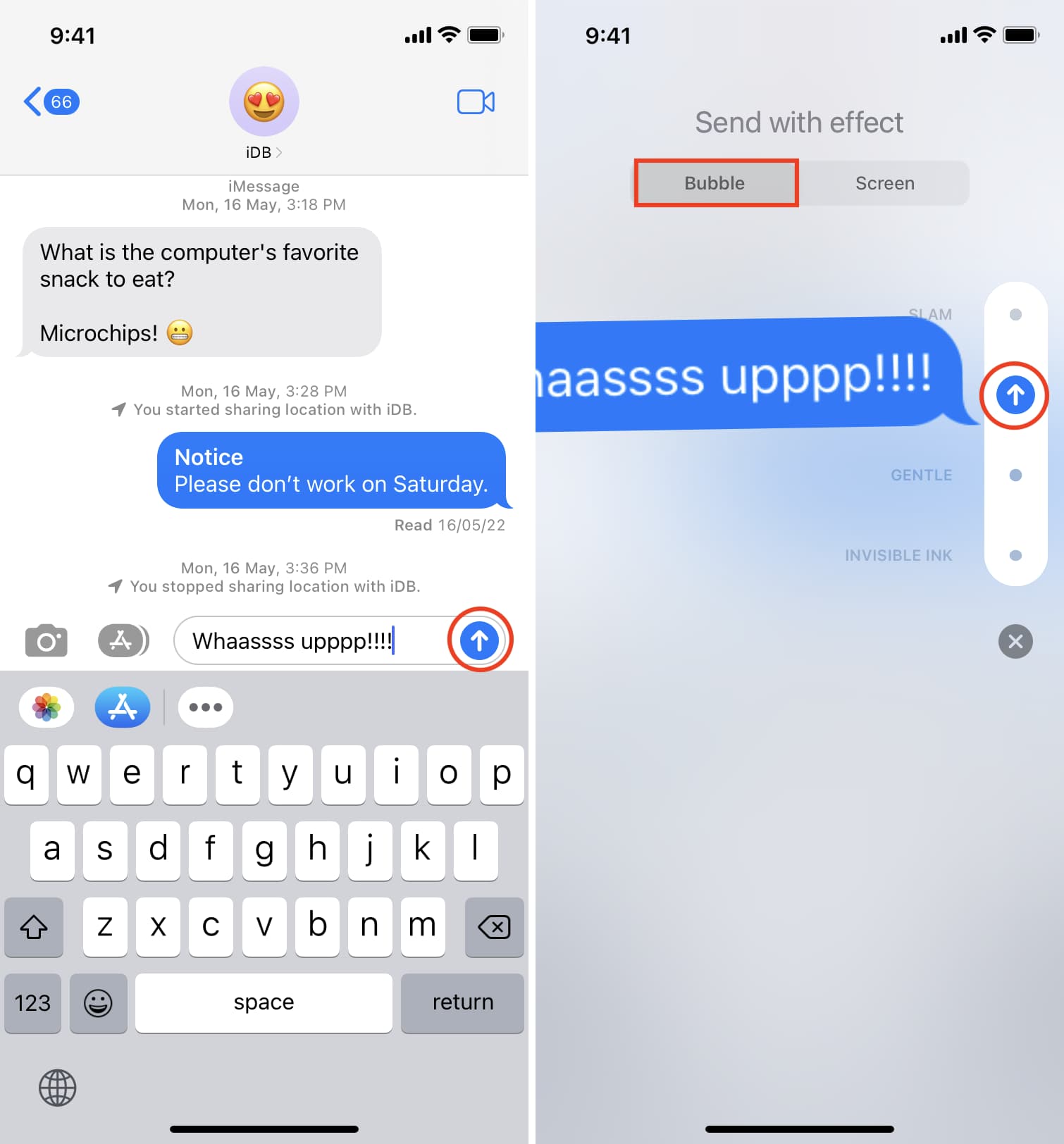
1) Type out your message and touch & hold the blue Send button to bring up the effects menu.
2) Select one of the following effects from the Bubble tab. And tap the dot next to an effect to preview it:
- Slam: Slams the bubble and makes the screen ripple
- Loud: Enlarges and shakes the bubble, then shrinks it
- Gentle: The bubble grows slowly
- Invisible Ink: The message is blurred until the recipient swipes to reveal it
3) To send the message with the chosen effect, hit the Send button. The chat bubble on the recipient’s iPhone, iPad, Mac, or Apple Watch will animate accordingly as soon as they open or preview your message.
You can apply effects to both plain messages and rich ones with attachments.
Use full-screen effects
1) Type out your message in the Messages app, touch and hold the Send button to bring up the effects picker, then select the Screen tab and pick a full-screen effect:
- Echo: Floating text bubbles
- Spotlight: Puts a round light over the text bubble
- Balloons: Big, colorful balloons gradually flying upward from the bottom
- Confetti: Colorful confetti falling from the top
- Love: Shows a blown-up heart, like a balloon
- Lasers: Renders laser effects while playing a Party Boy-like beat
- Fireworks: Fireworks blowing up from the center of the screen
- Celebration: Shows a sparkler-like display raining down
2) Swipe left or right to preview full-screen effects.
3) Hit the Send button to send your message with the selected fullscreen animation.
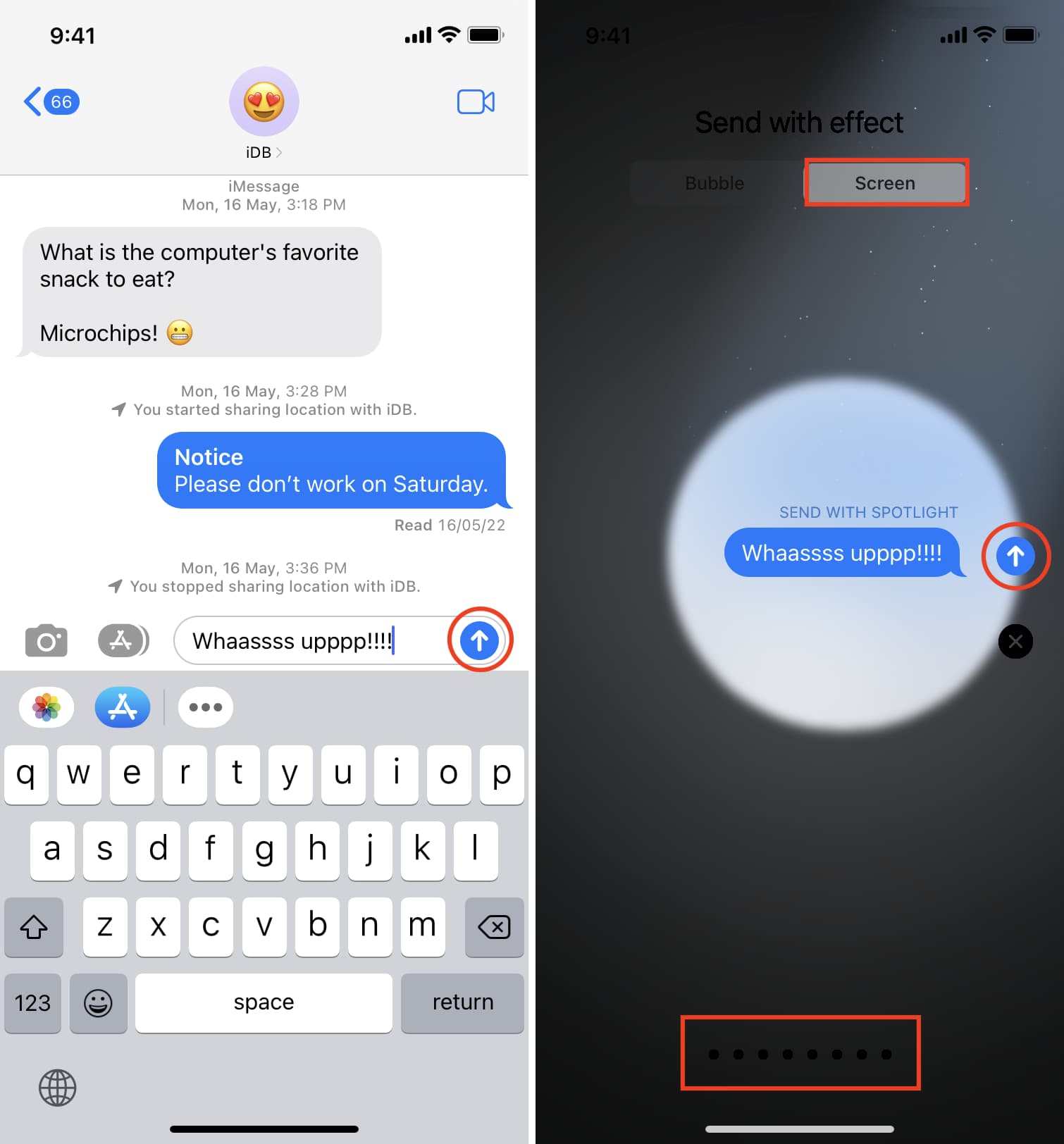
Fullscreen effects take over the Messages app with slick animations.
Message effects on the Lock Screen
The effects even play in Messages notifications. Say you’ve received an animated message while your iPhone is locked; touching and holding the notification on the Lock Screen will animate the effect right within the quick reply popup.

How to disable iMessage effects
If you find these effects distracting, you can stop the Messages app from automatically playing them. Go to Settings > Accessibility > Motion > Reduce Motion and turn off the Auto-Play Message Effects option. Peruse our troubleshooter should you encounter issues with iMessage effects.
Message effects on Apple Watch
You can’t apply these effects when sending a message from your Apple Watch. But if you receive a message with one of these effects, then it will play on your watch screen.

Message effects on Mac
Simply type your message, then click the plus button (+), and select Message Effects.

Select one of the effects and click the send arrow button.
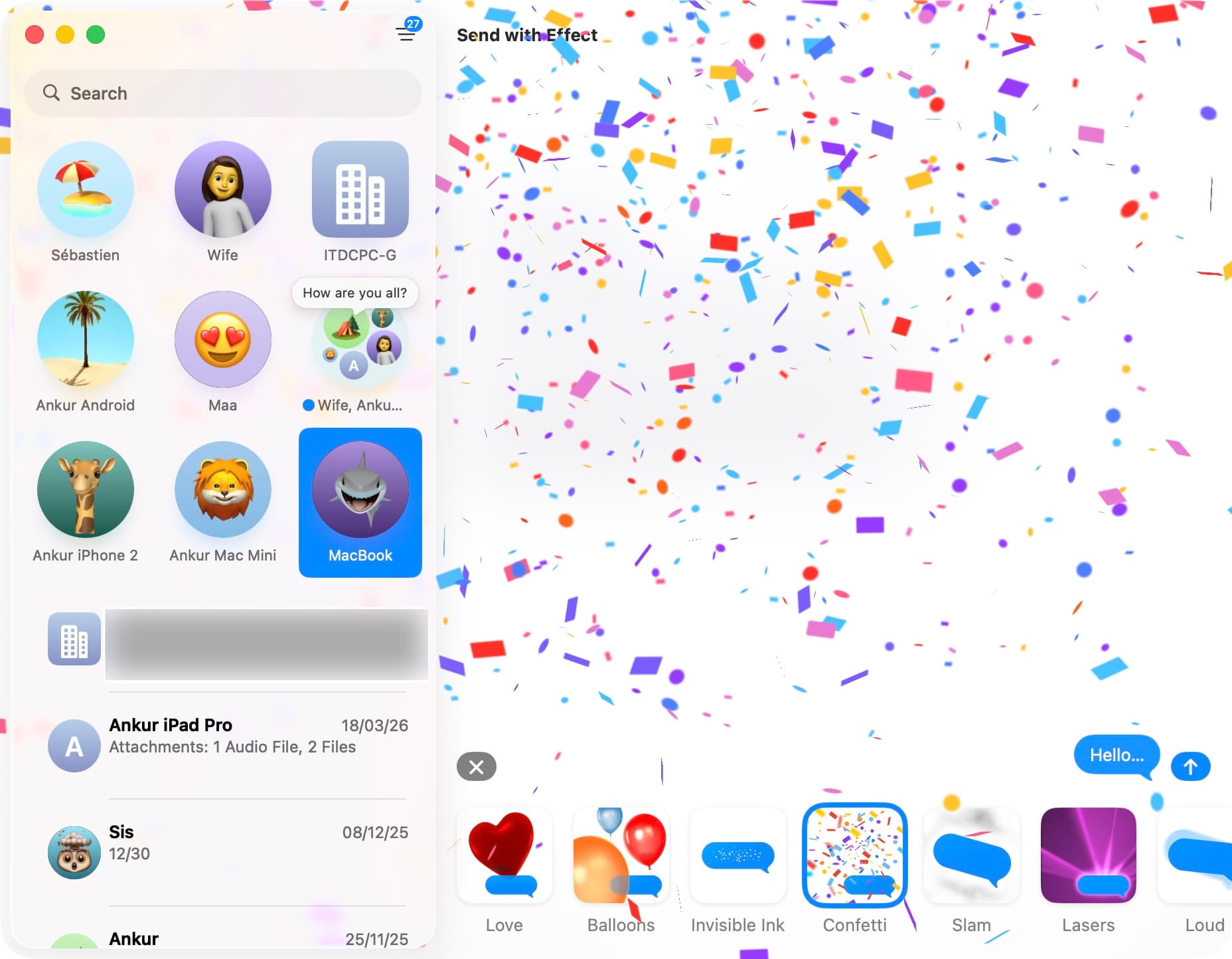
iMessage bubble animations and full-screen effects can surprise and delight in some fun and delightful ways. What’s your favorite effect, and why?
Other tips for the Messages app: