Learn how to protect your Apple Pages, Numbers, and Keynote documents with a password on the iPhone, iPad, and Mac to keep your files secure and private.

Pages, Numbers, and Keynote let you password-protect your documents to keep them private and safe from prying eyes. If anyone tries to open your password-protected document, spreadsheet, or presentation on any device, they will need to type the password you set.
Password-protect documents on iOS
1) Open a Pages document, Numbers spreadsheet, or Keynote presentation.
2) Tap the three-dot menu in the top-right corner and do the following:
- Numbers: Tap Set Password.
- Pages: Tap Document Options > Set Password.
- Keynote: Tap Presentation Options > Set Password.

3) Type a custom password, then type it again for verification. You can create an optional hint in case you forget the password and turn on the Open with Face ID/Touch ID option. Tap the checkmark icon to save the changes.

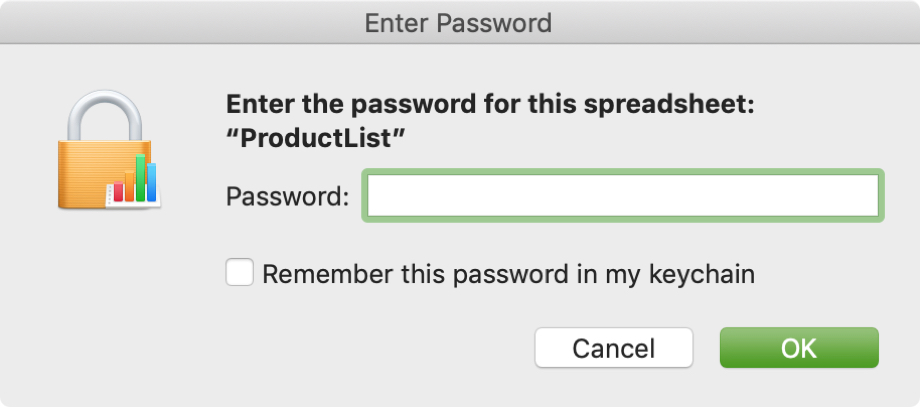
Attempting to open a password-protected iWork file will bring up a password prompt.
Change or remove document password
You can easily change or remove the password that you previously set for your Pages, Numbers, or Keynote document.
1) Open your password-protected document in Pages, Numbers, or Keynote.
2) Tap the three-dot menu in the top-right corner and do the following:
- Numbers: Tap Change Password.
- Pages: Tap Document Options > Change Password.
- Keynote: Tap Presentation Options > Change Password.
3) To confirm the action, type the current document password, followed by the new password (optionally, create a new hint).
To remove the password, turn off the Require Password switch, enter the current password, and tap the checkmark icon.

Password-protect iWork documents on the Mac
1) Open your Pages, Numbers, or Keynote document on a Mac.
2) Click File > Set Password from the top menu bar.

3) Type a desired password for the document, then type it again for verification. Optionally, add a password hint and turn on the “Open with Touch ID” (or “Remember this password in my keychain,” if shown) options.
4) Click the Set Password button to save the changes.
After that, opening this document on any device will require you to enter the password you set or authorize with Touch ID, provided you’ve turned on this option.

Change or remove the document password
1) Open your password-locked document in Pages, Numbers, or Keynote app.
2) Choose File > Change Password in the menu at the top.
3) To authorize this action, type the current document password, then create a new one and optionally include a password hint. Click Change Password to save your changes.
To remove the document password instead, first enter the current password and then click the Remove Password button.

Password-protecting your Pages, Numbers, or Keynote documents helps safeguard your sensitive information, prevents unauthorized access, and gives you peace of mind knowing your personal or professional files stay secure.
Protect your files from prying eyes
There are other ways you can keep confidential information on your Mac secret. For instance, you can compress your files and then password-protect the ZIP file.
You can also password-protect PDF files on your Mac, as well as encrypt and password-protect macOS folders.