Learn how to make the Mac’s Mail app play a custom sound notification for emails containing specific phrases or keywords like “Urgent,” “Notice,” or other important text.
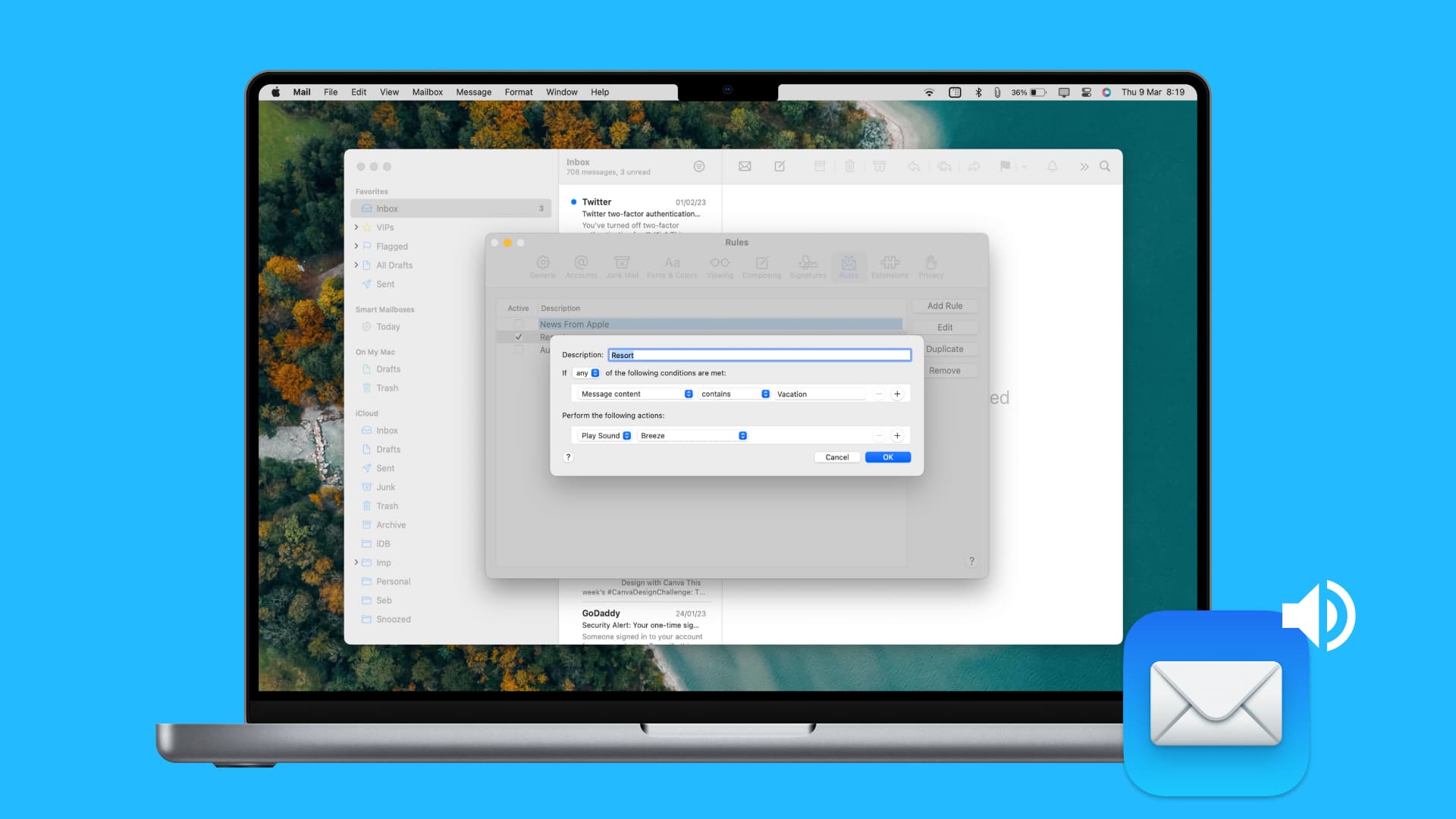
The Apple Mail app on Mac lets you create custom email rules to file messages into folders, flag or reply to them, and more.
You can also create rules to play a custom sound for specific emails to ensure you don’t miss that message about a family trip or a business update.
Create an Apple Mail rule for emails with specific text
1) Open the Mail app on your Mac and click Mail > Settings or Mail > Preferences in the top menu bar.
2) Switch to the Rules tab and then click the Add Rule button.

3) Name your rule in the Description field, and then make sure it says “any” in the menu next to “If.”
4) Right below ‘If,’ select Message content in the first menu and contains in the second menu, then type a custom text in the third box.
5) In the ‘Perform the following actions’ section, click the Play Sound menu and then select the sound you want in the second menu. Click OK to save the changes.

6) If you see a message asking if the rule should apply to messages in selected inboxes, click Don’t Apply, since the point is to play the sound when new emails arrive.

7) Tick the box next to your newly created rule to activate it. The Mail app will now play the selected sound for any new emails containing your custom text.
 Add more conditions if you want
 Add more conditions if you want
You can create additional filters to refine your rule. Maybe you only want to receive auditory feedback for emails with an urgent update for Project X instead of all emails related to the project. You can do this by creating more conditions.
1) Open the Mail settings, go to the Rules tab, select the Rule you created earlier, and click Edit.

2) Choose “all” in the menu next to ‘If.’ This step is obligatory because you want to tell the Mail app to play the sound when both conditions are met.
3) In the row below If, click the plus sign to add a new condition.

4) In the row that appears below, select Message content in the first menu and choose contains in the second menu, then type your custom keyword or phrase in the third box. Click OK to save the changes. The Mail app will only play the chosen sound when an incoming email contains both Project X and Urgent in the body.

Rules in the Mail app add flexibility to managing your inbox. And with a custom rule, you’ll never miss an important message that meets a specific criterion.
Also, check out: