Learn how to mark all chats as read in the Apple Messages app on your iPhone or iPad at once, which will remove blue dots in the conversation list.
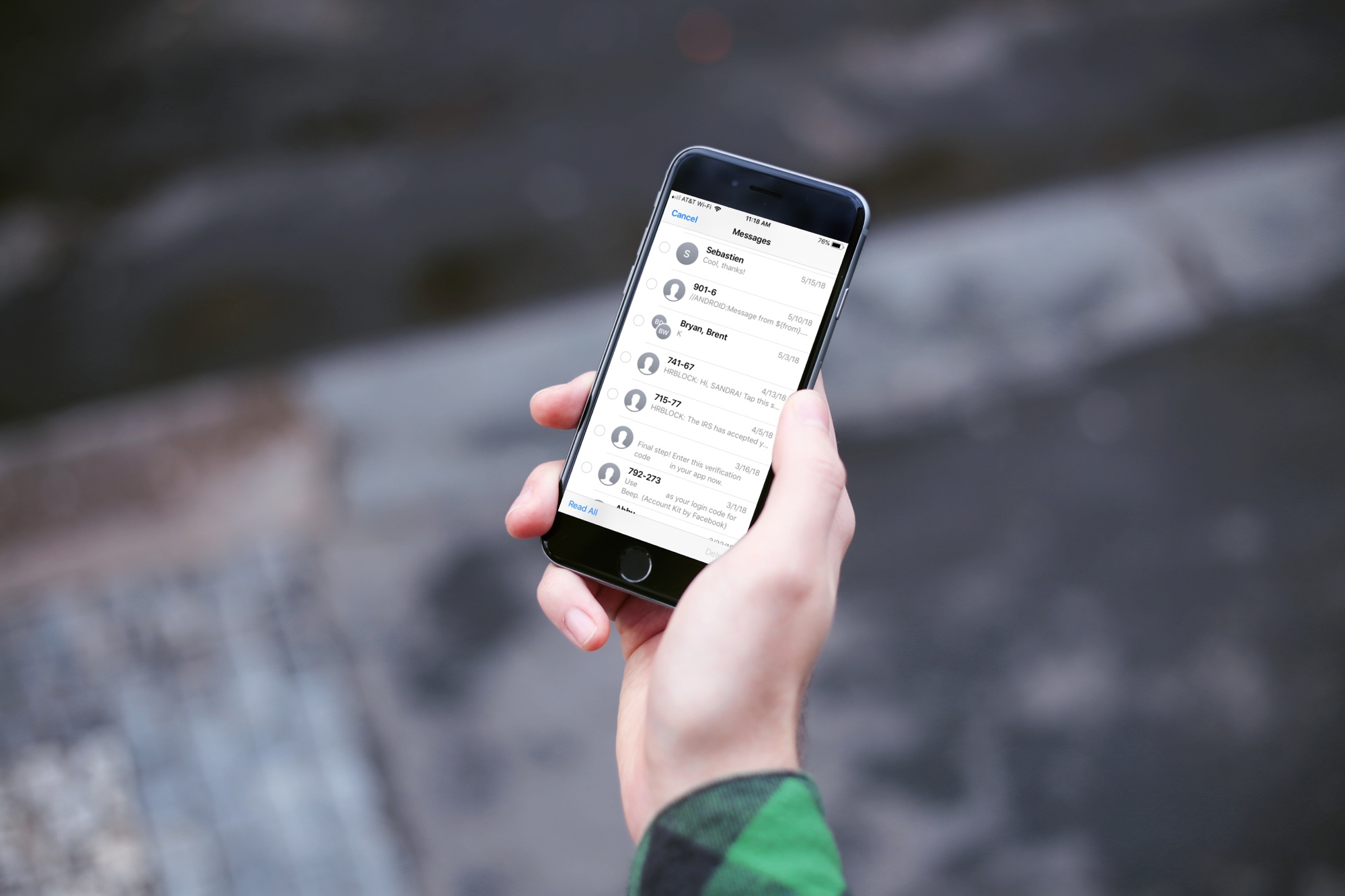
Marking all chats as read will also reduce the badge count on the icon of the Messages app on your Home Screen.
You can go through your chat list and tap each unread message to make it appear as read. Or, you can toggle a message as read or unread by swiping left and choosing Read or Unread in the hidden menu.
But there’s an easier way to mark all unread chats in the Messages app as read on your iPhone and iPad, so follow along as we show you how.
See all unread messages on an iPhone or iPad
- Open the Messages app on your iPhone or iPad.
- Tap the three-line icon in the top-right corner and choose Unread from the menu. The conversation list will switch to showing only unread texts and iMessages, so scroll through them.

Note: If you’ve set up unknown sender filtering, choose Unknown Senders from the menu and then tap the three-line icon again and choose Unread from the menu. This will show only messages from people not saved in the Contacts app whose messages you haven’t opened yet.

Marking all Messages conversations as read
- To mark all conversations in the Messages app as read, tap the Edit button in the top-left corner of the Messages app and choose Select Messages.
- Tap the Read All option in the bottom-left corner.

Note: If you’ve turned on sender filtering:
- Tap the three-line icon and choose Unknown Senders from the menu.
- Tap Edit in the top-left corner and choose Select Messages from the menu.
- Then, tap Read All in the bottom-left corner.

And just like that, the badge count is gone, the blue dots next to unread messages are nowhere to be seen, and you’ve fully caught up.
Do more in Messages: