Do you or your child spend a lot of time in Messages, Instagram, X, Facebook, Snapchat, Netflix, YouTube, TikTok, Candy Crush, or other non-productive apps?
Learn how to combat this situation by setting a daily time limit for these apps on your or your kid’s iPhone and iPad.
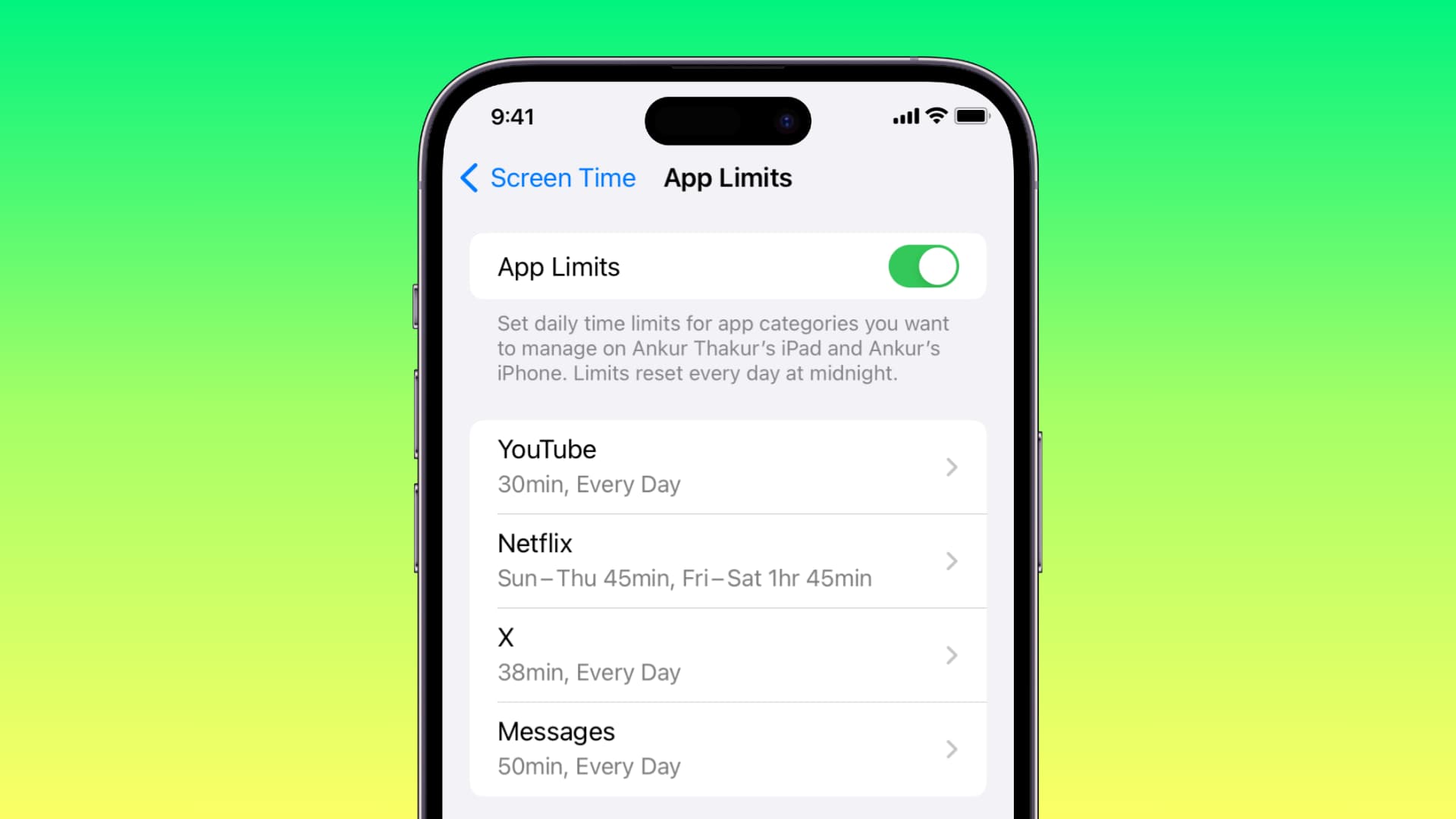
iOS digital wellness tools can help you track how much time you spend on your iPhone and iPad each day. You can use it to find out which apps you use the most and even know the number of notifications each app sends you!
In addition to that, you can use it to curb your or your child’s excessive iPhone or iPad usage by time-blocking apps, which will ensure time away from the screen that can be used for other fruitful and healthy tasks, like playing outside or reading a book.
Note: You can follow these steps directly on your or your child’s device, or you can add your kid to Family Sharing and use Screen Time on your device to manage their usage.
Set a daily use limit for unproductive apps on iPhone or iPad
1) Open the Settings app and tap Screen Time.
Important: Tap Lock Screen Time Settings and add a passcode that’s different from the device passcode. Don’t disclose this passcode to your child. If the Screen Time passcode is already set up, you’ll see Change Screen Time Passcode instead.
2) Tap App Limits.

If you don’t see App Limits, tap App & Website Activity, followed by Turn On App & Website Activity.
3) Tap Add Limit and enter the Screen Time passcode.
4) You’ll see all apps sorted by category. You can decide which ones to set a limit on:
- Check All Apps & Categories if you want to add a daily time limit to all apps and categories.
- Or, set a time limit in bulk by selecting the box for various categories like Social, Games, Entertainment, etc.
- Or, to set a limit to specific apps, tap the arrow (>) next to an appropriate category and select one or more apps.
After making your pick, tap Next from the top right.

5) Decide what time limit would be suitable for the app or category of apps. If you think weekends shouldn’t be so stringent, tap Customize Days and increase the time limit for Friday, Saturday, and Sunday.
Next, turn on Block at End of Limit; otherwise, the app won’t be restricted after the allotted time is over. Then, tap the checkmark from the top right.
6) You have successfully set your first app limit. Now, ensure the switch for App Limits at the top is enabled, and then you can go out of the Settings app.

Alternatively, you can tap Add Limit and repeat the above steps to add limits to other apps. Remember that you can add app limits of different durations to multiple apps. For instance, you can set YouTube’s time limit to 90 minutes and Facebook’s time limit to 30 minutes.
Note: App limit resets at midnight every day.
What happens next
You or your child can now use the apps for which you set the limit. Once that time limit is over, the app is blocked by a screen saying “Time Limit. You’ve reached your limit on [app name].”

Tapping OK exits the app.
And tapping Ask For More Time shows an option to use the app for one more minute or enter the screen time passcode:
- One More Minute: This is to ensure you or your child can save the work they were doing in that app. Once you or your child has used this grace minute, the One More Minute option is no longer available for the rest of the day.
- Enter Screen Time Passcode: If you tap this, it will ask you to enter the Screen Time passcode. After you enter the correct passcode, you see the option to use this app for 15 more minutes, 1 hour, or all day. Since the passcode can be used to bypass the limit, make sure you don’t share it with your child.

Change or delete the app limit
You can increase or decrease the time limit you set earlier, or remove it altogether.
1) Go to iPhone or iPad Settings > Screen Time > App Limits and select the added limit for an app or category of apps.
2) Tap the Time tile to adjust it.
3) Tap Delete Limit to remove the limit from this app or category.

On the same note: 15 child-focused features on iPhone and iPad