Learn how to cancel App Store subscriptions for apps and services from your iPhone, iPad, Mac, or Apple Vision Pro so you don’t keep paying for things you no longer use.
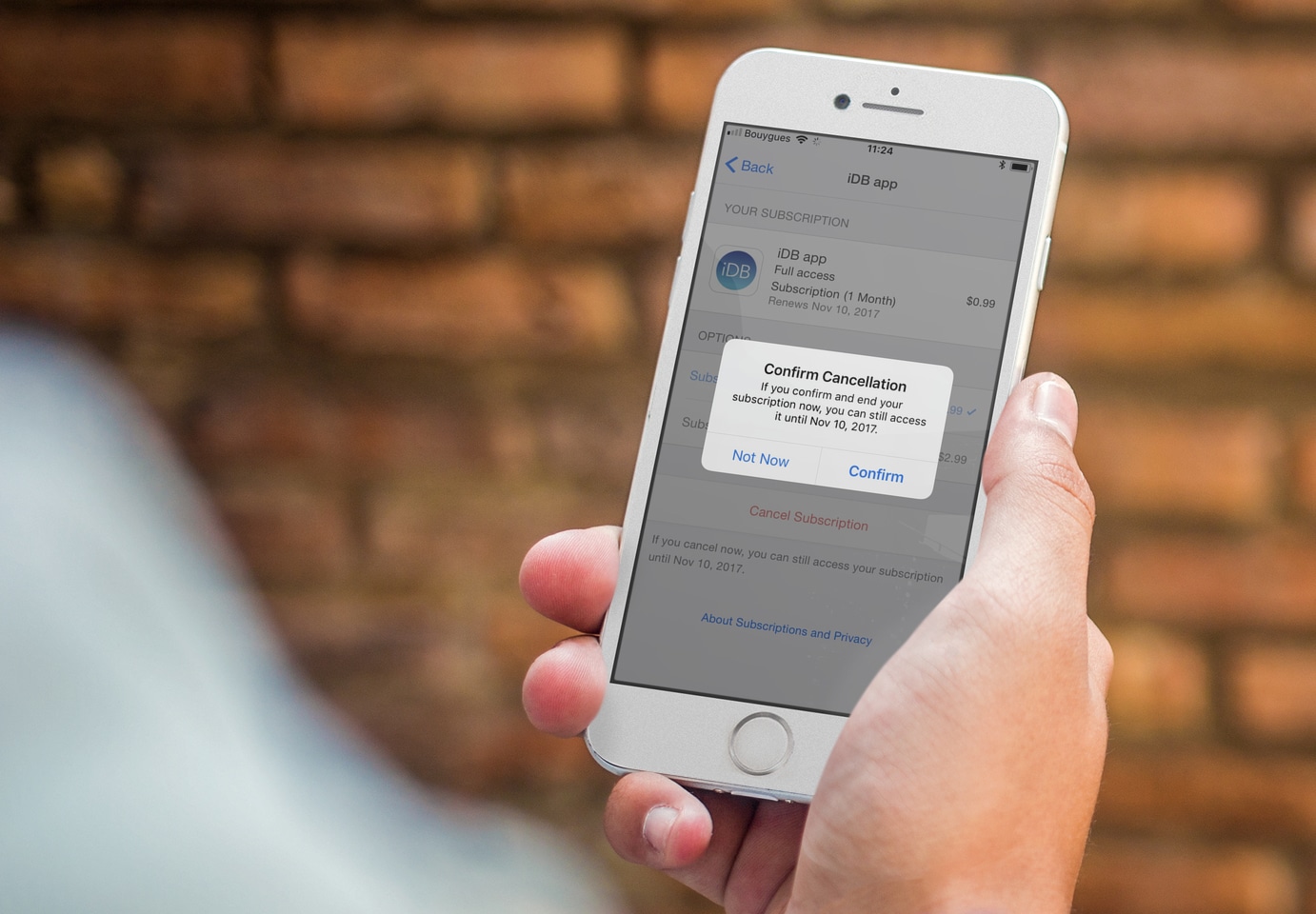
More and more developers are adopting the freemium model, making their apps available for free while allowing users to unlock features or content in exchange for a recurring fee.
Our own iDB app uses a subscription model. The app is free to download in the App Store and offers the user access to all our newly published articles. However, to unlock additional features such as unlimited bookmarking, offline access, and ad removal, the user must pay a monthly or annual fee.
As time goes on and the user starts using different apps, one might forget about active subscriptions and keep paying a recurring fee for nothing. In a previous post, we showed you how to view the status of your app subscriptions, but in this post, we’ll go one step further and show you how to cancel App Store subscriptions for apps and services.
Note that this is related to canceling recurring payments and not app or in-app purchases you may have made. For that, head over to our guide on requesting a refund from Apple.
While we’ve mentioned the steps for iOS, iPadOS, visionOS, and macOS, you only need to cancel a subscription from one of the platforms, and it will be canceled everywhere.
From iPhone, iPad, or Vision Pro
- Open the Settings app on your device and tap your Apple Account name at the top.
- Tap Subscriptions.
- Select the subscription you want to cancel.
- Tap Cancel Subscription, and finally, tap Confirm.
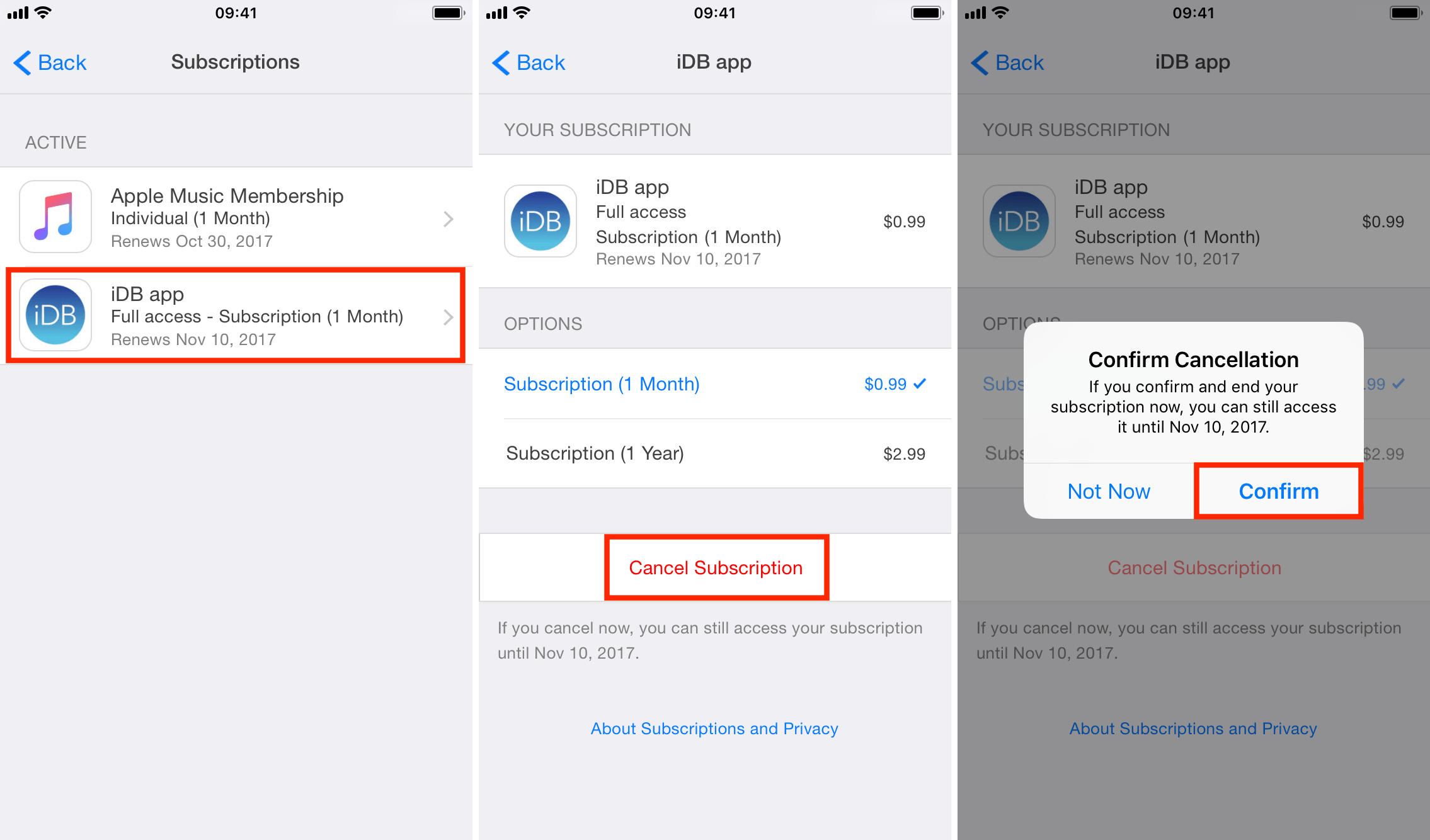
Note that even if you cancel App Store subscriptions for apps, you might still have some time left to enjoy the benefits of those subscriptions. In the example above, even though I have just canceled the subscription, I can still enjoy all the features of the iDB app for a few more weeks.
From Mac
We’ve explained the steps for both the latest and older macOS versions.
On macOS Tahoe
- Open System Settings on your Mac running the latest version of macOS Tahoe 26.
- Click your Apple Account name from the top left corner.
- Select Media & Purchases.
- Click the Manage button next to Subscriptions.
- Select the subscription you want to cancel.
- Click the Cancel button and confirm.

On macOS Tahoe and older versions of macOS
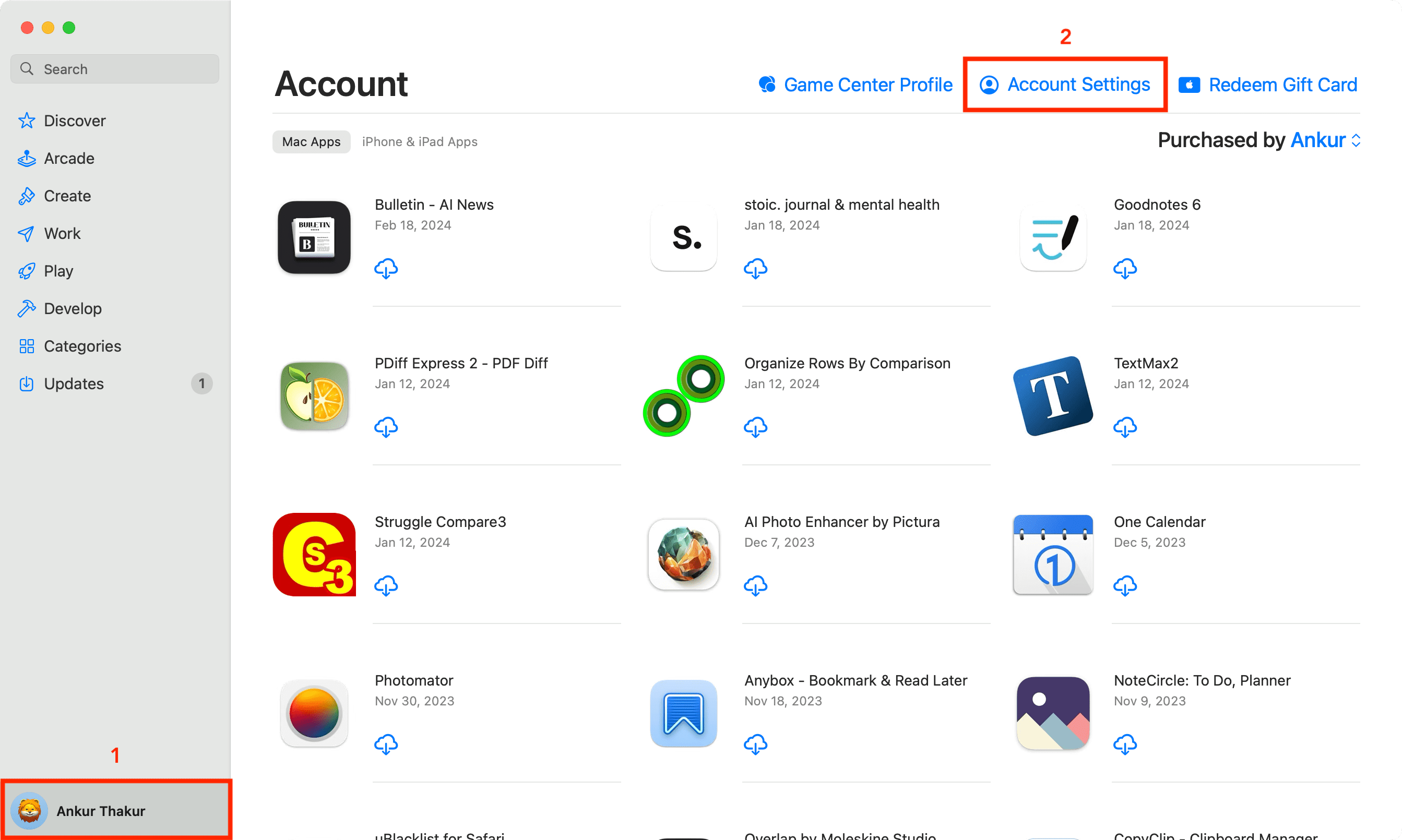
1) Launch the App Store on your Mac and click your name from the bottom left corner of the screen. If you’re not signed in, do that first.
2) Click Account Settings from the top, and authenticate using your Apple Account details if prompted.
3) Click Subscriptions. On older versions of macOS, scroll down and click Manage next to Subscriptions.
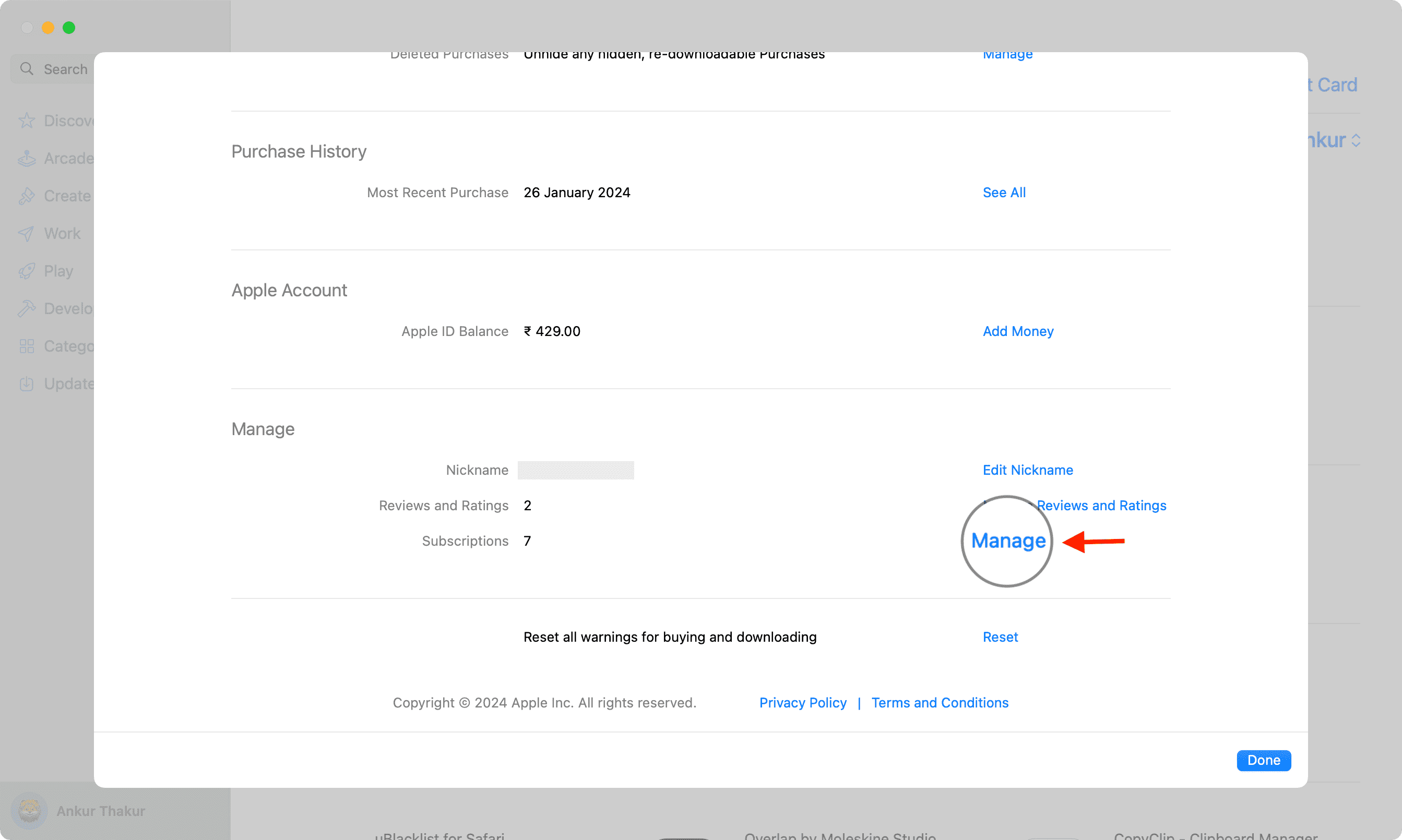
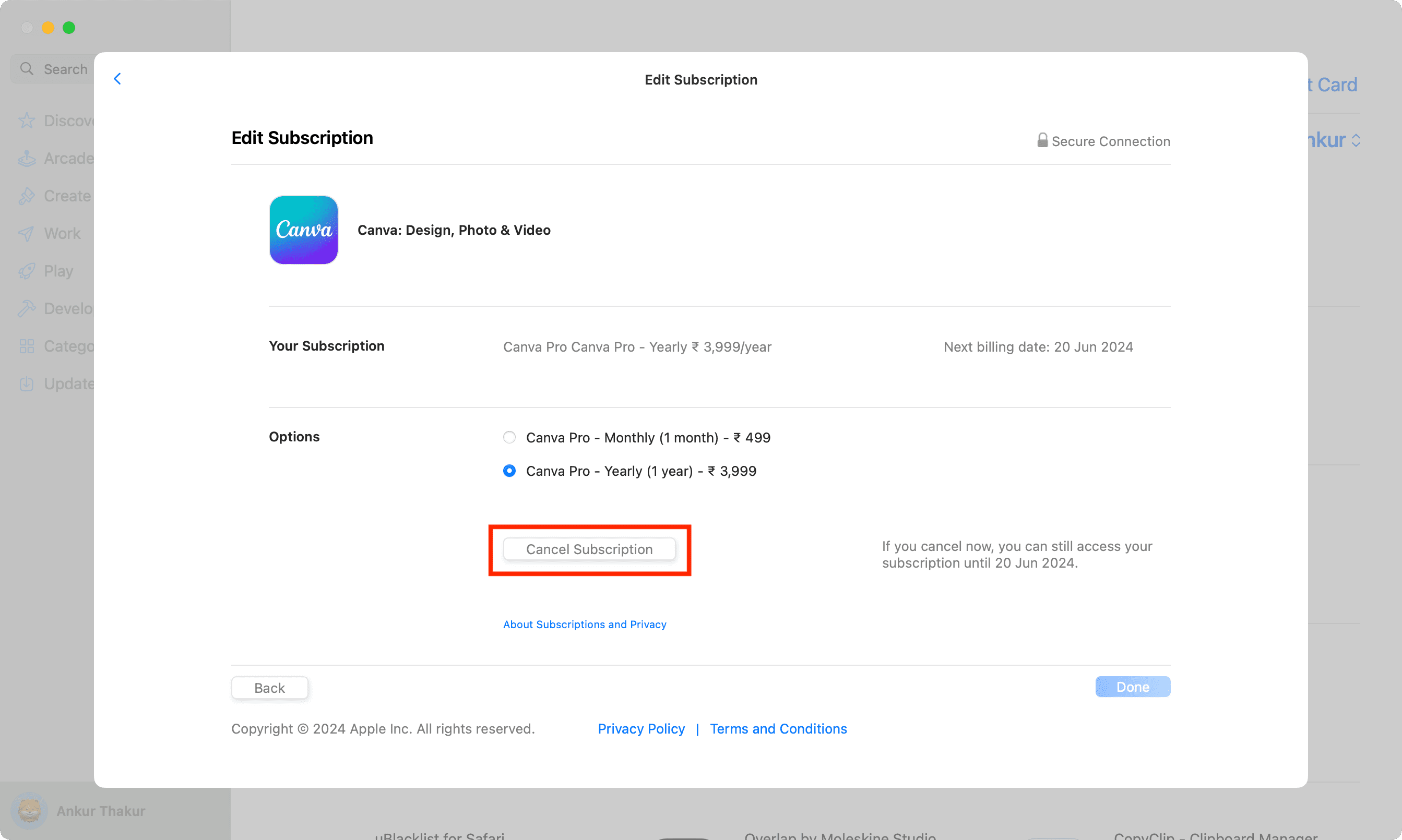
4) Select the subscription. On older versions of macOS, click Edit next to the active subscription you want to cancel.
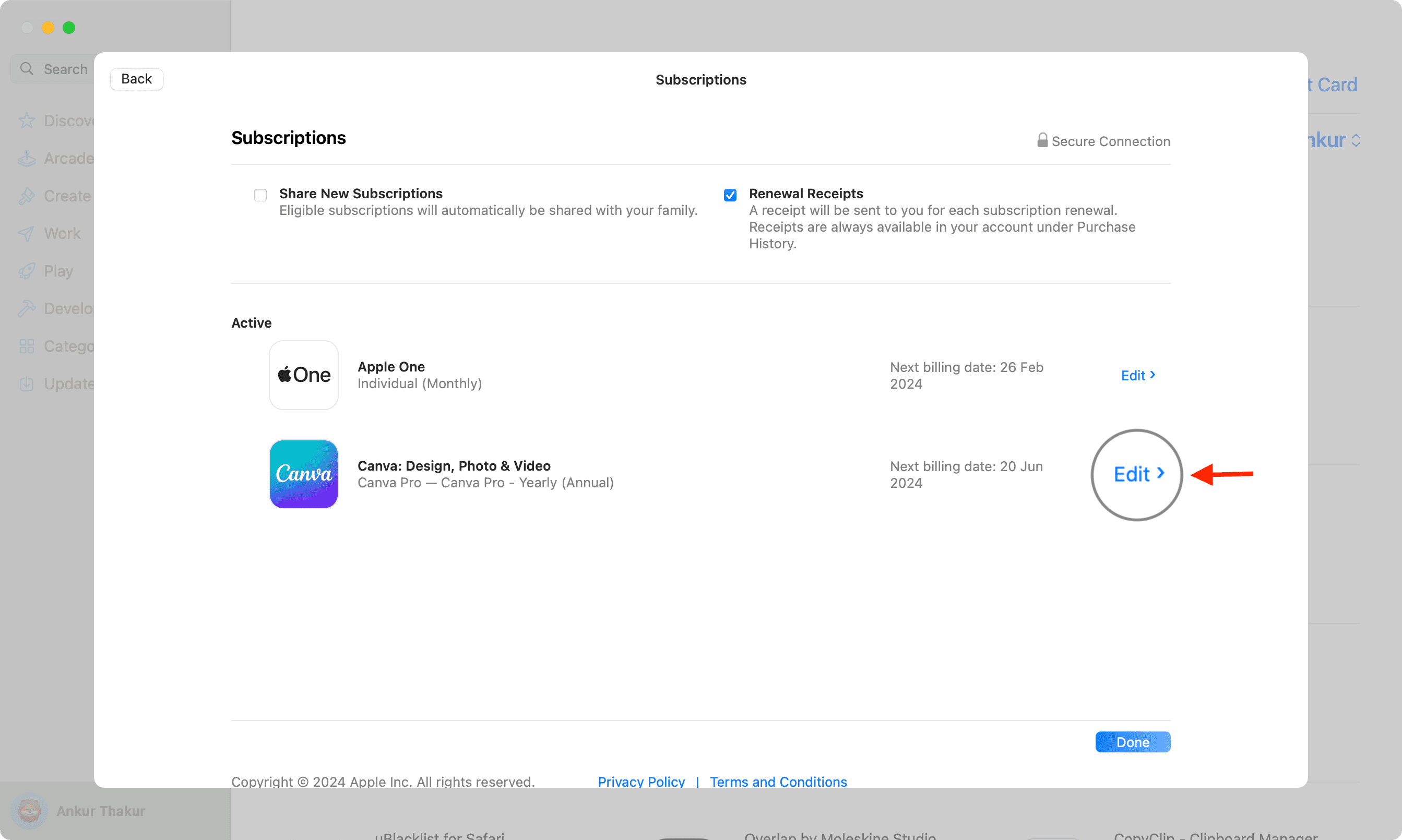
5) Click the Cancel Subscription button and confirm.
It’s very easy to miss these $0.99 or $1.99 fees charged to your account every now and then, which is why it’s a good idea to check your subscriptions from time to time and make sure you are indeed using everything you are paying for.
On a related note: