Learn how to turn on bold text on your Apple TV to switch to a much heavier font that makes it easier to read things throughout the user interface.
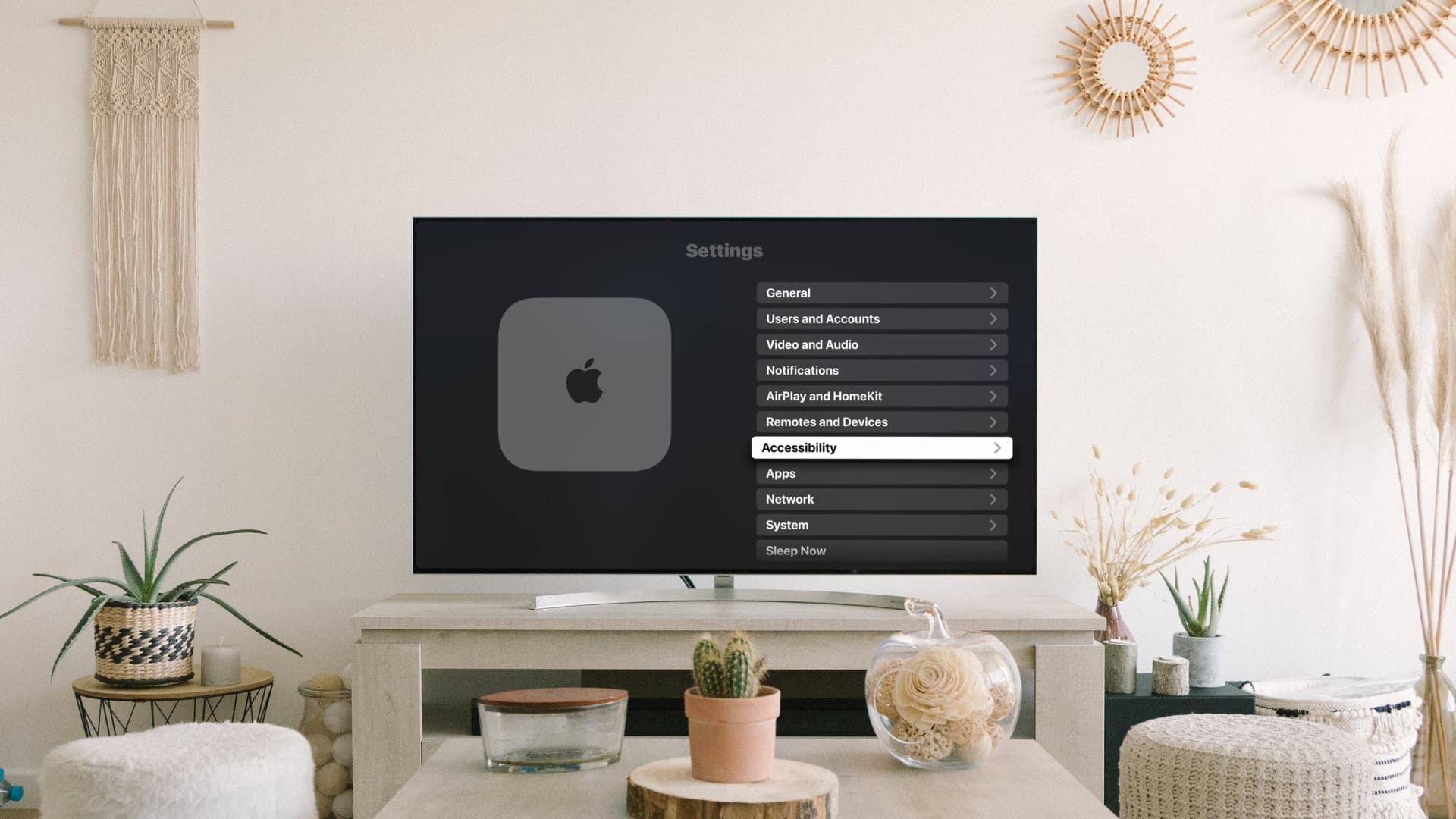
Apple TV defaults to using a light typeface.
If your vision isn’t what it used to be, light typeface makes the text hard to distinguish from background shading, even if your box is hooked up to a really big television screen.
To help with that, the Apple TV software offers a heavier font option, making the text easier to read. Plus, with tvOS 27, you can even make the text a lot bigger.

Before we get to it, we should point out that this nifty little feature is supported on any Apple TV model from the fourth-generation model onward.
Enable bold text on your Apple TV
- Open the Settings app.
- Scroll down the list of options and select Accessibility.
- Select Display.
- Select Bold Text and change it from Off to On.
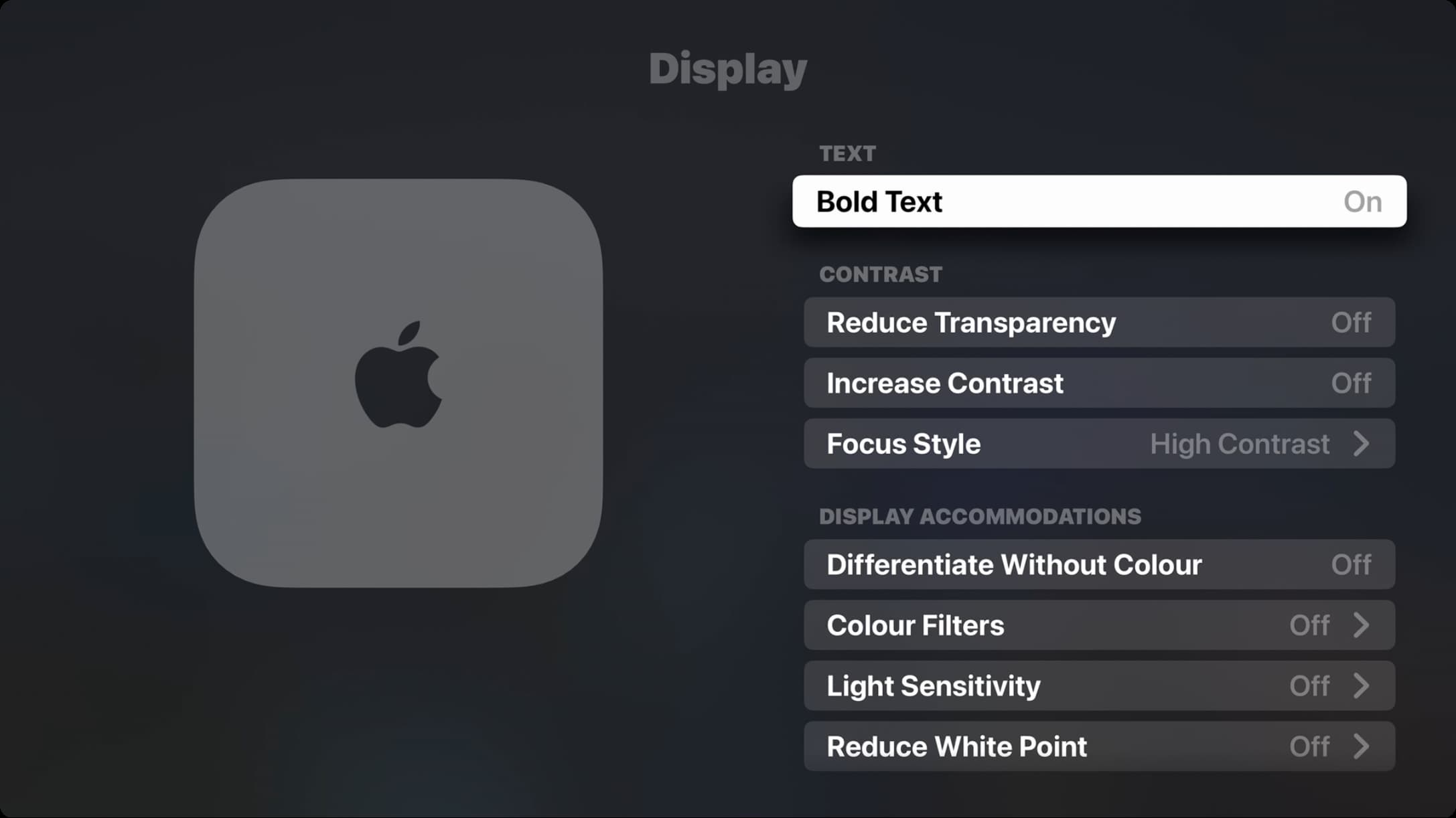
With the bold text option turned on, tvOS replaces the light San Francisco typeface with a much heavier variant across the interface, including places like the Settings app, your Apple TV Home Screen, and other places where text is displayed.
Note: If you’re on an older model of Apple TV running an earlier build of tvOS, go to Settings > General > Accessibility. From here, highlight the Bold Text option, then press the Touch surface on your Siri Remote. A message pops up saying enabling the bold text option will require a restart. Click Continue if you’d like to enable this option.
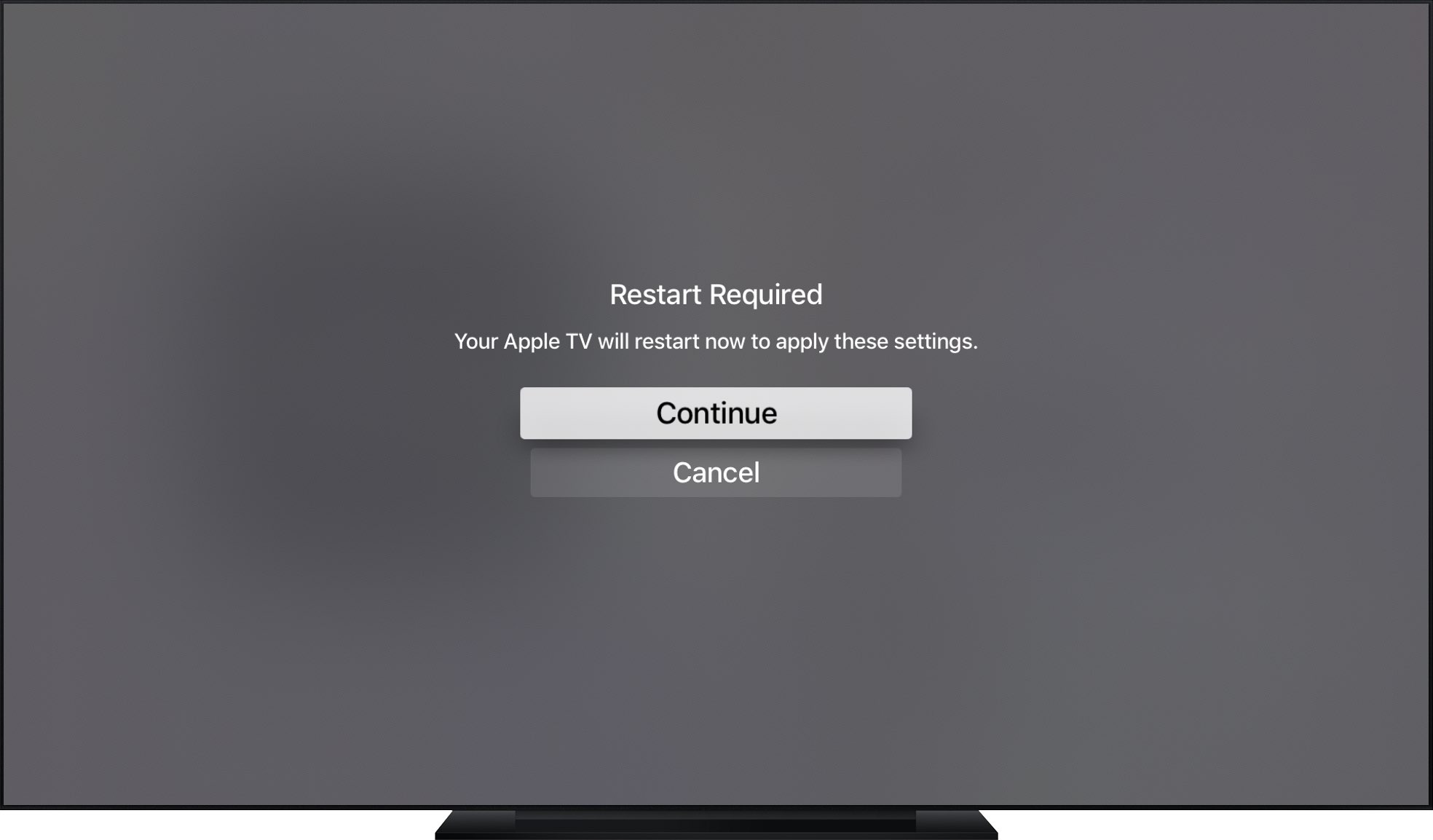
If you don’t have 20/20 vision or simply find the light San Francisco font ineligible, especially against darker backgrounds, go bold for easy-to-read text.
Do you have difficulty discerning whether a Home Screen icon is selected? If so, how about putting a nice glow effect around tvOS’s selection rectangle by enabling a high-contrast cursor?