Amazon keeps a history of everything you look at on their platform, and in this tutorial, we’ll show you how you can hide or remove items from your browsing history using the Amazon app or website. We’ll also show you how to stop the shopping giant from saving your browsing history.
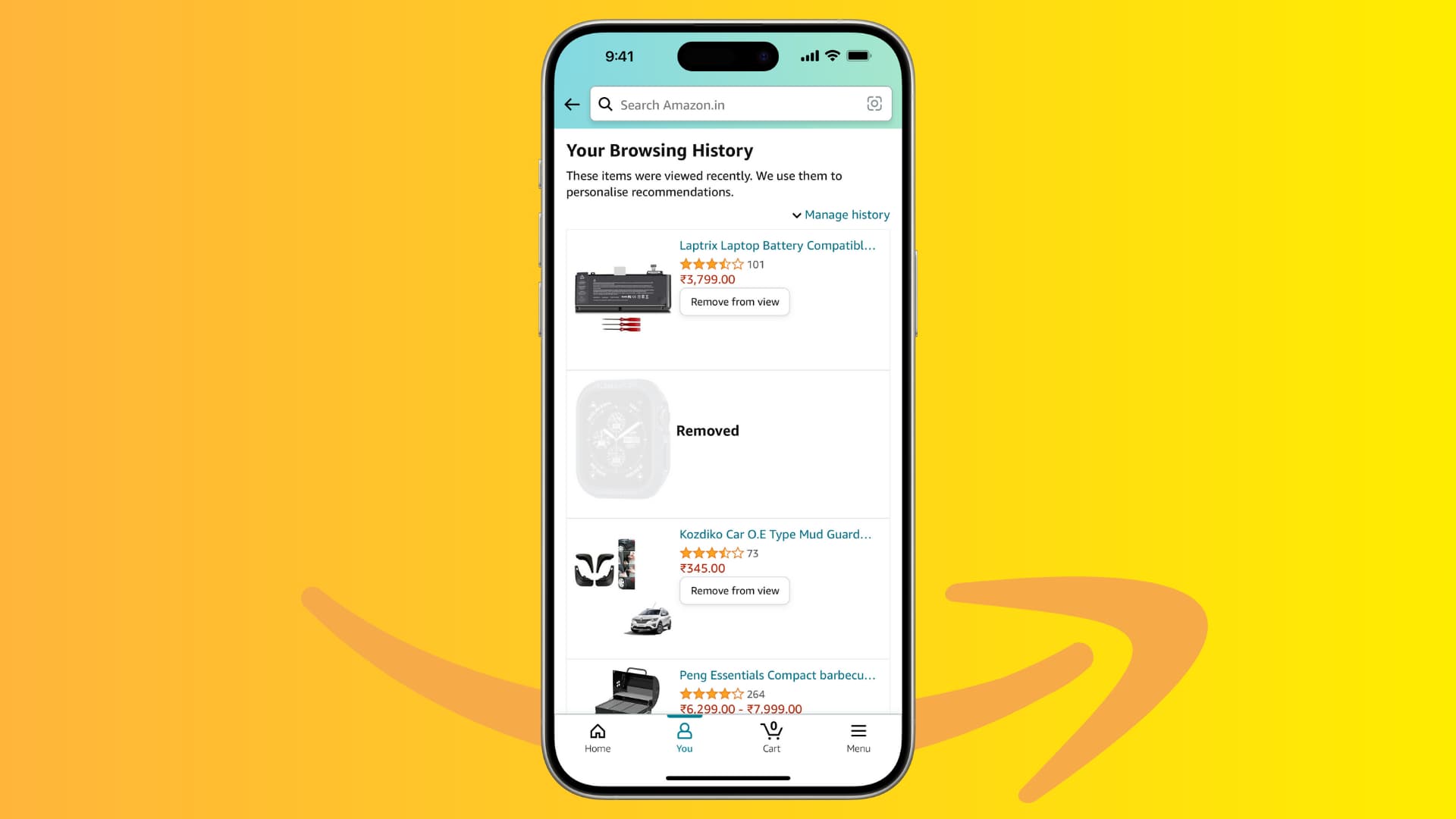
If you use Amazon for holiday gifts, then having a constant window into everything you’ve looked at recently may prove to be a spoiler for anyone who uses the same computer or account as you. Others might just not want to have a trail of what they’re looking into purchasing.
Amazon uses your history to personalize your recommendations, and removing items from there may affect it. But at the end of the day, everyone has their own privacy reasons for covering their tracks, and they will vary from one person to the next.
Remove individual items from your Amazon history
Starting small, perhaps you just want to remove one specific item from your Amazon browsing history and not everything. To do that, follow these simple steps on your phone or computer.
From the app
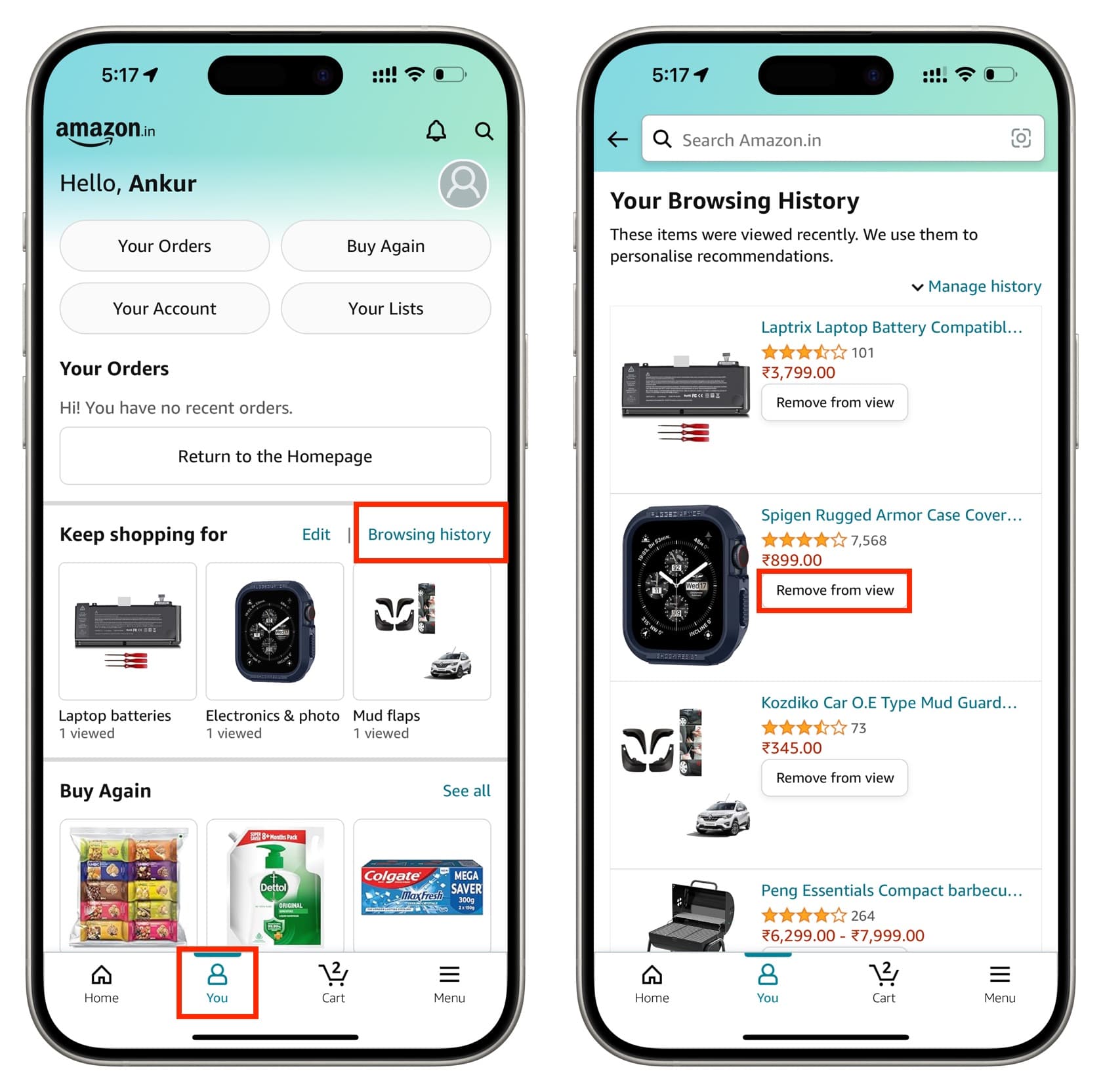
- Open the Amazon app and tap You from the bottom.
- Tap Browsing history next to ‘Keep shopping for.’
- Tap Remove from view for an item you no longer want in your Amazon browsing history.
From the website
- Visit the Amazon browsing history at amazon.com/gp/history. If you’re in a different country, changing com with your country’s Amazon domain extension like ca for Canada, fr for France, co.uk for England, and com.au for Australia, should do the trick. Alternatively, you can scroll to the bottom of your Amazon homepage and click ‘View or edit your browsing history’ next to ‘Your browsing history.’
- When the page loads, scroll through your history results and find something you want to hide from your history.
- Click the Remove from view button underneath the item to get rid of it from your browsing history.

Remove all history items
If, instead of removing only one item from your browsing history, you want to remove everything, then you can do that as well.
- Access your Amazon browsing history in the app or website by following the steps above.
- Hit the gear icon at the top and tap the Remove Items button under the “Remove all items from view” section. Now, all of your browsing history will be deleted from Amazon, so you won’t have to delete everything individually.

Turn off your Amazon browsing history
If you want to hide all your browsing history on Amazon, you can turn it off so Amazon doesn’t keep track of it anymore.
- Access your Amazon browsing history in the app or website.
- Tap the gear icon at the top right.
- Now, pause your history for today, 3 days, 1 week, or 2 weeks. In case you want to turn off browsing history permanently, tap the “More Settings” and turn off Browsing History.

These methods can help you increase your personal privacy when using Amazon on a shared machine. Do you have any reason to hide your Amazon browsing history? Share in the comments below!
On a related note: How to hide an Amazon order from your purchase history