Learn how to set the Activity and Workout apps on your Apple Watch and the Fitness app on your iPhone to display the energy unit in Kilojoules (KJ) instead of Calories (CAL).
Apple’s stock metrics for distance, size, and weight are well known to vary from region to region. They are decided upon and essentially anchored in the system settings the moment you set up your iPhone or Apple Watch for the first time and select your region.
For the Western world, it largely boils down to the Imperial system cultivated in the US or UK versus the Metric system used in Australia or large parts of Europe. On that note, our iPhones and Watches also come out of the box thinking differently about the process of burning body weight.
Depending on your region, your devices’ Fitness or Activity and Health apps are programmed to measure daily and weekly Move goals, but also Workouts in either Calories or Kilojoules. Since this is often a personal preference based on how you count your nutritional intake, the following tutorial will show you a quick way to adjust this key setting right from your wrist or iPhone.
Once you have changed the energy units from Calories to Kilojoules on your Apple Watch or the companion iPhone, the Workout, Fitness, and Activity apps will show the numbers in KJ (kilojoules) instead of CAL (calories).
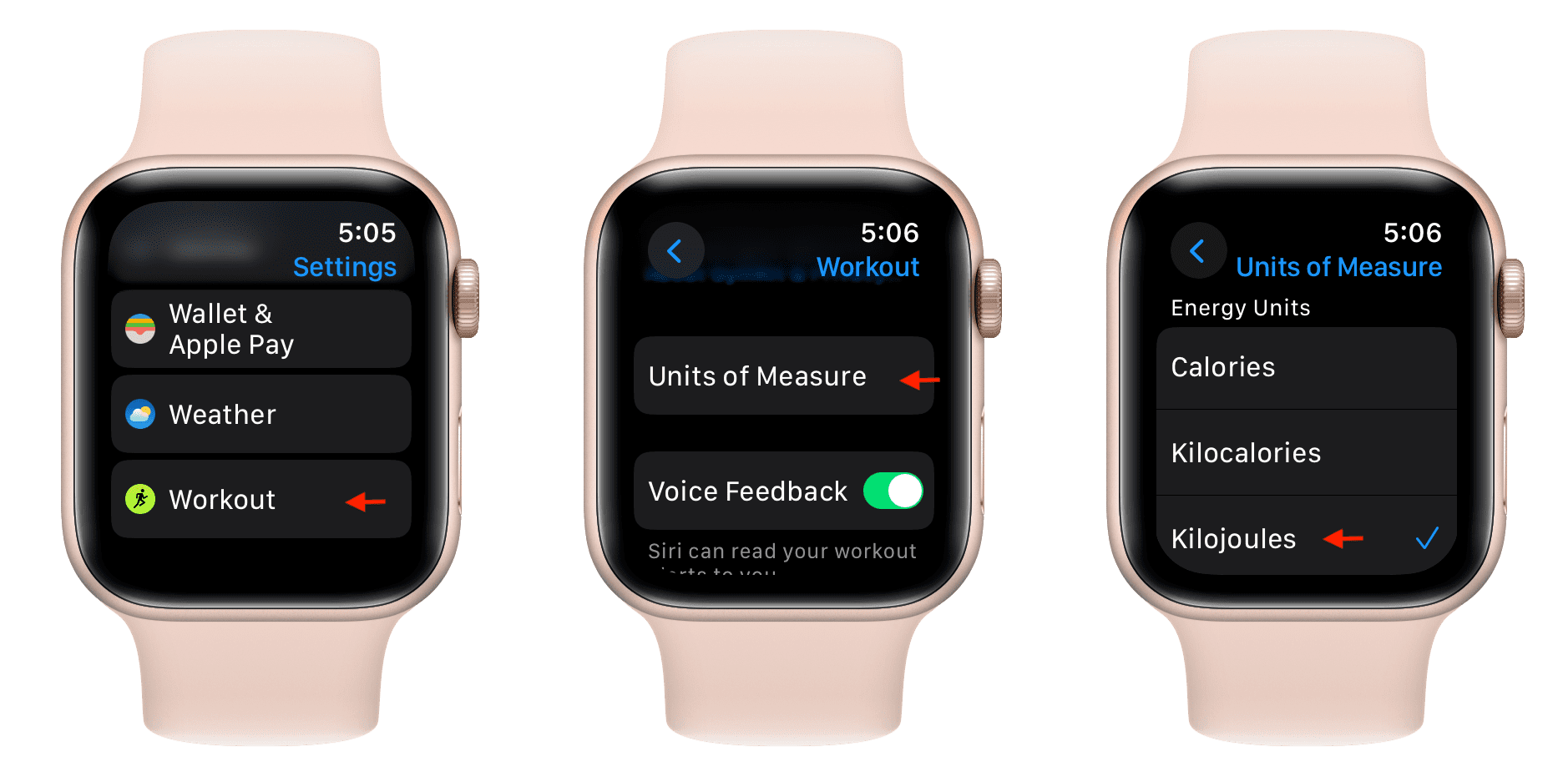
From watchOS settings
- Open the Settings app on your Apple Watch.
- Scroll to the bottom and tap Workout.
- Swipe down and tap Units of Measure.
- Select Kilojoules instead of Calories or Kilocalories.
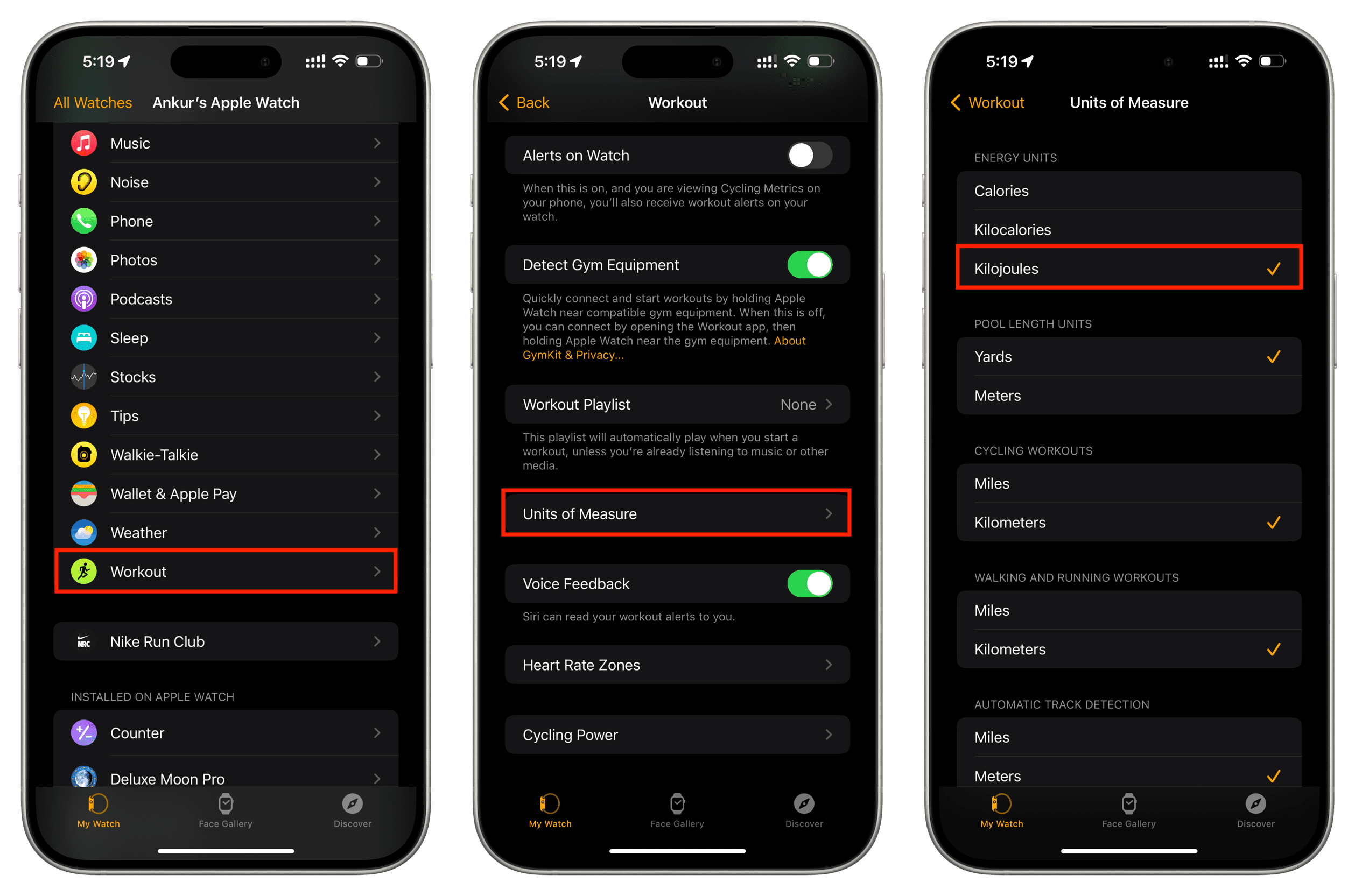
From your iPhone
- Open the Watch app and tap Workout from the My Watch section.
- Tap Units of Measure.
- Put a check mark next to Kilojoules under the Energy Units heading.
Try it out; you don’t have to play the hand you’re dealt by Apple when it comes to exercise.
On a related note: