Learn how to use Screen Time parental restrictions on your or your child’s iPhone and iPad to prevent accidental app deletions or block downloading new apps.
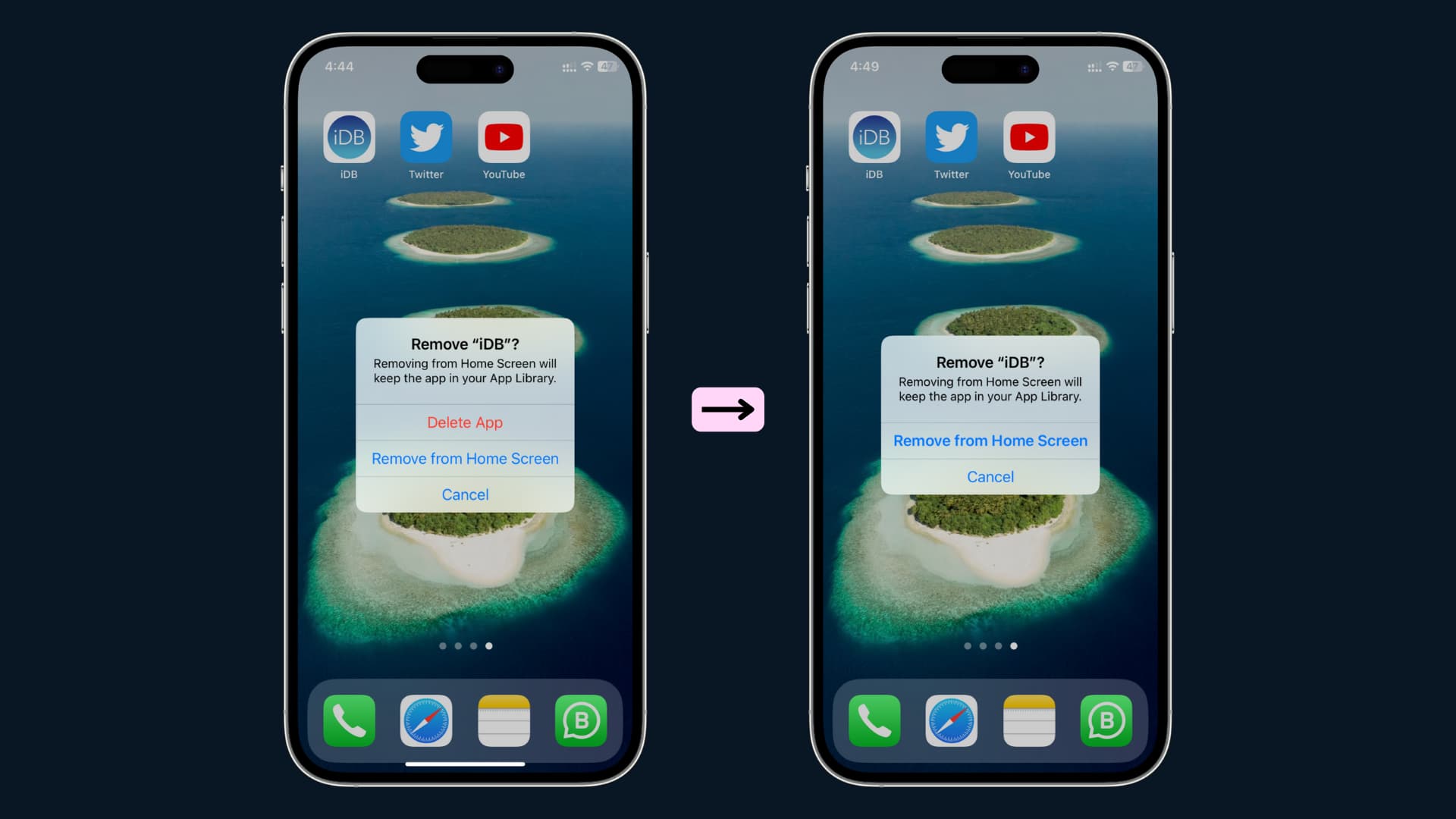
I was recently setting up my nephew’s iPad with his favorite apps. After I finished with YouTube Kids, Dr. Panda, PBS KIDS Games, and other similar apps, I disabled his ability to delete existing apps or download new ones from the App Store.
This ensures he can use only the approved applications, and I can stay worry-free knowing he won’t be able to download anything that’s unsuitable for him.
The steps on iOS 27 differ slightly depending on whether you’re following them on your iPhone or directly on your child’s device.
On devices running iOS 27 or older
1) Open the Settings app and tap Screen Time.
2) Tap Lock Screen Time Settings and set a Screen Time passcode that’s different from the device passcode. Don’t tell this passcode to your kid. If you already have a Screen Time passcode set up, you’ll see “Change Screen Time Passcode” instead, in which case, move to the next step.

3) Tap Content & Privacy Restrictions, and make sure its switch is enabled. Then, tap iTunes & App Store Purchases and enter the Screen Time passcode to get inside.

4) To prevent apps from the App Store from being installed on this device, tap Installing Apps and set it to Don’t Allow. Enter the Screen Time passcode again if asked.
5) To prevent apps from being deleted, go back, tap Deleting Apps, and select Don’t Allow.

On your child’s device running iOS 27
1) Open the Settings app and tap Screen Time.
2) Tap Apps & Websites at the top.

3) Tap Restrictions.
4) Set Installing Apps and Deleting Apps to Blocked. You can also block in-app purchases from here.

Disabling the ability to delete apps from the device removes the Delete App button from the Home Screen when you touch and hold an app and select Remove App.
Disabling app installations removes the App Store icon from the Home Screen, App Library, and Spotlight Search.
To reverse this, simply follow the above steps and choose Allow or Allowed instead of Don’t Allow or Blocked. You can also turn off Content & Privacy Restrictions altogether, which will disable all such limitations.
Other tips to manage your child’s device: