Try these troubleshooting tips if your iPhone or iPad won’t join or connect to a Wi-Fi network and you can’t use the Internet on your device.
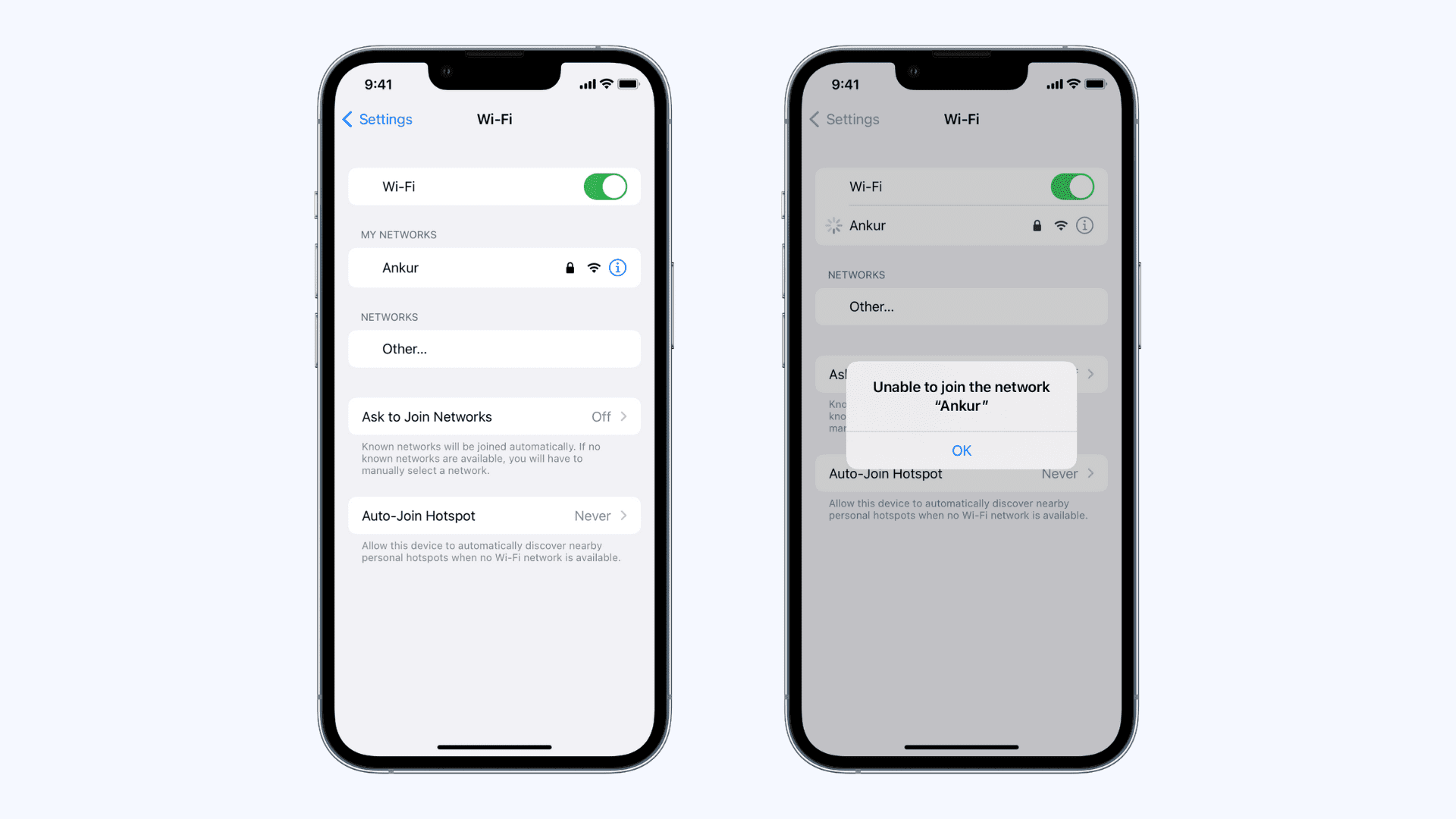
Most Wi-Fi problems are minor and easy to fix; other times, they can stem from a more significant issue.
Nevertheless, the steps we’re about to walk you through are typically all you’ll need to do to get yourself up and running again.
Are you in Wi-Fi range?
If your home or office has a lot of metal, walls, or other objects that could interfere with wireless signals, you might have a shorter range bubble than you think.
You can check your signal by looking in the Status Bar: three Wi-Fi bars are optimal, two mean okay, and one is poor. Sometimes you might have none at all, and it will show 5G, LTE, 4G, 3G, or E instead; this indicates you’re on a cellular network instead of Wi-Fi.
When the Wi-Fi signal is too poor, your iPhone or iPad will have trouble transmitting data back and forth with the router, so make sure you’re close enough to it.
Is Wi-Fi turned on?
If Wi-Fi is disabled on your iOS device, that could be the main reason you can’t connect.
Although it’s uncommon, a reset switch or power surge may have knocked it off, causing the router to shut down and now need a restart.
If everything appears to be turned on, move on to the next step.
Does your network show in your Wi-Fi settings?
If you know everything is turned on and that you’re close enough to the wireless router but still don’t have an active Internet connection, then make sure you’re actually able to see the Wi-Fi network in Settings > Wi-Fi.
From here, turn off the Wi-Fi toggle and then turn it back on. After that, tap the network name, and it should connect successfully.
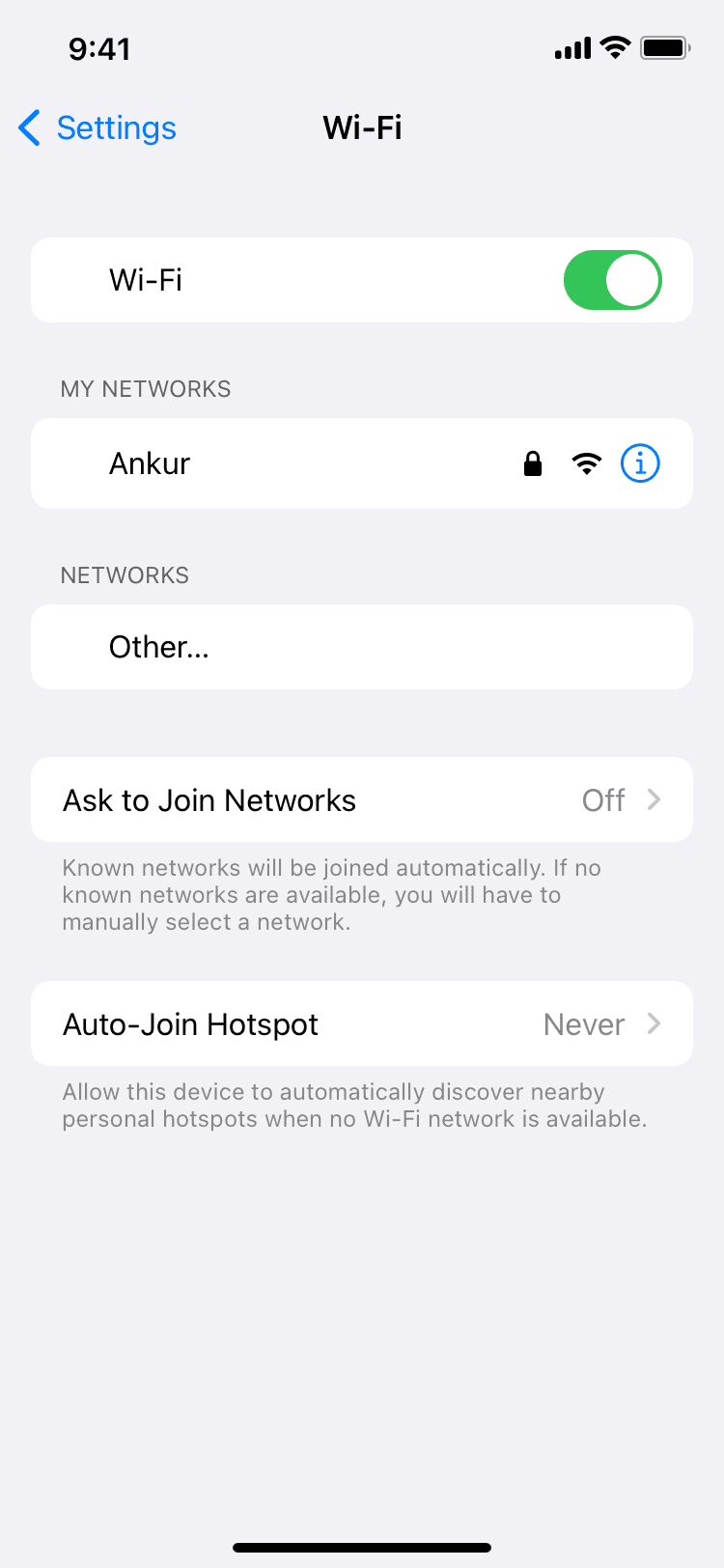
It’s possible that a network administrator has turned off the SSID broadcasting setting on the wireless router, and this could be why you’re unable to connect to your Wi-Fi network as usual.
If they’ve done this, you won’t see the Wi-Fi network under the list of available networks, and you’ll have to enter the SSID manually, along with the Wi-Fi password, if applicable.
If this doesn’t apply to you, keep moving down the list to the next step.
Have you logged on to the network?
You may have accessed the Wi-Fi network, but you’ll need to enter a password if your Wi-Fi network is protected with a security key. In most cases, you’re asked to enter the security key the moment you join a secured network.
In other cases, you might be accessing a Wi-Fi network where you need to open Safari on your device and try to load a website. When you do, you’ll be redirected to a login portal. These kinds of networks are common in schools, colleges, and institutions.
Once you’re all logged on to the Wi-Fi network, try to use it again and see if you have full Internet access.
If password entry wasn’t the root of your problems, continue on to the next step.
Is everything plugged in properly?
Okay, so you might have looked to make sure that the router is turned on, but did you check your modem, power cables, coaxial cables, and Ethernet cables to make sure that everything is connected?
Sometimes, pets, movement of furniture, and kids can accidentally undo important wiring. In cases where wires are disconnected, the Wi-Fi router may still broadcast a signal, but it’ll be a dead signal because the router may not have access to your Internet.
This is common when the modem is unplugged, but the router isn’t. Many modern routers, such as those given out by Verizon, have a modem built into them. For those, the only thing you really need to check is that the coaxial connection is there, because if the power cable wasn’t, the router wouldn’t even be on, and you wouldn’t have gotten past step 2!
If everything is plugged in, try the next step.
Restart everything
In some cases, the iOS device, router, or modem may be acting up. Try restarting everything.
To restart your iPhone or iPad, simply turn it off, wait for a minute, and turn it back on.
For your modem or router, typically all you need to do is unplug the power cable and wait a minute for the capacitors to drain. After a minute, plug everything back in and turn on your iOS device. Once everything boots up, try reconnecting to your network.
In many cases, this solves the problem. If it doesn’t, don’t fret; there are more things you can try!
Reset network settings
It’s fairly rare, but your iOS device’s network settings can become corrupted.
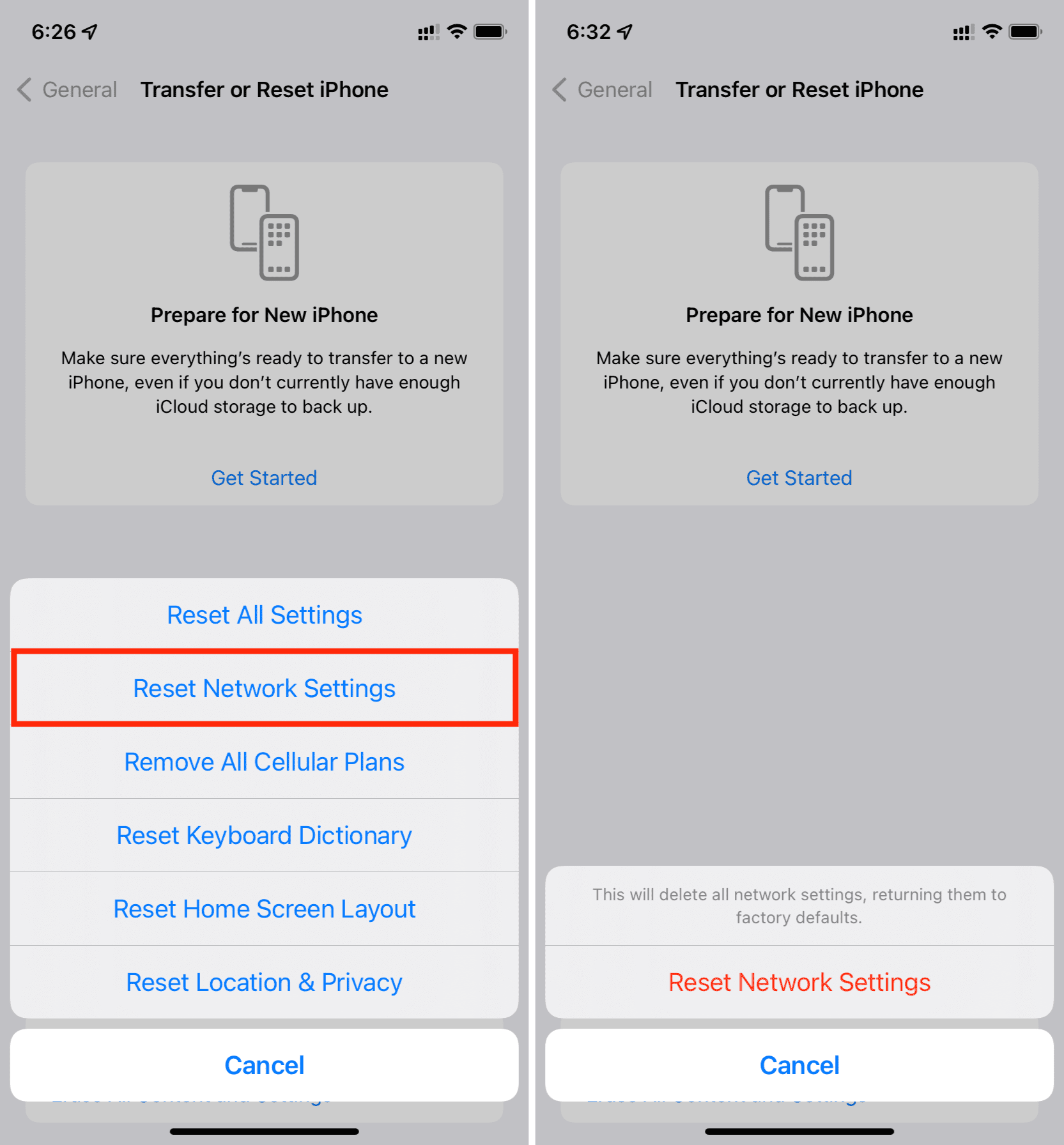
iOS includes an option under Settings > General > Transfer or Reset iPhone > Reset called Reset Network Settings.
If all else fails, tap on this button and let iOS forget all of your network settings. You’ll have to reconfigure any VPNs, Wi-Fi networks, and other network-related information, but it gives you a clean slate to start from in case you have been suffering from some kind of corruption.
Other options to try
In many cases, the steps above should fix your problem. However, a few limited scenarios could affect a small number of people. Here are some additional pieces of advice we can provide:
Ask for assistance
If you didn’t set up the network and someone else did, ask them for help. The Wi-Fi network may be set up to allow only specific devices, and you may need to ask the administrator to join.
Contact your ISP
In some cases, your Wi-Fi and devices work fine. Your Internet service provider may be experiencing a temporary hiccup they can fix on their end. Contact them to see if they can help.
Try another Wi-Fi network
To narrow down whether the issue is with a specific network or your device, try connecting to another Wi-Fi network. If another Wi-Fi network works, you know the problem is with your specific network. If none work, try contacting Apple for more help.
Update your wireless router and iPhone
Make sure your wireless router is up to date and is using the latest firmware. Outdated hardware or firmware can cause incompatibility issues, especially with some of the latest high-speed devices available today. You can usually check for updates after logging in to your router from the web browser utility. While you’re at it, also make sure your iPhone and iPad are updated.
Disable any VPN or Proxy
Sometimes, a bad VPN or proxy could be inhibiting your web access. In this case, it’s not really your Wi-Fi network’s fault. To address this, turn off the VPN if you’re using one.
Most Wi-Fi problems are small and easy to fix. But sometimes it’s a much bigger problem that you’ll need help to fix. Most of the time, rebooting your router or getting in range will solve your problem.
If you’ve had success solving Wi-Fi problems on your device another way, share in the comments below!
Also, check out: How to fix cellular data not working on iPhone or iPad