Learn how to restart an iPhone or iPad without using any physical buttons, handy when the power or volume buttons start malfunctioning.
Restarting or rebooting turns a device off and then back on. It’s a common troubleshooting step when fixing issues encountered on electronic devices.
If your iPhone’s power, side or volume buttons are damaged, malfunctioning or don’t register presses for whatever reason, you can restart your iPhone or iPad in other ways that don’t require physical buttons.
Also see: How to force restart your iPhone or iPad
Settings app
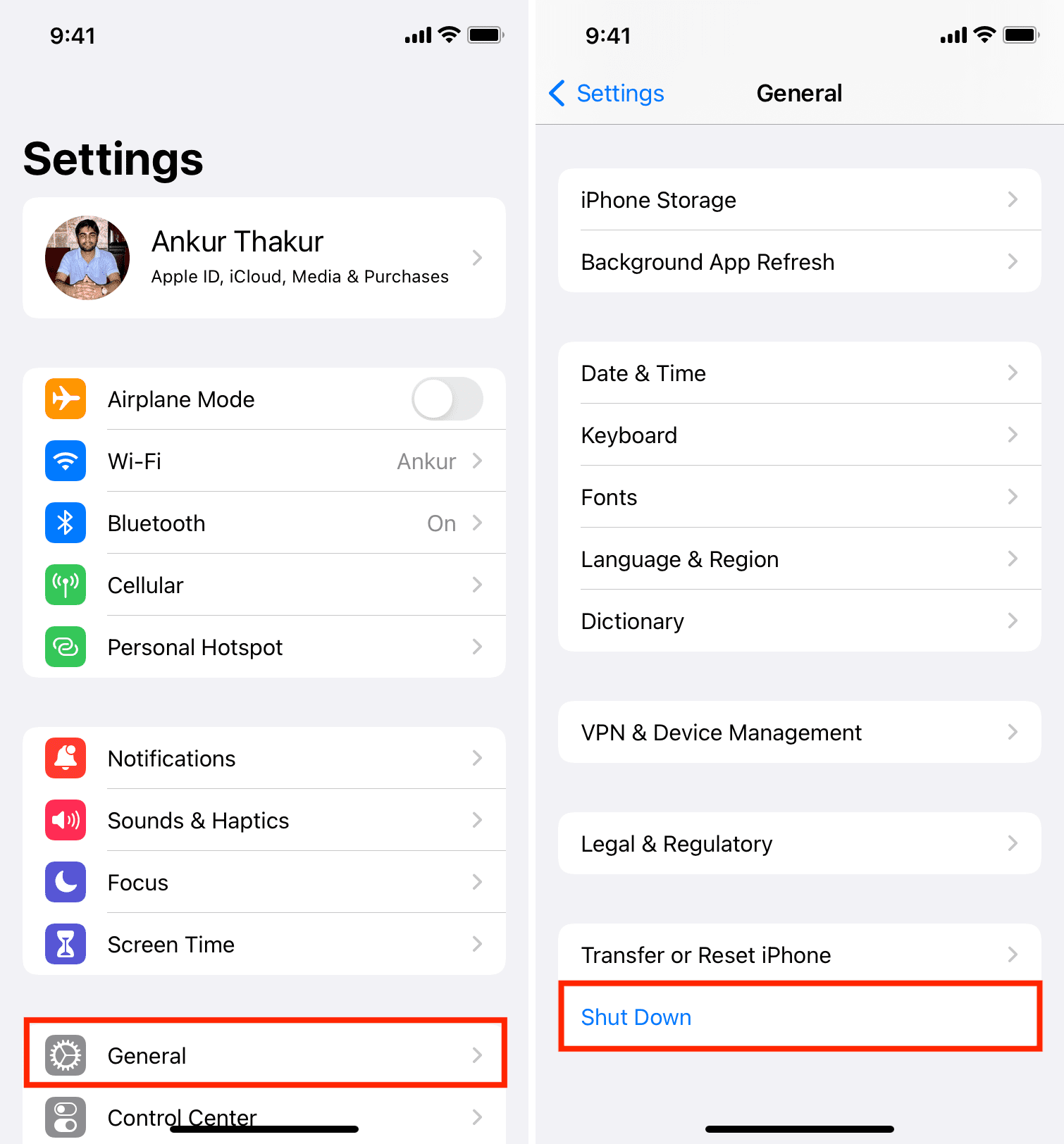
Open the Settings app, select the General option, tap Shut Down at the bottom, and drag the power slider to the right to turn off your iPhone. To turn it back on, just plug the device into power. Doing so will automatically start it up.
AssistiveTouch
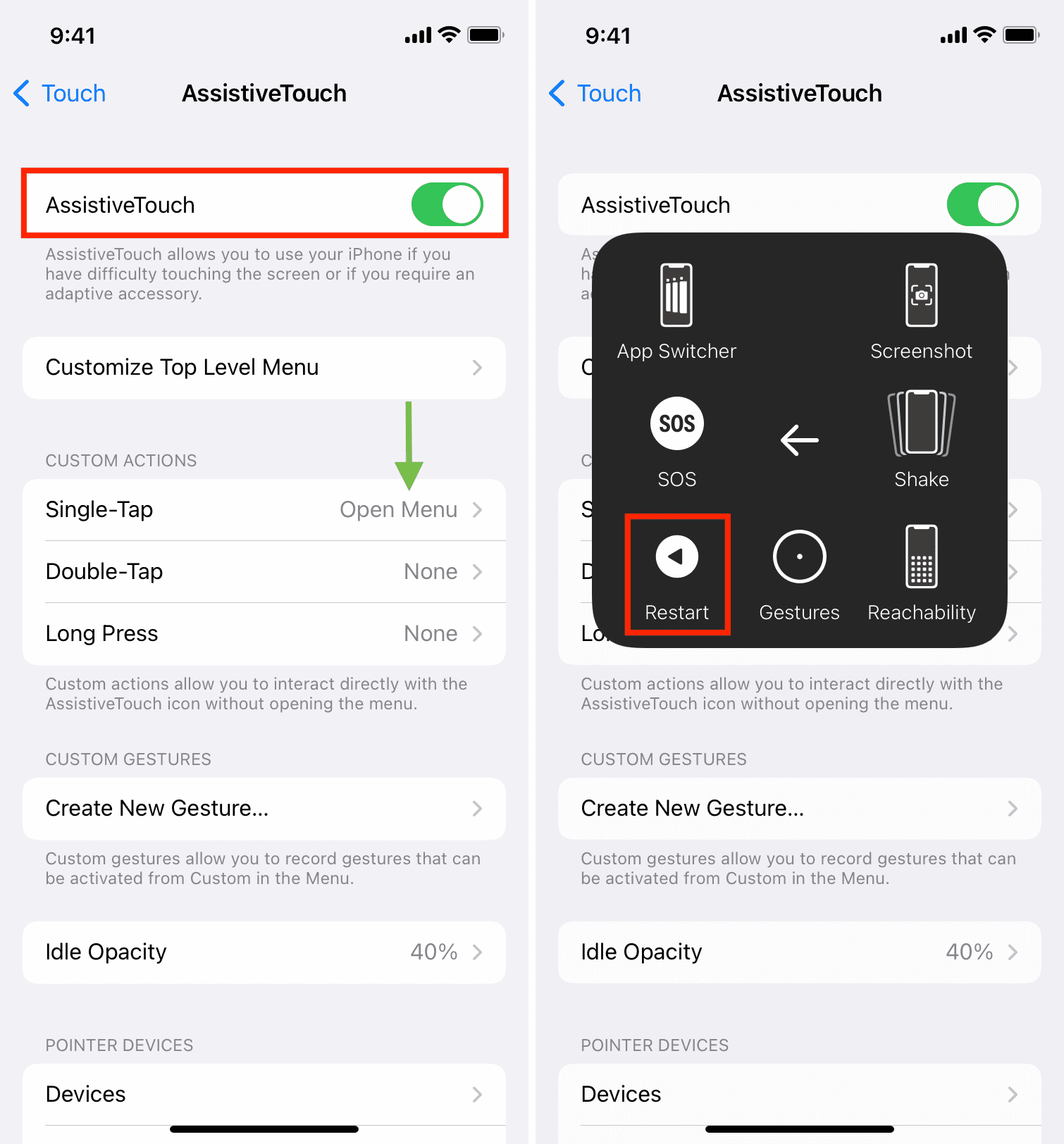
You can perform handy actions with AssistiveTouch like restarting. Go to Settings > Accessibility > Touch > AssistiveTouch, then turn on AssistiveTouch. A semi-transparent circular button should appear on the screen. Next, check that the Open Menu action is selected for the Single-Tap, Double-Tap, or Long Press gesture. You can also choose Restart instead of Open Menu. And that’s it—you can now tap, double-tap, or long-press the AssistiveTouch button and choose Device > More > Restart > Restart from the menu.
Drain and recharge the battery
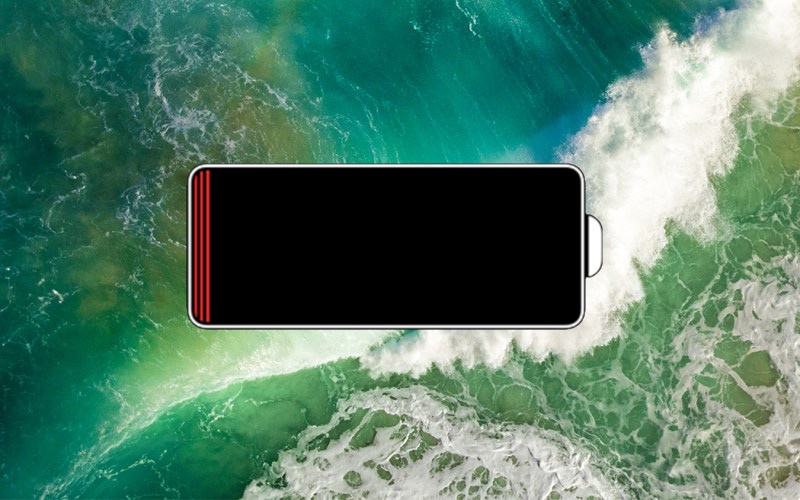
Allowing the battery to fully discharge will obviously shut down your iPhone. Conversely, plugging the device into power will automatically restart it. To make the battery drain faster, go to an area with poor cellular reception, or crank up the display brightness, or use a demanding app like Pokémon GO in augmented reality mode. Discharging the battery is an effective method, but requires patience. It’s kind of a double-whammy, too, because you’ll also need to wait until the device recharges after rebooting.
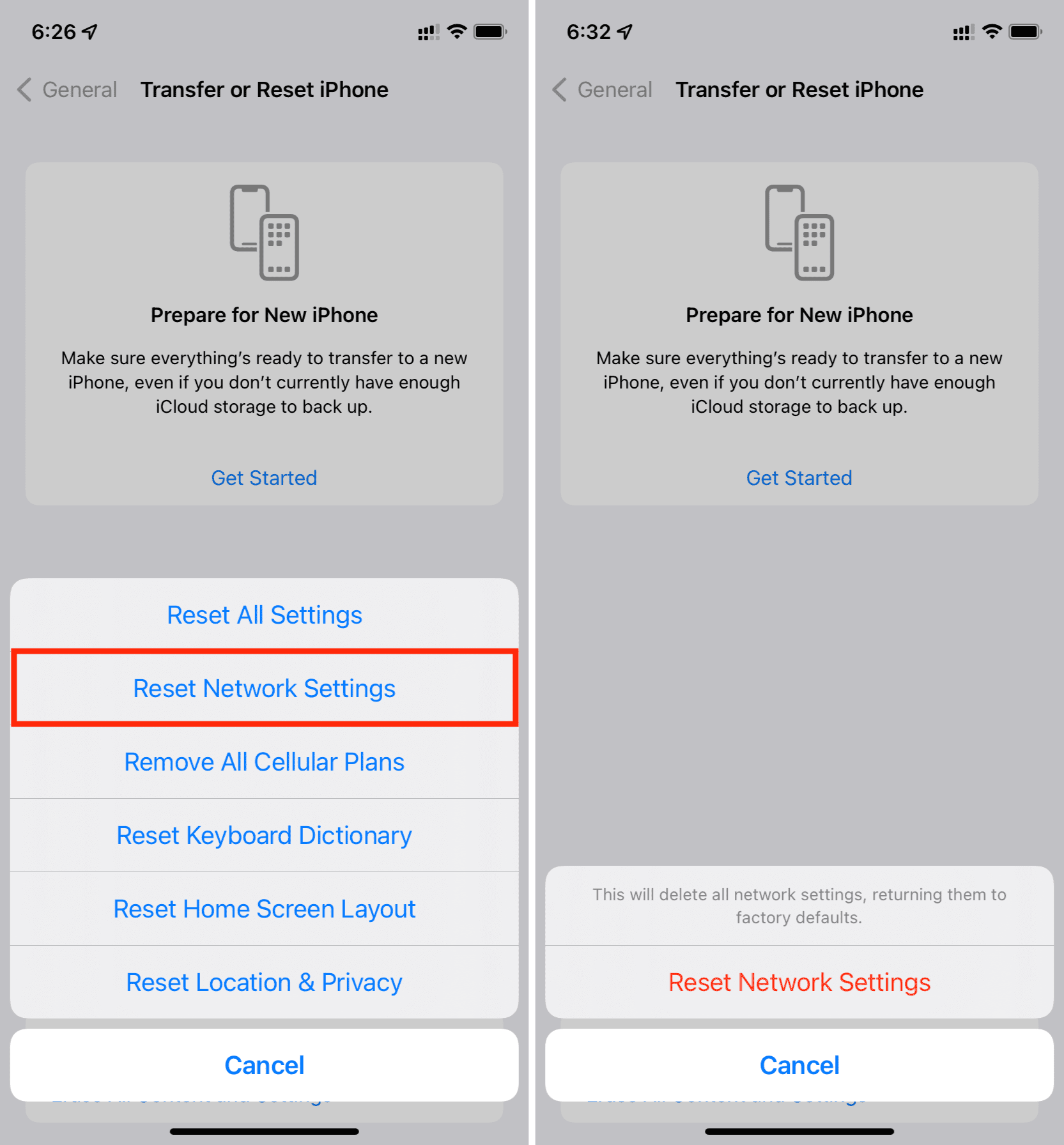
Reset network settings
Resetting network settings will also reboot your iPhone but you’ll need to retype your Wi-Fi passwords and re-pair any Bluetooth accessories.
Jailbroken users have a bit of an edge. Not only can you reboot a jailbroken iPhone without physical buttons but you won’t have to waste time waiting for the battery to drain or reset your network settings. Start by downloading Ryan Petrich’s popular jailbreak tweak, called Activator, from Cydia’s BigBoss repository. With it, you can assign a reboot action to any Activator gesture. Tap the Activator app icon on the Home Screen to launch the app. Choose the Anywhere option, then pick a gesture such as Double Tap and select the Reboot action near the bottom of the list.
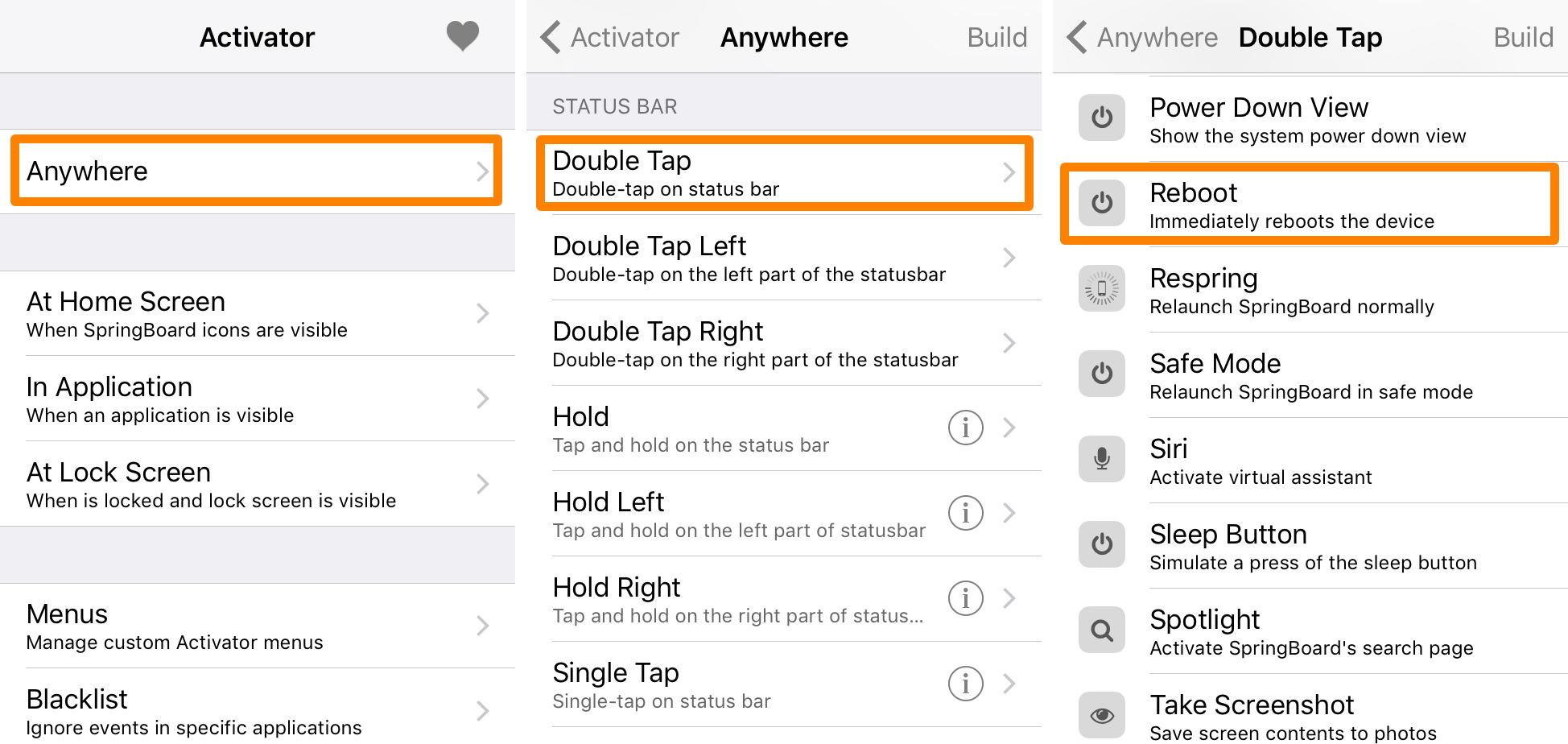
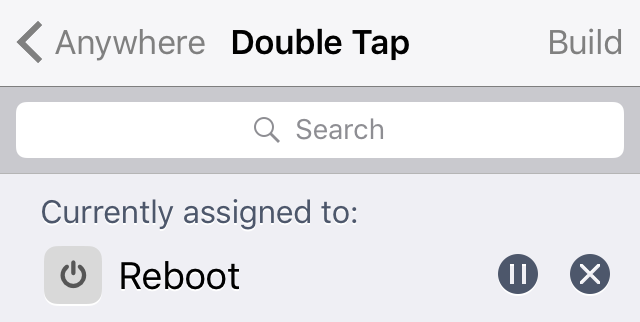
You have now assigned the double-tap gesture to the reboot action. Simply invoke this gesture and your iPhone should restart. Be patient as your device shuts down and then reboots. If you’re using a semi-untethered jailbreak, don’t forget to boot semi-untethered!
Also, check out: