Learn how to restrict all websites except for a few specific ones of your choosing on your or your child’s iPhone and iPad.
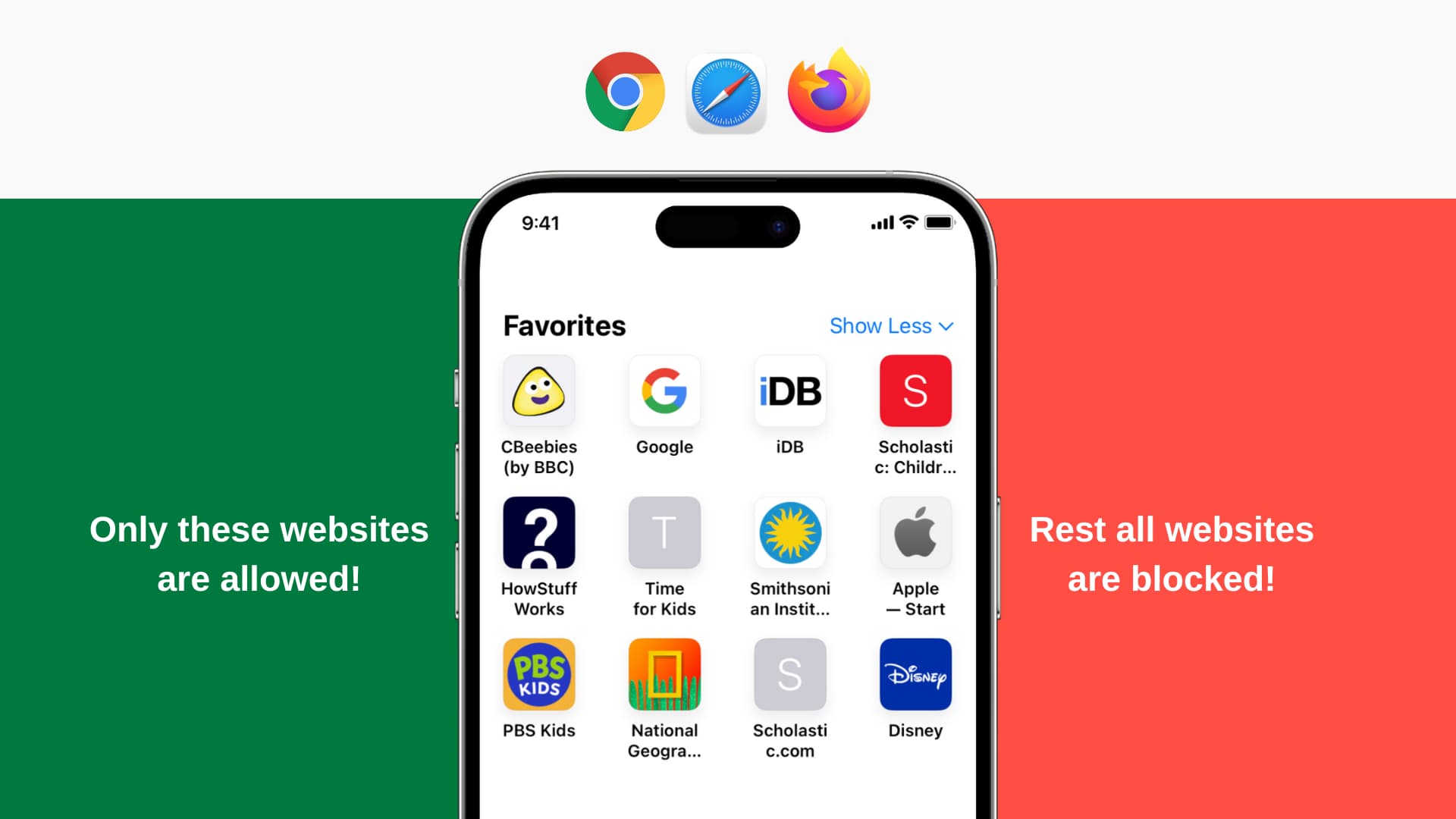
You can stop unrestricted website access in Safari, Google Chrome, Firefox, and third-party browsers on your iPhone or iPad and set them to only load websites you permit.
You may want to do this so your kids can only access a limited number of websites, such as their school’s webpage, Wikipedia, and Scholastic.
If they try to visit any other website, be it social media, YouTube, a site with inappropriate content, webpages with explicit language, or something with obscene/adult content, they won’t be able to do that, thanks to the parental controls you set.
Allow access to only selected websites on iOS
1) Open the Settings app and tap Screen Time. Make sure you’ve set up a Screen Time passcode. If not, tap Lock Screen Time Settings and set a 4-digit passcode that’s different from your device passcode. Don’t disclose this password to your child.
2) Tap Content & Privacy Restrictions and enable its toggle on the next screen. Then, tap App Store, Media, Web, & Games.

3) Tap Web Content and select Only Approved Websites. It will have about nine websites listed here. Except for Apple’s own website, most of them are for kids. You can keep them or swipe left and delete them.

4) Then, tap “Add Website” to add the sites you want to allow access to, such as your child’s school website. Enter the title, which is the website’s name, like iDownloadBlog, San Diego Elementary School, Olivia’s Homework, PBS Kids, Disney, or something relevant. Next, enter the full URL or site address (like https://www.idownloadblog.com/) and tap the checkmark/done/enter key on the keyboard.

Note: This restriction setting applies to the site level, not the site’s page level. For instance, if you allow https://www.idownloadblog.com/, then all other pages of this website, like https://www.idownloadblog.com/tag/wallpaper/ and https://www.idownloadblog.com/2022/12/12/how-to-set-song-as-alarm-tone-iphone/ are automatically allowed.
You can repeat step 4 to add more websites.
After this, no website will load except the ones you permitted. When your kid tries to visit one of the restricted sites, it will show an error saying, “Website Not Allowed. ‘site’ is a restricted website.”

In some cases, it may say “Safari cannot open the page. The error was: “The URL was blocked by a content filter” or “You cannot browse this page at ‘website address’ because it is restricted. Allow Website.”
iOS blocks websites through a system-wide Internet content filter that analyzes data from Apple’s WebKit rendering framework. Therefore, the website content filter affects all browsers, not just Safari, because third-party App Store browsers, such as Opera, Google Chrome, and Mozilla Firefox, are required to use Apple’s WebKit engine.
If you’re following these steps on your child’s device running iOS 27
The steps differ slightly.
1) Open Settings and tap Screen Time.
2) Tap Apps & Websites at the top.

3) Tap Restrictions.
4) Tap Filtering under the Websites heading.

5) Select Approved Websites Only and tap the back button (<) twice to return to the main Apps & Websites screen. Tap the plus button (+) here and select Add Website.

6) Enter the full website address and select it from suggestions. You can type or paste several website addresses using commas. Finally, tap the checkmark icon, confirm, and enter your child’s Screen Time passcode to save the changes.

Allow blocked websites
You can repeat the above steps and add websites manually.
Or, you can visit that website in Safari, Chrome, or another browser and then tap “Add Website to Allowed List.” Then, enter your Screen Time passcode to grant access to this site. Your child can’t do that, as they don’t know the Screen Time passcode you set on their device.

Note: These website limit access settings don’t sync to other devices with the same Apple Account. So, if you have more than one device to block website access, you’ll have to follow the steps on each of them.
Where did my bookmarks go?
iPhone’s website content filter also removes blocked websites from Safari’s bookmarks and favorites section. But don’t you worry, this is only temporary. Once website restrictions are disabled, all your bookmarks will automatically reappear in Safari.
Another thing that happens when website access is restricted is that a special “Allowed Sites” bookmarks folder appears in Safari, containing all your permitted websites. Additionally, bookmarks for any blocked websites are temporarily removed from Safari’s bookmarks.
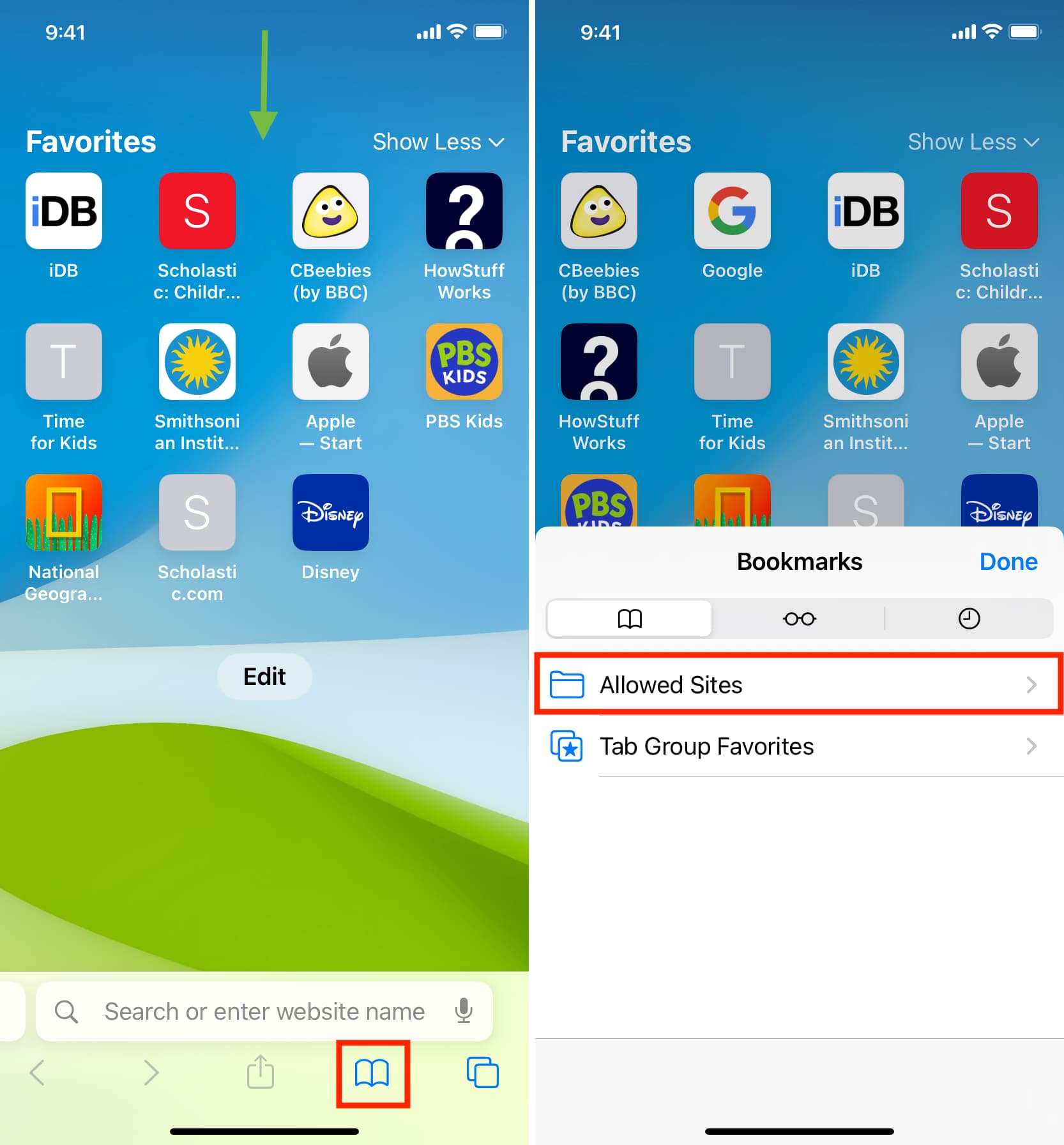
Because the Internet content filter cannot manage saved bookmarks in third-party browsers, it only appears in Safari, not Chrome, Firefox, etc.
On a related note: 15 child-focused features on iPhone and iPad