Do you find Siri suggestions distracting, unnecessary, or unhelpful when you open Spotlight Search on your iPhone or iPad? If so, you can stop Siri from showing such recommendations for a clean search screen.
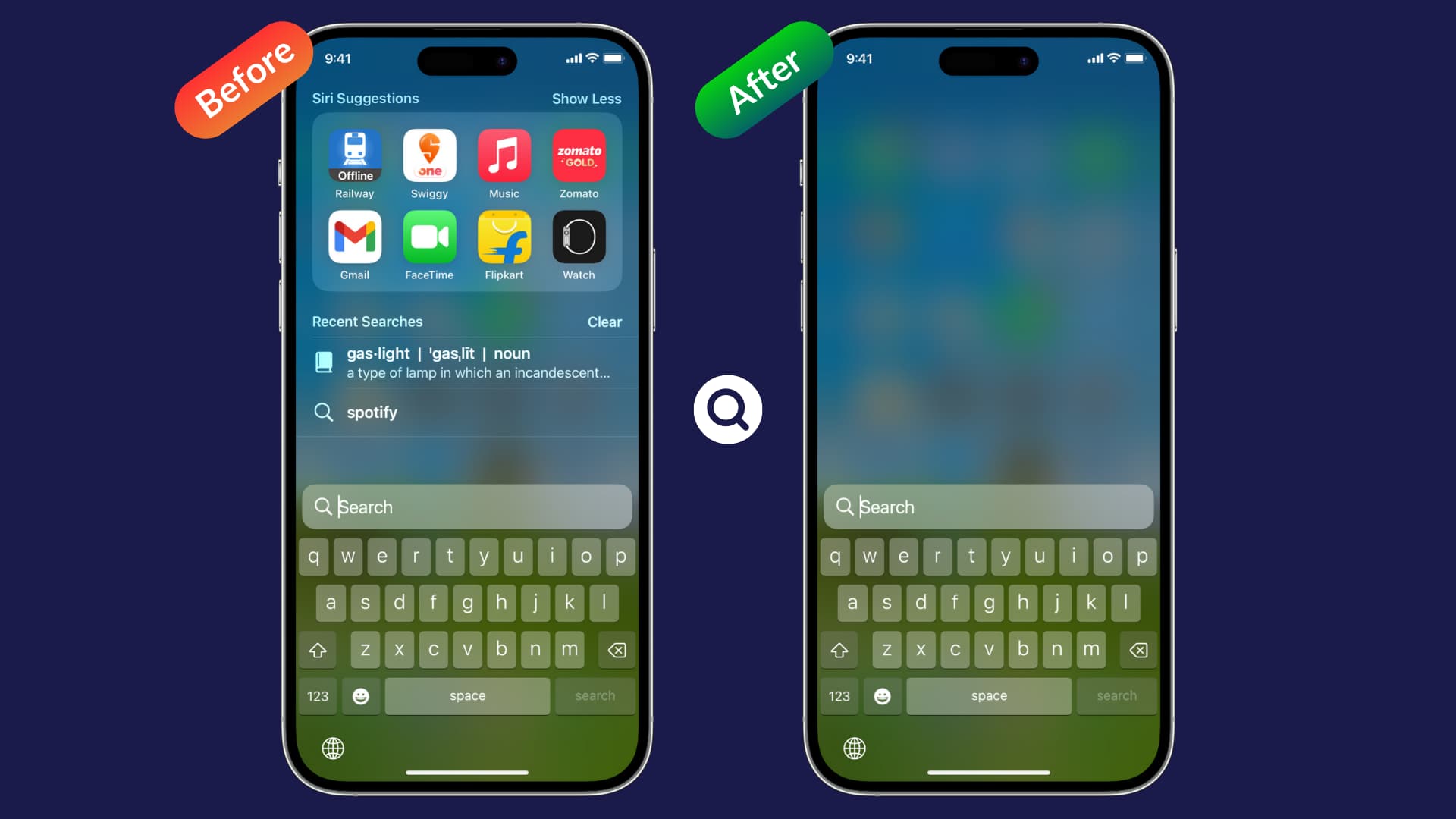
Siri on iOS enables a more intelligent Spotlight Search. You get proactive suggestions that make your device more helpful even before you ask.
So, when you swipe down on your iPhone Home Screen or tap the Search button above the Dock, you may find some app icons and recent searches already populating (or polluting) the search screen — even before you have typed a word.
These Siri-powered suggestions are for apps that you launch at specific times of the day, people you tend to contact at certain times, and more.
However, some people find this additional content distracting and useless. If you’d like to use Spotlight Search without Siri Suggestions, this quick post will teach you how to disable the feature with just a few taps.
Stop showing app suggestions in iOS Spotlight Search
- Open the Settings app.
- Tap Apple Intelligence & Siri or just Siri.
- Turn off Suggest Apps Before Searching.

Here’s the before and after:

- Go to the iPhone or iPad Settings app.
- Tap Search.
- Turn off Show Related Content.

Here’s what the above option does:

Hide recent searches from iOS Spotlight Search
You can clear all searches or stop your iPhone and iPad from showing recent searches in the first place.
- Open iOS Settings.
- Tap Search.
- Toggle off Show Recent Searches.

Spotlight will no longer show your recent searches:

Additionally, you may see suggested news and nearby places such as restaurants, gas stations, retail stores, and more on the Search screen. If you don’t fancy them, we have a separate tutorial showing you how to disable Siri-suggested places in Spotlight on your iPhone.
On the same note: How to stop an app’s data from showing in Spotlight Search on iPhone or iPad