Find out how to hide the Search button from your iPhone Home Screen if you don’t use it and rely on the swipe-down gesture to open Spotlight Search.
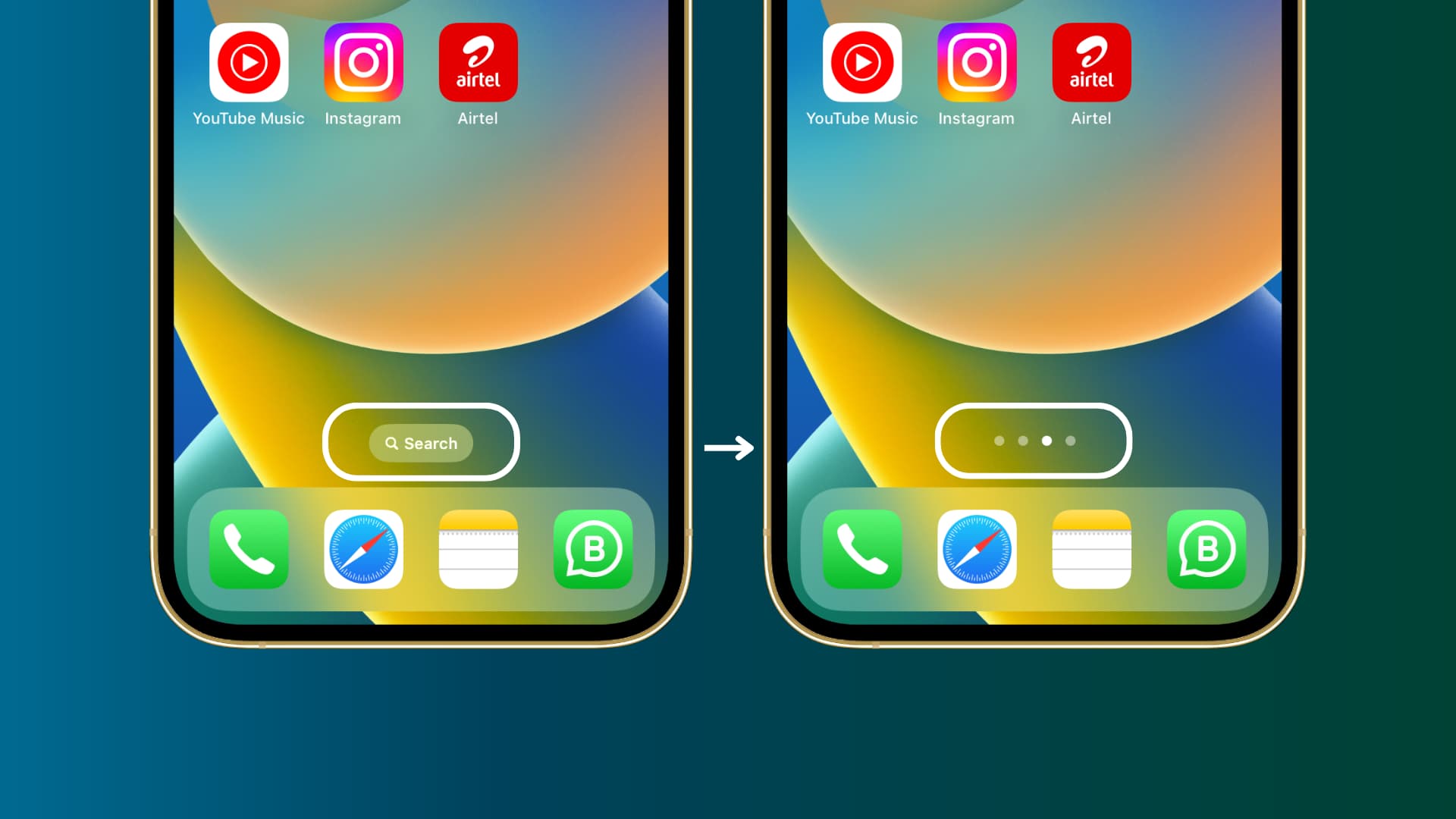
When you swipe down on the iPhone Home Screen or Lock Screen, you get to Search, which is also called Spotlight Search or just Spotlight. It lets you find almost anything on your device, including apps, files, contacts, email, and in-app data. You can also use it to check the weather, run unit conversions, see flight status, and more.
The swipe-down gesture is effortless, but it isn’t obvious to a new iPhone user. Thus, to make things clear, Apple places the search button on the Home Screen, which is always visible, and advertises the function for those who don’t know about it.
However, if you’re a seasoned iPhone user, you might find the button unnecessary. Hiding the search button also shows the dots that indicate your current position relative to the number of visible Home Screen pages on your iPhone. It can be helpful if you have lots of pages with app icons and widgets.
Remove the Search button from iPhone Home Screen
- Open the Settings app on your iPhone.
- Scroll down and tap Home Screen & App Library.
- Under Search, turn off the switch for Show on Home Screen.

Now, when you return to your iPhone Home Screen, the search button won’t appear above the Dock. You can still open Search by swiping down on the Home Screen or the Lock Screen.
After replacing the Search button with the dots, you can now touch and hold on the Home Screen dots to instantly get to the editing screen from where you can hide Home Screen pages, change their order, or delete them.
On a related note: